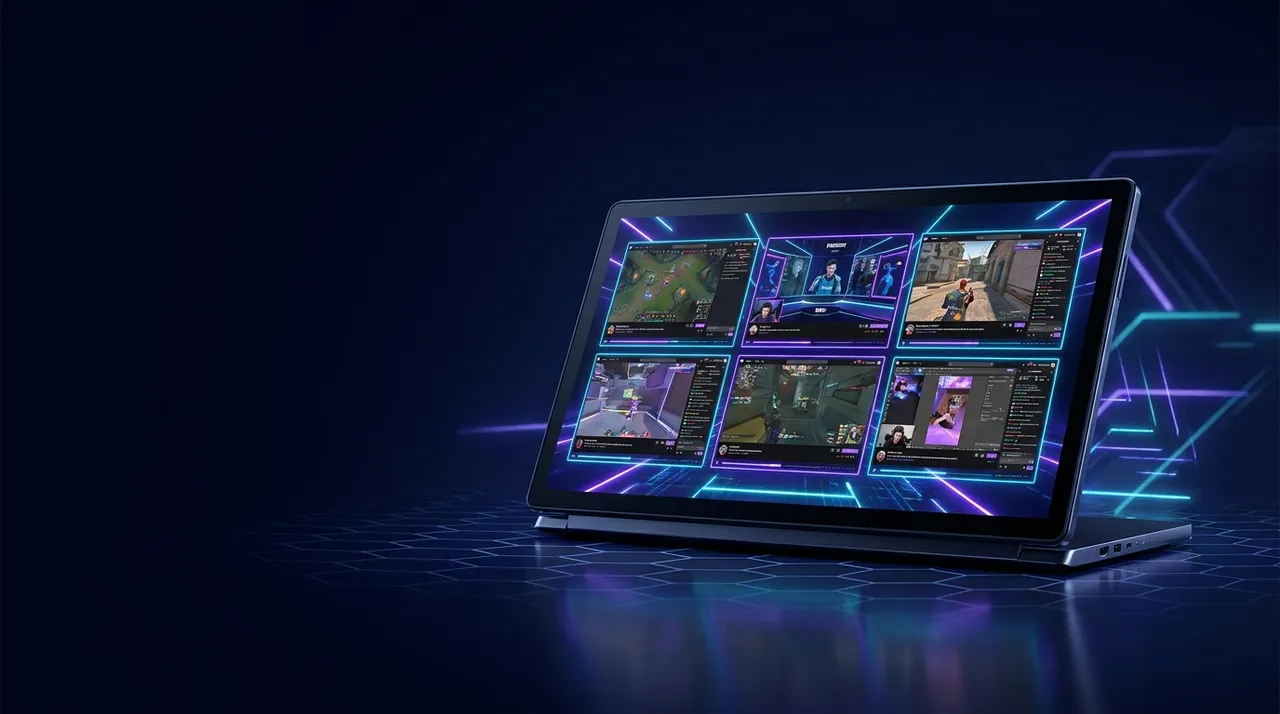
Watch Multiple Twitch Streams: Master Your View
Tired of missing out? Learn how to watch multiple Twitch streams with ViewGrid.tv. Get the ultimate multi-twitch viewer experience, customize layouts, and manage audio like a pro. Say goodbye to FOMO!
You know that feeling, right? It's Tuesday night, you've just finished work, finally sat down, and you're ready to chill. You open Twitch, and BAM! Shroud just dropped into a surprise Valorant tournament, Asmongold is ranting about something hilarious, and your favorite indie streamer is doing a super chill art stream. Suddenly, your brain is doing mental gymnastics trying to decide who to watch. It's the ultimate FOMO, multiplied by three. You click on one, then feel guilty about missing the others. What a nightmare!
For years, this was my life. Always choosing, always regretting. But then, a few brilliant minds out there realized we, the dedicated stream watchers, needed more. We needed a way to truly watch multiple Twitch streams at once, without our computers melting or our brains exploding. Because honestly, sometimes one screen just isn't enough to capture all the amazing content happening live. It's a glorious, chaotic world out there, and we want to see it all.
The Eternal Struggle: Why Just One Stream Isn't Enough Anymore
It's a modern dilemma, I tell ya. Back in the day, you'd pick a TV channel, and that was it. Maybe you'd flip between two during commercials, but live internet streaming changed everything. Now, countless creators are broadcasting, often simultaneously, and often collaborating. I mean, think about it: last year during the big LCS finals, I wanted to watch the main broadcast, sure, but I also really wanted to see Fudge's perspective on C9, you know? And then my buddy was telling me about some co-streamer breaking down every play in real-time. How do you pick just one? You just can't! It's an impossible choice for anyone who actually cares about the content.
We've evolved past just passively watching. We're engaged, we're invested in multiple communities. When a huge charity event is happening, like Games Done Quick or a specific creator's fundraiser, there are often different "channels" or angles you want to follow. Maybe one is the main speedrun, another is the commentary couch, and a third is the donation tracker with silly incentives. Choosing one feels like you're missing half the story. And don't even get me started on massive collabs – like when a bunch of streamers get together for an Among Us session or a Minecraft server event. You want to see everyone's reactions, hear everyone's comms. It's the only way to get the full picture, to really feel like you're in the room with them. Just watching one person means you're missing key interactions, crucial moments, and entire sub-plots unfolding elsewhere.
This isn't just about esports, either. Sometimes I'm just trying to relax, but I have wildly different interests in that moment. Maybe I want to listen to a chill music stream while I keep an eye on a friend playing a new indie game, and simultaneously track a news channel's live coverage of a big tech announcement. Yeah, my brain is usually running on like 12 cylinders, but that's the beauty of it. The old way of just opening multiple browser tabs simply doesn't cut it anymore. It's messy, it's inefficient, and it's a huge pain to manage audio and chat. We need a proper multi twitch viewer that understands how we actually watch.
Twitch's Native Multi-Stream Options (and Their Limitations)
So, Twitch itself recognized this growing need, bless their hearts. They introduced something called Squad Stream a few years back. The idea was brilliant: up to four streamers could link up, and their viewers could watch all four perspectives in a single window, with a dedicated chat for the "squad." The first time I tried it, I was watching some of the OfflineTV crew playing Valorant together, and it was genuinely cool to see how they implemented it. You could easily switch which streamer's audio you were listening to, and the layout was pretty clean.
But here's the kicker: it’s incredibly limited. First off, it only works if the streamers themselves decide to start a Squad Stream. You can't just pick any four streamers you want and force them into a squad. They have to actively initiate it from their end, and frankly, a lot of streamers just don't bother, or they forget, or they're not even aware it's an option. Second, it's capped at four streams. That's fine for small groups, but what if there's a huge event with six or eight different POVs you're interested in? What if you want to watch the main event plus three individual players plus a co-streamer? You’re out of luck. And third, the chat experience is often clunky. It's a shared chat for the squad, which means you're not getting the individual community vibe that makes Twitch chat so special. You also can't easily jump into their specific chat if you wanted to engage with their community directly. So, while Squad Stream was a nice first step, it never really solved the problem for a dedicated twitch multi stream user like me who wants ultimate control. It's like being given a toy car when you really need a full-blown customizable racing rig. It just scratches the surface, leaving us wanting so much more.
The DIY Approach: Browser Tabs and Monitor Mania
Before dedicated tools, what did we all do? We became master tab managers, didn't we? The first time I ever wanted to watch multiple streams, I just opened three separate Twitch tabs in Chrome. My thinking was, "Okay, I'll just put them side-by-side, mute two, and swap audio when I want." Oh, the glorious naiveté of past me! It was a disaster, let me tell you.
My old computer's fan sounded like a jet engine trying to take off. Three high-quality Twitch streams running simultaneously in separate browser tabs? That's a surefire way to tax your CPU and RAM, especially if you've got other stuff running. And the audio! Oh my god, the audio. You're constantly clicking between tabs, trying to mute one, unmute another, adjust volumes. It's a chaotic mess of overlapping sound, or you're just missing crucial dialogue because you forgot which tab was active. Trying to keep track of three different chats, each flying by at 100 miles an hour, while also trying to resize browser windows to fit neatly on a single monitor – it's a juggling act worthy of Cirque du Soleil, and frankly, I'm not that coordinated.
I remember one time I was trying to watch a couple of Dead by Daylight streamers, one playing killer and one playing survivor, plus a friend's stream who was just chatting. My single monitor was split into three impossibly thin rectangles. The video quality suffered, my computer lagged, and I spent more time managing windows than actually enjoying the streams. It was frustrating. This method might work if you just need to keep one stream on in the background, almost like a podcast, and glance at another occasionally. But for truly engaging with multiple live events, for that immersive twitch split screen experience, it's just not practical. It's like trying to build a gourmet meal with only a spork – you can technically do it, but why would you put yourself through that? We deserve better, and thankfully, better exists.
Enter the Dedicated Multi-Stream Viewer: Your New Best Friend
This is where the real magic happens, folks. This is where the frustration ends and the glorious multi-view experience begins. Dedicated multi-stream viewers, particularly those designed to handle the complexity of platforms like Twitch, are a revelation. They're not just browser tabs cobbled together; they're purpose-built tools that understand the nuances of live streaming. They solve all those messy problems I just talked about.
Imagine being able to add any Twitch stream you want, arrange them exactly how you like, and manage all their audio from one central spot. That's the dream, right? These tools are designed to be more efficient with your computer's resources, too. They're usually optimized to load streams without hogging all your RAM or making your CPU scream for mercy. And the layouts? Oh, the layouts! You're not stuck with rigid grids or constantly dragging windows. You can customize the size and position of each stream, create different grid configurations, and even save your favorite setups. It's the difference between trying to hammer a nail with a shoe and using an actual hammer. It just works. For anyone serious about being a multi twitch viewer, these tools are non-negotiable.
How ViewGrid Simplifies Watching Multiple Twitch Streams
This is exactly what ViewGrid.tv was built for. It's the multi-tool in your streaming arsenal, making it incredibly simple to watch multiple Twitch streams alongside each other, or even mixing in streams from other platforms. I've been using it for ages, and it genuinely changed how I consume live content. Let me walk you through just how easy it is to get started.
- Head over to ViewGrid.tv: Seriously, just open the site. You don't need to download anything, no weird extensions, no signup required right off the bat – just pure, unadulterated multi-stream goodness waiting for you. It's all browser-based, which is a huge plus in my book for accessibility.
- Add your first stream: You'll see a big input field. This is where the magic starts. You can either type in a streamer's name (like "xQc" or "Pokimane") or, if you're a creature of habit like me, just paste the direct URL of a Twitch stream you're already watching. Hit enter, and boom – your first stream pops up on the canvas. It's that simple, genuinely. The first time I tried it, I was surprised by how quickly it loaded.
- Pile on more streams: Want to add another? Repeat step two! Type in another name, paste another URL. ViewGrid will automatically arrange them for you in a default grid, but don't worry, that's just a starting point. This is your personal dashboard for your streaming obsession. I often have three or four Twitch streams open, and maybe one YouTube stream from a creator I follow who mostly posts VODs but occasionally goes live.
- Arrange your layout like a pro: Now for the fun part. Each stream you've added is its own draggable, resizable window. You can click and drag them anywhere on the canvas. Want one big stream in the middle and two smaller ones on the side? Done. Prefer a perfect 2x2 grid? Easy. You can even overlap them if you're feeling wild, though I don't usually recommend that unless you're trying to create some kind of abstract art piece. There are also preset grid options available, which are super handy if you just want to quickly snap things into place. This is where ViewGrid shines – the freedom to create your perfect twitch split screen layout. I usually have a dominant stream and two smaller ones below it, like a main event and two side commentaries. It's just more comfortable for my eyes.
- Master the audio: This is usually the biggest headache with multi-streaming, but ViewGrid makes it smooth. Each stream window has its own volume control, and crucially, a mute button. You can click on a stream to make it the "active" audio source, bringing its sound to the forefront while others fade into the background. Or, you can manually mute all but one, and switch with a simple click. It’s a game-changer for maintaining sanity. No more frantic tabbing or browser extension juggling.
- Chat integration: ViewGrid offers a smart way to manage chat. You can have the chat for the currently focused stream displayed, or even pop out individual chats if you want to actively participate in multiple communities. For me, I usually focus on one main stream's chat and just keep an eye on the others, or I just hide chat entirely for the background streams. It's about flexibility, and ViewGrid provides it.
It's genuinely empowering. Last week, I was using ViewGrid to keep up with the Rust Twitch Rivals event. I had the main tournament stream, plus Shroud's POV, Disguised Toast's POV, and one of the smaller teams that was actually doing surprisingly well. I could jump between their comms, see the overall map, and follow the chaos from every angle. It was fantastic. You can easily find the ViewGrid multi-stream viewer on our site to start building your ultimate viewing station.
Beyond Twitch: Expanding Your Multi-Stream Horizons
Let's be real for a second: as much as I love Twitch, not everything worth watching lives there. Some of my favorite creators, like Ludwig, are primarily on YouTube these days. Others, like Kick, are making big moves and drawing huge audiences. So, a true multi twitch viewer experience shouldn't be limited to just one platform, right? If you're going to put in the effort to create your perfect viewing setup, it needs to be versatile.
And that's the beauty of a platform-agnostic tool like ViewGrid. You're not just limited to Watch multiple Twitch streams. You can mix and match. I often have a mix – a couple of big Twitch names, maybe a particular YouTube channel I'm following for a specific series, and sometimes even a Kick stream if there's a unique event happening over there. For instance, if I'm watching a major esports tournament, the main broadcast might be on YouTube while a co-streamer I like is on Twitch. I can have both up side-by-side, no problem. It’s seamless. You can literally Watch multiple YouTube streams and Watch multiple Kick streams right next to each other, alongside your Twitch favorites. It’s what a modern streaming enthusiast needs. The reality of creator platforms means we can’t afford to be locked into one ecosystem if we want to catch all the good stuff. It's a pain for creators, too, I imagine, constantly having to consider where their audience is spread out across. But for viewers? We need a solution, and this is it.
Specific Use Cases for Twitch Split Screen
Let's talk about some real-world scenarios where a powerful twitch split screen setup isn't just a luxury, but a necessity:
Esports Coverage: This is probably the number one reason I rely on multi-streaming. During something like the Valorant Champions Tour or the LEC playoffs, I'm absolutely glued to my screen. I want to see the main broadcast with all the professional commentary and analysis, but I also* want to see the individual player POVs. Sometimes a pro player's cam or their in-game perspective reveals so much more about their decision-making or clutch plays than the main observer ever could. Being able to have the main feed big, and a couple of player cams smaller on the side? That's essential. You can easily set up your dedicated Watch multiple esports streams dashboard for this. I usually have the official stream, then specific player POVs, and maybe even a co-streamer reacting. It’s the ultimate way to follow the action. You could even open a Wikipedia page for the event in another browser window for quick info, like the Valorant Champions Tour page.
Collaborations and Group Content: When streamers get together, that's when the magic happens. Think about all those Among Us lobbies, Rust* server adventures, or just casual talk shows. You can have each participant's stream open, giving you a full 360-degree view of the conversation and reactions. It's like being able to read everyone's mind – or at least see everyone's face when someone drops a surprise. For content like this, one perspective simply isn't enough to grasp the full humor or drama.
* Event Monitoring & News: Beyond gaming, multi-streaming is super useful for live events. Maybe you're tracking a major tech launch, a political debate, or a breaking news story. You can have different news outlets' live feeds up, comparing coverage, or watching a primary source event alongside expert commentary. It's incredibly powerful for staying informed from multiple angles. We've even got a dedicated section for Watch multiple news channels, which is perfect for this. I sometimes keep a local news channel up while monitoring a national one during big events, just to get both perspectives.
Sports Analysis and Fan Reactions: For sports fans, this is also a game-changer. Imagine watching a live football game (or soccer, depending on where you are!) and simultaneously having a live analyst's breakdown stream open, or even a fan watch-party stream. You get the real-time action and* immediate expert or communal reactions. It enhances the entire viewing experience. Our Watch multiple sports streams feature is perfect for catching all the angles. You can truly immerse yourself in the analysis.
My Personal Setup and Tips for the Ultimate Multi-View Experience
Alright, so I've been doing this for a while, and I've refined my setup to a pretty sweet spot. My current rig rocks a dual-monitor setup, which I honestly believe is the minimum if you're serious about multi-streaming. On my main, larger monitor, I’ll usually have ViewGrid open with my primary layout – often a 2x2 grid or one large stream with two smaller ones stacked vertically. Then, on my secondary monitor, I’ll have the chat for my primary stream, or maybe an unrelated web page I’m referencing, or even a second ViewGrid window with completely different streams I’m just casually monitoring. It's total overkill, some might say, but it works for me!
Here are a few tips I've picked up over the years to really get the most out of your multi-view setup:
Audio Focus is Key: This is probably the most crucial aspect. If you have three streams all playing audio, you're going to lose your mind. I usually designate one stream as my "primary audio" and keep the others muted or at very low background volume. ViewGrid's easy audio controls make this a breeze, but sometimes I even use a specific browser extension or my GoXLR's routing to manage complex audio mixes. Pick one stream to listen to actively, and just watch the others. That's my hot take: trying to listen to more than two at once is a recipe for a headache.
Optimize Your System Resources: Even with ViewGrid's efficiency, running multiple high-quality streams takes power. Close any unnecessary tabs or applications. Make sure your browser (I use Chrome, but Firefox is great too) is updated. If you’re on an older machine, consider lowering the quality of the background streams to save bandwidth and CPU cycles. Sometimes, just having a few less Discord servers open makes a difference!
Chat Strategy: Decide which chat you'll actively participate in. Trying to engage in three different chats simultaneously is like trying to have three separate conversations at a crowded party – you'll miss everything. I usually pick my main stream to chat in, and for the others, I just lurk or minimize their chat windows entirely. Sometimes, I just want to watch the content without any distractions, and that's totally fine!
Headphones are Your Friend: Good headphones, especially noise-canceling ones, can make a huge difference. They help you focus on the audio of your primary stream and block out other ambient noise, letting you truly immerse yourself. I used to use speakers, but the echo and blend of sounds was just too much for anything more than two streams.
* Don't Be Afraid to Experiment: The beauty of tools like ViewGrid is their flexibility. Try different layouts, different combinations of streamers, and different audio setups. You'll find what works best for your specific watching habits and the content you're consuming. My preferred layout changes depending on whether I'm watching a serious esports match or a chill group stream.
Why ViewGrid.tv is the Go-To for Your Streaming Obsession
So, why am I banging on about ViewGrid.tv so much? Because it solves a problem that every serious streaming enthusiast faces, and it does it well. It's not just another website; it's a dedicated solution built by people who actually watch streams, who understand the pain points and the desires of the community. It lets you transcend the limitations of single-stream viewing and truly master your own streaming experience.
You no longer have to choose between catching the epic clutch play, the hilarious streamer reaction, or the insightful co-commentary. You can have it all. ViewGrid gives you the power to create your perfect viewing dashboard, blending Twitch streams with content from YouTube, Kick, and beyond, all with intuitive controls for layout, audio, and chat. It’s simple, it’s effective, and it just works.
If you’re tired of juggling tabs, battling with audio, and missing out on half the action, then it’s time to upgrade your viewing game. Head over to ViewGrid and start building your ultimate multi-stream setup today. Trust me, once you go multi-stream, you'll never go back to just one. It’s the ultimate tool to truly watch multiple Twitch streams and whatever else grabs your attention.
Ready to try multi-stream viewing?
Watch YouTube, Twitch, Kick & more — all on one screen.
Open ViewGridRelated Articles
Esports Multi Stream: Set Up for MOBA, FPS & More
Tired of missing clutch plays? Dive into our guide on setting up the ultimate esports multi stream. Learn how to mix platforms, manage audio, and optimize your multi view esports experience with ViewGrid.tv.
how toMulti-Stream Setup: Master Esports & Gaming Events
Overwhelmed by live streams? This detailed multi stream setup guide will show you how to master esports & gaming events with multi view, using ViewGrid.tv to watch multiple streams like a pro.
how toUnlock Full Context: Watch Multiple Live Streams at Once
Tired of missing out? Learn how to watch multiple live streams at once, build your ultimate multi stream setup, and get real-time analysis across YouTube, Twitch, Kick, Rumble with ViewGrid.tv.
how toWatch Multiple Twitch Streams: Master Multi-View
Tired of browser tab chaos? Learn how to effectively watch multiple Twitch streams, including Twitch multi view setups and custom layouts, using ViewGrid.tv for a seamless experience. Your ultimate guide starts here!