ViewGrid.tv
how to18 min read·July 9, 2026

How to Watch Multiple Kick Streams Together

Tired of juggling browser tabs to watch your favorite Kick streams? Our guide shows you how to easily set up a multi-view Kick streams experience with ViewGrid.tv, saving your sanity and CPU.

KickMulti-streamHow-toStreamingViewGrid
How to Watch Multiple Kick Streams Together

Okay, let's talk about the absolute chaos and pure joy of trying to keep up with, well, everything happening on Kick. You know the drill. It's Friday night, or maybe a slow Tuesday afternoon, and suddenly, three of your favorite Kick streamers all go live at the same time. One's doing a crazy IRL stream from a new country, another is deep-diving into some new game you've been curious about, and then there's the one who just started a viewer-call-in segment. How in the world are you supposed to catch it all?

For ages, this was my personal viewing nightmare. I'd open a tab for each stream, crank up the volume on one, mute the others, and then franticly alt-tab between them, praying I didn't miss a key moment. It was... not ideal. My laptop fans would spin like a jet engine, my internet connection would occasionally weep, and honestly, the whole experience left me more stressed than entertained. But here's the thing: you don't have to live that life anymore. There are much, much better ways to watch multiple Kick streams simultaneously, and trust me, your sanity (and your CPU) will thank you.

Why Even Bother with Multi-Stream Kick?

Before we dive into the how, let's chat about the why. For me, it boils down to pure, unadulterated FOMO – Fear Of Missing Out. Kick, in particular, has seen a massive surge in unique content and creators, especially with some of the biggest names in streaming making the jump. We're talking about folks like xQc, Adin Ross, and Trainwreckstv, who bring their own massive communities and often have truly unscripted, spontaneous moments. You really don't want to miss a major raid, a wild reaction, or an unexpected guest appearance, do you? I know I don't.

Think about it:
Esports events: Imagine an important Counter-Strike 2 tournament. You want to see the main broadcast, sure, but you also want to follow your favorite player's POV stream, or maybe a co-stream from a popular analyst giving their live reactions. This is crucial for truly understanding the game.
IRL shenanigans: Ever tried to keep up with multiple streamers exploring the same city or event, but from different angles? It's like having multiple camera crews at your disposal. Last month, I was trying to watch a few streamers at TwitchCon (I know, I know, but sometimes they stream on Kick too!), and seeing the event through different lenses was awesome. One was focused on the crowd, another on specific booths, and a third was just vibing with other creators. You miss so much perspective if you only pick one.
Variety content: One streamer's doing a hardcore speedrun, another's building intricate things in Minecraft, and a third is just chatting with their community. All equally compelling, all happening right now*. How do you choose? Well, with a proper multi-view Kick streams setup, you don't have to. You can just have them all running.

And honestly, sometimes it's just about having background noise. I'll often have a few streams going while I'm working or doing chores – maybe a chill "just chatting" stream, a low-key gaming session, and perhaps a podcast-style stream. The ability to glance over and catch a visual cue, rather than just listening to audio, makes a huge difference to how engaged I feel. It transforms a passive listening experience into an active, multi-sensory one.

So yeah, for me, multi-streaming isn't just a convenience; it's an essential part of how I consume content these days. It lets me maximize my viewing time and catch those fleeting, unmissable moments that make live streaming so great.

The Good Old (And Annoying) Manual Way

Alright, let's talk about the dark ages. The time before we all wised up and realized there were better ways. For the longest time, the default method to watch multiple Kick streams was simply opening a bunch of browser tabs. It seems logical, right? One tab, one stream. Easy peasy. Except, it’s not. It’s a performance nightmare, an audio train wreck, and a visual cluster.

The Headache of Tab Management

You open Kick.com, find your first stream. Great. Then you open another tab, navigate back to Kick, find the second stream. Rinse and repeat. Before you know it, you've got five, six, seven tabs all vying for your browser's attention. Even with modern browsers being pretty good about resource management, having a dozen active video players simultaneously running JavaScript, pulling data, and rendering video is a heavy load.

I remember trying to watch a Valorant tournament where my favorite team had two players streaming their POVs on Kick, plus the main broadcast. My poor gaming rig, which can run Cyberpunk 2077 at ultra settings, was suddenly struggling to keep up with Chrome. The fans were roaring. The video streams were buffering. It was a stuttering mess that completely pulled me out of the experience. And that's before we even talk about trying to arrange those tabs on a single monitor, constantly dragging them around, resizing windows. It's a full-time job in itself just managing the windows, let alone actually enjoying the content. You end up missing stuff anyway because you're too busy fiddling with the UI.

Audio Chaos

And then there's the audio. Oh, the audio! If you don't meticulously mute every stream except the one you really want to hear, you're hit with a cacophony of sound. Multiple voices talking over each other, game sounds clashing, music overlapping – it's like a bad dream where everyone's shouting at once.

My usual workaround was to mute all but one tab, then frantically click through tabs to hear what was happening on the others. This meant I was constantly missing context. If a streamer reacted to something hilarious, but their tab was muted, I'd just see a surprised face and have no idea why. It breaks immersion, and frankly, it's just frustrating. Even with browser extensions that let you control tab audio more easily, it's still a manual process, and when you're trying to follow complex or fast-paced content, every second counts. You don't want to be fumbling with mute buttons when xQc is about to do something wild.

This old-school approach is fine if you're only watching two streams, and maybe one of them is just ambient background noise. But for any serious multi-streaming, especially if you want to actively engage with more than one, it just doesn't cut it. It’s a relic of a simpler time, before we had the tools to truly embrace the multi-channel universe.

Dedicated Multi-Stream Tools: A Sanity Saver

This is where the magic happens, folks. This is where we step out of the dark ages of browser tabs and into the glorious light of dedicated kick multi-stream setup solutions. These tools, like our very own ViewGrid.tv, are specifically designed to solve all those headaches we just talked about. They're not just opening multiple tabs; they're optimizing the entire viewing experience.

The core idea is simple: instead of your browser trying to render a bunch of independent web pages, a multi-stream tool aggregates all your chosen streams into one clean, manageable interface. It's like having a control center for your streaming universe. You pick the streams, arrange them how you like, and the tool handles the heavy lifting.

What these platforms do is provide a single, optimized player that can simultaneously fetch and display multiple video feeds. This often means better performance because the tool isn't loading all the extra elements of a full Kick webpage (like chat, recommendations, ads, etc., for every single stream). It's primarily focused on delivering the video, which is what we care about most when we're trying to watch multiple Kick streams at once.

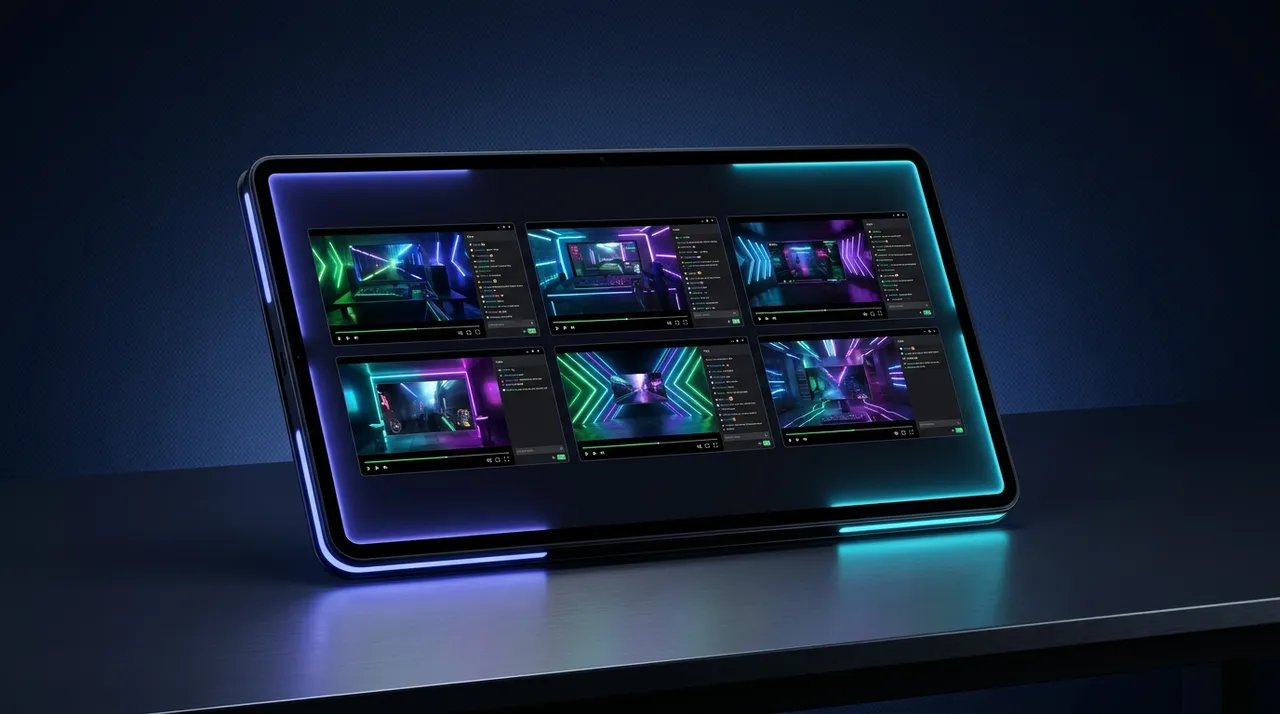
One of the biggest benefits, for me, is the sheer visual clarity. Instead of tiny, awkwardly resized browser windows, these tools give you pre-defined layouts or allow you to customize your own split screen Kick arrangement. You can have a main stream occupying a larger portion of your screen, with secondary streams in smaller windows alongside it. Or a perfect grid of four, six, or even more, if your monitor (and your eyes) can handle it. This flexibility is a total game-changer. It means you can tailor your viewing experience to the specific content you're watching. If it's an esports match, I'll have the main broadcast large, with a couple of player POVs smaller. If it's just a bunch of friends chilling, I'll go for a more even grid.

And the audio? Oh, the sweet, sweet audio control. Most good multi-stream platforms give you individual volume sliders for each stream, right there in the interface. No more digging through browser tab menus. You can quickly toggle between hearing one stream clearly, or blending a couple, or muting everything but your primary focus. It's intuitive and immediate, which is exactly what you need when a stream suddenly gets exciting and you want to jump over to it without missing a beat.

These platforms often also come with features that enhance the overall experience. Some allow you to quickly swap streams, so if your primary focus changes, you can instantly make another stream the main one without losing your place. They might offer chat integration for the primary stream, or even multiple chats if you're really feeling chaotic. It's about taking the frustration out of multi-viewing and letting you actually enjoy the content.

Your Step-by-Step Guide to Watching Multiple Kick Streams on ViewGrid

Alright, enough preamble. You're here to learn how to actually get this done, and done right. Using ViewGrid.tv is genuinely straightforward, designed to be intuitive even if you've never multi-streamed before. This is how I usually set up my viewing sessions, whether it's for Kick, Twitch, or whatever else is popping off.

Here’s the step-by-step breakdown to get your kick multi-stream setup running:

  1. Head over to ViewGrid.tv: First things first, open your browser and navigate to our main page. You'll immediately see a clean interface ready for action. No need to download anything – it's all web-based. This is fantastic because it works on virtually any device with a modern browser.
  2. Find your first Kick stream: You'll see an input field, usually front and center, asking for a stream URL. Go to Kick.com, find the first streamer you want to watch, and copy their URL directly from your browser's address bar. It'll look something like https://kick.com/xqc or https://kick.com/adinross.
  3. Paste and Add: Paste that URL into the input field on ViewGrid and hit "Add Stream" (or just press Enter). You'll see that stream pop up in its own player window on ViewGrid. It's usually the largest one by default.
  4. Add more Kick streams (or others!): Repeat step 3 for every additional Kick stream you want to add. Just copy the next Kick URL, paste it into the input field, and add it. As you add more streams, ViewGrid will automatically adjust the layout to fit them all on your screen. You can add as many as your screen can reasonably display and your internet can handle. Seriously, don't be shy! I often have 4-6 streams going, especially if it's an event day.
  5. Customize your layout (optional but recommended): This is where you make it yours. On ViewGrid, you'll find options to change the layout. Maybe you want a 2x2 grid, or a larger main player with smaller ones on the side. Experiment! Click on the different layout buttons until you find one that suits what you're watching. This flexibility is key to a comfortable split screen Kick experience. You can even drag and drop players to rearrange their positions within the chosen layout. Want xQc top-left, and your friend's stream bottom-right? Go for it!
  6. Manage your audio: Each stream player on ViewGrid will have its own volume control. This is arguably the most important feature. Click on the speaker icon or adjust the slider for each stream to get the perfect mix. Mute the streams you just want to observe visually, crank up the volume on your primary focus, and perhaps have a secondary stream at a lower volume for ambient sound. You'll quickly find your preferred balance. I usually keep one stream at 100%, one at 30-40%, and the rest muted.
  7. Enjoy the show! That's it. You're now a multi-streaming maestro. Sit back, relax, and enjoy all the simultaneous action without the browser tab headache. You can easily switch your primary audio focus or quickly rearrange your layout if your viewing priorities change.

And hey, ViewGrid isn't just for Kick. You can actually mix and match streams from different platforms! Want to watch a Kick stream, a Twitch stream, and a YouTube live event all at once? No problem. That's the real power of a platform like this. You can check out our dedicated pages for watching multiple Twitch streams, watching multiple YouTube streams, or even watching multiple esports streams all in one place. It truly centralizes your viewing experience.

Tips and Tricks for the Ultimate Multi-View Kick Experience

Just getting the streams on your screen is one thing. Making the experience good is another. After countless hours of watching multiple streams – probably more hours than I'd care to admit – I've picked up a few pointers that elevate the whole thing from "bearable" to "blissful."

Audio Management is Key (Seriously)

I already touched on this, but it bears repeating. Audio is probably the single most critical factor in making a multi-stream setup work without driving you absolutely mad. Trying to follow four different conversations at once is impossible.

My personal strategy:
One primary audio source: Always designate one stream as your main focus. This is the one you'll have at full volume, or close to it.
Secondary ambient audio: Sometimes, I'll have a second stream with its volume turned way down – maybe 10-20%. This is usually for background music, or if it's a "just chatting" stream with a mellow vibe. It adds to the atmosphere without being distracting.
* Mute the rest: Everything else? Muted. You're just watching those visually. If something interesting happens, you can quickly unmute, catch the moment, and then mute it again. This way, you don't miss the visual cue, but you're not drowning in sound.

It takes a little practice to find your sweet spot, but once you do, you'll wonder how you ever lived without it. The key is that the controls are right there on ViewGrid, easily accessible for each player.

Optimize Your Display

If you have multiple monitors, you are in for a treat. This is where a multi-view Kick streams setup truly shines. I usually dedicate one entire monitor to my ViewGrid layout. This way, I can have a massive grid of streams without them feeling cramped. On my other monitor, I'll have chat open, maybe Discord, or just some other work I'm doing.

But even with a single monitor, you can optimize.
Full-screen the ViewGrid page: Get rid of browser tabs and toolbars. Maximize that browser window.
Choose a balanced layout: Don't try to cram eight streams onto a 1080p monitor if you want to actually see what's happening. Sometimes less is more. A 2x2 grid (four streams) is a fantastic starting point for most standard monitors.
* Consider resolution: If you're watching multiple high-resolution streams (like 1080p or even 1440p), your internet connection and CPU will be working hard. If you experience buffering, try reducing the quality of less important streams within their individual players on ViewGrid. It saves bandwidth and processing power.

Chat Integration – Or Lack Thereof

This is where multi-streaming gets a little tricky. Most multi-stream viewers, including ViewGrid, focus on the video content itself. This means you typically won't get integrated chat for every stream you're watching simultaneously. Trying to follow four different chats at once would be, well, impossible for any human.

So, my advice here is:
Choose your primary chat: Decide which stream's chat you want to actively participate in or monitor. Open that specific Kick stream in a separate browser tab (muted, of course) on another monitor, or in a pop-out chat window.
Embrace the visual: For the other streams, accept that you're there for the visual content. You're observing, not actively engaging in their individual chatrooms. If you see something in a secondary stream that makes you want to jump into its chat, you can always navigate there quickly.

It's a trade-off, but for me, the ability to see multiple streams far outweighs the need to engage with every single chat simultaneously.

Beyond Kick: Expanding Your Multi-Stream Horizons

While we're talking about how to watch multiple Kick streams, it's important to remember that the principles and tools like ViewGrid apply across the board. The beauty of a platform like ours is its versatility.

You might be watching a huge event like the F1 Grand Prix – which often has multiple concurrent streams for different camera angles, driver POVs, or commentary tracks. Or perhaps you're into the wild world of competitive gaming, trying to keep up with different matches in a League of Legends or Dota 2 tournament. For that, you'll want to check out our specific page for watching multiple esports streams.

And it's not just gaming or specific events. I sometimes like to have multiple news channels going during a major breaking story. One national news channel, one international, and maybe a local one. It gives you such a rounded perspective! We even have a dedicated section for watching multiple news channels. The potential for multi-streaming is honestly limitless. It empowers you to curate your own media experience, rather than being limited to one channel at a time. It’s a powerful way to stay informed, entertained, and connected to multiple communities without the constant juggling act.

One thing I've found incredibly useful is the ability to create and save specific layouts on some multi-stream platforms. While ViewGrid's core functionality is super flexible, for specific recurring events (like my weekly Tuesday night gaming group who all stream on Kick), I wish I could just load a "Tuesday Night Crew" preset. It's a minor thing, but it's the kind of quality-of-life improvement that really enhances the experience for habitual multi-streamers. Still, the drag-and-drop customization on ViewGrid makes it easy to quickly recreate your favorite setup.

Why ViewGrid.tv Just *Gets* It

So, you've heard my rantings and raves about why watching multiple Kick streams is the superior way to consume content. You've seen the painful alternative and the glorious solution. Now, let's talk about why ViewGrid.tv is your go-to for making all of this happen.

For me, it comes down to a few core things that ViewGrid absolutely nails. First, it's the simplicity. I've tried other multi-stream tools, and some are overly complicated, full of extra features I don't need, or bogged down with clunky interfaces. ViewGrid keeps it clean. You paste a URL, hit enter, and boom – stream's up. You can easily add more, adjust layouts, and control audio with minimal fuss. That's crucial when you just want to get to the content.

Second, it's the performance. I mentioned my laptop fans spinning up like a helicopter with too many browser tabs. With ViewGrid, I rarely have that problem. It's optimized to deliver those video feeds without all the extra baggage that comes with a full webpage. This means smoother playback, less buffering (internet allowing, of course!), and a happier computer. And let's be real, nobody wants their viewing experience marred by choppy video.

And finally, it's the versatility. While this post is all about Kick, the beauty of the ViewGrid multi-stream viewer is that it supports so many platforms. Whether you're trying to watch multiple sports streams, keep an eye on breaking news, or just follow your favorite creators across Twitch, YouTube, and Kick, ViewGrid handles it all. It means you don't need a different tool for every platform – it's one central hub for all your multi-streaming needs. It integrates so seamlessly that you can literally have a Kick streamer next to a YouTube gamer, next to a Twitch podcast. It's truly platform-agnostic, which is a big win in today's fragmented streaming world.

So next time you're faced with that classic streaming dilemma – too many great streams, not enough eyeballs – remember that you've got a powerful, user-friendly solution waiting for you. Dive into the world of multi-streaming with ViewGrid.tv and redefine how you consume live content. You'll be glad you did. Your days of browser tab hell are officially over.

Ready to try multi-stream viewing?

Watch YouTube, Twitch, Kick & more — all on one screen.

Open ViewGrid

Related Articles