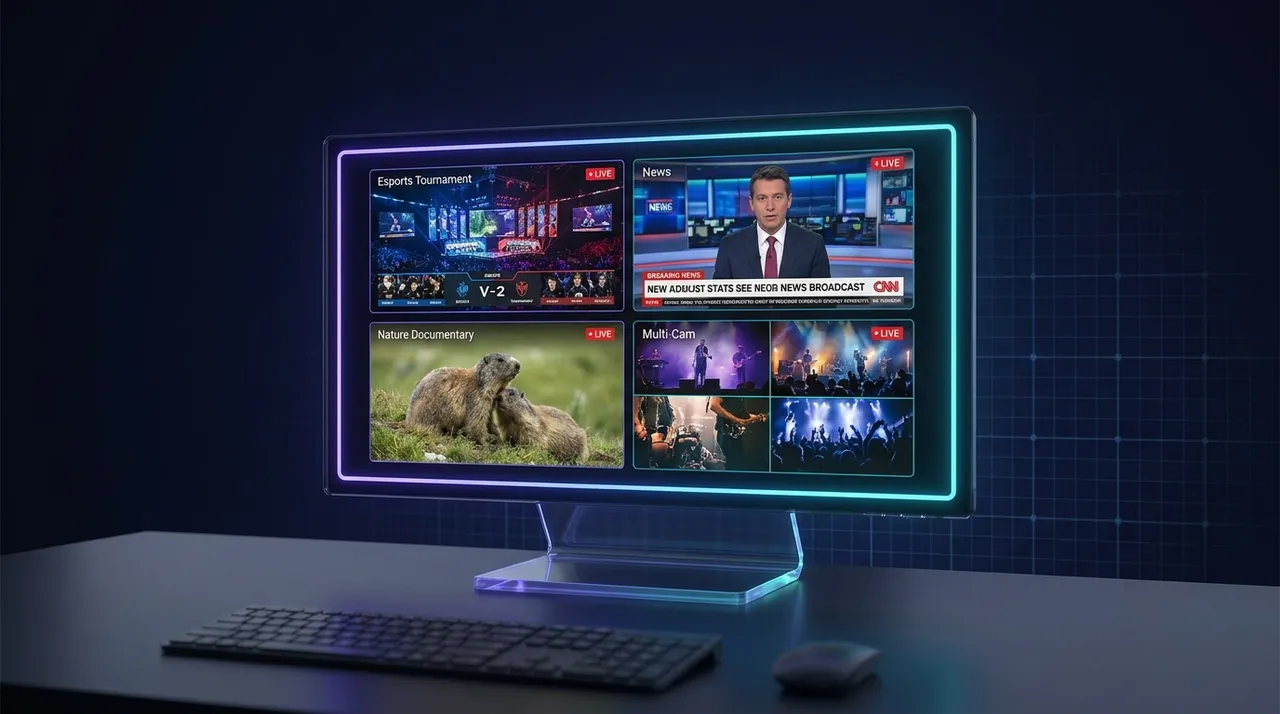
How to Watch Multiple Streams Lag-Free: ViewGrid Tips
Tired of lag when watching multiple streams? This guide dives deep into optimizing your setup, from hardware to internet, and reveals how ViewGrid.tv provides the ultimate multi stream lag fix for a smooth viewing experience.
Okay, let's talk about it. We've all been there, right? You're trying to keep up with the latest in esports, or maybe there's a huge news event unfolding, and you want to see what multiple sources are saying. Or, and this is me most weekends, you've got friends streaming different games, or even playing the same game but from wildly different perspectives – a main tank POV here, a DPS flanker there, maybe a support trying to keep everyone alive in a chaotic team fight. You want to watch them all. Simultaneously. Without tearing your hair out.
The dream is clear: a seamless, side-by-side, perfectly synced stream fest. The reality, for most of us, is often a stuttering, audio-muddled mess that grinds your browser, and sometimes your entire PC, to a halt. It's frustrating. You’ve got the bandwidth, you’ve got a decent machine, so why is it still such a pain to figure out how to watch multiple streams without everything turning into a slideshow?
That's precisely what we're going to dig into today. We’re not just talking about opening a bunch of browser tabs and hoping for the best – anyone can do that, and anyone who has knows it’s a recipe for disaster. We're talking about making it work. Smoothly. Efficiently. We’re aiming for that sweet spot where you can keep an eye on Twitch Rivals and your buddy’s terrible bronze league play, all while staying updated on the latest space launch. And, yeah, we’ll talk about how ViewGrid.tv is built specifically to make this dream a reality, giving you that much-needed multi stream lag fix.
Why Even Bother with Multi-Streaming? (And Why It's Often a Pain)
For me, multi-streaming isn't just a niche thing; it's become an essential part of how I consume content. Take the recent LEC or LCS playoffs, for instance. You've got the main Riot Games broadcast, which is fantastic, don't get me wrong. But then you've also got official watch parties from streamers like LS, or specific team POVs from players like Caps or Faker during major international events like Worlds. If I'm really trying to understand the meta, or just enjoy the chaos from all angles, I need to see more than just the default. I need to see the main broadcast for the overall narrative, maybe the observer feed for detailed jungle pathing, and then one or two pro player POVs to see how they're actually executing their plays. It’s like having a director’s cut, a behind-the-scenes, and the final film all playing at once – incredibly insightful, but also incredibly demanding on your system.
It's not just esports, either. Last month, when that one major news story was breaking – you know the one, everyone was glued to their screens – I had CNN, Fox News, and BBC News all running side-by-side. It wasn't about finding the truth, it was about getting different angles, different tones, and seeing what aspects each network chose to highlight. The contrast was genuinely eye-opening. For sports fans, imagine watching the main broadcast of a big game, but also having a dedicated camera on your favorite player, or a live feed from the bench for some raw reactions. It changes the experience completely. You feel more immersed, more informed, more in control.
But here’s where the pain comes in. You open Twitch.tv in one tab. Then YouTube Gaming in another. Maybe a Kick stream in a third. Before you know it, your browser’s chewing through gigabytes of RAM like it’s a snack, your CPU fan sounds like a jet engine trying to take off, and your video feeds are stuttering, freezing, or just refusing to load at a decent quality. The audio? Don't even get me started. You’re frantically muting and unmuting tabs, trying to follow a conversation on one stream while another blasts game audio over it. It’s chaotic. It’s the opposite of a smooth experience. That’s the problem we’re trying to solve. You want a multi stream lag fix, not a headache.
The Usual Suspects: What Kills Your Multi-Stream Experience
Alright, let's break down why your computer chokes when you try to juggle multiple live streams. It's rarely just one thing; usually, it's a perfect storm of factors, all conspiring against your viewing pleasure.
Your Hardware: Not Just About the GPU
When people talk about PC performance, they almost always jump straight to the GPU. "Do I need an RTX 4090 to watch streams?" they ask. Well, for one stream, probably not. For multiple high-quality streams, it’s a little more nuanced. Your graphics card definitely plays a role in decoding video, especially with modern codecs like AV1 or HEVC, but it’s far from the only player on the field.
Think about your CPU. Each stream you open needs processing power to decode the video, handle the audio, and manage the stream's data. If you're running four streams, that's essentially four simultaneous video decoding tasks your CPU has to manage. A multi-core processor is key here. If you're rocking an older CPU with fewer cores or threads, it's going to struggle to keep up with all those parallel tasks. My old i7-6700K, bless its heart, could handle maybe two 1080p streams comfortably. Try three, and it was gasping for air. My current Ryzen 9, with its many cores and threads, barely breaks a sweat with five or six. It's a noticeable difference.
Then there's RAM. Each browser tab, each video player, each background process – they all consume memory. Open three or four streams in separate browser tabs, and watch your RAM usage skyrocket. Chrome, especially, is notorious for its memory footprint. If you have 8GB of RAM, you're going to hit a wall fast. 16GB is really the minimum I'd recommend for any serious PC use these days, and 32GB is where you start to feel genuinely comfortable with multi-tasking, especially if you're multi-streaming and doing other things like chatting in Discord, having a game open, or just browsing.
And while the GPU isn't the only thing, it's certainly important. Modern GPUs have dedicated hardware video decoders that can offload a lot of the work from your CPU. This is called hardware acceleration. If your GPU isn't properly utilized, or if hardware acceleration is disabled (sometimes by default in certain browsers or browser settings), then your CPU has to do all the heavy lifting, leading to stutters and lag. Making sure your GPU drivers are up-to-date and hardware acceleration is enabled is a critical, often overlooked step in getting that smooth multi stream experience.
Here’s a mild hot take: People always blame their internet provider first when something lags, but honestly, about 60% of the time I troubleshoot multi-stream issues for friends, it's their own machine that's bottlenecking things. Check your Task Manager (or Activity Monitor on Mac) – it’ll tell you pretty quickly if your CPU or RAM is maxing out.
Your Internet Connection: Speed, Stability, and the Invisible Killer
Alright, so your hardware might be beefy, but if your internet connection is flaky, you’re still in for a bad time. It's not just about raw speed, though that's obviously a big part of it.
Bandwidth is the most obvious factor. A single 1080p stream at 60 frames per second can easily consume 6-8 Mbps. If you're trying to watch four of those, you're looking at 24-32 Mbps minimum, just for the streams. Add in other household internet usage – someone else watching Netflix, downloading a game update, video calls – and suddenly that 100 Mbps connection doesn't seem quite so generous. If you're aiming for 4K streams (good luck!), you'll need significantly more. My personal rule of thumb for comfortable multi-streaming is to have at least 25 Mbps per high-quality stream you intend to watch simultaneously, plus a buffer for everything else. So, for four streams, I'd want at least 100-150 Mbps dedicated to my machine.
But here’s the kicker: it’s not just speed. Stability is equally, if not more, important. You can have a 500 Mbps connection, but if your Wi-Fi signal is constantly dropping packets or suffering from interference, those streams are going to stutter and buffer. This is where latency and jitter come into play. Latency is the delay in sending and receiving data, and jitter is the variation in that delay. High latency or jitter, even on a fast connection, can manifest as those annoying micro-stutters or brief freezes that ruin the fluidity of a live broadcast.
This is why, and I cannot stress this enough, using an Ethernet cable is almost always superior to Wi-Fi for multi-streaming. Wi-Fi is convenient, absolutely. But it's prone to interference from other devices, walls, even your microwave. It can have wildly inconsistent speeds and higher latency. Plugging directly into your router or a network switch with a good old Ethernet cable provides a much more stable, consistent, and generally faster connection. Last week I was watching a major esports final, trying to do it on Wi-Fi from another room, and the constant little hiccups were driving me insane. Switched to a powerline adapter and an Ethernet cable, and boom – perfectly smooth. It’s a simple change that makes a huge difference for that much-needed smooth multi stream experience.
Browser vs. Dedicated App: The Overhead Battle
Okay, this is where a lot of the real inefficiency comes from. When you open a stream in a new browser tab, you're not just opening a video player. You’re opening a whole new browser instance, with its own set of resources allocated, sometimes even its own JavaScript engine, its own cache, and all the overhead that comes with it. Each tab is essentially its own little application, doing its own thing. That’s why your browser gets so memory-hungry and CPU-intensive.
Browser-based players, while convenient for single streams, are simply not designed for the kind of simultaneous, high-performance video decoding that multi-streaming demands. They're generalists, not specialists. They have to accommodate a million different websites and technologies, which means they can’t be hyper-optimized for just one task like playing multiple streams from Twitch, YouTube, or Kick at once.
This is precisely where dedicated applications, or platforms specifically designed for multi-streaming like ViewGrid, shine. Instead of launching multiple independent browser instances, a dedicated multi-stream viewer can consolidate the video feeds into a single, optimized application framework. This means better resource management, more efficient video decoding, and significantly less overhead. It’s the difference between trying to run four separate word processors versus opening four documents in one instance of a single, optimized word processor. One is just naturally more efficient.
Optimizing Your Setup for a Smooth Multi-Stream Experience
So, you understand the problems. Now, let’s talk solutions. Getting that glorious, lag-free multi-stream setup isn't rocket science, but it does require a bit of thought and some proactive tweaking. This isn't just about throwing money at new hardware; sometimes, it's about making your existing setup work smarter.
The Low-Hanging Fruit: Basic System Hygiene
Before you dive deep into network settings or start considering a CPU upgrade, let’s tackle the easiest wins. These are the things that take minutes but can make a surprising difference.
First off, close background apps. Seriously. That game launcher you left open? The dozen Chrome tabs you're not actively using? The Spotify app silently streaming music to your headphones? They're all consuming CPU cycles, RAM, and potentially even network bandwidth. If you're serious about getting a smooth multi stream, shut down anything that isn't absolutely essential. I usually close my Discord app entirely if I’m not actively talking to anyone, especially during big events. Every little bit helps.
Next, update your drivers. This is particularly crucial for your GPU drivers. Graphics card manufacturers frequently release updates that include performance improvements, bug fixes, and — critically for us — optimizations for video decoding. An outdated driver might not be efficiently utilizing your GPU's hardware acceleration features, forcing your CPU to pick up the slack, which we know is a recipe for stuttering. Head to NVIDIA's, AMD's, or Intel's website (depending on your GPU) and grab the latest stable drivers. Don’t skip this!
If you are still trying to multi-stream primarily through your browser, at least clear your browser cache and cookies regularly. Over time, your browser accumulates tons of temporary files, which can slow things down. A fresh cache can sometimes magically improve performance, especially on video-heavy sites. Also, consider trying a different browser. While Chrome is dominant, sometimes Edge or Firefox can handle video decoding slightly differently, and one might perform better on your specific system. I've heard anecdotal evidence for all three being "best" at different times, so experiment if you're desperate.
Finally, and this might sound obvious, but monitor your resource usage. Keep Task Manager (Ctrl+Shift+Esc on Windows) or Activity Monitor (Cmd+Space, search "Activity Monitor" on Mac) open while you're trying to multi-stream. Watch your CPU, RAM, and network usage. If one of them is consistently hitting 90-100%, you've found your bottleneck. This information is invaluable for figuring out where to focus your optimization efforts for that multi stream lag fix.
Internet Tweaks: From Cables to Routers
We talked about it before, but let’s reiterate: use Ethernet. Seriously, if you're multi-streaming regularly, run a cable. Even a cheap, long Ethernet cable is better than struggling with an inconsistent Wi-Fi signal. If running a cable isn't feasible, consider powerline adapters, which use your home's electrical wiring to extend your network, or a high-quality mesh Wi-Fi system if you absolutely must stay wireless. But cable is king.
If you’re a bit more tech-savvy, you can delve into your router's QoS (Quality of Service) settings. QoS allows you to prioritize certain types of traffic or specific devices on your network. You could, for example, tell your router to give priority to your PC's traffic, ensuring that your multi-streams get the lion's share of bandwidth when you need it, even if someone else is downloading a huge game update. Be careful with QoS though; incorrect settings can sometimes make things worse. If you're unsure, check your router's manual or search for guides specific to your router model. For example, this Wikipedia article on QoS can give you a good theoretical background, but consult your router's specific documentation for implementation.
And yeah, if you’ve done everything else, and your network usage is still maxing out, it might just be time to consider a faster internet plan. If your household consistently uses a lot of bandwidth, especially with multiple people streaming, gaming, or working from home, upgrading your internet speed can be the simplest, albeit not cheapest, solution. It’s hard to get a smooth multi stream experience if you simply don't have enough data coming in.
Stream Settings: Finding the Sweet Spot
Not every stream needs to be watched at glorious 4K 60fps. Sometimes, you gotta make sacrifices for the greater good – the greater good being a lag-free experience across all your streams.
Lowering the resolution and/or bitrate is your secret weapon. For your primary, most important stream, sure, crank it up. But for the supplementary streams – the one showing a pro player’s minimap, or a secondary news channel you’re just passively monitoring – drop it down to 720p or even 480p. The difference in bandwidth and processing power required is massive. Most streaming platforms (Twitch, YouTube, Kick) allow you to manually adjust the quality directly on the video player. It’s a simple click, but it can free up significant resources.
Similarly, consider the frame rate. Most streams are 60fps, which is great for fast-paced games. But if you're watching a chess stream, a reaction cam, or a slower-paced crafting stream, do you really need 60fps? Probably not. Reducing it to 30fps (if the option is available) can also lighten the load. It's about intelligently allocating your resources where they matter most.
One thing that bugs me is when platforms auto-set quality based on what they think your connection can handle, but don't factor in you're trying to watch three other things at the same time. Sometimes you have to be assertive and manually set the quality to ensure stability over perceived peak quality. This manual control is crucial for a real multi stream lag fix.
ViewGrid's Edge: *How to Watch Multiple Streams* with Minimal Lag
This is where the rubber meets the road. All those individual optimizations we just talked about are fantastic, and you should absolutely do them. But even with a perfectly tuned system, opening multiple browser tabs for streaming is fundamentally inefficient. This is precisely why ViewGrid exists, and it's where we genuinely offer a better solution for how to watch multiple streams without the headaches.
ViewGrid isn't just a fancy webpage that shoves a bunch of embedded players together. That's what most other "multi-stream" sites do, and while it's slightly better than opening individual tabs, it still inherits a lot of the browser overhead. ViewGrid is different. It’s built from the ground up to be an optimized, dedicated ViewGrid multi-stream viewer.
Here's the practical "how-to" part – how to get started and why it’s so much smoother:
- Navigate to ViewGrid.tv: Easy enough, right? Just open our site.
- Add Your First Stream: See the search bar at the top or the "Add Stream" button? You can paste a direct URL from Twitch, YouTube, or Kick. Or, even better, you can search for a streamer's name, a game title, or a specific event. For example, if I wanted to watch Ludwig, I'd just type "Ludwig" into the search bar, click on his stream when it pops up, and boom – it's loaded. Or maybe I'm following a big tournament like the VALORANT Champions Tour, I can search "VCT" and pull up multiple official channels or community watch parties.
- Add More Streams: Repeat step 2 for as many streams as you want! Want to watch multiple Twitch streams? Go for it. Interested in watching multiple YouTube streams simultaneously? No problem. Following the new trend on watching multiple Kick streams? We've got you covered. You can mix and match platforms effortlessly.
- Arrange Your Layout: Once you have a few streams loaded, you'll notice the magic. You can drag and drop each stream window to any position. Resize them. Make one primary and others smaller. Our flexible grid system adapts to your preferences, allowing you to prioritize what you’re watching. Want to focus on a particular player during an esports match? Make their POV huge. Just casually keeping an eye on a news channel? Tuck it away in a corner.
- Master the Audio: This is crucial. Each stream in ViewGrid has its own individual volume control. No more frantic muting tabs! You can mute entire streams, lower the volume on background streams, or boost the audio on your primary focus. This level of granular control is essential for a comfortable multi-streaming experience. Plus, our internal audio management helps prevent audio conflicts and ensures a clearer soundstage across all active streams.
- Optimize ViewGrid Performance: While ViewGrid is inherently more efficient, you can still help it along. If you’re pushing the limits with many high-quality streams, use the quality settings within each stream window on ViewGrid to lower resolutions on less critical feeds. This directly impacts the viewgrid performance and reduces the load on your system.
The core difference is this: ViewGrid manages all these video players from a single, optimized application instance. It’s not opening a new browser process for each stream. It’s designed to be resource-efficient, centralizing the video decoding and rendering process. This means less CPU usage, less RAM consumption, and ultimately, a much smoother experience. You're not fighting against browser overhead; you're leveraging a tool built for the job.
ViewGrid Pro Tip: Don't just paste links! Use the search bar for channels or games to quickly find and add new streams. It's often faster and more accurate, especially if you're trying to find specific events like watching multiple esports streams or watching multiple sports streams. For breaking news, searching a keyword like "Ukraine" or "elections" can bring up multiple active watching multiple news channels to track.
This centralized approach is the secret sauce for a real multi stream lag fix. It allows your hardware to work smarter, not just harder, and provides a level of control and flexibility that standard browser tabs simply can't match.
Advanced Tips for the Power User (and the Desperate)
Alright, you've optimized your system, upgraded your internet, and you're using ViewGrid like a pro. What else can you do to squeeze every last drop of performance and achieve the ultimate smooth multi stream experience? These are for those who truly demand the best.
Dedicated Monitor Setups: If you have multiple monitors, you're already ahead. Having a second (or third) monitor dedicated to your ViewGrid layout allows you to keep your main screen free for gaming, work, or anything else. But even if you only have one monitor, consider using virtual desktops (Windows Key + Tab on Windows, or Mission Control on Mac). You can have ViewGrid running full-screen on one virtual desktop and easily switch between it and your main work/play desktop. It keeps things organized and prevents clutter. I usually have one virtual desktop just for ViewGrid during big events – it keeps my main screen clear for notes or chatting.
Hardware Acceleration Settings: We mentioned this earlier, but let’s be explicit. Make absolutely sure hardware acceleration is enabled wherever possible. In browsers (if you're still using them for anything else), it's usually in the advanced settings. For ViewGrid, it's generally enabled by default because it's built into the underlying framework, but ensuring your system itself is correctly configured to allow applications to use GPU hardware decoding is key. This means up-to-date GPU drivers, as mentioned, and sometimes checking your OS display settings to make sure there are no conflicts.
Browser Choices for Specific Tasks: While ViewGrid handles your multi-streaming, you might still use a browser for general browsing. And here’s a hot take: not all browsers are created equal for all tasks. Chrome is a resource hog, but it has the widest extension support. Firefox can sometimes be more RAM-efficient. Edge, surprisingly, has become quite good on system resources, especially for video playback due to its Chromium base but with Microsoft's optimizations. If you find your primary browser is still bogging down your system even with ViewGrid doing the heavy lifting, consider switching your general browsing to a lighter alternative to free up those precious cycles. Don't use your gaming browser for multi-streaming, basically.
Proxy/VPN Considerations: Generally, for multi-streaming performance, avoid VPNs or proxies unless absolutely necessary. While they offer privacy and can bypass geo-restrictions, they always add latency and often reduce your effective bandwidth. The data has to travel through an extra server (or several), which introduces delays and potential bottlenecks. There are niche cases, of course, like accessing content unavailable in your region, but if your primary goal is a smooth multi stream experience, go direct.
Ultimately, achieving a truly smooth multi stream isn't just about avoiding lag; it's about the entire workflow. It’s about minimizing distractions, maximizing control, and making the act of watching multiple things feel intuitive and effortless. These advanced tips are about refining that experience to perfection.
My Take: Multi-Streaming is the Future (and ViewGrid Makes it Now)
Look, I've been watching streams for over a decade. From the early days of Justin.tv to the behemoth that Twitch is now, then YouTube Gaming, and more recently Kick. The way we consume live content has changed dramatically. It's no longer a passive, single-screen experience for many of us. We want more. We need more. The amount of fantastic content being produced, the sheer volume of live events – esports, sports, news, charity marathons, educational streams – means that trying to keep up with just one stream at a time feels... limiting. It feels like you're missing out.
Multi-streaming isn't a gimmick; it's a natural evolution of how we engage with digital content. It’s about comprehensive understanding, deep immersion, and personalized viewing. Watching a charity stream with four different content creators all on ViewGrid, seeing their reactions, their donations counters, and their interactions with each other – it feels like you're truly part of a larger event, not just observing one small slice. Or during a political debate, having the main broadcast, an analyst panel, and a live fact-checking stream all in one layout? That’s not just watching; that’s actively engaging with information from multiple vectors.
The old way of just opening tabs simply doesn't cut it anymore. It’s inefficient, frustrating, and prone to breaking. That's why tools like ViewGrid are so essential. They take the technical frustration out of the equation and let you focus on the content itself. The ViewGrid multi-stream viewer isn’t just about putting streams side-by-side; it’s about creating a harmonious, powerful viewing environment that respects your hardware and your time. It’s about delivering that elusive multi stream lag fix so you can actually enjoy the content, rather than fighting your computer.
I genuinely believe that multi-streaming, in an optimized way, is the future of live content consumption. It enhances the experience, it provides deeper insights, and it connects you more intimately with the events unfolding live. And with ViewGrid.tv, that future isn't some distant pipe dream. It's right here, right now, ready for you to dive in, lag-free. Try it. You’ll wonder how you ever watched just one stream at a time.
Ready to try multi-stream viewing?
Watch YouTube, Twitch, Kick & more — all on one screen.
Open ViewGridRelated Articles
Gain the Edge: Watch Multiple Streams for Strategic Viewing
Tired of missing out on crucial angles or different perspectives? Learn how to watch multiple streams at once for strategic viewing, deep esports POV comparison, and a richer content experience.
how toHow to Watch Multiple Streams: All Platforms, One Screen
Tired of missing out? This guide shows you how to watch multiple streams simultaneously, manage audio, and set up your ultimate multi-stream viewer dashboard for Twitch, YouTube, Kick, and beyond.
how toCompare Live Gameplays: Side-by-Side Stream Viewer
Tired of missing out? Discover how a side by side stream viewer, like ViewGrid.tv, revolutionizes how you watch live content across Twitch, YouTube, and Kick. Get practical tips and insights.
how toSide by Side Stream Viewer: Compare News & Events Across Platforms
Tired of missing out? A side by side stream viewer lets you compare news, track events, and follow your favorite streamers across Twitch, YouTube, and Kick simultaneously. Discover how to watch multiple live streams at once and transform your viewing experience!