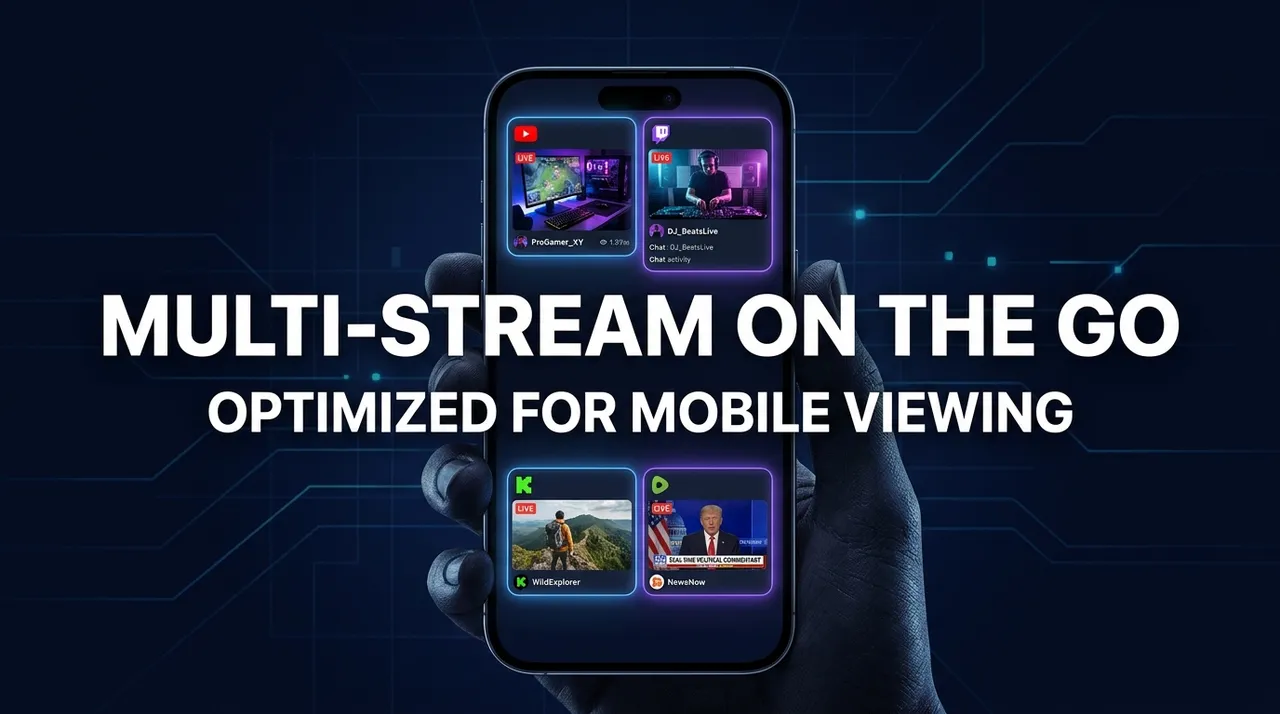
Mobile Grid View: Optimize for Small Screens
Discover how ViewGrid.tv enhances multi-stream mobile optimization for small screens. Learn to set up your mobile stream layout, use live presets, and catch all the action on the go.
Alright, let's talk about something that bugs a lot of us – trying to keep up with multiple streams when you're not glued to your desktop. You know the drill. You're out and about, maybe on your commute, waiting for an appointment, or just chilling on the couch, and you really want to catch xQc's latest GTA RP shenanigans, and see what drama HasanAbi is unpacking, and maybe even keep an eye on that Rocket League tournament. But your phone screen? It's just... tiny. It's a real struggle to get a good viewing experience, let alone monitor everything.
That's where the magic of multi-stream mobile optimization comes in. For a long time, watching more than one stream on a phone felt like trying to read a textbook through a keyhole. You'd either have to constantly switch tabs, missing crucial moments, or try some janky picture-in-picture setup that barely worked. But honestly, the landscape has changed. ViewGrid.tv, and platforms like it, have really pushed what's possible, making it genuinely feasible to enjoy multiple live streams, even on the smallest of screens.
The Mobile Multi-Stream Dilemma: Why It's Hard, Why It's Necessary
Look, I'm a streamer junkie. I probably spend more time watching other people play games or just chat than I do actually playing myself. And my life isn't just sitting in front of a 34-inch ultrawide monitor. I'm often on the move. Last week, I was trying to follow the F1 Spanish Grand Prix — the qualifying sessions are always so tense! — but I was also out grocery shopping. I ended up trying to juggle the main broadcast with a driver cam feed, and it was a mess. Constant switching, missing overtakes, nearly running my cart into a display of artisanal cheeses. Not ideal.
The core problem, obviously, is screen real estate. Your phone or tablet simply doesn't have the pixel density or physical size of a desktop monitor. When you try to cram two, three, or even four video feeds onto a 6-inch display, everything shrinks to illegible postage stamps. You lose the details, the chat becomes a blurry mess, and forget about seeing specific game UI elements, like the kill feed in Escape from Tarkov or character health bars in Onimusha: Way of the Sword.
But the need for mobile multi-streaming? That's only growing. We're more connected than ever. Events happen constantly. Take today, September 9, 2026. xQc is pulling in over 61,000 viewers with his "GTA 5 RP" on NoPixel. At the same time, TheBurntPeanut is deep into "Escape from Tarkov" with almost 40,000 people watching him tackle the new Lighthouse update. And HasanAbi? He's got 24,000+ viewers "Just Chatting" about global politics and controversies. How do you choose? Why should you have to choose? You want to be able to jump between their energy, their reactions, their different takes on what's happening. And sometimes, you just want to have multiple things on in the background, like a digital radio. That's a legitimate use case, too.
ViewGrid's Solution: Smart Layouts and Controls for Your Pocket
So, how do we solve this? This is where ViewGrid.tv really steps up its game with multi-stream mobile optimization. It's not just about throwing videos onto a page; it's about making them work on a small screen.
The first time I tried ViewGrid on my phone, I was skeptical. I’d used other multi-view sites before, and they were always clunky on mobile. But ViewGrid felt different. The layouts adjust automatically. You don't get the exact same side-by-side grid you'd see on a desktop, but that's the point. It adapts.
Here's how they do it, and how you can get the best experience:
### Prioritizing Your Main View
When you add multiple streams to your ViewGrid on a mobile device, it doesn't just try to shrink them all equally. That would be useless. Instead, it intelligently focuses on one primary stream. This becomes your main view, taking up the most screen real estate. The other streams usually appear as smaller, reconfigurable windows – sometimes in a column, sometimes in a mini-grid below or beside the main one, depending on how many you've added and your device orientation.
This is crucial. You can still see the primary action clearly. For instance, if you're watching xQc's "GTA V" as your main, you can keep an eye on HasanAbi's "Just Chatting" and maybe Squeex's "GTA V" in the smaller windows. You can hear the primary stream's audio, and then with a tap, switch to another stream's audio, bringing it into focus without losing the visual context of the others. This is a lifesaver when you're tracking different angles of an esports event or multiple news sources during a breaking story.
### Interactive Controls That Make Sense on Mobile
Forget trying to precisely click tiny icons with your thumb. ViewGrid's mobile interface uses larger, more touch-friendly controls. You can easily:
Tap to Switch Audio: This is probably the most used feature for me. One tap, and the audio switches to another stream, simultaneously bringing that stream to the foreground as the primary view. It’s intuitive.
Swipe to Reorder (sometimes): Depending on the layout, you can often swipe or drag to quickly reorder your streams, bringing a secondary stream to the primary position.
Full-screen Options: You can quickly full-screen any individual stream if you need to focus intently for a moment.
Chat Management: The chat for the primary stream is usually accessible, often as an overlay or a swipe-out panel. For the other streams, you might need to swap them to the primary spot to see their chat, which is a fair trade-off for screen space.
### Step-by-Step for Your First Mobile Multi-Stream
Let's walk through how I usually set up a mobile multi-stream on ViewGrid.tv. It’s pretty straightforward:
- Open ViewGrid.tv on your mobile browser: Just navigate to the site. It’ll automatically detect you’re on a mobile device and adjust its interface.
- Add your first stream: You can either search for a streamer or paste a direct URL. For example, search for "xQc" and add his "GTA V" stream. This will usually be your primary view initially.
- Add more streams: Use the "+" button or search bar again. Let's add "HasanAbi" and "TheBurntPeanut". As you add them, you'll see how ViewGrid adjusts the layout. You might see xQc large, with HasanAbi and TheBurntPeanut stacked below or to the side in smaller windows.
- Adjust your primary focus: If TheBurntPeanut's Tarkov stream is where the real action is for a moment, simply tap on his video feed. This will usually swap it to the main position and switch the audio. Easy peasy.
- Manage Audio: Keep tapping on different stream windows to cycle through their audio. You’ll see a visual indicator, often a speaker icon, on the currently audible stream.
- Full-screen when needed: If you need to focus on a specific detail, like zackrawrr's "Onimusha: Way of the Sword" gameplay or a critical moment in a Rocket League match, tap the full-screen icon on that stream. Exit full-screen to return to your multi-view.
It really is that simple. The whole idea is to minimize fiddling and maximize watching, especially when your thumbs are the primary input method.
Beyond the Setup: Getting the Most Out of Your **Small Screen Multi-View**
Having the right platform is only half the battle. To truly optimize your small screen multi-view experience, you need to consider a few other things. Trust me, I've learned these the hard way.
Battery Life is Your Enemy (and Friend): Running multiple video feeds, especially at higher resolutions, absolutely drains your phone battery. It's like a hungry little digital monster. Always try to be near a charger if you plan a long multi-stream session. Or, at the very least, lower the video quality on secondary streams. I usually set my secondary feeds to 480p or even 360p – you can still see what's happening, but it uses less power and data.
Network Stability is King: Mobile data can be finicky. Public Wi-Fi is often worse. If you're trying to watch three HD streams, and your connection drops to 3G, you're going to have a bad time. Prioritize a stable Wi-Fi connection. If you're on the go, consider downloading streams if that's an option (though it's rare for live content), or stick to fewer streams and lower quality settings. I can't tell you how many times I've been trying to watch an important Dota 2 match on the train, only for the signal to drop and suddenly I'm watching a buffering wheel instead of a team wipe.
Headphones are Non-Negotiable: Seriously, don't be that person blasting multiple streams in public. But beyond that, headphones allow you to fully immerse yourself in the audio of your primary stream. And if you need to quickly switch audio to check on another stream, it’s far less disruptive with headphones. Plus, many headphones have built-in controls for volume, which helps.
Experiment with Layouts: While ViewGrid does a lot of the heavy lifting, sometimes rotating your phone from portrait to landscape can offer a better layout for the specific number of streams you're watching. Try it out. Two streams often look better side-by-side in landscape, while three might work better with one large and two smaller stacked vertically in portrait.
Curating Your Streams: Live Presets and What's Hot Right Now
One of my favorite features, and something that makes viewgrid mobile setup even smoother, is the ability to use live presets. Instead of adding individual streams every time, you can save collections. This is a godsend for recurring events or simply for quickly jumping into your favorite set of streamers.
For example, today, September 9, 2026, there’s so much happening. Let's look at the top Twitch streams:
xQc on "Grand Theft Auto V" (61k+ viewers)
TheBurntPeanut on "Escape from Tarkov" (39k+ viewers)
HasanAbi "Just Chatting" (24k+ viewers)
zackrawrr on "Onimusha: Way of the Sword" (20k+ viewers)
buddha also on "Grand Theft Auto V" (19k+ viewers)
RealKatieB, Emiru, Squeex, JLTomy – all playing "Grand Theft Auto V" or "Just Chatting."
That's a lot of GTA V and Just Chatting right now! If I were setting up a preset for tonight, I'd probably have xQc's "JP IS BACK" GTA stream as my main, then maybe buddha's "NoPixel V Launch" right next to it for a different perspective on the same RP server. Below that, I’d squeeze in HasanAbi for some political takes and maybe TheBurntPeanut for a totally different vibe with Tarkov. You can save that exact combination as a preset – "My GTA RP & Chill" – and next time, it's just one tap away, perfectly optimized for your mobile screen.
And it’s not just individual streamers. ViewGrid is amazing for events. We've got some massive events coming up that you absolutely need to multi-stream:
Today, September 9, 2026: The Apple Event "Surprise and shine" kicks off. You can bet I'll have the main feed, plus a couple of tech analysts live-reacting. Our full guide is already up at /blog/apple-event-surprise-and-shine-multi-stream-guide. You don't want to miss that multi-angle take on the latest gadgets.
September 11, 2026: The F1 Spanish Grand Prix 2026 begins! I'm already planning a preset for this – the main broadcast, maybe an onboard camera feed, and a pit lane channel. Check out /blog/f1-spanish-grand-prix-2026-multi-stream-guide for the ultimate setup. It's crucial for catching every angle of the race!
September 12, 2026: BlizzCon 2026 is kicking off. Imagine having the main stage, the World of Warcraft panel, and the Diablo reveal all on your phone! Or the Falcon 9 Block 5 | Crew-13 Launch – I'll have the main NASA feed and maybe a couple of independent space commentators. Guides for these are at /blog/blizzcon-2026-multi-stream-guide and /blog/falcon-9-crew-13-launch-multi-stream-guide.
September 13, 2026: Flame Fatales 2026 for those incredible speedruns, and the Swedish General Election 2026 Results Night. You can bet I'll have multiple news channels going for that election coverage, maybe even the Swedish national broadcaster alongside a couple of international English-language news outlets, and then switch over to some high-octane speedrunning! Guides at /blog/flame-fatales-2026-multi-stream-guide and /blog/sweden-election-2026-multi-stream-guide.
* September 15, 2026: FIDE Chess Olympiad 2026 and the Rocket League World Championship 2026. Talk about a busy day for multi-streaming! I'll be bouncing between intense strategic chess and explosive rocket-powered car soccer. Check out /blog/fide-chess-olympiad-2026-multi-stream-guide and /blog/rocket-league-world-championship-2026-multi-stream-guide.
Having a good multi-stream setup, especially one you can take anywhere, for these kinds of events is just non-negotiable for me.
Optimizing for Different Content and Platforms
The beauty of a robust multi-stream platform like ViewGrid is its versatility across different types of content and streaming platforms. It's not just for Twitch, though that's usually my go-to.
When I'm watching esports streams like the Rocket League World Championship, I often want a main game feed, an analyst desk, and maybe a player cam. The dynamic resizing works great for this, allowing the main game to dominate while I still see the commentators' reactions. For sports streams, like that F1 Grand Prix, I'd want the main broadcast, an onboard cam, and maybe a live timing screen if I can get one as a stream. ViewGrid handles streams from Twitch, YouTube, and Kick seamlessly, so whether you're building a multi-view of Watch multiple Twitch streams, Watch multiple YouTube streams, or Watch multiple Kick streams, it just works.
And it’s not all gaming and sports. For news channels, especially during a major event like the Swedish General Election results, I always have at least three different news sources running. You get different perspectives, different reporting speeds, and you can quickly gauge the overall sentiment. One channel might be focused on local results, another on the international implications. ViewGrid makes it easy to set up your own Watch multiple news channels dashboard. This is where the ability to easily switch audio and bring a specific channel to the forefront for a breaking report is absolutely invaluable. I used this feature heavily during the last US election, bouncing between CNN, Fox, and BBC, trying to get a balanced picture. It was a chaotic experience, but ViewGrid helped me keep my sanity, at least technologically.
One thing I'd love to see continue to improve, both generally across mobile OS's and within multi-stream apps, is true background multi-tasking for video. It's still a bit clunky on some devices. While Picture-in-Picture has helped a lot (you can read more about its evolution on mobile operating systems on Wikipedia), true multi-window video playback without one stream pausing when another is brought to the foreground is still somewhat niche. But that's a general mobile OS challenge, not just a ViewGrid one.
The Future of Mobile Multi-Streaming
Honestly, the fact that we can even discuss multi-stream mobile optimization in this detail is a testament to how far streaming tech has come. Just a few years ago, this was a desktop-only fantasy. Now, I can follow multiple creators, multiple events, from the palm of my hand.
My personal wish list? I'd love even more granular control over audio mixing, maybe a slider for each stream's volume so I can subtly background one while another is primary. And perhaps even smarter AI that could detect key moments in non-primary streams and give me a subtle notification, or even auto-switch focus for a second. That's probably a long way off, but hey, a guy can dream!
For now, though, if you're like me and you live and breathe streaming, but you also have a life that takes you away from your desk, then embracing mobile multi-streaming is a no-brainer. Tools like the ViewGrid multi-stream viewer are essential. It's not just about convenience; it's about making sure you don't miss a beat, no matter where you are. So, next time you're stuck somewhere and itching to watch a few streams, don't just pick one. Load up ViewGrid.tv and experience the freedom of watching it all.
Ready to try multi-stream viewing?
Watch YouTube, Twitch, Kick & more — all on one screen.
Open ViewGridOr browse all multi-stream categories.
Related Articles
Multi-Stream for Beginners: Your First Setup Guide
Tired of missing out? This guide breaks down how to watch multiple streams, from esports to news, using a streaming multi view app like ViewGrid.tv. Get your first setup running today!
how toShare Your Perfect View: Save & Export Multi-Stream Layouts
Tired of setting up your multi-stream view every time? Learn how to save multi stream layout configurations on ViewGrid.tv, export viewgrid layout, and share your custom stream layouts with friends!
how toMaster Streamer Collabs: Multi-Stream Every POV
Tired of missing out on streamer collab POVs? Learn how to multi-stream your favorite creators from Twitch, YouTube, and Kick to get the full story. Your ultimate streamer event multi view guide is here!
how toHow to Sync Multiple Live Streams for Esports Analysis
Tired of desynced streams? Learn how to sync multiple live streams for superior esports analysis using ViewGrid.tv. Get multi-POV sync and reduce stream delay.