Multi-Stream for Beginners: Your First Setup Guide
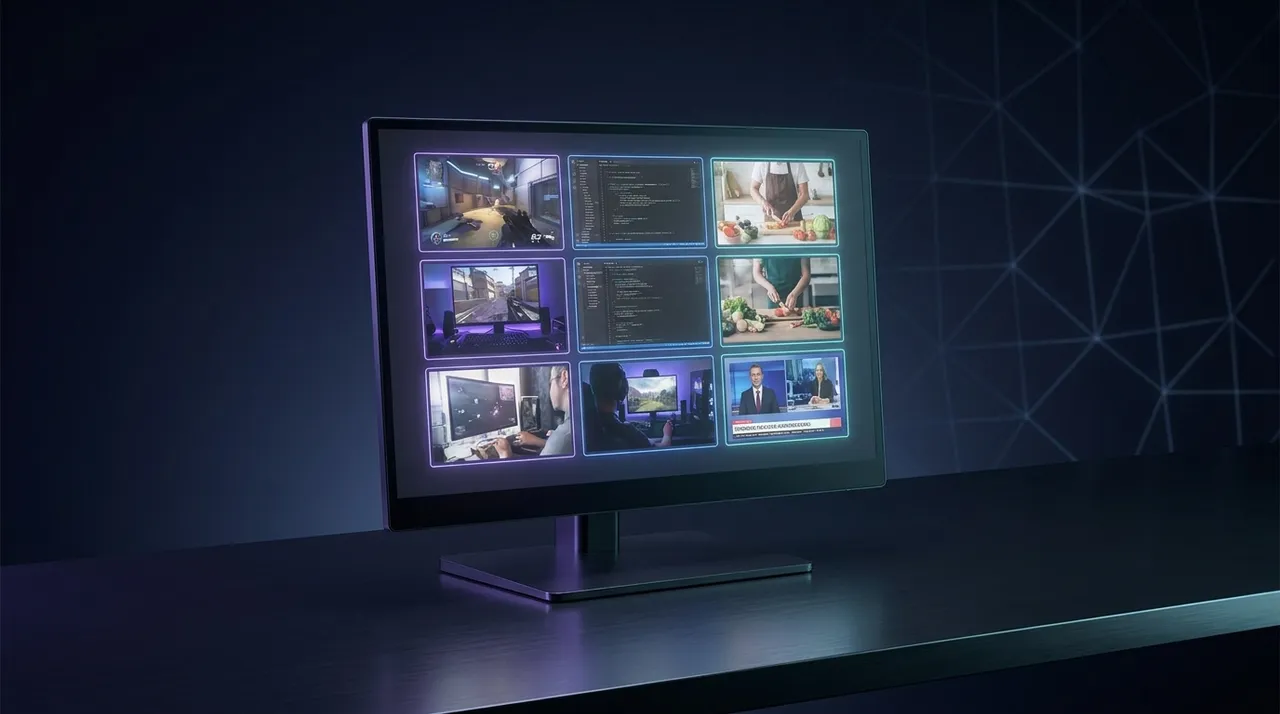
Tired of missing out? This guide breaks down how to watch multiple streams, from esports to news, using a streaming multi view app like ViewGrid.tv. Get your first setup running today!
Let's be real: in this wild, wonderful world of live content, sticking to just one stream feels... quaint. Almost old-fashioned, right? I mean, who has the time to pick just one when there are a dozen epic moments happening simultaneously across Twitch, YouTube, Kick, and everywhere else? If you've ever felt that pang of FOMO — the dreaded "fear of missing out" — because you're watching your favorite Valorant pro pop off, but know your other go-to streamer is also about to clutch, then you, my friend, are ready for the magic of multi-streaming. This guide is all about how to watch multiple streams without pulling your hair out or needing a supercomputer. We're going to get you set up, whether you're a complete newbie or just looking to refine your current setup.
I live and breathe streams. Seriously, my browser usually has at least three tabs open, sometimes four, sometimes more, even when I'm just doing background work. It's how I catch up on gaming, follow esports tournaments from multiple angles, or just have a few familiar voices chattering away. The first time I tried watching multiple live streams at once, it felt like unlocking a cheat code for my viewing pleasure. No more missing out on the hilarious chat of one person while the other is getting a crazy kill. It’s a total game-changer for anyone who’s serious about their live content consumption.
Why Multi-Stream Anyway? Seriously, It's a Game-Changer
Okay, so I just said it's a game-changer. Maybe that's a bit of an overstatement for some, but for me? Absolutely. Think about it: how many times have you been watching a major esports event — say, the League of Legends World Championship or a Counter-Strike Major — and wished you could see the main broadcast, and a specific player's POV, and maybe a co-streamer's reaction? You can't, usually, unless you have some kind of multi stream setup guide in your back pocket. That's where multi-streaming shines.
For me, it's about context. When Tarik is co-streaming a Valorant match, I often want to keep the official broadcast running on one screen to see the full minimap and hear the pro casters, while also having Tarik's hilarious reactions and insights playing on another. It just makes the experience so much richer. And it’s not just for esports, though that’s a huge driver for me. Last week, I was trying to keep up with the latest tech news, and I had three different tech review channels running their live Q&As simultaneously. It was a bit chaotic, I'll admit, but I got all the angles!
The FOMO Factor is Real
That fear of missing out, or FOMO, it's not just a buzzword. It's a genuine anxiety for dedicated viewers. Imagine the finale of a huge charity event, like OfflineTV's annual Rust server chaos, where everyone is streaming their perspective. How do you pick? You don't. You multi-stream! You can watch Pokimane's perspective of a raid, then quickly switch to Sykkuno's, and maybe even keep the overall "main" perspective going in a smaller window. It's like having a director's cut, a behind-the-scenes, and the main show all at once.
Another example: when a new patch drops for a big online game, every major streamer is going to be diving into it. You might have your favorite variety streamer testing out new features, while a dedicated pro player is analyzing the meta changes. Trying to jump between tabs, refreshing, missing key moments – it's just not efficient. Multi-streaming lets you soak it all in. You don't have to make tough choices. You can just... experience it all.
More Than Just Gaming: News, Sports, and More
While I spend a lot of time in the gaming sphere, multi-streaming isn't just for watching people play video games. Not by a long shot. I've used it extensively for watching multiple news channels during major political events or election nights. You can have CNN, Fox News, and BBC News all running side-by-side to get a quick overview of different reporting angles and avoid the echo chamber effect. It's incredibly useful for getting a balanced perspective, or at least understanding how different outlets are framing the same story.
And sports? Oh man, sports. Imagine a day with multiple crucial matches happening concurrently. Like a Sunday in the NFL, or a tennis Grand Slam where multiple courts have exciting quarter-finals going on. You can have a main game on your biggest screen, and then two or three other matches in smaller windows. For example, during the F1 season, I love having the main broadcast, but then also one of the official F1 TV driver cams running, and maybe a co-stream from someone like Shroud or xQc who's reacting to the race. You can truly immerse yourself in the action. ViewGrid, for instance, has dedicated sections for watching multiple esports streams and even watching multiple sports streams, making it super easy to find what you're looking for across different platforms. It makes sure you never miss that underdog comeback or that shocking upset.
Deciding Your Multi-Stream Weapon: Finding the Right Tools
So, you're convinced. You want to ditch the single-stream life. Great! Now, how do you actually do it? There are a few approaches, ranging from the classic "more monitors" setup to dedicated software and web apps. Your choice depends on your budget, your tech comfort level, and what kind of experience you're after. For me, simplicity and flexibility are key, which is why I often lean towards browser-based solutions.
Hardware Considerations: The Old School Way
The most straightforward, "analog" way to multi-stream is just to get more screens. My current setup at home, for instance, involves three monitors. I've got my main ultrawide display for my primary focus (gaming, work, or the main stream), and then two smaller 1080p monitors flanking it. This lets me dedicate a full screen to a second or third stream, usually by just opening another browser tab and dragging it over. It's effective, but it comes with a few downsides:
- Cost: Monitors aren't cheap.
- Space: You need a desk big enough to handle all that screen real estate.
- PC Power: Running multiple streams, especially at high resolutions, can be a drain on your GPU and CPU. Your internet connection also needs to be robust.
If you have the space and the hardware, this is a perfectly valid way to go. You get maximum flexibility in arranging your windows, and you're not locked into any specific software layout. You can also mix and match applications – maybe Discord on one, a game on another, and a few streams on the third. But it's not always the most elegant or accessible solution for beginners.
Software & Web-Based Solutions: The Modern Approach
This is where the magic really happens for most people looking for a streaming multi view app. Instead of relying solely on physical monitors, these solutions use software or a web interface to combine multiple streams into a single, customizable view on one screen (or across multiple, if you still want to spread them out).
There are a few types:
- Dedicated Desktop Apps: Some third-party applications exist that let you input stream URLs and arrange them. These often offer deeper integration with your operating system's audio mixer.
- Browser Extensions: Less common for full multi-streaming, but some extensions can help with specific tasks like multi-Twitch viewing.
- Web-Based Platforms: This is my personal favorite, and honestly, where I think most people should start. Websites like ViewGrid.tv allow you to simply paste stream URLs from various platforms (Twitch, YouTube, Kick, etc.) and create custom layouts right in your browser. No downloads, no installation, just open a tab and go.
These web-based platforms are fantastic because they handle a lot of the heavy lifting. They're designed to optimize video playback, manage audio (to some extent), and give you intuitive controls for resizing and arranging your chosen streams. Plus, they often have built-in features that make sharing your specific multi-stream setup with friends super easy. This is the simplest and most accessible how to watch multiple streams solution out there. ViewGrid, for example, is specifically designed for this, letting you create your own ViewGrid multi-stream viewer link and share it around.
Your First Multi-Stream Setup: A Practical Guide
Alright, let's get down to brass tacks. You want to multi-stream. You're probably sitting there with one browser tab open, maybe two, wondering how to make the leap. Don't worry, it's not nearly as complicated as it sounds. We're going to walk through setting up your first multi-stream using a web-based platform, because it's the easiest way to jump in and start watching multiple live streams at once. I'm going to use ViewGrid as the example, because that's what I use almost daily and it's super intuitive.
Here's a step-by-step breakdown:
1. Pick Your Poison (or Your Pleasure!): Choose Your Streams
First things first: decide what you want to watch!
- Esports events: Maybe the main broadcast of the CS2 Major, plus two different co-streams from popular personalities.
- Variety streamers: Your favorite chill streamer playing a new indie game, alongside another streamer doing a cooking segment, and a third doing a just-chatting session.
- News coverage: Three different news channels for varied perspectives.
For this example, let's say you want to watch three streams:
- Your favorite Twitch streamer (e.g., Squeex)
- A popular YouTube gaming channel's live stream
- A Kick streamer who's blowing up right now
Go to Twitch, YouTube, and Kick, find the live streams you want, and copy their URLs from your browser's address bar. You'll need these.
2. The Browser Magic: Opening ViewGrid
Now, open a new tab and head over to ViewGrid.tv. You'll see a clean interface, usually with some placeholder boxes or a prompt to add streams.
- Look for an "Add Stream" button or an input field.
- Paste the first URL you copied (e.g., Squeex's Twitch stream) into the field and hit Enter or click "Add."
- The stream should pop up in one of the viewing panes.
- Repeat this for your YouTube stream and your Kick stream. Suddenly, you've got three different streams playing side-by-side! You can easily watch multiple Twitch streams, watch multiple YouTube streams, and watch multiple Kick streams all in one spot. It's that simple to get started.
3. Arrange and Conquer: Customizing Your Layout
This is where the fun begins. ViewGrid will usually try to arrange your streams in a default grid, but you're probably going to want to customize it.
- Resizing: Most multi-stream apps, including ViewGrid, let you drag the edges of the video players to resize them. Want one stream to be dominant? Make it bigger. Want two equally sized side-by-sides? Adjust them.
- Arranging: You can usually drag and drop the stream windows themselves to rearrange their positions in the grid. Maybe you want your primary stream top-left, and the others below or to the side.
- Audio: This is the biggest challenge with multi-streaming, and we'll dive deeper into it soon. For now, most apps will have individual volume controls on each stream. Just click the speaker icon on the stream you don't want to hear, or drag its volume slider all the way down. I usually pick one main stream for audio and mute the rest, or just keep them super low in the background.
Spend a few minutes playing around with the layout. Find what feels natural to you. There's no "right" way — it's all about your personal preference.
4. Sync Up! (Or Don't): Understanding Stream Delay
One thing you'll quickly notice when you watch multiple live streams at once, especially if they're from different platforms or even different channels on the same platform, is that they might not be perfectly synchronized. This is due to varying stream delays, server locations, and buffering. It's usually not a big deal for general viewing, but it can be noticeable during competitive events if you're trying to compare specific moments.
Most web-based multi-stream apps don't offer perfect synchronization features because it's technically complex to achieve across different platforms. However, some do try to minimize buffer differences. Don't stress too much about it for your first setup. Just be aware that if you see one streamer react to something a few seconds before another, it's likely just network delay, not magic.
If you're interested in why this happens, and how streamers try to minimize it, you can read up on stream delay and optimization on sites like Restream.io, which has a good article explaining it: Understanding Stream Delay and How to Reduce It. It's a fascinating rabbit hole if you're into the technical side of streaming!
Pro Tips & Common Pitfalls: Elevating Your Multi-Stream Game
You've got your basic setup. Awesome! But there's more to how to watch multiple streams like a pro than just throwing tabs on a screen. Over my years of multi-viewing, I've picked up a few tricks and learned to avoid some common headaches.
Taming the Audio Beast
Seriously, this is the number one thing people struggle with. Trying to listen to three different people talk at once is a recipe for a headache. My default strategy is always: one main stream for audio, others muted or very low background noise.
Here's how I manage it:
- In-App Volume Controls: Most multi-stream apps (and even individual platforms like Twitch) have a volume slider directly on the video player. Use this first to mute or lower individual streams.
- Browser Tab Mute: Right-click on a browser tab and select "Mute site" or "Mute tab." This is a quick way to kill all audio from a specific stream if it's acting up.
- Operating System Mixer: On Windows (and macOS has similar functionality), you can right-click the speaker icon in your taskbar, open the "Sound Mixer" (or "Volume Mixer"), and control the volume for individual applications or even specific browser tabs. This is super powerful if you want one stream at 100% and another at 10% without fiddling with in-player controls. I use this all the time when I'm watching a main event with commentary but also want a creator's co-stream quietly in the background.
Sometimes I'll have a main Twitch stream, mute all others, and then open another stream's chat in a pop-out window with the audio completely off. That way I can still follow the text conversation without the noise. It’s a lifesaver.
Performance Power-Ups: Keep Your Rig Running Smoothly
Running multiple high-definition video streams simultaneously is demanding. It requires a decent internet connection and a respectable computer.
- Internet Speed: This is crucial. If you're constantly buffering, it's probably your internet. You'll need consistent bandwidth. For 1080p streams, aim for at least 5-10 Mbps per stream. If you're running three 1080p streams, you're looking at 15-30 Mbps dedicated to streaming. Test your internet speed, and if it's lacking, you might need to upgrade your plan or optimize your home network.
- CPU/GPU Usage: Your computer's processor and graphics card are working hard to decode all those video feeds.
- Close Unnecessary Tabs: Every open tab, especially those with animated elements or background processes, uses resources. Close anything you don't absolutely need.
- Lower Resolution: If your computer is struggling or your internet is iffy, try lowering the resolution of the less important streams to 720p or even 480p. Most multi-stream apps will let you do this.
- Hardware Acceleration: Make sure hardware acceleration is enabled in your browser settings. This offloads video decoding to your GPU, which is much more efficient than relying solely on your CPU.
- Monitor Your Performance: Use your operating system's Task Manager (Ctrl+Shift+Esc on Windows) or Activity Monitor (macOS) to see which processes are hogging your CPU or RAM. This can help you diagnose if it's your browser, a specific stream, or something else entirely.
I remember trying to multi-stream an Overwatch tournament on my old laptop, and it was basically a slideshow. Upgrading my internet and eventually my PC made all the difference. You really do need a bit of oomph to watch multiple live streams at once without a hitch.
Chat & Interaction: A Balancing Act
One of the great joys of live streaming is the chat, right? But with multiple streams, trying to follow every chat is impossible and distracting.
- Focus on One Chat: I usually keep the chat for my main audio stream open. For the others, I might pop out their chats into separate, smaller windows if I really want to skim them, or I just ignore them entirely.
- Community Engagement: Sometimes, I'll prioritize interaction. If I'm watching a smaller streamer I want to support, I'll make their stream my primary one, engage in their chat, and have bigger streams as background visual noise.
- No Chat at All: Don't feel pressured to engage! Sometimes, multi-streaming is purely for consumption – you're just soaking in the content. In these cases, close all chats and enjoy the full-screen videos.
It's all about finding what works for you. Don't let the pressure of keeping up with everything detract from the experience.
Beyond the Basics: Customization & Community
Once you've got the hang of the basic setup, you'll start realizing the deeper potential of multi-streaming. It's not just about more content; it's about your content, curated by you.
Sharing Your Masterpiece
This is a fantastic feature of many web-based multi-stream platforms. After you've arranged your perfect layout of streams, they often give you a unique URL for that specific setup.
- Share with Friends: Imagine you and your buddies are all watching the same esports match, but you all have different favorite POVs. You can create a multi-stream link with the main broadcast and those specific POVs, then share that link with your friends. They just click it, and boom, they're watching the exact same setup as you! It's like a shared viewing party, but everyone can customize their audio.
- Bookmark Your Layouts: I have a few specific multi-stream layouts bookmarked for different events. One for Valorant tournaments, one for general variety streams, and one for election nights. It saves so much time not having to re-add all the URLs every time.
This sharing capability turns a solo viewing experience into a communal one, which is really cool. It helps friends get into multi-streaming without having to figure out the whole streaming multi view app setup themselves.
The Evolving Multi-Stream Landscape
The world of live streaming is always changing, and multi-streaming is no exception. Platforms themselves are starting to realize the demand. Twitch's Squad Stream was an early attempt, but it's limited to only four streamers who are all streaming together. YouTube often has multiple live streams from the same event, but still in separate browser tabs. Kick is also exploring new features for creators.
I have a hot take here: I think native multi-stream features within the major platforms are still pretty clunky or restrictive. This is why third-party solutions like ViewGrid are so important and, frankly, superior for the viewer right now. They offer the flexibility and platform agnosticism that viewers crave. I hope to see more innovation in this space, especially around synchronized playback and better audio routing, but until then, external apps are the way to go.
Why ViewGrid.tv is My Go-To
So, after all this talk about how to watch multiple streams, why do I keep coming back to ViewGrid.tv? Honestly, it just makes everything so easy. When I first started messing with multi-streaming years ago, it was a lot of fiddly browser tabs, trying to manually resize things, and fighting with audio. ViewGrid takes all that pain away.
It’s built for exactly what we've been talking about: simplifying the experience of watching multiple live streams at once. I can quickly paste in URLs from Twitch, YouTube, Kick, even obscure wrestling streams I find, and they just work. The interface is clean, uncluttered, and it doesn't try to bombard you with unnecessary features. I love that I can instantly generate a link to my specific layout and shoot it over to my friends in Discord. It's the ultimate ViewGrid multi-stream viewer for someone like me who just wants to watch everything.
If you're ready to level up your live content game, to never miss a moment, and to truly customize your viewing experience, you owe it to yourself to give ViewGrid.tv a try. It’s free, it’s easy, and it really is the best way to conquer the multi-stream universe. Stop choosing, start watching!
Ready to try multi-stream viewing?
Watch YouTube, Twitch, Kick & more — all on one screen.
Open ViewGridRelated Articles
Watch Multiple Kick Streams: Master Your Multi-View
Tired of missing out on Kick's wild content? Learn how to watch multiple Kick streams simultaneously with ease. This guide helps you set up the best multi-viewer, manage audio, and never miss a moment.
how toMaster Multi-View: Watch Multiple Sports Streams Live
Tired of missing out on live sports action? This guide for ViewGrid.tv shows you how to watch multiple sports streams simultaneously, covering hardware, software, and strategies for the ultimate multi-view sports experience.
how toEsports Multi Stream: Set Up for MOBA, FPS & More
Tired of missing clutch plays? Dive into our guide on setting up the ultimate esports multi stream. Learn how to mix platforms, manage audio, and optimize your multi view esports experience with ViewGrid.tv.
how toMaster Your Multi Stream Setup: The Ultimate Guide
Tired of missing out? This ultimate guide helps you master your multi stream setup, from hardware to software, ensuring you never miss a moment of your favorite streams. Level up your viewing experience!