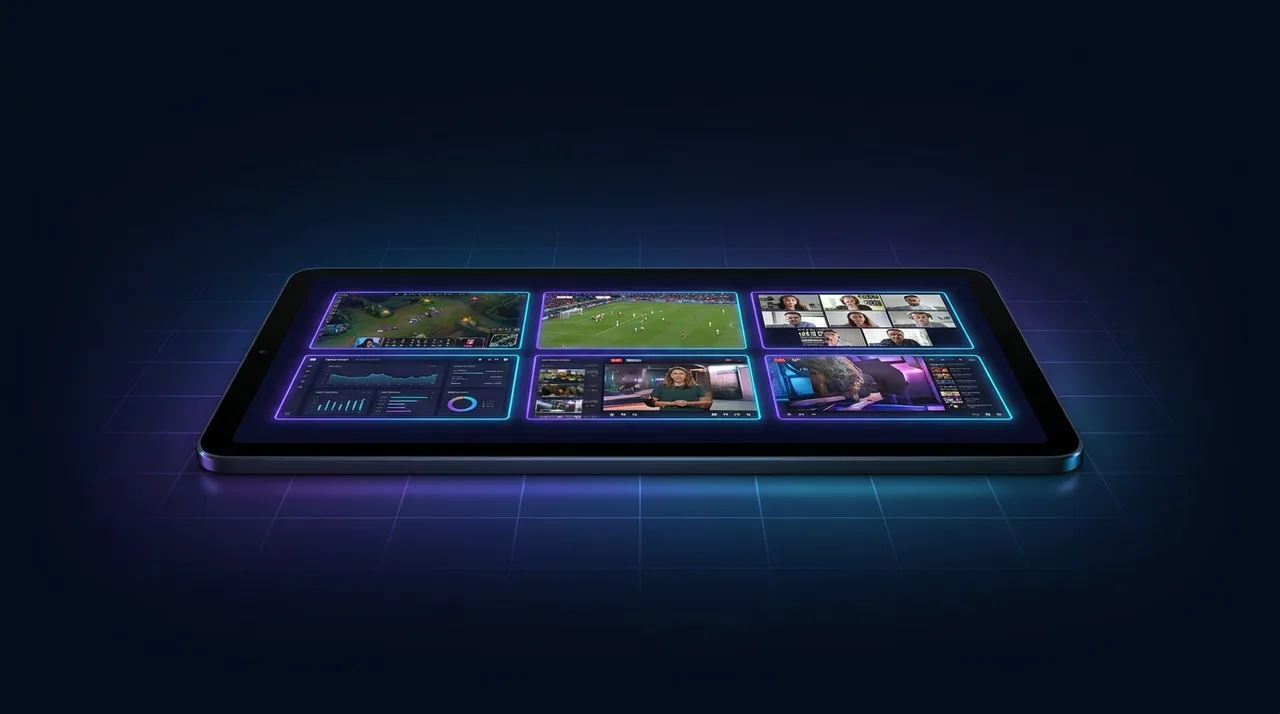
Master Your Multi Stream Setup: The Ultimate Guide
Tired of missing out? This ultimate guide helps you master your multi stream setup, from hardware to software, ensuring you never miss a moment of your favorite streams. Level up your viewing experience!
You ever find yourself scrolling through Twitch, YouTube, Kick, trying to decide what to watch? Maybe Tarik's live-reacting to a VALORANT match, but then Shroud pops up playing a new survival game, and oh wait, xQc just started a crazy unboxing stream. That’s my daily struggle, honestly. It’s like being at a buffet with too many delicious options, and you just want to taste everything. For the longest time, I was stuck – one stream at a time, constantly tabbing back and forth, missing crucial moments. It felt like trying to solve a Rubik's Cube blindfolded. But then I figured it out, and let me tell you, getting a proper multi stream setup guide can seriously change your viewing game. This isn't just about throwing a few tabs on a browser; it's about curating an experience, about never missing a beat, and about finally conquering that digital FOMO.
Why Even Bother with a Multi-Stream Setup? The FOMO is Real
Look, I'm a streamer fanatic. I don't just watch streams; I live streams. I've been doing this for years, logging countless hours. And the biggest pain point, for me anyway, was always that nagging feeling that I was missing something epic happening right now on another channel. Maybe it's a clutch moment in a high-stakes esports tournament, or a hilarious chat interaction I just know I'd love to see live. That's where a good multi stream viewer comes in—it's not a luxury, it's a necessity for the true enthusiast.
Think about it: Last week, I was watching the VALORANT Champions Tour, right? The grand finals were intense, but then I remembered my buddy, who's a total VCT addict, was also co-streaming it with his community. I wanted to see the main broadcast, sure, but I also wanted his live reactions, his chat's hype. Before I streamlined my setup, I'd have had to pick one. Or, worse, try to juggle two separate windows, constantly resizing, losing track. It was a mess. Now? It’s seamless. I can have both up, side-by-side, getting the official commentary and the raw, unfiltered fan perspective. That's power, baby. That’s truly knowing how to watch multiple streams without losing your mind.
The FOMO is Real, and It Demands Attention
That feeling of missing out – it's a powerful motivator. For me, it often hits hardest during big events. Esports tournaments are the prime example. The Overwatch League Grand Finals, The International for Dota 2, League of Legends Worlds – these aren't just single-POV events anymore. You've got the main broadcast, yes, but then you have B-streams, C-streams, sometimes even specific player POVs. How do you choose? You don't! You watch them all. Or at least, you try to. My early attempts at split screen streaming involved me just dragging browser windows to different corners of my monitor, which worked okay, but it was clunky, difficult to manage audio, and honestly, just a terrible experience if you wanted to interact with chat in any meaningful way. It was clear I needed a better system, a proper multi stream setup guide to follow.
And it's not just about professional esports, either. What about when your favorite streamers team up for a collab? Say Pokimane, Valkyrae, and Sykkuno are all playing Among Us together. Each of their streams offers a unique perspective – their own comms, their own chat reactions, their own hilarious mistakes. Watching just one feels like you're only getting a third of the story. I mean, come on, you've gotta see who's sus from every angle. It's the only way to truly appreciate the chaos. That's where a robust streaming multi view app makes all the difference, letting you orchestrate this digital symphony of content.
Beyond Gaming: News, Sports, and Even Live Events
While gaming dominates the streaming world, a multi stream viewer isn't just for watching digital gladiators. It's incredibly powerful for other types of live content too. Take news, for example. In today's fast-paced world, getting information from multiple sources simultaneously can give you a much more balanced perspective. During major breaking news events, I'll often have CNN, BBC World, and even a local news channel all running side-by-side. It’s fascinating – and sometimes frustrating – to see how different outlets frame the same story. This isn't about finding "the truth" necessarily, but about understanding the different narratives at play.
And sports! Oh, man, sports. Imagine having two or three different football games going on at the same time, especially during a packed Sunday. Or maybe the main broadcast of a Formula 1 race, alongside a driver's onboard camera, and a telemetry feed. NFL RedZone is great, sure, but sometimes I want to actually watch parts of another game, not just get highlights. For the die-hard sports fan, a robust dual screen streaming setup is a dream come true. You can catch multiple exciting finishes, follow different storylines, or even compare different commentators' takes on the same play. It truly elevates the live sports experience from passive viewing to active engagement. I've even used it for live music festivals, when multiple stages are streaming simultaneously. You can hop between acts, catch a bit of everything, and feel like you're there. It's a game-changer for those who want to maximize their live event consumption.
The Essential Gear for Your Multi-Stream Setup: What You *Really* Need
Alright, so you’re convinced. You want to ditch the single-stream life. But what do you actually need to get this going? You might think you need some super-powered, liquid-cooled, RGB-infused beast of a machine. And while that's cool, it's not strictly necessary for a solid multi stream setup guide. You probably already have most of what it takes.
The core components are pretty simple: a decent computer, enough screen real estate, and a stable internet connection. That's it. We're not talking about launching rockets here. My own setup has evolved over the years, starting with just a single monitor and a clunky laptop, to what I have now – which is still fairly modest compared to some streamer battle stations I've seen. The key is optimization, not necessarily raw power, though more power definitely helps if you want tons of streams.
Monitor Mayhem: More Screens, More Streams
This is probably the most obvious, right? More screens equals more space for streams. While it's possible to do split screen streaming on a single ultrawide monitor – and I've seen some pretty slick setups doing just that – having at least two separate monitors makes life so much easier. My main monitor is a 27-inch 1440p display, and my secondary is an older 24-inch 1080p one rotated vertically. This vertical setup is actually amazing for chat, but that's a tangent for another day.
With two monitors, you can dedicate one entirely to your primary stream or layout of multiple smaller streams, and use the second for chat, social media, or even another primary stream if you're really going for it. If you have three monitors, you're practically a god. You can have a main event on the center screen, two smaller streams on the left, and chat/Twitter on the right. The possibilities are endless. Don't feel like you need to break the bank on three identical 4K monitors though. Start with what you have, add a cheap second monitor if you can, and upgrade over time. Even a budget 1080p monitor can drastically improve your how to watch multiple streams experience. The more pixels you have, the more content you can comfortably fit without squinting.
PC Power & Internet Speed: Don't Skimp Where It Counts
Now, for the brains of the operation: your PC. You don't need a Threadripper and two RTX 4090s, but you do need something capable. Each stream you open, especially at higher resolutions like 1080p or 1440p, consumes CPU and GPU resources. It's essentially decoding a video feed in real-time. So, a modern CPU (think Intel i5/i7 or AMD Ryzen 5/7 from the last few generations) and a dedicated GPU (even a mid-range one) will go a long way. My current rig rocks a Ryzen 7 5800X and an RTX 3070, and it handles 4-5 concurrent 1080p streams without breaking a sweat. If you're using an older integrated graphics card, you might struggle with more than two concurrent streams, especially if you're doing anything else on your PC.
But here’s the often-overlooked hero: your internet connection. This is probably more important than having a beastly PC for a smooth multi stream setup guide. Each stream is downloading data constantly. Four 1080p streams could easily chew up 20-30 Mbps of download bandwidth, possibly more depending on the bitrate. If your internet can’t keep up, you’ll experience buffering, pixelation, and generally a terrible time. I usually recommend at least 50-100 Mbps download speed for comfortable multi-streaming, especially if other people in your house are also using the internet. Run a speed test, check your plan, and upgrade if you need to. There's nothing worse than watching a pivotal esports moment only for one of your feeds to freeze. Trust me, I've yelled at my router more times than I care to admit.
Software Solutions: Your Multi Stream Viewer Toolbox
Okay, so you've got the hardware sorted. Now for the magic: the software. This is where the rubber meets the road, where you actually make your multi stream setup guide come to life. There are a few different approaches you can take, ranging from simple browser tabs to dedicated applications. Each has its pros and cons, and I've tried pretty much all of them over the years.
My personal journey started with just opening a bunch of browser tabs – a chaotic, memory-hogging nightmare. Then I dabbled with some experimental third-party sites, before finally settling into a rhythm with dedicated tools. Knowing your options is key to finding the best multi stream viewer for your specific needs. It's not one-size-fits-all, but there are definitely better ways than others.
Native Platform Features: Good, But Limited
Some streaming platforms have tried to address the multi-stream problem themselves, which is cool! It shows they're listening, at least a little bit.
Twitch Squad Stream: This is probably the most well-known. If a group of streamers are playing together and enable Squad Stream, you can watch up to four of their streams in a single, synchronized view right on Twitch. It’s pretty slick, the audio control is decent, and it means you don't need any external tools. The downside? It requires all participants to opt-in and enable it. You can't just pick any four streamers you want and throw them into a Squad Stream. It's great for what it is, but it's not a universal how to watch multiple streams solution. If you want to watch Tarik and then some random VTuber, Twitch won't let you squad them up.
YouTube Multi-View (on Smart TVs): YouTube has been experimenting with a multi-view feature, primarily on their smart TV apps. It's fantastic for sports, letting you watch up to four live events simultaneously. Again, it's a native solution, often optimized for that specific device. But like Twitch's offering, it's limited in scope. You can't just throw up any YouTube live stream you want in multi-view on your desktop browser. It's platform and device-specific. So, while these are good first steps by the platforms themselves, they still leave a lot to be desired for someone who wants true flexibility in their streaming multi view app experience.
Dedicated Multi-View Apps: The Powerhouses
This is where the real magic happens for a flexible multi stream setup guide. Dedicated multi-view applications or websites are built from the ground up to let you choose which streams to watch, how to arrange them, and how to manage the audio. This is where I spend most of my time, and it’s truly the best way to get a customized experience.
The biggest advantage here is control. You can mix and match streams from different platforms – Twitch, YouTube, Kick – all in one place. Imagine watching a Twitch streamer react to a YouTube video, while also keeping an eye on a Kick streamer doing something entirely different. Or maybe a big esports match on Twitch, a cooking stream on YouTube, and a news channel on Kick. This kind of flexibility is impossible with native platform tools. These apps typically offer:
Customizable Layouts: Want two big streams side-by-side? Four streams in a grid? One main stream with smaller picture-in-picture windows? You usually get to choose.
Integrated Chat: Often, these apps will pull in the chat for the focused stream, or even show multiple chats, though this can get a bit overwhelming.
Audio Control: This is HUGE. Being able to quickly mute/unmute or adjust the volume of individual streams is critical. You don't want five streams all blaring at you simultaneously.
Performance Optimization: Good multi-view apps are built to be efficient, trying to minimize resource usage while still delivering smooth video.
My absolute go-to for this is the ViewGrid multi-stream viewer. Seriously, it's what I use daily. I can easily pull up streams from Twitch, YouTube, and even Kick all on the same screen, which is amazing for keeping up with different communities. It's so much more streamlined than juggling tabs, and the custom layouts are a lifesaver. Plus, it just works, which is more than I can say for some other tools I've tried that were buggy or would constantly crash. It truly empowers you to build the multi stream viewer experience you want.
The Old-School Browser Tab Sprawl: A Failsafe, But Not Ideal
Before I found ViewGrid and other similar solutions, this was my go-to, and probably still is for many people. Just open a bunch of tabs in Chrome, Firefox, Edge, whatever, and manually arrange them on your screen. Drag them, resize them, try to make them fit.
Here’s why it’s not ideal:
- Resource Hog: Each browser tab is its own process, consuming CPU, RAM, and GPU. Multiple tabs, especially with active video, will quickly chew through your system resources. Your PC will start sounding like a jet engine.
- Audio Nightmare: You'll have to manually mute tabs, or try to use browser extensions to manage audio. It's clunky and frustrating.
- No Layout Memory: Close your browser, and your meticulously arranged layout is gone. You have to start from scratch every time.
- Clutter: Your taskbar gets filled, you have to constantly alt-tab, and it just feels messy.
While it's a way to achieve how to watch multiple streams in a pinch, it's far from optimal. It's like trying to drive a nail with a screwdriver – it might work, but there are much better tools for the job. If you're serious about your multi-stream experience, you need something more dedicated.
Building Your Ultimate Multi Stream Setup: A Practical How-To
Alright, let's get down to business. You've got the hardware, you understand the software options. Now, how do you actually set this up? This is my personal step-by-step for getting a slick multi stream setup guide going, using ViewGrid as an example because, well, it's what I use and it works great.
- Assess Your Hardware:
- * Monitors: Decide how many streams you want to comfortably watch simultaneously. If you only have one monitor, you'll be limited to a grid, maybe 2x2 or 3x3 smaller windows. With two or more, you can spread things out.
- PC Power: Open Task Manager (Windows) or Activity Monitor (macOS) and watch your CPU/GPU usage with a few streams open in regular browser tabs. This gives you a baseline of what your system can handle before* you even start using a multi-viewer.
- * Internet: Run a speed test (e.g., Speedtest.net) to confirm your download speeds. If you're consistently under 50 Mbps and plan on watching several high-quality streams, consider upgrading your plan.
- Choose Your Multi-Stream Viewer:
- * I highly recommend checking out ViewGrid.tv/multi-stream. It's web-based, so no downloads, and it's super intuitive. For a more tailored experience, dedicated apps usually offer more features, but ViewGrid hits a sweet spot for ease of use and flexibility.
- If you're dead set on only watching Twitch, the native Squad Stream is fine if* the streamers enable it. But for true flexibility, a dedicated streaming multi view app is the way to go.
- Start Adding Streams:
- * With ViewGrid, for instance, you just open the site. You'll see input fields or buttons to add streams. Copy the URL of the live stream you want to watch (from Twitch, YouTube, Kick, etc.) and paste it in.
- * Repeat this for each stream you want to add. Don't go overboard initially. Start with two or three to get a feel for it. You can always add more later.
- Arrange Your Layout:
- * This is where dedicated multi-viewers shine. ViewGrid offers various pre-set layouts (e.g., 2x2 grid, 1 large + 2 small, side-by-side). Experiment to find what works best for your monitor setup and how many streams you're watching.
- * Drag and drop streams into different slots if the app allows it. I usually put my primary focus stream in the biggest window, and secondary streams in smaller ones.
- Master Your Audio:
- * This is probably the most crucial step for a pleasant experience. You can't have five streams all blasting audio at full volume simultaneously – it's just noise.
- * Most good multi stream viewer apps will have individual volume controls for each stream, or a quick mute button.
- My Tip: Pick one* primary stream for audio. Mute all others. If you want to quickly check audio from another stream, mute your primary, unmute the secondary, listen, then switch back. It takes practice, but it's essential. Some apps even let you "follow" the audio of whichever stream your mouse is hovering over, which is next-level convenience.
- Integrate Chat (Optional):
- * Some multi-viewers integrate chat directly. Others might require you to open a separate browser window for chat if you really want to engage.
- * On ViewGrid, you can focus on a stream to bring up its chat, which is super handy. If you have a second monitor, that's often the perfect place for a dedicated chat window for your primary stream.
- Save Your Layouts (If Available):
- * Many advanced multi-viewers (and ViewGrid does this well) allow you to save your current stream configuration as a "layout" or "room." This means next time you want to watch your usual esports crew or news channels, you just load the saved layout, and all your streams pop up instantly. This is a massive time-saver for your multi stream setup guide!
My Personal Workflow: Less is More (Sometimes)
My go-to setup involves two monitors. On my main 27-inch screen, I usually have the ViewGrid multi-stream viewer running, typically in a 1+2 layout – one main stream dominating the top, and two smaller ones below it. This is perfect for things like watching a main esports broadcast from Twitch or YouTube Esports while keeping an eye on two different streamer POVs or analyst desks. Or maybe a main sports game on YouTube Sports and two other matchups I'm interested in.
My secondary, vertical 24-inch monitor is almost exclusively for chat. I'll open a dedicated browser tab for the chat of whichever stream I'm focused on, maybe Twitter, and Discord. This keeps my main viewing area clean and focused. Audio-wise, I'm almost always listening to just the main stream. If one of the smaller streams does something wild, I'll quickly mute the main, unmute the secondary for a few seconds, then switch back. It's a rhythm you get into. This setup lets me comfortably dive into multiple Twitch streams, YouTube streams, or even Kick streams without feeling overwhelmed. And for big events like political debates, I'll often throw up two or three news channels on the main screen, with my secondary monitor dedicated to real-time fact-checking sites or Twitter reactions. It truly is a dynamic way to consume content.
Optimizing Your Experience: Beyond the Basics
So you've got your multi-stream setup running. Great! But we can always make it better, right? Optimization is key to turning a functional setup into a truly enjoyable one. This is where those little tweaks and personal preferences come into play, refining your multi stream setup guide to perfection.
Audio Management: Your Sanity Saver
I cannot stress this enough: audio is everything. If you're not managing your audio, your multi-stream setup will quickly become a cacophony of overlapping voices and sounds. It's not just annoying; it's genuinely distracting and makes it impossible to focus on anything.
One Primary Audio Source: As I mentioned, always default to one stream's audio. Treat the others as visual-only companions unless you specifically need to hear them.
Browser-Level Audio Control: If your multi-viewer doesn't have individual stream volume sliders (though most good ones do), you can usually right-click on the browser tab itself (in Chrome or Firefox) and select "Mute Site" or "Mute Tab." It's a lifesaver.
Keyboard Shortcuts: If your chosen multi-viewer or browser extensions offer keyboard shortcuts for muting/unmuting streams, learn them! Quick toggles are far better than fumbling with your mouse.
Headphones vs. Speakers: I almost always use headphones for multi-streaming. It helps isolate the audio you want to hear and prevents external noise from interfering. Plus, you can often hear subtle details you might miss on speakers.
Layout Tweaks: Finding Your Sweet Spot
The default grid layouts are a good starting point, but don't be afraid to experiment.
Prioritize: What's your most important stream? Give it the biggest, most central spot. The others can be smaller, flanking it.
Aspect Ratios: Be mindful of aspect ratios. Most streams are 16:9. If you try to force them into weird shapes, they'll either get letterboxed (black bars) or cropped. A good multi stream viewer will handle this gracefully.
* Monitor Orientation: Consider if a vertical monitor would benefit your setup. It's amazing for chat, social feeds, or even just one long stream if you have a primary stream and want its chat visible without overlapping.
Chat Engagement: To Engage or Not to Engage?
This is my mild hot take: don't feel obligated to engage with every chat. When you're watching multiple streams, trying to keep up with even two chats simultaneously is a recipe for disaster. You'll miss what's happening on screen, your replies will be slow, and you'll just get frustrated.
Focus on One Chat: Pick your primary stream and only engage with that chat. Let the other streams be for passive viewing.
Secondary Monitor for Chat: If you have a second monitor, dedicate a section of it to the chat of your primary stream. This keeps your main viewing area clear.
* Minimize Distraction: Sometimes, I'll even hide all chats and just immerse myself in the visual content. It's incredibly freeing and lets you truly absorb everything. The point of a multi stream setup guide isn't to multiply your interaction burden, but to multiply your viewing pleasure.
Performance Tips: Keep It Running Smoothly
Even with a good PC, multiple streams can be demanding.
Lower Quality When Necessary: If you're seeing stuttering or lagging, try lowering the resolution of the less critical streams from 1080p to 720p or even 480p. Visually, you might not notice a huge difference on smaller windows, but it'll save significant resources and bandwidth.
Close Unnecessary Apps: Before a big multi-stream session, close any background apps, games, or browser tabs you don't need. Every little bit of RAM and CPU helps.
Keep Your Browser Updated: Modern browsers are constantly being optimized for video playback. Make sure yours is always up to date.
Consider a Hardwired Connection: If you're on Wi-Fi and experiencing issues, try plugging directly into your router with an Ethernet cable. It's usually far more stable and faster than Wi-Fi, especially if you have an older router or a lot of wireless interference.
ViewGrid.tv: Your Home for Multi-Stream Mastery
So, we've talked about why you'd want a multi-stream setup, what gear you need, and how to actually get everything running smoothly. You've got the tools, you've got the knowledge. Now, it's time to put it all into practice.
For me, after years of trying every trick in the book, the biggest game-changer was finding a reliable, flexible platform that just works. That's why I keep coming back to ViewGrid.tv. It takes all the pain points out of building your multi stream setup guide and lets you focus on what really matters: enjoying the content. Whether you're trying to keep tabs on the latest esports tournaments, follow multiple sports games at once, or just have your favorite streamers from Twitch, YouTube, and Kick all chilling on the same screen, ViewGrid makes it effortlessly simple. No downloads, no complicated software installs – just open your browser, drop in your links, and you're good to go. It’s truly a fantastic multi stream viewer that lets you reclaim your screen real estate and dominate your digital viewing experience.
I genuinely believe that once you experience the freedom of a well-executed multi-stream setup, you won't want to go back. No more frantic tab-switching. No more missed clutch plays. Just pure, unadulterated content consumption, exactly how you want it. So, go on, give it a try. Your streaming life is about to get a whole lot better.
Ready to try multi-stream viewing?
Watch YouTube, Twitch, Kick & more — all on one screen.
Open ViewGridRelated Articles
Watch Multiple Twitch Streams: Master Your View
Tired of missing out? Learn how to watch multiple Twitch streams with ViewGrid.tv. Get the ultimate multi-twitch viewer experience, customize layouts, and manage audio like a pro. Say goodbye to FOMO!
how toWatch Multiple Kick Streams: Master Your Multi-View
Tired of missing out on Kick's wild content? Learn how to watch multiple Kick streams simultaneously with ease. This guide helps you set up the best multi-viewer, manage audio, and never miss a moment.
how toMaster Multi-View: Watch Multiple Sports Streams Live
Tired of missing out on live sports action? This guide for ViewGrid.tv shows you how to watch multiple sports streams simultaneously, covering hardware, software, and strategies for the ultimate multi-view sports experience.
how toMaster ViewGrid: Your Multi-View App Setup Guide
Tired of juggling tabs? Learn how to master your streaming multi view app with ViewGrid.tv! This guide covers setup, advanced tactics, and personal workflows for watching multiple streams at once.