Multi Stream Setup Guide: World Cup 2026 Pro View
Get ready for World Cup 2026! This multi stream setup guide helps you watch multiple sports streams, from tactical cams to co-commentary, without missing a beat using split screen streaming and ViewGrid.
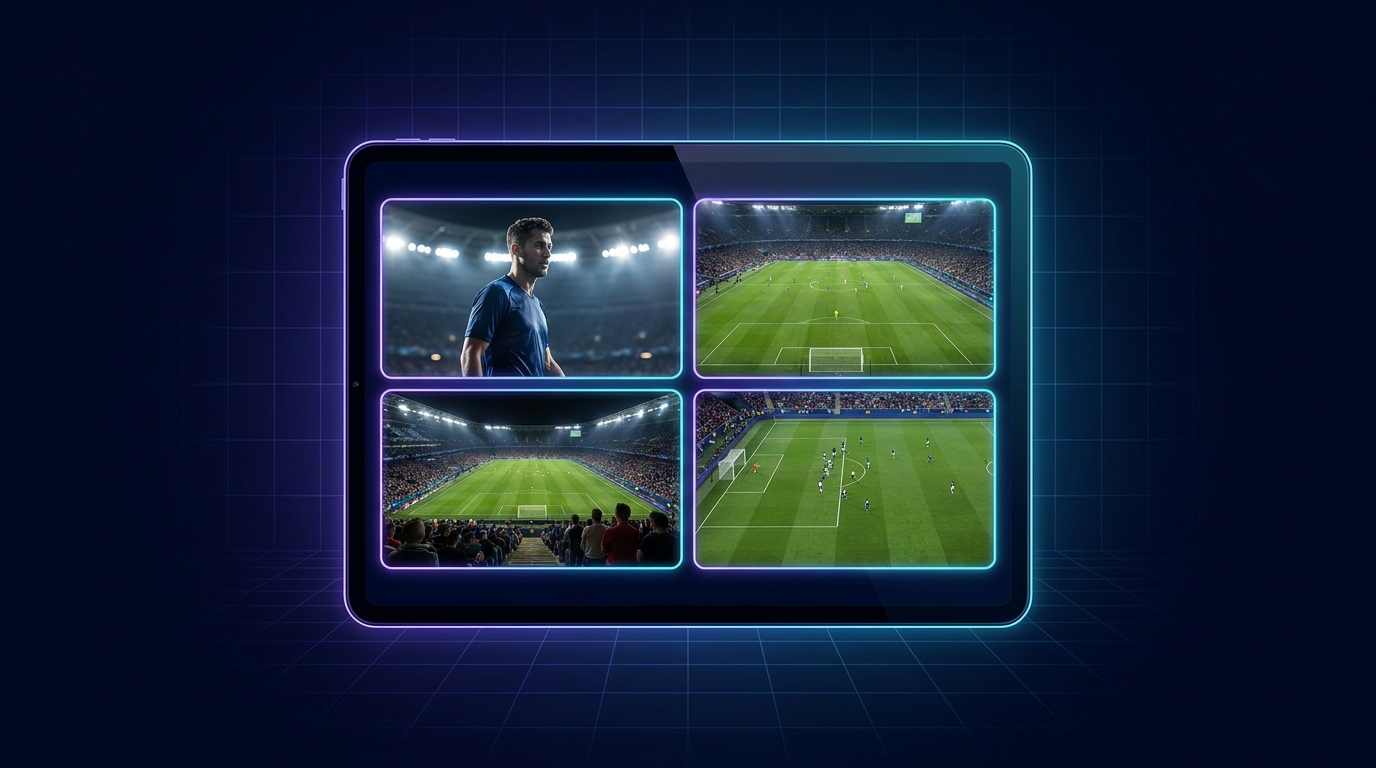
Alright, so World Cup 2026. Just saying those words out loud gets me hyped, you know? It’s not just a tournament; it's the tournament. And it’s coming to North America — my turf, practically! Now, I’ve been thinking about this a lot lately, probably more than is healthy. How are we, the true football fanatics, going to watch this thing without missing a single glorious moment? Because let’s be real, watching it on one screen, with one commentary track, from one network perspective? That’s like eating a gourmet meal with a blindfold on. You’re getting some of the experience, sure, but you’re missing so much of the flavor, the texture, the whole damn presentation. My personal mission for 2026 is to have the ultimate multi stream setup guide ready for everyone.
I’m talking about a setup that lets you catch every angle, every controversial VAR decision, every commentator meltdown, and every fan reaction simultaneously. The days of just flipping channels and hoping you land on something good are long gone, my friends. We live in an era of infinite content, and it’s time our viewing habits caught up. We need to be able to orchestrate our own personal "Pro View" for the World Cup. Imagine tracking your favorite player's every move, while also listening to a tactical breakdown, and keeping an eye on the official broadcast for replays. That’s the dream, right? And I'm here to tell you, it's totally achievable.
Why Single Screens Are So Last Season (Especially for the World Cup)
I remember watching the last World Cup, huddled around my main monitor. Portugal vs. Uruguay, I think it was. Edison Cavani was on fire. But I missed so much! I mean, I saw the goals, obviously, but I wasn't seeing the build-up from a tactical cam, I wasn't seeing the coach's reaction in real-time on another feed, and I certainly wasn't getting the immediate fan reactions from a popular streamer co-streaming the game. It’s like watching a play from the nosebleed seats when you could be on stage with the actors. It just doesn't make sense anymore.
The beauty of simultaneity is something that’s completely transformed how I consume live content. It's not just about seeing more things; it’s about understanding the context better. A referee's decision in a tense World Cup match can turn the tide completely. If you're just watching the main broadcast, you get the decision, maybe a slow-mo replay. But with a split screen streaming setup, you could have the main feed, a VAR camera feed showing the specific foul, and a streamer like DrDisrespect or something, reacting in pure, unadulterated shock. That’s an experience, truly. That's immersion. And let's be honest, mainstream broadcasts, as much as they're trying, are still pretty restrictive in how they present information. They're designed for the lowest common denominator, not for us power viewers who want all the data, all the reactions, all the time.
The FOMO Factor is Real
Let's just call it what it is: the Fear Of Missing Out. It's a real thing, and it hits hard during major live events. Picture this: you're watching a nail-biter, a semi-final perhaps. Suddenly, your phone buzzes with a notification, "Did you see that incredible save from Martinez?!" And you're sitting there, thinking, "Wait, what save? I just saw a goal kick." That brief second where the broadcast cut to a commercial, or focused on a player tying his shoe, that's when something monumental happened. It's infuriating!
With a proper multi stream setup guide, you virtually eliminate that FOMO. You’re not just passively consuming; you’re actively curating your own ultimate viewing experience. You're the director, the producer, the showrunner of your own World Cup coverage. No more missing the subtle tactical shifts, no more wondering what the other commentators are saying, no more being out of the loop when a controversial moment sparks a thousand memes. You become the source of truth for your friends – "Oh, you missed that? Here, I saw it from three angles." It's powerful.
What Even *Is* a Pro View Multi Stream Setup?
Okay, so we've established why you need one. But what are we actually talking about when we say "Pro View multi stream setup"? Essentially, it’s about having multiple video feeds running concurrently, ideally on the same screen or across a few screens, giving you different perspectives on a single event. Think of it like a control room in a TV studio, but scaled down for your living room or office. It can be something as simple as two browser windows side-by-side, or as complex as a dedicated streaming PC with multiple monitors and intricate audio routing. The goal is to see more, hear more, and understand more.
There are a few ways people approach this. Some go the hardcore route with multiple physical monitors, each dedicated to a different feed. Others try to cram everything onto a single ultrawide monitor, tiling windows like a digital puzzle. And then there are software solutions, designed specifically to aggregate streams and make them manageable. This is where tools like ViewGrid really come into their own, but we'll get to that. The key here is the ability to monitor several sources at once, whether it's the main game feed, a player-specific cam, a tactical overhead view, or someone co-streaming their live reactions. It elevates the viewing experience from passive consumption to active engagement. It's the difference between listening to a story and being in the story.
When I first started dabbling in this, it was for esports. I was watching a League of Legends World Championship — 2017, I think it was, T1 vs. Samsung Galaxy. I wanted to see Faker's POV and the main broadcast and the analyst desk. It felt impossible with just my single monitor. That's when I realized the power of split screen streaming and began my journey. Now, for the World Cup? The potential is even greater. The sheer number of angles, the global commentary options – it's astounding.
Beyond Just the Game: The Commentary Experience
Here’s a hot take for you: sometimes, the official commentary is just… bland. Or biased. Or just plain wrong. For a huge event like the World Cup, you're going to have broadcasters from every single country, each with their own unique take, their own favorite players, their own nationalistic fervor (which can be super fun, actually). Why would you limit yourself to just one set of voices? Having multiple audio tracks available is crucial for me.
Imagine watching a penalty shootout. You've got the main English broadcast, maybe a bit dry. But then you've also got the Spanish commentators from Telemundo, screaming "GOOOOOOOOL!" with pure, unadulterated passion. Or perhaps a fan stream on YouTube with people losing their minds in real-time. Or an ex-pro breaking down the psychology of the kick. I usually keep the main game audio relatively low, and then pump up the volume on one or two specific commentary streams that I'm interested in at that moment. It's like having your own personal broadcast team, switching between them as the narrative demands. This is where dual screen streaming really shines – game on one, a dedicated commentary stream (or two) on the other. It really enriches the experience, trust me.
Crafting Your World Cup 2026 Multi Stream Setup Guide: The Essentials
Alright, let's get down to brass tacks. You want a beastly setup for World Cup 2026. This isn't just about throwing some windows open. It’s about creating an environment. It’s about optimizing. And it definitely needs a proper multi stream setup guide.
Hardware You Might Need (or Already Have)
First up, the physical stuff. Don't worry, you don't need to break the bank, but a few upgrades can make a world of difference.
Monitors: This is probably the biggest game-changer. More monitors equal more screen real estate, which equals less window juggling.
Single Monitor: Totally doable, but you'll be tiling windows, which can get cramped. An ultrawide monitor helps significantly here.
Dual Monitors: My personal sweet spot. One main screen for the core game, another for ancillary feeds, stats, social media, or specific commentators. This is where dual screen streaming truly excels.
Triple/Quad Monitors: The dream, honestly. Pure bliss. You can dedicate an entire screen to a player cam, another to a tactical view, one for the main broadcast, and one for a reaction streamer. If you have the space and the budget, go for it.
PC Specs: You're just watching streams, not broadcasting them, so you don't need a supercomputer. But remember, each stream is essentially a video player running in your browser, and those can eat up CPU and RAM.
CPU: A modern i5 or Ryzen 5 should be perfectly fine. Something from the last 3-4 years.
RAM: 16GB is pretty much the minimum I’d recommend if you're going to have 4-5 browser tabs/streams open, especially if they’re high-definition. 32GB is pure luxury and gives you plenty of headroom for other tasks.
GPU: Not as critical as for gaming, but a dedicated GPU (even an older one) will offload video decoding from your CPU, making everything smoother.
Internet Connection: This is non-negotiable. You need a stable, fast connection. I'm talking at least 100 Mbps download speed, ideally more, especially if you're trying to stream multiple 1080p or 4K feeds simultaneously. A flaky connection will ruin everything, turning your beautiful multi-stream setup into a laggy, pixelated mess. If you're using Wi-Fi, try to be close to your router, or better yet, go wired with an Ethernet cable. Trust me, the stability is worth the cable mess.
Audio Setup: This is where things can get tricky.
Good Headphones: Essential for clarity and isolating specific audio tracks.
Audio Mixer (Software or Hardware): For serious setups, a virtual audio cable solution like Voicemeeter Banana (it's free!) can let you route and mix audio from different sources. This means you can have one stream loud, another quiet, and mute others completely. It takes a bit of setup, but it’s a lifesaver.
Software & Services: The Brains of the Operation
Now for the digital tools that bring your multi-stream vision to life.
Browser Choice: Not all browsers are created equal when it comes to resource management.
Chrome: Powerful, wide extension support, but can be a RAM hog.
Firefox: Often lighter on resources, good privacy features.
Edge: Surprisingly good these days, built on Chromium so it shares many Chrome benefits but can be more efficient.
I usually stick with Chrome just because of the sheer number of extensions I rely on, but I've definitely felt the RAM crunch with too many streams open.
Ad Blockers: An absolute must. Multiple streams mean multiple opportunities for ads to interrupt your viewing, hog bandwidth, and generally annoy you. Get uBlock Origin, install it, and forget about it. It’s a clean viewing experience.
VPN (Optional, but Handy): If you're trying to access geo-restricted content – maybe a specific country's official broadcast with unique commentary – a VPN can be incredibly useful. Just make sure it’s a reputable one and that it doesn't throttle your speed too much.
ViewGrid.tv (The Smart Choice): This is where I genuinely tell you, save yourself a huge headache. While you can manually open a dozen browser tabs and try to tile them, it's a nightmare of audio management, window resizing, and CPU strain. ViewGrid is designed specifically for this. It lets you bring multiple streams from different platforms – Twitch, YouTube, Kick, whatever – into one clean interface. You can drag and drop, resize, mute individual streams, and arrange them in various layouts. It drastically simplifies the whole split screen streaming process. For someone like me who's tried all the manual ways, using ViewGrid is like going from a horse-drawn carriage to a sports car. It just works. You can easily set up multiple watch multiple sports streams on there.
Step-by-Step: Building Your Ultimate World Cup 2026 Pro View
Okay, you've got the gear, you know the tools. Now, let’s assemble this beautiful beast. This is your personal multi stream setup guide for World Cup 2026.
- Identify Your Streams: Before kick-off, figure out what you want to watch. This is crucial.
- * Official Broadcasts: Find out which networks have the rights in your region (FOX and Telemundo for the US, BBC/ITV for the UK, etc.). These will be your main, high-quality feeds.
- * Platform Streams: Head to YouTube. You'll find official channels from FIFA, sports networks, and sometimes even independent creators covering the event. Twitch will be buzzing with co-streams – think popular streamers like xQc, Kai Cenat, or even dedicated sports commentators reacting live. Don't forget Kick, it's gaining traction and some big streamers might be over there too. For example, you can get multiple watch multiple Twitch streams, watch multiple YouTube streams, and watch multiple Kick streams all in one place with ViewGrid.
- * Specific Perspectives: This is the "Pro View" part. Will FIFA or broadcasters offer specific camera angles? A tactical cam? A player cam for a superstar like Mbappé? A dedicated referee cam? Keep an eye out for these. They’re gold.
- * News/Analysis: Consider having a stream from a major news network or a sports analysis channel running in a small window for immediate post-match reactions or pre-game punditry. You could easily fit a watch multiple news channels feed into your layout.
- Choose Your Method – And I Strongly Recommend ViewGrid:
- Browser Tabs (The Hard Way): You can* open 4-5 tabs, manually resize them, and tile them across your screen. Good luck managing the audio and minimizing CPU strain. It's clunky, trust me. I've done it. My CPU fan sounded like a jet engine.
- * ViewGrid.tv (The Easy, Smart Way): Honestly, this is the way to go. Navigate to ViewGrid multi-stream viewer. You just paste the URLs of your chosen streams into the interface, and it handles the rest. It puts them all into a single browser window, organizes them, and gives you individual volume controls, resizing options, and predefined layouts. It’s built for this exact purpose. It makes watching watch multiple esports streams or a big sports event like the World Cup an absolute breeze. This is the core of any good multi stream setup guide.
- Set Up Your Screens:
- * Single Monitor: Use ViewGrid to create a tiled layout. You can do 2x2, 1x3, etc. Maximize the browser window. Prioritize your main game feed to be the largest.
- * Dual Monitors: Open ViewGrid on one monitor with your primary feeds (main game, key commentary). On your second monitor, you can have a separate ViewGrid window or individual browser tabs for things like Twitter, live stats, or a long-form analysis stream you just want to listen to. This is where dual screen streaming truly shines.
- * Triple/Quad Monitors: This is where you can go wild. Dedicate one screen to ViewGrid for your 3-4 core game feeds. Use the others for individual large streams, social media walls, or even a dedicated fantasy football tracker.
- Audio Management – The Silent Killer (Unless You Master It): This is often the trickiest part of any multi-stream setup.
- * ViewGrid's Volume Controls: The simplest solution is using the individual volume sliders within ViewGrid itself. You can mute feeds you don't care about and adjust the levels for the ones you do. I typically keep the main game stream at about 70-80% volume and then bring in one or two commentator streams at 30-40% so they’re audible but not overwhelming.
- * Virtual Audio Cables (Advanced): If you're serious about mixing, look into Voicemeeter Banana. It lets you create virtual audio devices, routing sound from specific applications (like different browser tabs) to different output channels or mixing them together. It has a learning curve, but it offers incredible control. For the World Cup, I'm definitely going to dive deep into this again, so I can seamlessly switch between English, Spanish, and maybe even a Brazilian Portuguese commentary feed.
- * Just Headphones: Sometimes, simplicity is key. Put on a good pair of noise-canceling headphones, and manage volume directly in ViewGrid. It prevents audio bleed from your speakers if you have multiple sounds trying to come through at once.
- Optimize Your Internet:
- * Wired is King: I can’t stress this enough. An Ethernet cable direct to your router is almost always more stable and faster than Wi-Fi, especially when you're pulling down multiple high-definition video streams.
- * Close Other Apps: Before a big match, close anything else that’s hogging bandwidth or CPU. That means pausing large downloads, shutting down torrent clients, and telling your family to maybe hold off on their 4K Netflix binge for a couple of hours.
- * Run a Speed Test: Just to make sure your ISP isn't letting you down. You can check your speeds on sites like Speedtest.net. If you're consistently getting less than what you pay for, it might be time to call your provider. (You can check out some tips on network optimization on sources like Wikipedia's article on Network Performance if you want to dive deeper).
My Personal World Cup 2026 Multi Stream Vision
Alright, so with all that theory out of the way, let me paint you a picture of my ideal setup for, let’s say, the opening match of the World Cup 2026. Mexico vs. some European powerhouse, maybe at Estadio Azteca. Pure chaos, pure energy.
My main monitor, a nice 34-inch ultrawide, would be running ViewGrid. In the largest, central panel, I’d have the official FOX Sports broadcast – clean, high-res, with the main game camera. To its top-right, a smaller window would be dedicated to a popular Twitch streamer, maybe someone like Shroud or Pokimane, if they're into football, just for the raw, unfiltered reactions. I mean, their audiences are huge, and seeing them react to a shocking goal or a red card is part of the fun sometimes. You can get that going smoothly through watch multiple Twitch streams.
Below that, in the bottom-right, I’d have a Telemundo feed – because sometimes you just need that passionate Spanish commentary, you know? It adds a completely different layer of excitement. And in the bottom-left, if it’s available (and I’m praying it will be), a dedicated tactical camera feed. I want to see how the lines are holding, how players are tracking back, who’s making those unsung defensive runs. That’s the real insight.
On my second monitor, off to the side, I’d probably have a Twitter feed or Reddit thread open, just to catch the immediate, spicy takes and memes as they drop. And maybe a separate browser tab with live stats from FIFA's official site. I want the data, the hot takes, and the pure emotion all at once.
One thing that sometimes bugs me, though: while co-streams are awesome for reactions, sometimes they get too much attention. The streamer can sometimes talk over crucial plays or miss important moments themselves. So, I keep their audio a bit lower, just for the vibe, while the main game and a passionate commentator are my primary focus. It's a delicate balance, but one you can totally control with ViewGrid.
Beyond the World Cup: The Versatility of Multi Streaming
Don't for a second think this elaborate multi stream setup guide is just for the World Cup. Oh no, my friend. This is a lifestyle. Once you go multi-stream, you never go back. The principles apply to almost any major live event.
Think about esports. The League of Legends World Championship, Valorant Champions Tour, Dota 2 The International – these events demand multi-streaming. You want the main broadcast, sure, but you also need player-specific POVs, the analyst desk, and maybe even a B-stream for side content or interviews. ViewGrid makes it so easy to watch [watch multiple esports streams](/watch/esports] from various platforms simultaneously, tracking different players or commentators.
Or news events. When something major happens, I'm not just watching CNN. I'll have BBC News, Al Jazeera, and maybe a local news channel all up, running side-by-side. Different perspectives, different reporting styles, immediate updates. It gives you a much fuller, less biased picture. That's where watch multiple news channels comes in handy.
Even product launches, concerts, or political debates benefit from this kind of setup. Imagine a new console reveal: you could have the official stream, a tech reviewer's live reaction, and a social media feed all running. The value of dual screen streaming isn't just for entertainment either; it’s a productivity hack. I often have work documents on one screen and a low-volume background stream on the other, just to keep up with something without constant tab-switching. It's about optimizing your digital space.
And that's where ViewGrid really shines, making this whole complex setup a breeze for everyone. You don't need a super-powered PC or a degree in audio engineering. You just need a decent internet connection and a desire to experience live content in a way that feels truly next-gen. So, start planning your World Cup 2026 setup now. Get familiar with the tools, hone your preferences, and when that first whistle blows, you'll be ready for the most immersive viewing experience of your life. Head over to ViewGrid multi-stream viewer and start experimenting today. You won't regret it.
Ready to try multi-stream viewing?
Watch YouTube, Twitch, Kick & more — all on one screen.
Open ViewGridRelated Articles
World Cup 2026 Final: Spain vs Argentina on a Multi-Stream Second Screen
Argentina face Spain at MetLife Stadium on July 19. The match is on the official broadcasters — here's how to build a second screen with every reaction, watch-along and news desk in one grid.
how toElevate Your View: Dual Screen Streaming with ViewGrid
Tired of missing out? Discover the power of dual screen streaming with ViewGrid. Get practical tips, hardware advice, and a step-by-step guide to watch multiple streams like a pro.
how toWC 2026: Watch Multiple Twitch Watch Parties Live
Get ready for World Cup 2026! Discover how to watch multiple Twitch watch parties simultaneously, manage audio, and never miss a reaction with ViewGrid.tv's multi-stream viewer.
how toMulti View Esports: Master Player & Caster POVs
Tired of missing crucial plays? Unlock the full esports experience with multi view setups! Learn how to combine player POVs, caster streams, and custom layouts for an unparalleled esports multi stream journey. Get ready to master every angle.