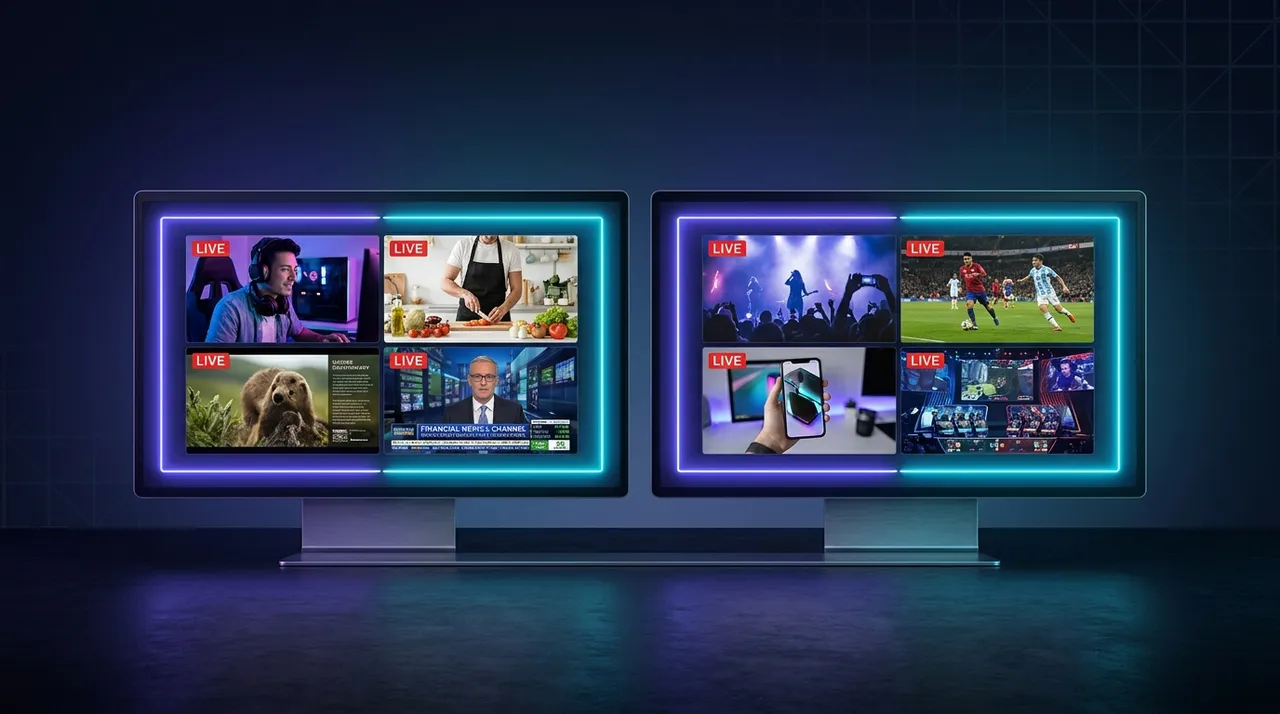
Elevate Your View: Dual Screen Streaming with ViewGrid
Tired of missing out? Discover the power of dual screen streaming with ViewGrid. Get practical tips, hardware advice, and a step-by-step guide to watch multiple streams like a pro.
Let's be real for a second: if you’re anything like me, your eyeballs are basically glued to a screen watching streams for a good chunk of your day. It’s not just a hobby, it's a lifestyle. And if you’re only watching one stream at a time, well, bless your heart. You're living in the past! Seriously though, in this wild, fast-paced world of live content, there’s just too much good stuff happening simultaneously to limit yourself. Whether it’s competing esports matches, multiple POV streams from your favorite streamers, or trying to keep up with breaking news from different angles, a single monitor just doesn't cut it anymore. That's why I'm here to evangelize the gospel of dual screen streaming. It’s not just an upgrade; it’s a total game-changer for how you consume content.
For years, I stubbornly stuck to a single monitor. I'd have Twitch open, maybe a YouTube video playing in a tiny window, constantly alt-tabbing, fiddling with audio levels, and generally missing half of what was going on. My brain felt like it was doing gymnastics trying to keep up. I'd hear a shout on one stream and frantically switch over, only to miss the clutch play on the other. It was a chaotic mess, frankly. The first time I properly set up for dual screen streaming, it was like a revelation. The clouds parted, the sun shone, and I finally achieved streaming nirvana. No more frantic tabbing, no more missed moments. Just pure, unadulterated, simultaneous content delivery.
Why Even Bother with Two Screens? Seriously, What's the Big Deal?
Okay, maybe you're thinking, "Two screens? That sounds excessive. My single monitor is fine." And sure, if you're just casually watching one VOD, you're golden. But if you're deep in the trenches of live content, especially during big events, a single screen becomes a bottleneck. The fear of missing out, or FOMO, is real, folks.
Think about it: last year during the League of Legends World Championship, I wanted to watch the official broadcast for the expert analysis and wide shots, but I also desperately wanted to see my favorite streamer, Froggen, reacting live to the games. He’s got such a unique perspective, and his chat is always hilarious. Trying to juggle those two on one screen? Forget about it. You end up with a tiny picture-in-picture that's basically useless, or you're constantly switching tabs, which means you miss crucial moments, like a Baron steal or a surprise gank. And the audio? Don't even get me started on the audio chaos of trying to manage two separate browser tabs with different volumes. It’s a nightmare.
It’s not just esports, either. Imagine a charity stream marathon where multiple popular creators are collaborating, jumping between each other's channels. Or an annual event like Summer Games Fest or The Game Awards, where you want to watch the main presentation and see your favorite gaming personalities reacting in real-time. That's a perfect scenario for a multi stream viewer setup. You get the official feed, the raw reactions, all without compromise. It’s about immersion, about getting the full picture, and honestly, about just making your life easier. Why settle for a sliver of the action when you can have the whole pie?
The Old Ways: What We Used to Do (and Why It Just Didn't Cut It)
Before dedicated multi stream viewer platforms came along, we were all trying to MacGyver our way through it. And, let me tell you, it was rough.
I remember distinctly trying to watch two different Twitch channels by just opening two browser tabs. One stream would be playing, and the other would be muted or paused in the background. Then, if I heard something interesting from the second stream's audio bleeding through, I’d have to click over, find where I was, and try to catch up. Sometimes, I’d even have two browser windows open, side-by-side, awkwardly resized, taking up every inch of my screen real estate. The streams would fight for bandwidth, my CPU would scream, and the audio latency would be all over the place. It was clunky, inefficient, and frankly, a terrible user experience.
Then came the native solutions. Twitch has its Squad Stream feature, which is a step in the right direction, for sure. It lets up to four streamers broadcast together on one page. And YouTube has its own Multiview for sports events sometimes. But here's the rub: they're incredibly limited. Squad Stream only works if the streamers opt-in and are all broadcasting together. You can't just pick any four streams you want to watch simultaneously. You're locked into whatever squad Twitch decides. And YouTube's Multiview? It's often curated for specific sporting events, not for the wild west of daily live content from countless creators. If I want to watch xQc, Shroud, and Valkyrae all at once, reacting to some viral moment, Squad Stream isn't going to help me unless they’re all in a squad together. Which, let’s be honest, is rare. These native features are neat for specific, pre-arranged scenarios, but they fall short for true, personalized split screen streaming freedom. That's my hot take, anyway. We need more control over what we watch, not just how we watch it when someone else decides for us.
Enter the Era of the Dedicated Multi-Stream Viewer
This is where the magic happens, folks. This is the promised land. Dedicated multi stream viewer applications and websites completely change the game for how we consume live content, especially when you're rocking a dual screen streaming setup. They were born out of the frustrations I just ranted about – the clunky tabs, the limited native options, the constant feeling of missing out.
These platforms are purpose-built to aggregate multiple live streams from different sources into one organized, manageable interface. You're not fighting with browser tabs anymore. You’re not trying to manually sync audio or wrestle with resizing windows. Instead, you get a clean layout where you can pick and choose your streams, arrange them how you like, and control everything from a single dashboard. This is paramount for anyone serious about their viewing experience. Imagine having a major esports match on your main screen, while on your second screen you've got three different player POVs or commentary streams from creators on different platforms – maybe one from Twitch, one from YouTube, and one from Kick. That kind of flexibility is what we always dreamed of, right?
The best part? These tools are designed to optimize performance. Instead of your browser struggling with multiple instances, a good multi stream viewer streamlines the process, often reducing CPU and memory usage, making for a smoother, less stuttery experience. They also usually offer centralized audio controls, so you can easily mute or adjust the volume of individual streams without digging through browser tabs. It’s a godsend, especially when you’re trying to focus on one primary stream but still want the ambient audio or reactions from others. This is the evolution of how we watch live content, and once you try it, you won’t go back. Trust me, I speak from experience.
Setting Up Your Ultimate Dual Screen Streaming Command Center
Alright, so you're convinced. You're ready to ditch the single-monitor struggle and embrace the glory of dual screen streaming. Excellent choice. Now, let's talk about getting everything set up. It’s not as complicated as it might sound, especially with the right tools.
Hardware Considerations: What You Need Under the Hood
First off, let’s quickly touch on hardware. You don't need a supercomputer to run two monitors, but a few things help:
Two Monitors (duh!): This is non-negotiable for dual screen streaming. They don't have to be identical, but similar sizes and resolutions can make dragging windows between them feel smoother. My main monitor is a 1440p ultrawide, and my second is a standard 1080p. It works great. A bigger second screen means more room for more streams, so don't skimp if you can help it.
Graphics Card: Most modern graphics cards (even integrated ones) can handle two monitors easily. Just make sure your card has enough output ports (HDMI, DisplayPort, DVI) for both screens. If you're running a lot of high-quality streams, a dedicated GPU will handle the decoding better, preventing stuttering or slowdowns.
* Audio Setup: This is key. I usually use a good pair of headphones for my primary audio, especially if I'm trying to focus on one stream's commentary. But having a decent set of desktop speakers can be great for ambient background streams or when you're just chilling. Some multi-stream apps let you route audio specifically, but usually, your operating system will manage it.
Software Side: Getting ViewGrid Ready for Multi-View Glory
Once your monitors are physically connected and recognized by your computer, the real fun begins. Here’s a simple step-by-step guide to get your split screen streaming setup running with ViewGrid:
- Open ViewGrid.tv: Head over to the website. It's clean, intuitive, and exactly what you need for managing multiple streams.
- Add Your Streams: This is where you get to be the director of your own content.
- * Find the "Add Stream" button or input field.
- * Paste the URL of the live stream you want to watch. This could be a Twitch channel, a YouTube live event, a Kick stream, or even certain esports broadcasts. ViewGrid is fantastic because it supports all the major platforms. So if you're looking to watch multiple Twitch streams, or perhaps watch multiple YouTube streams, maybe even a few watch multiple Kick streams all at once, you're covered.
- * Repeat this process for every stream you want to add. I usually start with two or three, then add more as needed.
- Arrange Your Layout: ViewGrid gives you flexibility here.
- * Once your streams are loaded, they'll usually appear in a default grid layout.
- * You can drag and drop the individual stream windows to rearrange them. Want one stream to be bigger than the others? Just resize its window. This is crucial for prioritizing your main focus stream while still keeping an eye on secondary content.
- Drag to Your Second Monitor: This is the core of dual screen streaming.
- * With your streams arranged on ViewGrid, you can simply drag the entire browser window (or the specific stream windows within it, depending on your setup and preference) over to your second monitor.
- * Resize the ViewGrid window on your second screen to fill it completely, or arrange it alongside other applications you might have open there.
- Audio Management: This is where many people get tripped up.
- * ViewGrid provides individual volume controls for each stream directly within its interface. This is a lifesaver! You can easily mute background streams or lower their volume so they don't overpower your primary audio.
- * My personal trick: I usually have my main stream's audio through my headphones, and any secondary streams on my second monitor I'll have their volume lowered significantly, just enough to catch key audio cues, or route them through my desktop speakers if I want more ambient sound. Experiment to find what works for you.
And that's it! You've officially entered the multi-stream matrix. It sounds like a lot of steps, but once you do it once, it becomes second nature. The beauty of a platform like ViewGrid is that it makes this whole process incredibly straightforward, turning what used to be a technical headache into a seamless viewing experience. For me, setting up my multi stream viewer on my second display for a big esports tournament like EVO or a major CS2 event is just part of the pre-game ritual now. I’ll usually have the main broadcast on one screen and then a bunch of different player POVs or community caster streams on the other. It’s glorious. You can even check out specific pages like watch multiple esports streams to get ideas.
Beyond Gaming: Other Uses for Multi-Stream Viewing
While gaming and esports are often the first things that come to mind for dual screen streaming, the applications extend far, far beyond. The ability to simultaneously monitor multiple live feeds is powerful in so many different contexts.
Let's talk sports, for instance. Oh man, Sundays during football season are a prime example. I used to be stuck flipping between channels on my TV, trying to catch highlights from different games. Now? With ViewGrid, I can have three or four NFL games up at once on my second monitor. I’ll usually have my primary team's game on the big screen, but then I can keep an eye on RedZone, a rival team's game, and maybe even a fantasy football tracking stream all at the same time. The same goes for basketball, soccer, or even niche sports. You can literally create your own sports bar experience right in your living room or office. If you're into that, definitely hit up our watch multiple sports streams page.
And news? Absolutely. In today's world, getting information from multiple sources is crucial for understanding the full picture. During major breaking news events, I often have two or three different news channels open on my second screen – perhaps one national broadcaster, one international, and one local. This allows me to compare reporting, see different angles, and avoid getting stuck in an echo chamber. It’s an incredibly effective way to stay informed and critically analyze information in real-time. We even have a dedicated page for those who want to watch multiple news channels.
Even for non-urgent events, it's useful. I remember last year watching Apple's WWDC keynote. I had the official stream on my main monitor, but on my second screen, I had half a dozen tech reviewers and YouTubers providing live reactions and commentary. It added so much depth and entertainment to the experience, getting immediate takes on the announcements. The possibilities really are endless once you open up to the idea of a multi stream viewer.
Maximizing Your Multi-View Experience: Tips & Tricks
So you've got your dual screen streaming setup rocking. Now, how do you make the most of it? It’s not just about having streams open; it’s about managing them effectively to enhance your viewing, not overwhelm it.
First, audio management is paramount. I mentioned it before, but it bears repeating. Get comfortable with the individual volume controls in ViewGrid. Decide which stream is your "primary" audio source, and adjust the others accordingly. Sometimes I'll just have the audio from one stream, and the others are purely visual. Other times, I'll have the main broadcast low and a streamer's reaction high. It's all about context. Don't be afraid to mute completely if a stream is just background noise or if its audio clashes.
Next, don't try to read every chat. Seriously, you'll melt your brain. With multiple streams, each having its own live chat, trying to follow them all is a recipe for sensory overload. Pick one or two primary chats you want to engage with, or just enjoy the visual chaos. Sometimes I'll only open chat for my main stream, leaving the others just for content.
Consider your stream quality vs. performance. If you're loading four 1080p streams at 60fps, your internet connection and computer are going to be working hard. If you notice stuttering or buffering, don't be afraid to dial down the quality on your less critical streams to 720p or even 480p. ViewGrid helps optimize, but your local resources still matter. This is particularly relevant if you also happen to be streaming yourself while watching others.
And keyboard shortcuts? Learn 'em. While ViewGrid is browser-based, your browser itself will have shortcuts for tab management, muting, or even going full screen on a specific stream if you need to momentarily. These little efficiencies add up. Also, consider an extension like Streamlink if you ever want to pull specific streams into a dedicated desktop player for even more control, though ViewGrid's browser flexibility is usually more than enough. (Oh, and that's my external link, by the way: Streamlink's GitHub page). It's a bit advanced, but some power users might find it useful alongside ViewGrid.
Finally, think about when to go full screen versus split. Even with a second monitor, sometimes you want one stream to dominate. For a clutch moment in an esports final, I might drag my main stream over to my primary monitor and go full screen for maximum immersion, letting my secondary streams run in the background on the other display. The flexibility to seamlessly transition between these modes is a huge benefit of a well-setup multi stream viewer.
The ViewGrid Advantage for Your Dual Screen Setup
So, we've talked about the "why," the "how," and the "what if." Now, let's circle back to why ViewGrid.tv is the ideal companion for your dual screen streaming journey. From my perspective, as someone who practically lives on these platforms, ViewGrid just gets it right.
It's built with the user experience in mind, specifically for people who are serious about watching multiple streams. The interface is clean, intuitive, and doesn't bombard you with unnecessary features. You can quickly add streams from Twitch, YouTube, Kick, and more, all within one unified platform. This cross-platform compatibility is a huge win, because let's face it, your favorite creators aren't always on the same service. I've been using it for months, and it’s become an indispensable part of my streaming setup.
The custom layout options mean you're not stuck with a rigid grid. You can resize, reposition, and prioritize your streams exactly how you want them, which is essential for effective split screen streaming across two monitors. And the integrated audio controls mean you’re never wrestling with browser tabs again – everything is right there, easy to manage. When you're trying to keep up with a chaotic event or just want to chill with a few different creators, that kind of control is invaluable.
Ultimately, if you're ready to truly elevate your viewing experience, if you're tired of missing out, and if you want to harness the full power of a multi stream viewer across your monitors, then ViewGrid.tv is the answer. It’s designed by people who understand the needs of avid stream watchers, and it delivers. Go on, give your eyes the feast they deserve. Head over to ViewGrid multi-stream viewer and set up your ultimate command center today. You won't regret it.
Ready to try multi-stream viewing?
Watch YouTube, Twitch, Kick & more — all on one screen.
Open ViewGridRelated Articles
Split Screen Streaming: Optimize Your Multi-View
Tired of tab juggling? Master split screen streaming to watch multiple streams side by side. I'll show you how to optimize your multi-view setup with ViewGrid.tv for esports, news, and more!
how toMulti Stream Setup Guide: World Cup 2026 Pro View
Get ready for World Cup 2026! This multi stream setup guide helps you watch multiple sports streams, from tactical cams to co-commentary, without missing a beat using split screen streaming and ViewGrid.
how toDual Screen Streaming: Master Multi-View with ViewGrid
Tired of Alt-Tabbing between streams? Discover how dual screen streaming transforms your viewing. Learn to set up your multi-monitor battle station and optimize your experience with ViewGrid for Twitch, YouTube, Kick, & esports.
how toWatch Multiple Kick Streams: Master Your Multi-View
Tired of missing out on Kick's wild content? Learn how to watch multiple Kick streams simultaneously with ease. This guide helps you set up the best multi-viewer, manage audio, and never miss a moment.