How to Watch Multiple Kick Streams at Once
Tired of missing out on Kick's wild content? Learn how to watch multiple Kick streams simultaneously with ease. This guide helps you set up the best multi-viewer, manage audio, and never miss a moment.
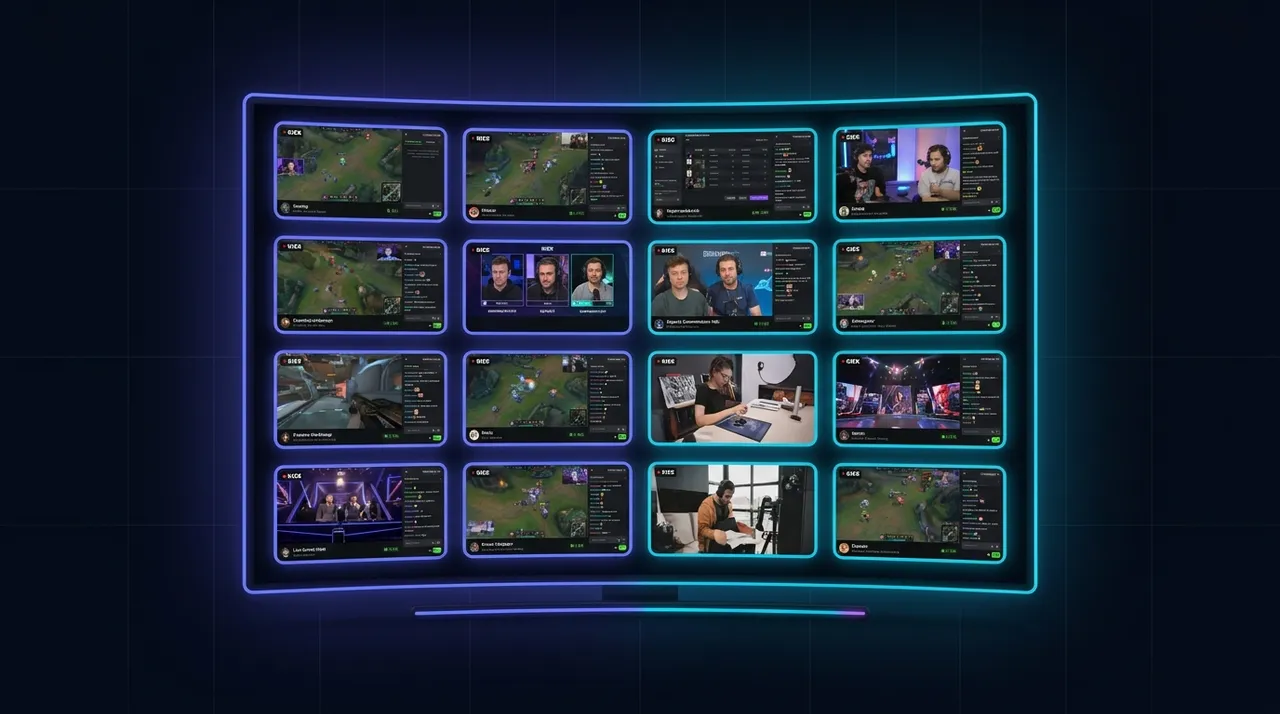
Alright, let's talk about the absolute chaos and pure, unadulterated joy of watching multiple Kick streams. Seriously, if you're still just running one stream at a time, what are you even doing? It's like having access to a buffet and only taking one potato. Madness!
I get it. Kick, as a platform, kinda exploded onto the scene, right? One minute it was barely a whisper, the next it felt like every big name was making the jump, or at least doing a multi-stream deal. That meant a sudden flood of new content, new personalities, and a whole lot of "Oh, wait, is this happening now?!" moments. It's a goldmine for content, but it's also a serious test of your ability to keep up. And for someone like me, who pretty much lives and breathes live content, staying on top of it all became a full-time obsession.
Why Bother Watching Multiple Kick Streams? The FOMO is Real!
Look, the fear of missing out (FOMO) on Kick is a legitimate thing. The platform has a vibe — a certain raw, unpredictable energy — that's different from the more established players. You've got gambling streams going wild, intense gaming sessions, Just Chatting moments that can pivot from chill to utterly unhinged in a heartbeat. It's a whirlwind. And when you've got your favorite streamer doing a sponsored event, another friend playing a new game, and some drama brewing in a third channel, picking just one feels like a betrayal.
I can't tell you how many times I've been watching one stream, thinking I'm all good, only to hop onto Discord later and see everyone buzzing about something insane that happened on another channel. "Did you see Trainwreckstv's reaction to that insane slot win?" "Bro, Adin Ross just went off on... well, you know." "Did Amouranth just get a new hot tub?" My internal monologue is basically a non-stop stream of "NO! I MISSED IT!" It's agonizing. And that's why I started down this path of figuring out the best way to keep my eyes on more than one prize. For me, it became less of a luxury and more of a necessity.
The Rise of Kick and Multi-Streaming's Necessity
Kick's growth has been genuinely wild to witness. It felt like overnight, streamers who were pillars of other platforms were suddenly making huge announcements, signing deals that made your jaw drop. xQc, Adin Ross, Amouranth, and countless others – they all brought their massive communities, their unique styles, and their often-spontaneous content. This wasn't just a slow trickle; it was a flood. And with so many big personalities, often collaborating or even reacting to each other in real-time, the idea of a kick multi-stream setup became less of a niche interest and more of a mainstream requirement for serious viewers.
Think about it: during a big event like a streamer boxing match, or when a major game drops and all your favorite players are diving in simultaneously, how do you choose? Do you pick the biggest name? The funniest one? The one playing your favorite character? It's a tough call. And often, the most interesting content isn't happening on the main stage, but in the side reactions, the chat interactions, or the smaller streamers who are absolutely killing it. So, yeah, the platform's rapid ascent pretty much forced my hand into becoming a multi-view maestro. I needed to watch multiple Kick streams just to feel like I was part of the conversation.
Your Options for a Kick Multi-Stream Setup
Okay, so you're convinced. You want to see more. You want to feel less FOMO. How do you actually do it? This is where things get a little... complicated, depending on your approach. Over the years, I've tried pretty much every method under the sun, from the utterly primitive to the surprisingly sophisticated. Each has its quirks, its benefits, and, let's be honest, its major frustrations. My journey to find the best Kick multi viewer has been a long one, paved with CPU spikes and audio headaches.
The Browser Tab Juggling Act (and why it's a headache)
The absolute simplest, most basic way to try and watch multiple Kick streams is to just open a bunch of tabs in your browser. Right? Seems logical enough. Open one, open another, minimize them, arrange them side-by-side. Easy peasy. Except... it's not. Not even a little bit.
The first time I tried this, I ended up with about six tabs open, each playing a different streamer. My poor computer sounded like a jet engine getting ready for takeoff. The CPU usage shot through the roof, especially if the streams were all high quality. Then came the audio. Oh, the audio! Six different voices, six different game sounds, six different background music tracks all competing for dominance. It was an absolute cacophony. I spent more time frantically muting and unmuting tabs than actually watching anything. And don't even get me started on trying to arrange them neatly. Dragging tabs around, trying to get them to snap just right, only for them to constantly resize or overlap. It's an exercise in futility and a recipe for a migraine. Plus, the chat experience? Forget about it. You're constantly clicking between tabs, losing track of conversations. It's a clunky, inefficient, and frankly, quite irritating way to try and enjoy multiple streams. It's like trying to conduct an orchestra with a bunch of toddlers.
Browser Extensions: A Step Up, But Still Limited
After the browser tab fiasco, I started looking into browser extensions. These promised a more streamlined experience, a way to create a kick split screen without the madness. And to their credit, some of them do offer a slight improvement. They might give you a basic grid layout, or at least make it easier to mute individual streams. You install one, you open it, and it gives you a sort of minimalist frame to drop your stream URLs into.
My experience with these has been mixed. On one hand, yes, they often make the layout a bit cleaner. They might even have a dedicated mute button for each stream, which is a godsend compared to right-clicking every single tab. But they also come with their own set of issues. For starters, they're often browser-specific, so if you like to switch between Chrome, Firefox, or Edge, you're looking at different solutions, different interfaces. Then there's the stability – some extensions can be buggy, causing crashes or conflicts with other extensions. And the customization? Usually pretty bare-bones. You get a few preset layouts, maybe, but you can't really fine-tune the sizes, positions, or add things like integrated chat. They're a good intermediate step, but they're still beholden to the limitations of being just an extension within a browser, not a dedicated, purpose-built multi-viewer. I found myself still wanting more control, more stability, and frankly, a more elegant solution.
Master the Multi-View: How to Watch Multiple Kick Streams with Ease
This is where the real magic happens, folks. After all that fiddling with tabs and wrestling with extensions, I finally landed on a truly superior way to watch multiple Kick streams: a dedicated multi-viewer platform. And, not to toot my own horn, but ViewGrid.tv is pretty much the king of the hill in this regard. It's designed specifically for this purpose – to give you that seamless, powerful multi-view experience without all the headaches. It's what I use daily, and it's changed how I consume live content across all platforms, not just Kick.
Imagine a single interface where you can drop in stream URLs from Kick, Twitch, YouTube, even a sports broadcast if you wanted, and have them all play beautifully side-by-side. No more wrestling with tabs. No more fighting with audio. Just smooth, customizable multi-viewing. The first time I tried it, I felt like I'd ascended to a new plane of streaming consciousness. My CPU fan barely spun up, the audio was perfectly manageable, and I could actually see everything I wanted to see. That's the power of a purpose-built tool.
Step-by-Step: Setting Up Your Ultimate Kick Split Screen
Ready to ditch the chaos and embrace the zen of multi-streaming? Here's how I usually set up my ultimate kick split screen layout using ViewGrid. It's straightforward, trust me.
- Head to ViewGrid.tv: This is your command center. Open it up, and you'll see a clean, intuitive interface ready for action. No downloads, no installations, just pure browser-based goodness.
- Find Your Kick Streams: Open new tabs for the Kick streams you want to watch. Go to Kick.com, search for your favorite streamers – maybe it's xQc, maybe it's someone new you just discovered. Once you're on their stream page, grab that URL from your browser's address bar. Just copy the whole thing –
https://kick.com/xqcor whatever it is.
- Paste and Add: Back on ViewGrid, you'll see input boxes. Paste the first Kick stream URL into one of them and hit "Add Stream" or press Enter. Boom! The stream pops right into your layout. Repeat this for all the Kick streams you want to include. I usually go for 2-4 streams, sometimes even more if I'm feeling ambitious or watching a massive esports event. You can mix and match too – maybe a Kick stream in one window and a Twitch VOD in another. It's incredibly flexible. If you want to watch multiple Twitch streams alongside your Kick content, ViewGrid handles it beautifully. Same goes for watch multiple YouTube streams.
- Arrange Your Layout: This is where ViewGrid shines. Once your streams are loaded, you'll see options to adjust your layout. You can drag and drop streams to rearrange them, resize individual windows, or choose from preset grid layouts like 2x2, 1x3, 3x1, etc. This is crucial for creating the best Kick multi viewer experience for your specific needs. I often like a main stream larger in the middle, with a couple of smaller side streams for context or background noise. If I'm trying to watch multiple esports streams during a big tournament, I might go for a 2x2 grid to catch different perspectives or parallel matches.
- Manage Your Audio: This is probably the most important step for sanity. By default, ViewGrid will play audio from all active streams. You'll see individual volume controls for each stream, making it super easy to mute streams you don't need audio from, or dial down the background noise on others. I usually pick one primary stream for full audio and keep the others muted or at a very low volume. This prevents the chaotic sound clash that plagues the browser tab method.
- Refine and Enjoy: Spend a moment tweaking. Is the layout perfect? Are the volumes just right? Do you want to try a different arrangement? ViewGrid makes it easy to experiment on the fly. You can also easily remove streams you're done with and add new ones without reloading the entire page. It’s fluid, it’s responsive, and it just works. And if you're ever in a situation where you need to watch multiple news channels for a breaking story, the exact same principle applies. It's truly a universal solution.
Optimizing Your Best Kick Multi Viewer Experience
So you've got your streams loaded, your layout set up, and you're feeling good. But there's always room for optimization, right? Like tuning a race car – you want every edge you can get. Getting the most out of your kick multi-stream setup isn't just about loading streams; it's about making the entire experience smooth, enjoyable, and tailored to your viewing habits.
First off, your hardware matters. While ViewGrid is incredibly efficient, running multiple high-quality streams will still demand some resources from your computer and your internet connection. If you're trying to push four 1080p streams on a ten-year-old laptop with spotty Wi-Fi, you might still hit some snags. A decent CPU, a good amount of RAM (16GB is pretty much the standard these days for anything serious), and a stable, fast internet connection are your best friends here. My own setup includes a pretty beefy desktop and a fiber connection, and even then, I try not to go too crazy with more than 4-5 streams in 1080p. Sometimes, I'll even dial down the quality on the less critical streams to 720p to save bandwidth and CPU cycles. Every little bit helps.
And speaking of internet, if you're watching a lot of high-bitrate content, especially from Kick which can sometimes push high numbers, an Ethernet connection over Wi-Fi is almost always going to give you a more stable, higher-bandwidth experience. There's nothing worse than having one crucial stream buffer while everyone else is reacting to something live.
Audio Management: The Unsung Hero of Multi-Streaming
This is probably the biggest differentiator between a frustrating multi-stream experience and an enjoyable one. As I mentioned, ViewGrid gives you individual volume controls, which is fantastic. But sometimes you want more. I usually keep one stream as my "main" audio source – the one I'm actively listening to for commentary or dialogue. The others are either muted entirely or set to a very low background hum.
For those who want to get really fancy, a physical or software audio mixer can be a game-changer. Something like a GoXLR or even just basic virtual audio cables (like VoiceMeeter Banana) can let you route audio from different browser tabs or applications to different channels, giving you incredibly granular control. I've been using VoiceMeeter for years, and it allows me to send my main stream's audio directly to my headphones, while a secondary stream's audio might go to a different virtual output that I can quickly mute or lower with a hotkey. It takes a bit of setup, but once it's done, it's incredibly powerful. You can even isolate game sounds from streamer commentary if you're watching someone play, and then mix that with another stream's chat reactions. It's truly next-level stuff.
My hot take? Anyone who tries to run more than two concurrent audio streams without a dedicated multi-viewer or audio mixer is a masochist. It just doesn't work. Your brain can't process it, and it turns into noise. Prioritize. Always prioritize.
Chatting in Parallel: Is It Even Possible?
This is another huge question for multi-streamers. If you're watching four streams, how do you engage with four chats? The short answer is: you generally don't, at least not actively. It's incredibly difficult to keep up with the rapid-fire messages in even one active chat, let alone four.
My strategy, and what I recommend, is to pick one primary stream where you'll actively participate in chat. This is usually the streamer you're most invested in, or where the most interesting conversation is happening. For the other streams in your kick multi-stream setup, you become a lurker. You keep their chats open – ViewGrid even integrates chats directly alongside the streams, which is super convenient – and you just watch the scroll. You get a feel for the vibe, catch a joke, maybe notice if something significant is happening, but you don't actively type. It's about immersion and observation, not constant interaction.
Sometimes, if it's a very chill stream, you can juggle two chats, especially if you have a wide monitor or a secondary screen. But for the high-energy, fast-paced Kick streams, focusing your active chat participation on one window is the way to go. Otherwise, you'll spend all your time typing and miss all the actual action!
Beyond Kick: Expanding Your Multi-Stream Horizons with ViewGrid
While we're specifically talking about how to watch multiple Kick streams today, I really want to emphasize that the beauty of a platform like ViewGrid.tv is its versatility. This isn't just a Kick tool; it's a universal multi-viewer. Once you get comfortable with your kick multi-stream setup, you'll quickly realize the potential to expand your horizons.
Think about it:
You can watch multiple Twitch streams during a big charity event like Games Done Quick, catching different runners' perspectives.
You can have a watch multiple YouTube streams setup for a product launch or a live concert, seeing multiple angles or reactions.
For sports fans, being able to watch multiple sports streams is a game-changer. Imagine two free official streams from the same tournament side by side, or a watch-along next to the match on your TV. No more frantic tab switching!
And as I mentioned before, during major world events, being able to watch multiple news channels to get different perspectives is invaluable.
ViewGrid.tv truly integrates seamlessly across platforms. You just grab the URL, paste it in, and it works. This flexibility means that your investment in learning how to use a multi-viewer isn't just for one platform or one type of content; it's for all of it. It’s the ultimate tool for anyone who loves live content and wants to maximize their viewing experience without sacrificing performance or sanity. It's become an indispensable part of my daily routine, letting me curate my own perfect broadcast, whatever I'm in the mood for.
So, if you're ready to level up your streaming game, to conquer the FOMO, and to truly master the art of consuming live content, diving into multi-streaming with a dedicated tool like ViewGrid.tv is the move. Stop juggling tabs, stop missing moments, and start building your ultimate personalized viewing experience. You won't look back.
Ready to try multi-stream viewing?
Watch YouTube, Twitch, Kick & more — all on one screen.
Open ViewGridOr start with watch multiple Kick streams at once — the page built for exactly this.
Related Articles
How to Watch Multiple Streams at Once on One Screen
To watch multiple streams at once, you can use a multi-stream viewer tool. These tools let you paste links from different platforms like Twitch, YouTube, and Kick into a single browser window, creating a custom grid of v
how toViewGrid Mobile: A Guide to Multi-Stream Optimization
Multi-stream mobile optimization is about arranging several video streams on a small screen so they're actually watchable. With ViewGrid, you can watch up to six streams at once on your phone by choosing a layout that fi
how toHow to Watch Multi Stream Streamer Collabs
To watch multi stream streamer collabs, you use a tool that lets you combine video feeds from different platforms into one view. This way, you can paste links for every streamer's Twitch, YouTube, or Kick channel into a
how toHow to Sync Multiple Live Streams for Perfect Timing
To sync multiple live streams, you need to open them in a single tool that lets you manage them together. A multi-stream viewer like ViewGrid puts all your feeds into one browser window, making it much easier to manually