Split Screen Streaming: Optimize Your Multi-View
Tired of tab juggling? Master split screen streaming to watch multiple streams side by side. I'll show you how to optimize your multi-view setup with ViewGrid.tv for esports, news, and more!
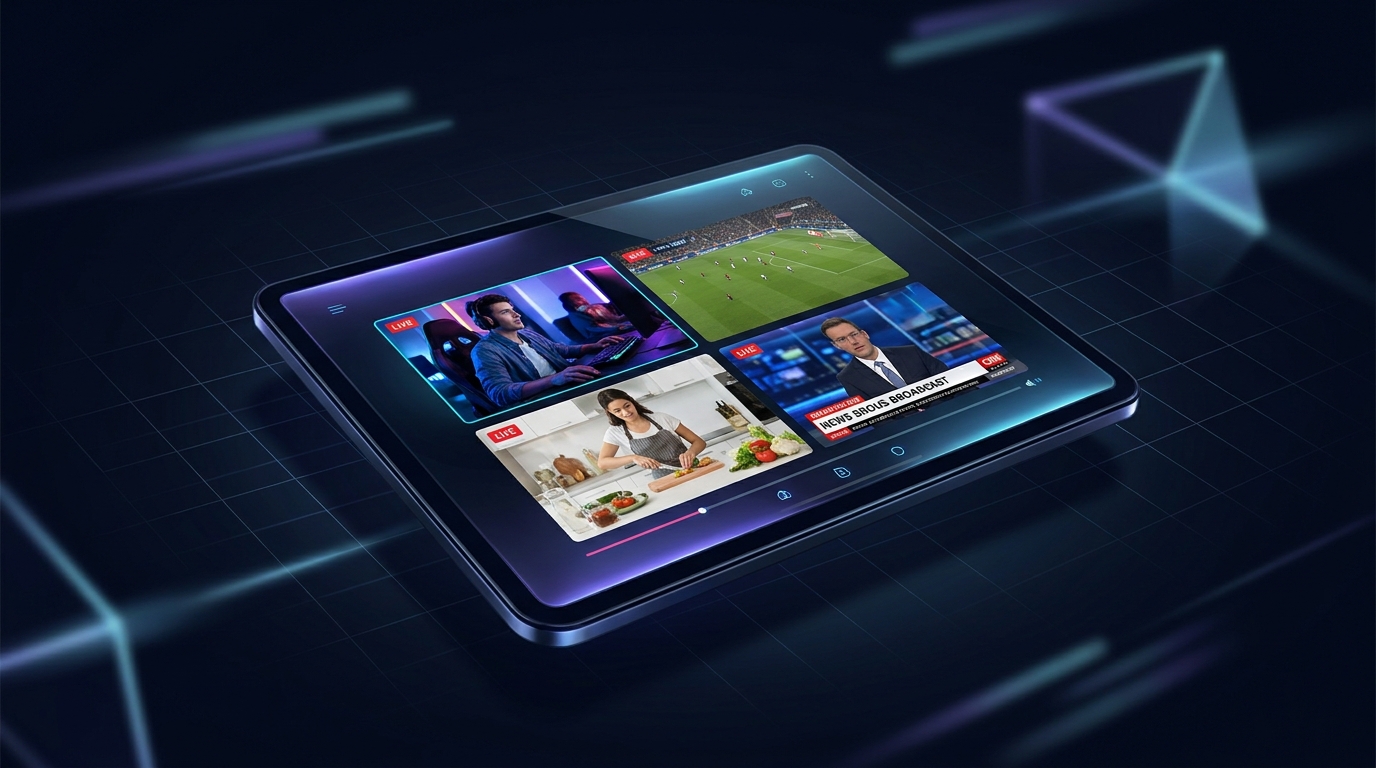
Alright, let's be real. If you're anything like me, your browser is probably a chaotic mess of tabs. One for Twitch, another for YouTube, maybe a Kick stream lurking in the background, and then a dozen more for Reddit, Twitter, and that random article you swore you'd read later. It's a digital jungle out there, especially when something big is happening. And honestly, trying to keep up with everything on separate tabs? It's a nightmare. The constant alt-tabbing, the audio clashes, the sheer inefficiency of it all. That's why I've become a huge advocate — no, a zealot — for split screen streaming. It's not just a fancy feature; it's how you actually get the most out of your viewing experience.
I mean, picture this: it's the final round of Valorant Champions. You've got the main broadcast on one screen, but you really want to see TenZ's POV. And then there's the casters' reactions, maybe even a watch party from Tarik or something. Trying to juggle all those individual streams, trying to sync them up, constantly muting and unmuting... it's just not it. The beauty of a proper split screen streaming setup is that it brings order to that chaos. It consolidates everything into one organized, manageable window. It's truly a game-changer for anyone who takes their live content seriously, and I genuinely believe that if you're not using one by now, you're missing out on a huge chunk of what modern streaming offers.
Why Even Bother with Split Screen Streaming?
Okay, so I just touched on it a bit, but let's really dig into why this isn't just a niche thing for hardcore nerds (though, yeah, it's great for us too). It's about optimizing your consumption of live content. Think about how much stuff happens simultaneously these days. It's not just one person streaming; it's entire events, multiple content creators collaborating, news breaking across different outlets. You need to be able to see it all.
For me, the biggest draw is definitely not missing a moment. How many times have you been watching a streamer, maybe xQc playing some wild game, and you hear about another big moment happening on someone else's stream? Or a clutch play in an esports match that the main broadcast only showed for a second? With a side by side stream viewer, you can catch those parallel narratives. You're no longer just following one thread; you're observing the entire tapestry of live events unfolding. It gives you a much richer, more comprehensive understanding of what's going on, and it makes you feel like you're truly in the moment, not just a passive observer. Last week, when Ludwig was doing that "7 Days" stream, I had his main view up, but I also had a smaller window with other streamers reacting to his content. It was fascinating to see the ecosystem in real-time.
The Esports Advantage
This is where split screen streaming really shines. Esports, by its very nature, is a multi-faceted beast. You have the main broadcast, which is great for overall context, but then you have individual player perspectives. Imagine a high-stakes League of Legends match, and you want to see both the mid-laner's micro-mechanics and the jungler's pathing at the same time. Or, in Counter-Strike, watching one player's clutch from their POV while also seeing the minimap on the main broadcast. It's invaluable.
During the last IEM Katowice, I was glued to the screen. I had the main English broadcast, of course, but then I also had a Danish analyst stream running without sound, just for the visual cues and a different perspective. And then, for crucial rounds, I'd pop open a player POV from the official Twitch channel, just to see how they handled the pressure. A good ViewGrid multi-stream viewer allows you to do exactly this. You can curate your own perfect broadcast, tailoring it to exactly what you want to see. It’s not just about watching; it’s about experiencing the event from every angle. It's how I catch the nuances, the tiny decisions that make or break a team, that you just can't get from a single feed. It's a must for any serious fan of watch multiple esports streams.
News, Debates, and Live Events Beyond Gaming
It's not just gaming, though. Think about news events. When something major breaks, you often want to see how different news outlets are covering it. Maybe CNN, Fox News, and Al Jazeera all have live feeds up, and you want to compare their reporting in real-time. Or a political debate – having multiple angles, different commentators, or even just seeing the candidates side by side without having to flip channels. It gives you a much more balanced and immediate understanding of complex situations. I've used this for election nights, for major press conferences, even for watching the Olympics where they have different sports happening concurrently. Being able to watch multiple news channels at once gives you a truly comprehensive overview that a single source just can't provide. It’s like having your own personal control room.
And, of course, sports! While ViewGrid has a huge focus on the gaming and variety streaming world, if there's a day with multiple crucial games happening — say, two NBA playoff games tipping off at the same time — being able to toggle between them, or even watch them both in smaller windows, is a godsend. You don't have to choose! You can literally watch multiple sports streams and keep an eye on all the action simultaneously. It's definitely changed how I consume live events, making me feel much more connected to everything that's unfolding.
The Tech Behind the Magic: How Split Screen Streaming Works
So, how do we actually pull this off? For a long time, the only way to watch multiple streams was to open a bunch of browser tabs, arrange them manually, and pray your computer didn't melt into a puddle of silicon and despair. And let's be honest, that was a terrible experience. The CPU usage would spike, the memory would scream for mercy, and the audio would be a cacophony of overlapping voices. It was clunky, inefficient, and frankly, a huge barrier to entry for anyone who wasn't a tech wizard with a monstrous rig.
That's where dedicated multi stream viewer platforms come in. These aren't just fancy browser tabs. They're specifically designed to optimize the viewing of multiple live feeds. They handle the video decoding more efficiently, manage audio inputs, and provide intuitive layouts. They streamline the process, making it accessible and enjoyable for everyone, regardless of their PC specs. The first time I tried a proper multi-stream tool, I felt like I'd just discovered fire. It was so much smoother, so much cleaner, and my computer wasn't threatening to take flight anymore.
Browser Tabs vs. Dedicated Platforms
Let's break it down, because this is important.
Browser Tabs (the old way):
Pros: Free, no new software needed.
Cons:
Resource intensive: Each tab is essentially running a separate instance of a video player, often with its own chat and scripts. This absolutely murders your CPU and RAM. You'll hear your fans spinning up like a jet engine.
Audio nightmare: Trying to manage audio from multiple tabs is a literal headache. You're constantly clicking around, muting, unmuting. Or worse, you just let them all play and get an auditory assault.
Clunky layout: Manually resizing and arranging tabs is fiddly. They rarely snap perfectly, and if you accidentally close one, it's a pain to reopen and reposition.
Sync issues: Streams can easily fall out of sync, especially if your browser decides to deprioritize a background tab.
Chat chaos: Every stream has its own chat, which means you're trying to follow multiple conversations at once, or you just ignore them all.
Dedicated Multi Stream Viewer (the new, better way):
Pros:
Optimized performance: These platforms are built from the ground up to handle multiple video feeds efficiently. They often use better rendering techniques or pre-load streams more smartly, reducing the load on your system.
Integrated audio control: This is a big one. You usually get a dedicated audio mixer for all your streams, letting you easily mute, unmute, or adjust individual volumes with a single click.
Seamless layouts: Pre-set grid layouts (2x2, 1x3, 1 large + 2 small, etc.) make arranging streams effortless. You just pick your layout, drop in your links, and you're good to go.
Better synchronization: Many dedicated viewers try to keep streams in sync, or at least make it easier to refresh them if they drift.
Centralized experience: Everything is in one place, one browser window, one application. It makes the whole experience much more cohesive.
Chat integration: Some advanced viewers allow you to pull in chat from one primary stream, or even consolidate multiple chats, which is really handy.
Cons:
Might require a specific platform (like ViewGrid.tv, which isn't a "con" for us, but you get the idea).
* Some niche platforms or specific embedded player requirements might not always be supported (though ViewGrid does a fantastic job with Twitch, YouTube, and Kick).
So yeah, if you're still using separate tabs, you're living in the stone age, my friend. It's time to upgrade.
Setting Up Your Ultimate Split Screen Streaming Hub
Alright, let's get down to business. How do you actually do this? It's surprisingly simple, especially with a platform like ViewGrid.tv. Here’s a basic step-by-step for getting your split screen streaming experience off the ground.
- Open ViewGrid.tv: Seriously, just navigate to the site. You don't need to download anything, no complicated installations. It's all browser-based, which is super convenient. I usually bookmark it because I'm on it so often.
- Choose Your Layout: Right on the homepage, or after you've added your first stream, you'll see options for different grid layouts. Do you want two streams side-by-side? A 2x2 grid for four streams? Maybe one large main stream with a couple of smaller ones below it? Pick what suits your current viewing needs. Don't worry, you can always change it later. For Valorant Champions, I usually go with a 2x2: main broadcast, a specific player POV, an analyst desk, and maybe a watch party.
- Add Your Streams: This is the fun part. You'll see input fields for stream URLs. Just copy the link directly from Twitch, YouTube, or Kick, and paste it in. Hit "Add Stream" or similar, and boom – it pops into one of your chosen grid slots.
- * Want to watch multiple Twitch streams? Grab those Twitch URLs!
- * Got a couple of YouTube streams you're tracking? Paste them in!
- * Keeping an eye on Kick streams? Yep, those work too!
- Manage Audio: This is crucial. Most good multi stream viewer platforms will give you a volume slider or a mute button for each individual stream. Decide which stream is your primary audio focus. Mute the others entirely, or turn them down to a low background hum. I usually have one primary stream at full volume and maybe one or two others at 10-20% just so I can tell if something interesting is happening visually, then I can quickly switch the audio focus if needed.
- Optimize for Performance: If you're running a lot of streams (especially 4K streams), even a dedicated viewer can push your system.
- * Lower resolution: Many platforms allow you to manually lower the resolution of individual streams. If you have four streams on a single monitor, chances are you don't need all of them in 1080p or 4K. Dropping secondary streams to 720p or even 480p can significantly reduce CPU and bandwidth usage.
- * Disable chat for secondary streams: Chat can be surprisingly resource-intensive. If you're not actively participating or even reading the chat on a particular stream, disable it if the platform allows.
- * Close unnecessary tabs/apps: This goes without saying, but free up resources where you can.
That's pretty much it! With ViewGrid, you can customize your layout on the fly, add and remove streams with ease, and manage your audio centrally. It’s genuinely intuitive, which is exactly what you want when you're trying to focus on the content, not the interface.
Audio Management: The Unsung Hero (and Headache)
Okay, let's talk about the elephant in the room when you're doing any kind of split screen streaming: the audio. This is where most people get tripped up, and it can quickly turn a glorious multi-view experience into an annoying mess. Imagine four streams all blasting sound at you simultaneously – it's a sensory overload, a cacophony that makes it impossible to focus on anything.
This is precisely why a good multi stream viewer needs robust audio controls. You simply can't rely on your operating system's global volume or hoping individual browser tabs cooperate. What I always recommend, and what I do myself, is to pick one primary stream whose audio you want to focus on. This could be the main broadcast of an esports event, the person whose commentary you find most engaging, or the news channel with the most pertinent information.
For all other streams, you have a few options:
Mute entirely: If it's a visual-only stream (like an analyst desk where you just want to see their reactions, or a player POV you're only tracking visually), just mute it. No need for extra noise.
Low background volume: Sometimes, you want a hint of what's happening. Maybe a crowd cheering from a different stream, or the general vibe of a watch party. In these cases, turn the volume down to a very low level – maybe 5-10%. Just enough to register a change, but not enough to interfere with your main audio.
Browser extensions (for non-dedicated viewers): If for some reason you are still stuck with multiple tabs, there are browser extensions that give you per-tab volume control. They're better than nothing, but still don't offer the seamless integration of a dedicated platform like ViewGrid.
Dedicated Audio Mixer (ViewGrid's approach): The best solution, and one that ViewGrid provides, is an integrated audio mixer. You get a clear visual representation of each stream's audio, with individual sliders or mute buttons. This makes quick adjustments a breeze. I can instantly mute the analyst stream if the main caster says something critical, or ramp up the volume on a player POV if they get into a clutch situation. It's truly a night and day difference compared to wrestling with multiple browser tabs. Trust me, your ears will thank you.
My Top Tips for an Optimized Multi-View Experience
After countless hours staring at grids of live content, I've picked up a few tricks. Here are my personal recommendations to make your split screen streaming setup truly sing:
- Monitor Real Estate is Key: This might seem obvious, but it's vital. Trying to fit four streams on a tiny 13-inch laptop screen is just going to give you a headache. A good 27-inch monitor (or larger!) is ideal. Ultrawide monitors are fantastic for this too, as they give you a lot of horizontal space for multiple side-by-side feeds. If you're serious about watching watch multiple esports streams, invest in some decent screen space. It makes a massive difference to clarity and comfort.
- Prioritize Your Layout: Don't just cram streams in. Think about what you're watching.
- * Esports: I usually have the main broadcast in the largest slot, a specific player POV in a medium slot, and then maybe two smaller slots for an analyst desk and a community watch party.
- * News: Main news channel large, two competitors smaller, maybe a social media feed if that's an option.
- * Variety: Main streamer large, their collaborator's stream medium, and maybe a chat replay or a music stream on small.
- Plan your visual hierarchy.
- Don't Go Overboard with Streams: This is my hot take. Just because you can run four or six streams doesn't mean you should. Sometimes, less is more. If you're genuinely trying to pay attention to everything, two or three well-placed streams are often more effective than five tiny, distracting boxes. Quality of attention over quantity of streams. You'll burn yourself out trying to track too many things.
- Keyboard Shortcuts are Your Friend: If your multi stream viewer has keyboard shortcuts for muting, switching audio focus, or even switching layouts, learn them! They save so much time and keep you in the flow without having to reach for the mouse constantly.
- Beware of Chat Overload: While chat can be fun and interactive, trying to follow four different Twitch chats simultaneously is a recipe for disaster. I usually only have chat enabled for my primary stream. For secondary streams, I just hide it. The visual information is often enough, and I don't need the distraction of multiple scrolling text feeds. Sometimes, chat for any stream can be a bit much, especially if you're trying to focus on a tense moment.
- Bandwidth Matters: If you have multiple high-resolution streams running, you're going to be eating up a lot of bandwidth. Make sure your internet connection can handle it. If you're experiencing stuttering or buffering, try lowering the resolution on some of the less critical streams, or reduce the number of active streams.
ViewGrid.tv: Your Go-To Multi Stream Viewer
So, yeah, I've talked a lot about the benefits and how-to's of split screen streaming, and for good reason. It's how I personally consume almost all my live content. And when it comes to finding a reliable, easy-to-use platform for this, I always land back on ViewGrid.tv.
I've tried others, believe me. Some are clunky, some are buggy, some require downloads, and some just don't offer the flexibility I need. ViewGrid just works. You can quickly drop in links from Twitch, YouTube, and Kick, arrange them how you like, and manage your audio without any fuss. Whether I'm trying to watch multiple Twitch streams during a charity event, keep up with new content on YouTube streams, or check out the latest from creators on Kick streams, it makes the process seamless.
It's truly built for people who love streaming and want to get the most out of it. From monitoring esports streams during a major tournament to keeping an eye on different sports streams or even news channels, it covers all the bases with an intuitive interface. It's a powerful multi stream viewer that empowers you to create your own personalized broadcast hub. If you haven't given it a try yet, seriously, what are you waiting for? Your streaming experience is about to get a massive upgrade. Go check it out and tell me what you think – you won't regret it.
Ready to try multi-stream viewing?
Watch YouTube, Twitch, Kick & more — all on one screen.
Open ViewGridOr browse all multi-stream categories.
Related Articles
Mobile Grid View: Optimize for Small Screens
Discover how ViewGrid.tv enhances multi-stream mobile optimization for small screens. Learn to set up your mobile stream layout, use live presets, and catch all the action on the go.
how toShare Your Perfect View: Save & Export Multi-Stream Layouts
Tired of setting up your multi-stream view every time? Learn how to save multi stream layout configurations on ViewGrid.tv, export viewgrid layout, and share your custom stream layouts with friends!
how toMaster Streamer Collabs: Multi-Stream Every POV
Tired of missing out on streamer collab POVs? Learn how to multi-stream your favorite creators from Twitch, YouTube, and Kick to get the full story. Your ultimate streamer event multi view guide is here!
how toHow to Sync Multiple Live Streams for Esports Analysis
Tired of desynced streams? Learn how to sync multiple live streams for superior esports analysis using ViewGrid.tv. Get multi-POV sync and reduce stream delay.