Your New Twitch Squad Stream Viewer: ViewGrid Unlocked
Tired of missing out on squad stream action? Learn how ViewGrid's multi-stream viewer transforms your Twitch experience, letting you control multiple feeds and chats like a pro. Get the ultimate view!
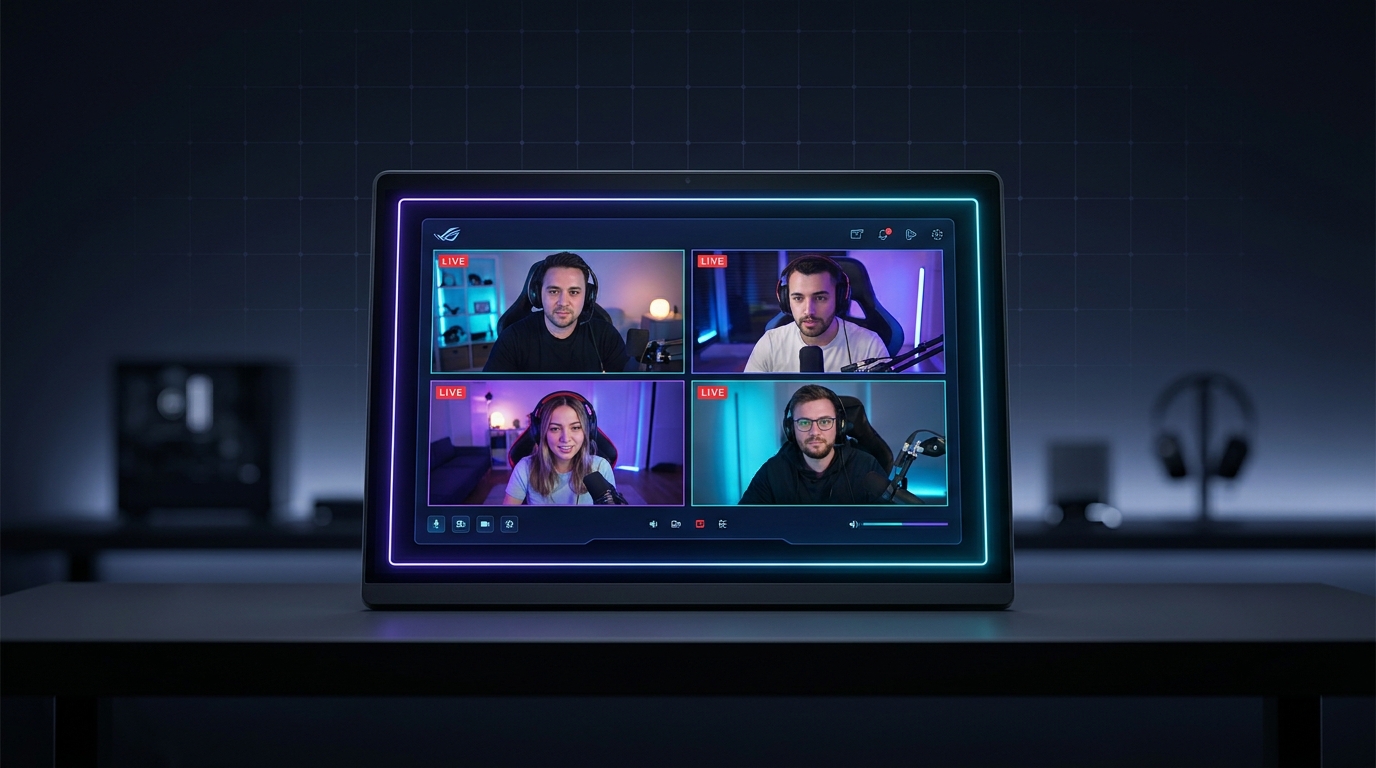
Okay, let's be real for a second. We've all been there, right? You're hyped for a big event – maybe it's the latest Valorant tournament, or your favorite group of streamers are finally playing that new co-op game, or just a chill night where everyone you follow is live. You open Twitch, you see the "Squad Stream" button, and you think, "Yes! This is it!" Then you click, and... well, it's fine. It works. But is it great? Is it giving you the full picture, the true chaos, the unadulterated hilarity of multiple perspectives? Nah, not really.
That's where a proper twitch squad stream viewer comes into its own. I'm talking about taking back control of your viewing experience, seeing all the angles, hearing all the reactions, and truly immersing yourself in the madness. For years, I struggled with opening multiple Twitch tabs, trying to manually sync audio, constantly tabbing back and forth to catch different chats. It was a nightmare. My PC fans would spin up like a jet engine trying to render all those separate browser instances. Then I found solutions like ViewGrid, and honestly, it changed the game for me. It’s not just about watching; it’s about experiencing the stream, exactly how you want to.
The Glorious Chaos of Squad Streams (and why native Twitch falls short)
There's something uniquely captivating about a group of streamers playing together. Think about the energy when the OTV crew gets together for Among Us or Rust – the strategizing, the betrayals, the absolute pandemonium. Or when your favorite Minecraft builders collaborate on a huge project, each with their own unique style and commentary. It’s not just about what's happening on screen; it's about the interpersonal dynamics, the banter, the friendly jabs. That’s the magic of a squad stream.
Twitch, to its credit, does have a native squad stream feature. It lets up to four streamers broadcast their screens simultaneously in a single viewer. On the surface, it sounds perfect. And for the streamers, it's pretty convenient – they just hit a button, invite their buddies, and boom, they're streaming together. For viewers, though, it’s a bit of a mixed bag. You get one main screen, usually the host, and three smaller screens below it. You can switch the main view, sure, but you're only ever really focused on one. The audio primarily follows that main screen too, and you only get one chat – the main streamer's chat. What about the other three chats? What if one of the side streamers says something hilarious that only their chat catches? What if the real action is happening on a smaller screen, but you can barely see it? You just miss out.
Honestly, this is my biggest pet peeve with the native implementation. It feels like a watered-down version of what it could be. It's like going to a concert and only being allowed to look at the lead singer, while the rest of the band plays in shadows. You're getting some of the experience, but not the full, rich, dynamic performance. And for someone like me, who's always trying to catch every little detail – every reaction, every subtle interaction – it just doesn't cut it. I need to see everything, and I need to hear it all, even if it means juggling audio channels myself. That's the real appeal of a powerful twitch multi-viewer.
Why a Dedicated Twitch Squad Stream Viewer is Essential for True Fans
So, if the native option isn't always hitting the mark, what's the alternative? A dedicated, external twitch squad stream viewer. This is where you gain true agency over your viewing experience. Imagine being able to arrange four (or more!) streams in a grid, all at equal size. Or maybe one slightly larger if that specific streamer is the current POV you're most interested in, but still having the others clearly visible. That’s the kind of flexibility that makes all the difference.
The core benefit? Full control. You dictate the layout. You decide which streams are prominent. And perhaps most importantly, you get to manage the audio precisely. Do you want to hear all four streams at 50% volume? Go for it. Do you want to mute everyone but one streamer because they just said something wild? You can. This level of granular control is something Twitch's built-in feature simply doesn't offer. For instance, last week I was trying to follow a Phasmophobia squad stream with Disguised Toast, Valkyrae, Sykkuno, and Corpse. In Twitch's player, I'd constantly be switching to see who was actually finding the ghost or getting chased. With a good multi-viewer, I could see all four rooms simultaneously, understanding the full scope of their terror (or lack thereof).
Beyond just the visuals and audio, there's the chat experience. A good external twitch multi-viewer lets you bring up multiple chats, or at least provides a dedicated space for one specific chat while you have the others open in separate tabs or on a second monitor. This means you're not just watching the stream; you're participating in the community of each streamer. You can see how each individual audience is reacting to the same moment, which adds another layer of engagement. It’s like being in four different rooms at a party, but somehow being able to hear and see everything happening in each one. It's a game-changer for really feeling connected to the whole group, not just the "main" guy.
Mastering Multi-Stream: Your ViewGrid Twitch Squad Stream Viewer Guide
Alright, enough lamenting the past. Let's talk about how to actually get this done and elevate your viewing. Using a platform like ViewGrid for your twitch squad stream viewer needs is surprisingly straightforward, and once you try it, you'll wonder how you ever managed without it. This isn't just for squad streams either; it’s how I watch everything from the LCS playoffs with a co-streamer on the side, to monitoring multiple breaking news channels during a big event.
Step 1: Gathering Your Stream Links
First things first, you need the individual links for each stream you want to watch. This is crucial because ViewGrid pulls in each stream separately.
- Go to Twitch: Open your browser and navigate to Twitch.tv.
- Find the Streamers: Go to each streamer's channel page that you want to include in your squad.
- Copy the URL: Copy the direct URL from your browser's address bar for each streamer. It'll look something like
https://www.twitch.tv/shroudorhttps://www.twitch.tv/pokimane. Make sure they are live, of course!
Pro Tip: Keep these links handy. Maybe paste them into a temporary notepad document, or just remember the order you want to add them. For Twitch, it’s usually
twitch.tv/username. Simple enough.
Step 2: Firing Up ViewGrid
Now that you have your links, it's time to unleash the power of ViewGrid's multi-stream viewer.
- Open ViewGrid: Go to ViewGrid.tv in your browser. You'll see a clean, minimalist interface ready for you to paste your links.
- Paste Your First Link: In the input box, paste the URL of the first Twitch streamer you want to watch. Hit Enter or click "Add Stream." You'll see their stream pop up on your screen.
- Add More Streams: Repeat the process. Paste the second link, hit Enter. Then the third, and so on. ViewGrid will automatically arrange them in a grid layout as you add them. You can add as many as your internet connection and screen real estate can handle, though I find 3-4 is usually the sweet spot for a comfortable viewing experience on a single monitor.
- Side note: I once tried to watch like eight Escape From Tarkov* streamers during a big event. My monitor looked like a security camera feed, and my brain just melted. Stick to what you can comfortably process!
- Mixing Platforms: This is where ViewGrid really shines. You're not limited to just Twitch! If one of your squad is also simulcasting on YouTube, or maybe someone's on Kick, you can add their links right alongside the Twitch ones. It's truly platform-agnostic, which is a massive plus.
Step 3: Layout and Audio Control
Once your streams are loaded, ViewGrid gives you intuitive controls to tailor your view.
- Layout Options: Look for layout controls – usually icons representing different grid patterns. You can choose a 2x2, 1x3, 1x2, or even a larger grid if you have more streams. Play around with them to find what works best for your current setup and number of streams. I usually go for a 2x2 if it’s a standard four-person squad, but sometimes a 1+3 (one big, three small) works if there's a clear "main" perspective I want to prioritize.
- Drag and Drop: Most multi-viewers, including ViewGrid, let you drag and drop streams to rearrange their positions within the grid. This is great if you want to put a specific streamer in the top-left spot or move someone who's being particularly active to a more central position.
- Individual Audio Control: Each stream will have its own volume slider, and a mute button. This is arguably the most important feature for squad streams.
- * Prioritize: Mute streams where nothing much is happening, or lower their volume.
- * Balance: Find a good balance where you can hear everyone without any one stream drowning out the others. I usually keep my primary focus stream at 100%, and the others at around 40-60% so I can catch their reactions without missing the main action.
- * Quick Mute: If someone suddenly gets loud, or there's an awkward moment, you can instantly mute just that one stream without affecting the others. This is a lifesaver for jump scares or accidental hot mic situations.
Step 4: Engaging with Multiple Chats
This is where it gets a little more advanced, but it's totally doable and enhances the experience significantly.
- Dedicated Chat Window: ViewGrid lets you pop out the chat for any individual stream you're watching. Just click the chat icon usually associated with that stream window. This will open a separate chat window that you can place anywhere on your screen – on a second monitor, or neatly alongside your multi-stream grid.
- Multi-Monitor Magic: If you have a second monitor, this is where it truly shines. I usually put my ViewGrid layout on my main monitor and dedicate my second monitor to 2-3 chat windows. This allows me to keep an eye on the collective reactions across different communities.
- Streamer-Specific Chat: Focus on the chat of the streamer you're most interested in, or switch between them as the action unfolds. You'll catch inside jokes, stream-specific memes, and immediate audience reactions that you'd completely miss with Twitch's native player. It makes you feel much more connected to the individual communities within the squad.
Beyond the Squad: The Power of ViewGrid for All Your Streaming Needs
While a twitch squad stream viewer is an amazing use case, the utility of a tool like ViewGrid stretches far beyond just group gameplay. Once you get used to the flexibility, you'll start seeing possibilities everywhere. My own viewing habits have completely transformed since I started using multi-viewers.
Esports Action: Never Miss a Play
This is probably my second most frequent use for ViewGrid. When I'm watching a major esports event, whether it's the League of Legends World Championship, a CS2 Major, or a Dota 2 International, there's always so much happening.
Main Broadcast + Co-streamer: I'll often have the official tournament broadcast running on my main screen, and then I'll add a popular co-streamer like 'thegrefg' or 'summit1g' (depending on the game) in a smaller window. This way, I get the professional commentary and the raw, often hilarious, reactions of a streamer I follow. It’s the best of both worlds.
Multiple POV Streams: Sometimes, especially in games like Valorant or Overwatch, official broadcasts will offer individual player POV streams. Being able to watch the main game unfold while also keeping an eye on my favorite player's perspective – seeing their crosshair placement, their decision-making – is invaluable for really understanding the game at a high level. You can really dissect how a professional player navigates a clutch situation from their eyes.
* Analyst Desks + Game: For post-game analysis or pre-game hype, I might have the live game playing alongside the analyst desk discussion. It helps tie everything together and you don't miss any critical insights.
News & Events: Different Angles, All at Once
This one might sound less "fun," but it's incredibly powerful. During major breaking news events, or even just for staying informed, being able to compare different perspectives is crucial.
Multiple News Channels: I frequently use ViewGrid to watch a few different live news channels simultaneously. Say there's a big political debate, or a natural disaster unfolding. I can have CNN, BBC World News, and maybe a local news affiliate all side-by-side. This helps me get a broader picture, compare reporting styles, and catch details that one channel might emphasize while another glosses over. It's like having a newsroom at your fingertips.
Press Conferences + Commentary: During significant press conferences or government announcements, I often pull up the official feed alongside a news channel providing live commentary or analysis. This lets me hear the raw information and then immediately get context or critique, all in one view. It's a fantastic way to consume information critically.
It’s not just about entertainment; it’s about information processing. When you can see and hear multiple sources at once, your brain starts making connections and drawing conclusions that would be impossible if you were just flipping between tabs. It’s a powerful way to stay engaged and informed, whether it’s about your favorite streamers or global events.
Optimizing Your Setup: Tips for the Ultimate Multi-Stream Experience
So, you're convinced that a twitch squad stream viewer is the way to go. Awesome! But just loading up ViewGrid isn't the whole story. To truly maximize your multi-stream experience, there are a few things you can do to optimize your setup.
Internet Bandwidth is King: This is probably the most critical factor. Streaming multiple high-definition videos simultaneously demands a lot from your internet connection. If you're planning on watching 3-4 streams at 1080p, you're going to need robust bandwidth. If you experience buffering, try lowering the quality of one or two streams (most multi-viewers let you do this per stream) or reduce the number of active streams. I learned this the hard way when my wife was trying to join a Zoom call while I was watching three streamers and the internet just gave up. Shared bandwidth is a real struggle!
Monitor Real Estate: While you can multi-stream on a single laptop screen, it's not ideal. A larger monitor, or even better, a dual-monitor setup, makes a huge difference. On a single ultrawide monitor, you can fit 3-4 streams comfortably. With two monitors, you can dedicate one entirely to your ViewGrid layout and use the second for multiple chat windows, Discord, or other browsing. My current setup involves a 27-inch main monitor for the streams and a vertical 24-inch monitor for chat and notes. It's glorious.
Audio Management: We talked about individual stream volume controls, but think about your overall audio setup too.
Headphones: Essential for immersing yourself and managing audio without disturbing others.
External DAC/Amp: If you're an audiophile, a digital-to-analog converter and amplifier can improve sound quality, especially for subtle audio cues.
Windows Audio Mixer: Don't forget your operating system's built-in sound mixer. You can sometimes adjust the volume of the entire browser or even specific tabs if you're using a browser like Chrome with its advanced sound controls. This is a bit of a power-user move, but it can be super helpful.
Browser Choice & Performance: Different browsers handle multiple video streams differently. Chrome and Edge tend to be good, but some users swear by Firefox for video performance. Make sure your browser is updated. Also, close unnecessary tabs and applications to free up RAM and CPU resources. Multi-streaming is resource-intensive, so give your computer some breathing room. You can also look into browser extensions that help manage resource usage, though I generally prefer to keep my browser as lean as possible when multi-streaming.
GPU Acceleration: Ensure your browser is using hardware acceleration (GPU acceleration) for video decoding. This offloads video processing from your CPU to your graphics card, leading to smoother playback and less strain on your system. You can usually find this setting in your browser's advanced settings. For more technical deep dives on browser optimization, sites like Mozilla Support often have great guides for their respective browsers.
My Take: The Future of Stream Watching is Flexible
Look, the way we consume media has changed drastically. We're not just passive viewers anymore; we're active participants, curators of our own content experience. The days of being forced into one singular view, one singular chat, one singular perspective, are quickly fading. We want control, we want choice, and we want the ability to craft our own unique viewing experience.
That's why platforms like ViewGrid aren't just a niche tool for hardcore fans – they're the future of how many of us will watch live content. Whether it's the intense action of a Call of Duty tournament, the casual banter of a group of friends playing Among Us, or keeping up with multiple perspectives on a breaking news story, the ability to bring multiple streams together in one customizable interface is incredibly powerful. It empowers you to be the director of your own viewing experience, making sure you catch every single moment that matters to you.
It's not about replacing native features entirely; it's about augmenting them. It’s about taking what’s good and making it great, giving you the flexibility and control that native platforms, for various reasons, just can't always provide. So, if you've been on the fence, or if you've been struggling with endless tabs and audio nightmares, seriously, give a twitch squad stream viewer like ViewGrid a shot. You might just find it completely changes how you watch your favorite content. Head over to ViewGrid multi-stream viewer and give it a try – you'll thank me later. Your eyes (and ears) will be much happier, trust me.
Ready to try multi-stream viewing?
Watch YouTube, Twitch, Kick & more — all on one screen.
Open ViewGridRelated Articles
Master Streamer Collabs: Multi-Stream Every POV
Tired of missing out on streamer collab POVs? Learn how to multi-stream your favorite creators from Twitch, YouTube, and Kick to get the full story. Your ultimate streamer event multi view guide is here!
how toShare Your Perfect View: Save & Export Multi-Stream Layouts
Tired of setting up your multi-stream view every time? Learn how to save multi stream layout configurations on ViewGrid.tv, export viewgrid layout, and share your custom stream layouts with friends!
how toHow to Watch Multiple Streams: All Platforms, One Screen
Tired of missing out? This guide shows you how to watch multiple streams simultaneously, manage audio, and set up your ultimate multi-stream viewer dashboard for Twitch, YouTube, Kick, and beyond.
how toWatch Multiple Twitch Streams: Master Your View
Tired of missing out? Learn how to watch multiple Twitch streams with ViewGrid.tv. Get the ultimate multi-twitch viewer experience, customize layouts, and manage audio like a pro. Say goodbye to FOMO!