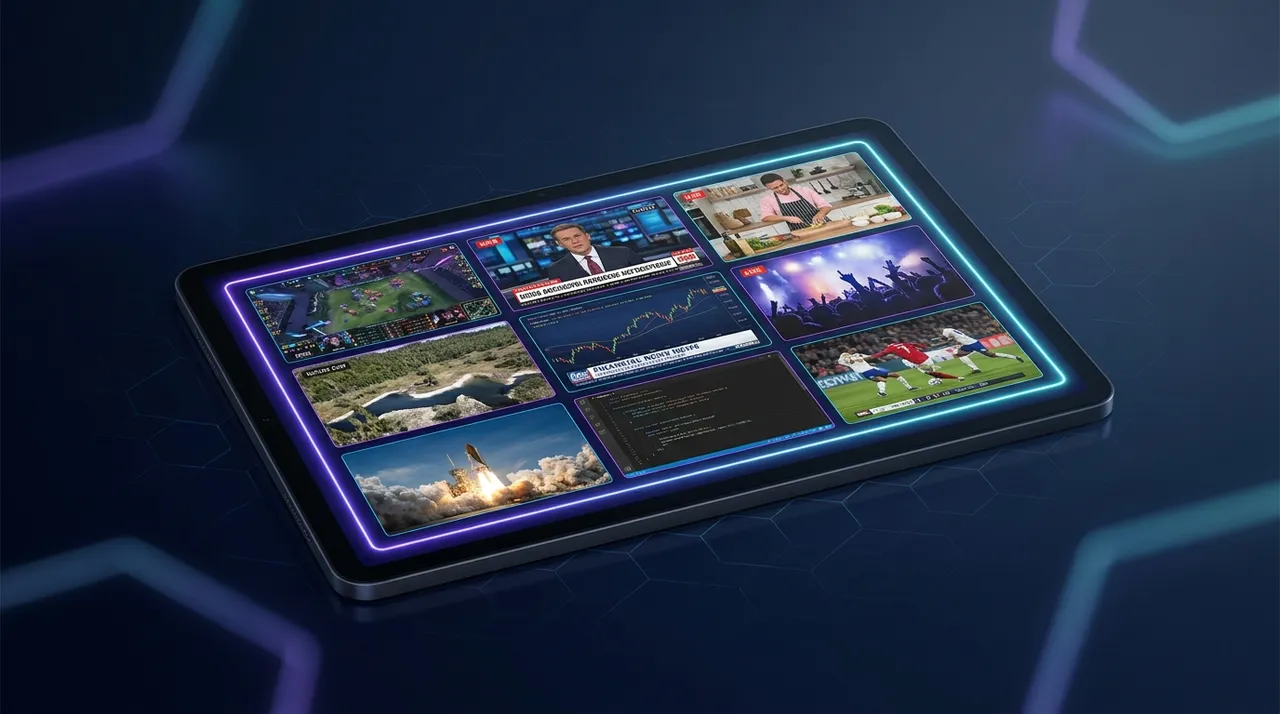
How to Watch Multiple Streams: All Platforms, One Screen
Tired of missing out? This guide shows you how to watch multiple streams simultaneously, manage audio, and set up your ultimate multi-stream viewer dashboard for Twitch, YouTube, Kick, and beyond.
You know that feeling? It's like 7 PM, you've finally finished whatever you needed to do for the day, and you just wanna chill. You open up Twitch, maybe YouTube, sometimes Kick, and bam — everyone's live. Your favorite streamer is playing that new survival game, but then the Valorant VCT Grand Finals just started, and there's a huge charity collab going on with a bunch of creators you love. How in the world do you pick? It's a real struggle, honestly. For years, I was just bouncing between tabs like a madman, missing crucial plays or hilarious moments. That's why figuring out how to watch multiple streams effectively became, like, a personal quest for me.
It's not just about FOMO (fear of missing out), though that's a huge part of it for sure. It's about wanting to immerse yourself in different worlds, or follow a complex narrative, or just maximize your entertainment. I mean, we've got more content than ever, right? We should be able to enjoy it all.
The Streaming Avalanche: Why You Need to Master Multi-Streaming
Okay, so why is this even a thing? Why can't I just pick one stream and be happy? Look, the streaming landscape has exploded. It's not just gamers anymore – we have IRL streamers, cooking channels, art streams, podcasts, news coverage, sports, chess grandmasters, even people just chatting about their day. The sheer volume is staggering. And often, the best stuff happens simultaneously.
Think about major esports events. You've got the main broadcast with the casters and analysis, right? But then you have individual player cams, specific team streams, maybe a co-stream from your favorite content creator who's reacting live. You can't get that full picture, that full experience, from just one window. I remember during the last League of Legends Worlds, I wanted to see the main broadcast for the overall game state, but I also needed to have Faker's POV open on the side. It was non-negotiable. Trying to do that by just flicking between browser tabs was a nightmare. The audio cues alone would drive you insane.
It’s the same with big charity events, like the ones hosted by Ludwig or MrBeast. They bring together dozens of creators, often on different teams or doing different activities. You want to see the main action, sure, but what about that one hilarious interaction happening between two niche streamers you follow on a side camera? Or maybe you're trying to keep tabs on a few friends who are all playing the same new game but doing completely different challenges. That's where simultaneous streaming really shines.
Esports & Events: The Ultimate Test of Your Setup
This is probably the most common reason I find myself trying to figure out how to watch multiple streams. Esports tournaments are designed for this. When you've got a massive event like The International for Dota 2, or Valorant Champions, or even just a big fighting game major like EVO, there are so many storylines unfolding at once. You might have one match going on the main stage, but the B-stream has another equally important match for playoff implications. Or, like I said, you want to watch the main broadcast and a specific player's perspective, perhaps even in another language if you're trying to practice that language or just prefer those specific casters.
I mean, last year during VCT Champions, I was glued to the main English broadcast, but I also had TenZ's co-stream open because his reactions are just gold. And sometimes, if it's a particularly crucial moment, I'll even pull up the official Twitch stream for a specific team if they have one running, just to see their bench reactions. It adds so much depth to the viewing experience. It's not just watching a game; it's immersing yourself in the entire event.
Collabs & Just Chatting: Following the Narrative Across Screens
It's not all high-octane esports, though. A lot of my multi-streaming comes from just trying to keep up with friend groups or big creator collabs. Think about the big group streams that happen on Twitch, YouTube, or even Kick. Someone like xQc might be playing Rust with a bunch of other streamers, and you want to see his perspective, but you also want to see how someone like Valkyrae or Myth is interacting with him from their own stream. They’re all talking in a Discord call, but their individual camera reactions and gameplay might be totally different.
Or maybe it's a "Just Chatting" scenario. You've got your favorite podcaster doing their thing, but then DrDisrespect is doing an epic unboxing, and a third streamer is trying out a crazy new cooking recipe. You want a taste of all of it. You want to dip in and out, catch the highlights, and not feel like you're missing out on a prime entertainment moment. This kind of split screen streaming lets you keep the vibe going from multiple angles, which is just awesome.
The Old Ways: Browser Tabs and Multi-Monitor Mayhem
Alright, let's talk about the dark ages. Before dedicated tools, what did we do? Most of us just opened a bunch of browser tabs. Simple, right? Well, not exactly.
Browser Tab Chaos: Memory Hogs and Audio Nightmares
You know the drill. You open one Twitch tab, then another YouTube tab, then maybe a Kick stream. Suddenly, your browser is using, like, 90% of your RAM. Your fan sounds like a jet engine. And then there's the audio. Oh, the audio! You've got three streams all blaring at once, trying to talk over each other. You mute one, but then you realize you wanted to hear that one. So you unmute it, but now you can't hear the main stream. It's a constant juggling act of muting and unmuting, adjusting individual volume sliders, and just generally feeling stressed out.
And what about chat? Each stream has its own chat. You can't possibly keep up with three different chat windows unless you're some kind of super-human speed reader. Plus, the browser itself isn't optimized for this. It's designed for one main focus, not a mosaic of constantly updating video feeds. My system would always chug, especially if I was trying to do anything else in the background. It's just not a good user experience, plain and simple.
Multi-Monitor Mania: My Initial Setup Woes
When I first got serious about watching multiple things at once, I thought, "Aha! I'll just get another monitor!" So I did. Then another. I ended up with a three-monitor setup for a while, just for streaming! It was glorious in some ways – massive screen real estate, each stream could have its own dedicated space. But it was also overkill, expensive, and still didn't solve the core problems.
Sure, I could see all the streams at once, but the audio problem persisted. I still had to manually manage volumes across different browser windows. And even with three monitors, I couldn't arrange the streams in elegant grids or custom layouts. It was just a bunch of individual windows floating around. Plus, if I wanted to share my screen with a friend, or record a clip, it was a nightmare trying to capture all those separate windows perfectly. It felt powerful, but still incredibly inefficient. It's a lot of hardware and desk space for something that software could handle much better.
Platform-Specific Solutions: Good Intentions, Limited Scope
Some of the major platforms have tried to address this, but their solutions are often quite limited. They're trying to keep you within their ecosystem, which makes sense from their business perspective, but it doesn't solve the cross-platform problem that many of us face.
Twitch Squad Stream: A Step, But Not a Solution
Twitch introduced Squad Stream a while back, and it was a neat idea. You could have up to four streamers broadcasting together, and viewers could watch them all on a single page, with synchronized audio and a main chat. It felt like a small glimpse into the future of how to watch multiple streams. I used it a few times when some of my favorite variety streamers would team up. It was smooth, the audio was generally well-managed, and it felt integrated. You can learn more about how it works on Twitch's official help page.
But here's the catch: all streamers have to be part of the squad. And they all have to be on Twitch. You can't just pick any four Twitch streams and throw them into a squad. The streamers themselves have to initiate it, and they have to be affiliated or partnered. It's great for planned collaborations within Twitch, but it completely fails if you want to watch, say, a Twitch streamer, a YouTube content creator, and a Kick personality all at the same time. Or if you just want to watch two unrelated streams – like an esports event and a cooking stream. Squad Stream is too restrictive for most multi-streaming needs. It's a feature, not a comprehensive multi-stream viewer.
YouTube Multiview: Still Rolling Out, Still Specific
YouTube has also been experimenting with something similar, often called Multiview, especially for sports content. I've seen it pop up occasionally for NBA games or other live sports events, where you can watch a main broadcast alongside a couple of alternative camera angles or highlight feeds. It’s similar to how some sports apps let you customize your view.
Again, it’s a good idea, and for specific sports broadcasts, it's pretty cool. But it's not a general solution for how to watch multiple streams. You can't just throw up a couple of gaming channels, a music stream, and a news channel side-by-side. It's platform-specific, often content-specific, and still in various stages of rollout and availability. We're still waiting for a truly universal, user-controlled solution from the platforms themselves, and I honestly don't think we'll ever get one that crosses platform boundaries, because why would Twitch want you watching a YouTube stream on their site? It's just not how these companies operate.
The Dedicated Multi-Stream Viewer: Unlocking True Freedom
This is where the magic happens. This is where tools designed specifically for simultaneous streaming come into play. A good, dedicated multi-stream viewer changes everything. It takes all those disparate browser tabs, all those scattered windows, and brings them into one unified, manageable interface. It’s like finally getting a remote control for your entire streaming universe.
I remember the first time I tried a proper multi-stream tool. It was during a huge charity event where streamers were spread across Twitch and YouTube. I was trying to keep up with like five different POVs. I found a basic tool online, pasted the links, and suddenly – boom – all five streams were there, side-by-side, in a clean grid. My CPU wasn't screaming. My RAM wasn't maxed out. I could actually manage the audio. It was a revelation. It felt like I'd just unlocked a cheat code for my streaming addiction.
These tools are built from the ground up to handle multiple video feeds efficiently. They don't just open a new browser tab for each stream; they often embed the streams directly, using less overhead and giving you far more control. This is the only way to truly master how to watch multiple streams without sacrificing performance or your sanity.
What Makes a Great Multi-Stream Viewer? Features I Look For
Not all multi-stream viewer tools are created equal, though. Over the years, I've tried a bunch, and I've developed a pretty strong opinion on what truly makes one stand out.
Cross-Platform Compatibility: This is non-negotiable. If I can't throw a Twitch, a YouTube, and a Kick stream into the same layout, it's not worth my time. I need to be able to watch multiple Twitch streams, watch multiple YouTube streams, and even watch multiple Kick streams all together. That's the whole point, right?
Intuitive Layout Management: I want to be able to drag and drop streams, resize them, arrange them into different grid patterns (2x2, 1 large + 2 small, vertical splits, etc.). Sometimes I want one big main stream and a couple of smaller ones for background noise; other times, I want a perfect 2x2 grid. The flexibility is key.
Intelligent Audio Control: This is probably the most important feature. I need a master volume, but also individual volume sliders for each stream. And a quick mute/unmute button for each. Some tools even let you "solo" audio for one stream, which is super handy when you want to focus on a particular conversation or play.
Integrated Chat: Being able to see the chat for one, two, or even three streams in a consolidated sidebar is a massive bonus. It means I'm not flipping back and forth, trying to guess which chat belongs to which stream.
Performance Optimization: The tool shouldn't melt my computer. It should handle multiple high-quality video feeds without significant lag or excessive resource usage. This often means using efficient video players and smart buffering.
Customization & Profiles: The ability to save my favorite layouts or "channels" (e.g., "Esports Setup," "Collab Watch") is a huge time-saver. I don't want to re-paste links and rearrange every time.
* Ease of Use: It should be straightforward. Paste a link, click add, done. No complicated setup.
This is exactly what ViewGrid.tv aims to deliver. It’s built with this kind of freedom and flexibility in mind, making it effortless to build your ultimate custom viewing experience. You can check out their dedicated ViewGrid multi-stream viewer page to see what I mean.
Practical Guide: How to Watch Multiple Streams with a Dedicated Tool
Alright, let's get down to the nitty-gritty. If you're ready to ditch the browser tab madness and embrace true split screen streaming, here’s a general step-by-step on how you'd typically do it with a good multi-stream viewer like ViewGrid.tv.
- Find Your Streams: First, figure out what you want to watch. Go to Twitch, YouTube, Kick, Rumble, whatever. Find the live streams you're interested in. Maybe it's a couple of watch multiple esports streams, or some watch multiple sports streams, or even a combination of entertainment and watch multiple news channels. Copy the URL for each stream.
- Open Your Multi-Stream Viewer: Navigate to your chosen multi-stream platform – for this example, let's use ViewGrid.tv. You'll usually find a clean interface ready for you to input stream links.
- Add Your Streams: There will typically be an input box or a "Add Stream" button. Paste the first stream's URL into it and hit Enter or click "Add." The stream should appear in a new video player window on your screen. Repeat this for all the streams you want to watch.
- Arrange Your Layout: This is where the fun begins. Most good multi-stream viewer tools offer drag-and-drop functionality. Click and drag your stream windows around. Resize them. You might want a 2x2 grid for four equally important streams, or a 1x3 vertical stack for a main event and two side commentaries. ViewGrid has a very intuitive interface for this, letting you really customize your view. Don't be afraid to experiment! Find what works best for the content you're watching.
- Manage Your Audio: This is crucial. Locate the individual volume controls for each stream player. Mute the ones you don't want to hear at all. Adjust the volume sliders for the ones you do. Often, you'll want one stream to be your "main" audio source, with others at a lower volume for ambient sound or background awareness. Some tools even have a "solo" button that mutes all other streams except the one you select – super useful for quick focus shifts.
- Engage with Chat (Optional but Recommended): If your multi-stream tool supports it, you'll often see an option to pull up the chat for each stream in a sidebar. Select the chats you want to follow. This keeps everything consolidated and prevents you from missing out on community interactions.
- Save Your Layout (If Available): If you often watch the same combination of streams or have a preferred layout, see if your tool allows you to save your "session" or "profile." This means next time you want to watch a similar setup, you can just load it instead of starting from scratch.
That's it! Once you've got your layout and audio sorted, you're free to enjoy the glorious chaos of simultaneous streaming. It really is a game-changer for how I consume live content.
My Personal Simultaneous Streaming Setup & Use Cases
I've been a multi-streamer for years now, and my setup has evolved. Currently, I run a fairly powerful PC with a good internet connection – both are pretty important for smooth split screen streaming. I usually have two main monitors, and I dedicate one of them entirely to my multi-stream viewer setup.
One of my most frequent use cases, as I mentioned, is esports. If it's a big League of Legends match, I’ll usually have the main LEC or LCS stream taking up the biggest section of my ViewGrid layout. Then, in smaller quadrants, I'll have a co-streamer like LS or Caedrel reacting, and maybe a specific player cam if it's available. Sometimes I'll even throw in a highlight reel from a previous match playing silently in the background, just for hype. The flexibility of being able to arrange these as I like — sometimes a large main stream and two smaller ones below, sometimes four equal squares — is what makes it so powerful.
Another big one for me is following specific content creator events. Last month, there was a huge Minecraft challenge involving a dozen creators on different servers, some on Twitch, some on YouTube. I had my primary "main character" stream in the largest window, but then I'd rotate through the others, pulling them up larger when something interesting happened. I could listen to one main audio feed, but still quickly switch to another stream's audio if I heard a shout or laugh that caught my attention from a smaller window. It's truly dynamic.
And honestly, sometimes it's just about maximizing chill time. I'll have a quiet "lofi hip hop radio" stream from YouTube playing silently in one corner, a "Just Chatting" streamer I like in another, and then maybe a news channel update (muted, of course) for background awareness. It lets me feel connected to different types of content without having to actively choose just one. It's a fantastic way to consume a lot of information or entertainment passively, yet still have the option to dive deep into any specific stream at a moment's notice.
Beyond the Basics: Tips for Optimizing Your Split Screen Streaming Experience
Once you've got the hang of the basics, there are a few things you can do to really dial in your how to watch multiple streams setup.
Bandwidth is King: This one's obvious, but it's worth reiterating. Watching multiple high-definition streams simultaneously consumes a lot of bandwidth. If your internet connection isn't robust enough, you'll experience buffering, dropped frames, and a generally choppy experience. Consider lowering the quality of less important streams to save bandwidth, or check your internet speed if you're consistently having issues.
Prioritize Your Audio: Decide early on which stream is your "primary" audio source. Keep its volume up, and then treat others as secondary. Use those individual volume sliders liberally! Don't be afraid to mute streams you're just visually monitoring. My usual rule is one primary audio source, one secondary at 20-30% volume, and everything else muted.
Keyboard Shortcuts (if available): Some advanced multi-stream viewers or browser extensions offer keyboard shortcuts for muting, unmuting, or switching primary audio. Learning these can drastically improve your workflow, allowing you to react quickly to what's happening on screen.
Experiment with Layouts: Don't stick to just one grid. The beauty of a good multi-stream viewer is its flexibility. For an intense one-on-one esports match with multiple POVs, a larger main window with smaller side panels works great. For a group stream where everyone is equally important, a 2x2 or 3x3 grid might be better. Change it up based on the content.
Consider Your Hardware: While a good multi-stream tool is optimized, running 4+ HD streams can still be demanding on older CPUs or GPUs. If you're consistently getting lag even with good internet, it might be a hardware limitation. Closing unnecessary background applications can also help.
Adjust Stream Quality: Most streams default to "Auto" quality. If you're struggling with performance or bandwidth, manually lower the quality of less critical streams. 720p or even 480p for a background stream can make a huge difference in overall system load.
The Future of Multi-Streaming and ViewGrid.tv
The ability to watch multiple streams simultaneously isn't just a niche feature for hardcore fans anymore; it's becoming an essential part of the modern streaming experience. As content becomes more diverse, and creators collaborate across platforms more frequently, a comprehensive solution for how to watch multiple streams is no longer a luxury – it's a necessity.
I genuinely believe that dedicated platforms are the answer here. They offer the flexibility, the cross-platform support, and the performance optimization that native platform features simply can't, or won't, provide. That's why I'm always excited to see tools like ViewGrid.tv pushing the envelope. They understand that viewers want control, they want choice, and they don't want to be locked into a single platform's ecosystem.
If you're tired of the endless tab switching, the audio clashes, and the fear of missing out, you absolutely owe it to yourself to try out a robust multi-stream viewer. ViewGrid.tv offers a seamless way to create your own personalized streaming dashboard, bringing together all your favorite live content from Twitch, YouTube, Kick, and more, all on one screen. It’s the closest thing to having a personal mission control for your entertainment, and trust me, once you go multi-stream, you won't want to go back. It's truly the best way to catch all the action, all the time.
Ready to try multi-stream viewing?
Watch YouTube, Twitch, Kick & more — all on one screen.
Open ViewGridRelated Articles
Side by Side Stream Viewer: Compare News & Events Across Platforms
Tired of missing out? A side by side stream viewer lets you compare news, track events, and follow your favorite streamers across Twitch, YouTube, and Kick simultaneously. Discover how to watch multiple live streams at once and transform your viewing experience!
how toMulti Stream Viewer: Optimize for Any Viewing Goal
Tired of juggling streams? A multi stream viewer is your answer! Learn how to optimize your setup for esports, news, casual viewing, and more, crafting your ultimate personalized streaming dashboard.
how toHow to Watch Multiple Streams: Master Cross-Platform Viewing
Tired of browser tabs and FOMO? Learn how to watch multiple streams at once across platforms like Twitch, YouTube, and Kick. This guide covers everything from setup to advanced tips, featuring ViewGrid.tv.
how toYour New Twitch Squad Stream Viewer: ViewGrid Unlocked
Tired of missing out on squad stream action? Learn how ViewGrid's multi-stream viewer transforms your Twitch experience, letting you control multiple feeds and chats like a pro. Get the ultimate view!