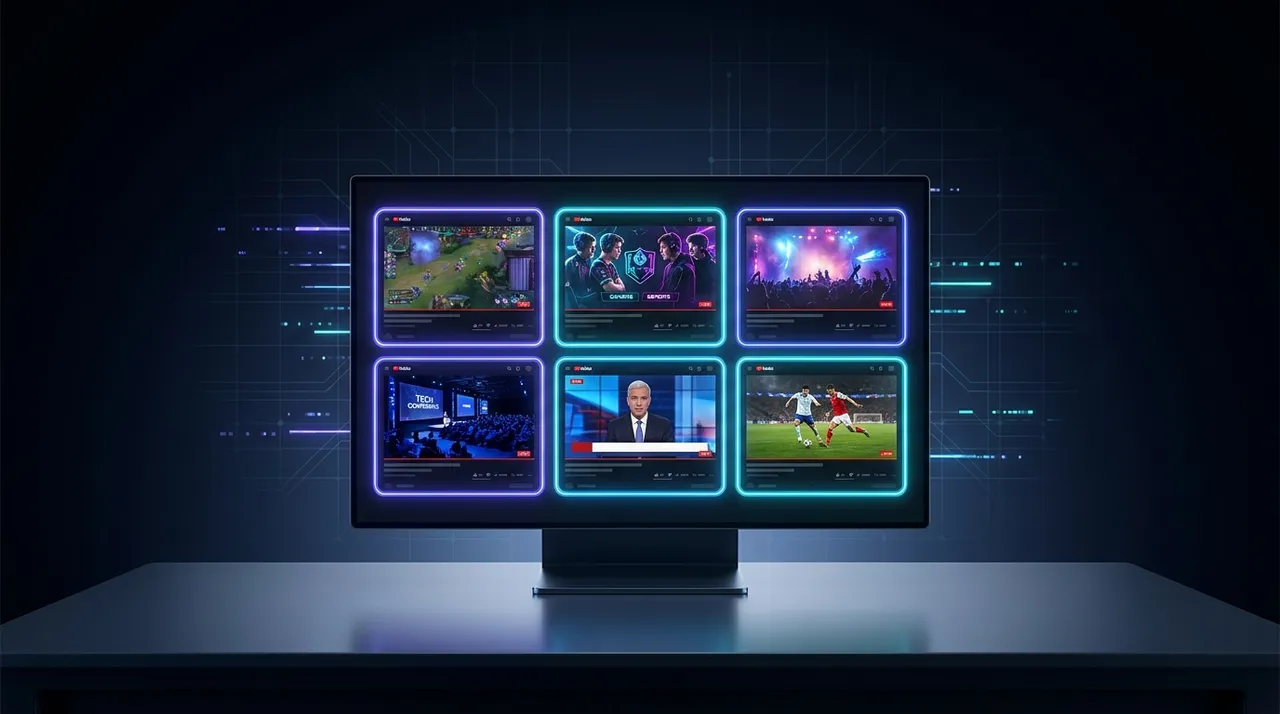
Watch Multiple YouTube Streams: Your ViewGrid Guide
Tired of juggling YouTube tabs? Discover how to watch multiple YouTube streams simultaneously on ViewGrid.tv. Get a seamless multi-view experience for esports, news, and live events.
You know that feeling, right? It’s like 7 PM, you've finally got a moment to kick back, and suddenly, the internet is exploding with stuff you want to watch. Your favorite gaming YouTuber just dropped a surprise live stream of a new game, but then there's a critical breaking news event unfolding on a different channel. Oh, and wait, didn't that tech reviewer promise a live Q&A about the new iPhone tonight? How are you supposed to keep up? It’s a real headache sometimes, trying to decide what to prioritize, or worse, just missing out entirely.
For ages, I used to just open a bazillion browser tabs, trying to juggle everything. My poor CPU would scream, the audio would get all tangled, and inevitably, one of the tabs would crash. It was a mess. But then, I found a better way – a much better way – to watch multiple YouTube streams without any of that stress. Seriously, it's changed how I consume live content. Forget FOMO. We’re here to conquer it.
Why Even Bother Multi-Streaming on YouTube? It's About More Than Just Seeing Everything
Look, YouTube isn't just for cat videos and music anymore. It's a powerhouse for live content. From massive esports tournaments to breaking news coverage, independent creators doing AMAs, live concerts, political debates, even people just chilling and chatting – it's all there, live, right now. And it's often simultaneous. That's the rub.
The problem, as I see it, is that our attention spans have evolved. We're used to getting information from multiple sources. Why should our live stream experience be any different? When you watch multiple YouTube streams at once, you’re not just being greedy; you’re being efficient.
Think about it. Last week, I was trying to follow the lead-up to the latest SpaceX launch. NASA's official YouTube channel had the primary feed, of course, with all the technical details and mission control chatter. But then, there were at least three independent space journalists on YouTube doing their own live commentary, offering different perspectives, answering audience questions, and showing unique angles they’d captured. If I had to pick just one, I'd miss so much. Or, worse, I'd be constantly alt-tabbing, losing my place, and getting annoyed. Nobody wants that.
It's also fantastic for competitive events. During the League of Legends World Championship last year, YouTube was a hub for official broadcasts, but also individual pro players were sometimes streaming their own POV or co-streaming with friends. Being able to see the main broadcast's wide shots and switch to a specific mid-laner's perspective whenever a skirmish broke out? That's next-level viewing. You get the full picture, all the nuances. You really understand the flow of the game, not just the highlights.
And honestly, sometimes it’s just about vibe. Maybe you’re working from home – like I often am – and you want a few different ambient streams going. Lo-fi beats in one window, a fireplace crackling in another, and maybe a live nature cam in a third. It creates a whole atmosphere, doesn't it? It just feels… richer. A single stream can feel a bit lonely after a while. This way, it's like you've got a whole crew hanging out with you, each doing their own thing. It's awesome.
The Pain of Doing It "The Old Way": Browser Tab Hell and Audio Mayhem
Before I discovered dedicated multi-stream tools, my "strategy" for how to watch multiple YouTube streams was primitive, to say the least. It mostly involved:
- Opening a new browser tab for each YouTube stream.
- Desperately trying to position them all on my screen, usually overlapping in a chaotic mess.
- Muting all but one, then fumbling with individual tab volume controls when I wanted to switch audio focus.
- Watching my browser's memory usage shoot through the roof like a rocket.
Sound familiar? It's a nightmare. YouTube itself, bless its heart, isn't really built for simultaneous multi-viewing on a single screen. When you open multiple tabs, each one is running its own instance of the video player, its own chat, and all the associated scripts. My laptop, which is pretty decent, would start to sound like a jet engine taking off after about three or four active YouTube tabs. The video quality would drop, frames would skip, and the whole experience would just… suck.
And the audio! Oh, the audio. Trying to manage which stream you're listening to by clicking around and manually muting/unmuting tabs is a total buzzkill. You miss crucial moments, you accidentally unmute two streams talking over each other, and suddenly you're just mad. It breaks the immersion. It pulls you out of the experience entirely. You just want to enjoy your content, not play a game of whack-a-mole with volume sliders.
This is where the idea of youtube multi-stream really shines. You need something that aggregates those streams, that optimizes playback, and most importantly, gives you centralized control. You need a dedicated solution that understands what you're trying to do. Because let's be real, a bunch of browser tabs is not a solution. It's just a band-aid on a gaping wound.
How to Watch Multiple YouTube Streams with ViewGrid: Your Step-by-Step Guide
Alright, enough lamenting the old ways. Let's get to the good stuff. This is how you actually do it, easily, efficiently, and without turning your computer into a molten mess. This is how you truly get a seamless multi-view youtube experience.
First things first, you'll want to head over to ViewGrid.tv. This is your command center. It’s built from the ground up to handle multiple streams from different platforms, including YouTube, all at once.
- Finding Your Streams and Grabbing Their URLs:
- The first step is always to identify what you want to watch. Go to YouTube, find the live streams you're interested in, and copy their URLs. You can usually do this by right-clicking on the video and selecting "Copy video URL" or just grabbing it from your browser's address bar.
A quick tip: If you're watching a specific channel's live stream, sometimes the URL in the address bar will just be the channel's main URL. Make sure you're on the specific live stream page to get the correct, unique URL for that stream. It usually has "watch?v=" followed by a string of characters. This is important – ViewGrid needs that unique stream identifier.
- Adding Streams to Your ViewGrid Layout:
- Once you’re on ViewGrid.tv, you'll see a clean interface with a large viewing area and an input bar.
Paste and Add: Simply paste the first YouTube stream URL into the input bar and hit the "Add Stream" button (or just press Enter). Boom! It'll appear in your main viewing window.
Repeat: Do this for all the YouTube streams you want to watch simultaneously. Each time you add a new stream, ViewGrid will intelligently adjust the layout to accommodate it, arranging them side-by-side or in a grid.
* The Power of Customization: This is where it gets fun. You're not stuck with whatever layout it initially gives you. You can drag and drop streams to rearrange their positions. Want one big main stream and two smaller ones on the side? No problem. Just click and drag the borders between streams to resize them. It's incredibly intuitive – like arranging windows on your desktop, but specifically for streams. You can make one stream huge and others tiny, or have an even youtube split screen setup.
- Mastering Audio Management:
- This is probably the biggest game-changer for me when it comes to multi-streaming. ViewGrid’s audio controls are fantastic.
Solo Audio: By default, ViewGrid will only play audio from one stream at a time. This is a godsend for preventing audio overlap and making sure you can actually understand what's happening. When you click on a stream's video player, its audio automatically becomes active, and the others mute. It's seamless. You can click between streams to quickly switch your audio focus.
Volume Sliders: Each stream also has its own individual volume slider. So, if you're keeping an eye on a secondary stream but still want its audio subtly in the background – maybe it's just ambient music or crowd noise – you can do that! Just lower its volume without fully muting it. This granular control is something you simply don't get with browser tabs. It lets you create your perfect audio mix, whether you're watching esports or just some chill study streams.
And that’s really it for the basics. You copy, you paste, you arrange, and you listen. It's that straightforward to watch multiple YouTube streams like a pro.
My Favorite Multi-Stream Setups & Scenarios: Living the Dream
I've been using multi-streaming for so long now that I've developed a few go-to setups and scenarios. It really brings home the utility of having a robust multi-stream tool like ViewGrid.
Esports & Gaming Events
This is probably my most frequent use case. Esports broadcasts on YouTube are top-tier. But, as I mentioned, there's often so much more happening simultaneously.
The Main Event + POV: For big Valorant tournaments or League of Legends championships, I'll usually have the main broadcast from channels like Riot Games or Valorant Champions Tour on YouTube as my primary, largest screen. Then, in smaller windows, I'll pull up specific player POVs if they're streaming live. Sometimes official broadcasts will offer "B-streams" or alternative language commentary, too. This allows me to see the overarching strategy and dive into the micro-play of my favorite player, like "Faker" from T1 on a good day. It just enhances the viewing experience so much.
Speedrunning Marathons: Events like Games Done Quick sometimes have multiple channels or specific runners streaming their attempts on YouTube. Being able to follow two or three different runs – maybe one on a new game, one on a classic, and one with a ridiculous category – is incredible. You don't have to choose! And if one runner hits a wall, you can easily shift your focus. It's a goldmine for pure gaming enjoyment. Check out how easy it is to set up your esports multi-view at Watch multiple esports streams.
News & Commentary
This is where multi-streaming becomes less about entertainment and more about critical information gathering. Especially during fast-moving events, getting multiple perspectives is vital.
Breaking News: When a major news story breaks – a political speech, a natural disaster, a significant protest – I'll often open up three or four different news channels on YouTube. This could be something like Reuters Live, Al Jazeera English, BBC News, and maybe a local affiliate if the event is geographically specific. The differences in reporting, emphasis, and even camera angles can be striking. It gives you a much more balanced picture than just relying on a single source. It’s like doing your own quick fact-check in real-time.
Political Debates/Commentary: During election cycles, I love to have the official debate feed (from, say, C-SPAN or a major network's YouTube channel) running alongside live commentary streams. There are plenty of independent political commentators on YouTube who offer instant reactions, fact-checks, or humorous takes. It's a fantastic way to engage with the content, get immediate analysis, and even enjoy a bit of the cultural zeitgeist surrounding the event. It’s a completely different way to consume news, and a much more active one. ViewGrid makes it simple to Watch multiple news channels at once.
Live Music & Performance
Music festivals, artist Q&As, even independent bedroom artists doing live sets – YouTube has a huge music presence.
Festival Hopping: Remember when Coachella or Lollapalooza would have multiple stages streaming simultaneously on YouTube? The agonizing choice! Now, you don't have to make it. You can have the main stage, the indie stage, and the electronic tent all going. You literally don't miss a beat. You can jump between them, focusing your audio on whatever artist is currently blowing your mind.
Collaborative Performances: Sometimes artists will do joint streams, or a band might have separate camera feeds for different members. Being able to see the drummer's POV, the guitarist's shredding, and the lead singer's stage presence all at once? That’s immersive. It's almost like being in the mixing booth yourself.
Honestly, the possibilities are endless. Once you get used to the freedom that a proper youtube split screen setup gives you, you'll find yourself looking for reasons to use it. It genuinely enhances the experience of consuming live media.
Advanced Tips & Tricks for the Power Viewer
So, you're comfortable with the basics. You're already experiencing the joy of a true multi-view youtube experience. But what if you want to push it even further? Here are a few extra tips I've picked up over the years.
Browser Choice Matters
While ViewGrid handles the heavy lifting, your browser still plays a role. I usually stick with Chrome or Edge because they tend to be optimized for video playback, but sometimes Firefox can surprise you with its efficiency. If you're running a lot of streams, try to close unnecessary tabs and extensions in your browser. Every little bit helps your system focus its resources on your multi-stream setup. It's not as critical as it was when I was dealing with tab hell, but it still makes a difference on older machines.
Managing System Resources
Even with ViewGrid's optimization, running multiple high-definition streams can be demanding.
Resolution Check: If you notice any lag or stuttering, try lowering the resolution on one or two of your less critical streams. YouTube's player usually has a gear icon for settings; you can manually select 720p or even 480p for streams you're just casually monitoring. This reduces the bandwidth and processing power needed.
Hardware Acceleration: Make sure hardware acceleration is enabled in your browser settings. This offloads some of the video processing to your graphics card, taking the strain off your CPU. Most browsers have it on by default, but it's worth checking if you're having performance issues.
To Chat or Not To Chat?
This is a personal preference. When I'm watching a single stream, I'm usually in chat, interacting. But with multiple streams, trying to follow three separate chats at once is just... chaos. I've given up on it, mostly.
Focus on One: If one stream is your absolute priority, you might keep its chat open in a separate window or even on a second monitor. This lets you engage with that community.
Embrace the Silence: More often than not, I just close the chat windows entirely. My focus is on the video content itself, the multiple perspectives. The chat becomes a distraction rather than an enhancement. It's about consuming the content, not necessarily participating in every side conversation. Sometimes, less is more.
Don't Forget the External Link!
This is a niche tip, but super useful. Sometimes, a specific YouTube live stream might have an embedded player or a custom URL for external viewing. Or, you might just want to understand more about YouTube's general live streaming policies. For broad info on how YouTube manages live content, their official help pages are always a great resource. For instance, you can check out YouTube's official guide on watching live streams if you ever have specific questions about platform features, though ViewGrid handles the multi-view aspect beautifully. It's good to know the source material, right?
The ViewGrid Difference: Why I Stick With It
Honestly, I can't imagine going back to the old way of watching live streams. The sheer convenience of being able to watch multiple YouTube streams – alongside Twitch, Kick, and whatever else is live – all in one place, with intuitive controls, is just unmatched.
ViewGrid isn't just a simple tab organizer. It's a purpose-built platform that understands the needs of a modern streaming enthusiast. It takes the pain out of managing multiple video feeds, handles the audio beautifully, and lets me customize my viewing experience precisely how I like it. No more stuttering, no more crashing browsers, no more fumbling for volume controls. It's all just… smooth.
Whether I'm deep-diving into multiple angles of a breaking news story, tracking different players in a high-stakes esports match, or just vibing with a couple of different music streams, ViewGrid empowers me to consume content on my terms. It doesn't dictate what I should watch or how. It just gives me the tools to create my perfect personal broadcast.
So, if you're tired of the compromises and the missed moments, if you truly want to get the most out of the incredible live content available on YouTube and beyond, do yourself a favor. Give ViewGrid a spin. It's a game-changer for how you'll experience live streaming, and you can jump right into creating your ultimate multi-stream setup at ViewGrid.tv. You'll wonder how you ever lived without it.
Ready to try multi-stream viewing?
Watch YouTube, Twitch, Kick & more — all on one screen.
Open ViewGridRelated Articles
How to Watch Multiple Kick Streams Together
Tired of juggling browser tabs to watch your favorite Kick streams? Our guide shows you how to easily set up a multi-view Kick streams experience with ViewGrid.tv, saving your sanity and CPU.
how toWatch Multiple Kick Streams: Your Ultimate ViewGrid Hub
Kick is booming, but keeping up with multiple live streams can be a nightmare. Learn how ViewGrid transforms your viewing experience, letting you watch multiple Kick streams together with ease and control.
how toEsports Multi Stream: Set Up for MOBA, FPS & More
Tired of missing clutch plays? Dive into our guide on setting up the ultimate esports multi stream. Learn how to mix platforms, manage audio, and optimize your multi view esports experience with ViewGrid.tv.
how toDual Screen Streaming: Master Multi-View with ViewGrid
Tired of Alt-Tabbing between streams? Discover how dual screen streaming transforms your viewing. Learn to set up your multi-monitor battle station and optimize your experience with ViewGrid for Twitch, YouTube, Kick, & esports.