Watch Streams and Read Chat Side by Side
Watching several streams at once means losing the chat that gives them context. ViewGrid's new chat panel puts Twitch, YouTube and Kick chat next to your grid — pick which one to follow without pausing anything.
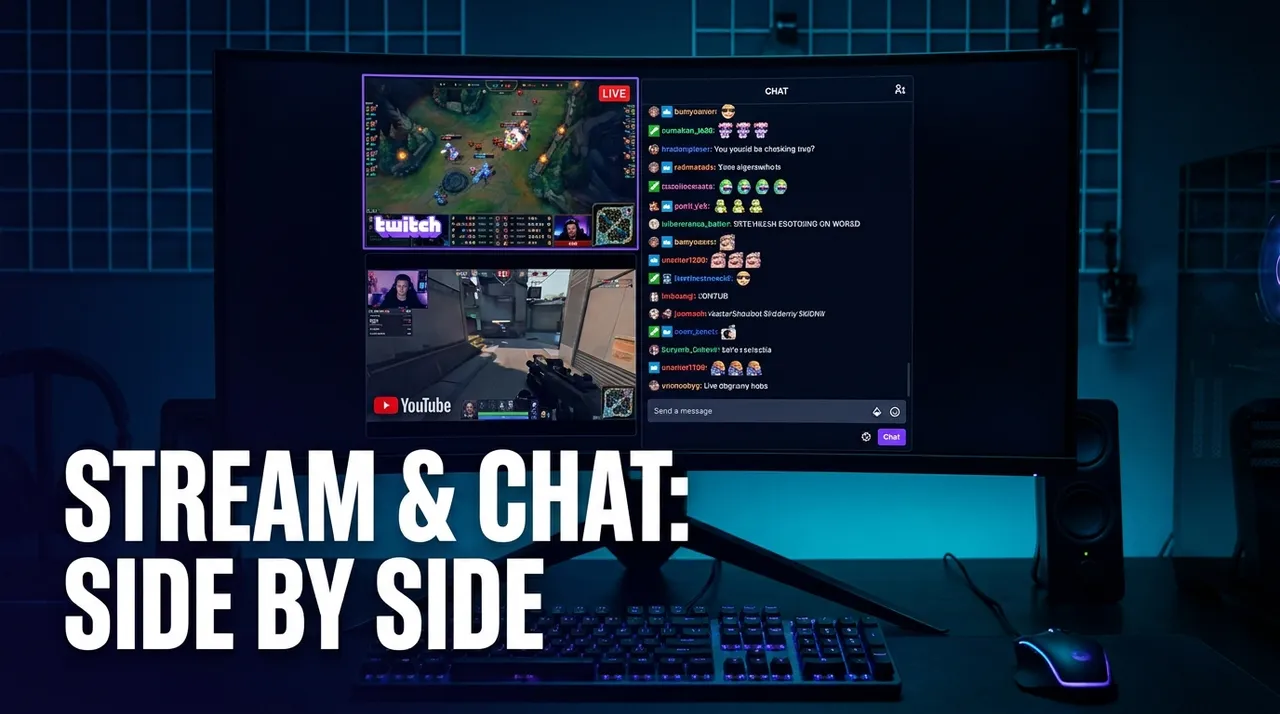
Watching four streams at once solves one problem and creates another. You can see everything — but you have lost the room. The jokes, the reactions, the moment a chat collectively loses its mind two seconds before you understand why. On a single-stream page that context is right there. On a multistream grid it usually is not.
ViewGrid now has a chat panel. Open it, choose which stream's chat you want to follow, and it sits next to your grid while everything keeps playing.
How it works
Build your grid the way you always do — paste links, or search for live Twitch, YouTube and Kick channels. Once at least one of your streams supports chat, a chat button appears in the toolbar.
On desktop the panel opens on the right and the grid resizes to make room. Nothing overlaps, nothing gets cut off. On mobile the panel slides up over the grid instead of squeezing it, because squeezing a phone screen into a smaller grid plus a chat box leaves you with neither. Your streams keep their proportions; tap the close button and the panel slides away.
At the top of the panel there is a dropdown listing every chat-capable stream currently in your grid. Switch between them instantly. The panel remembers which chat you were reading, so it is still there when you come back.
Which platforms have chat
Three of them: Twitch, YouTube and Kick.
Rumble and direct m3u8 streams do not offer an embeddable chat, so they will not appear in the picker. If your grid has none of the three, the chat button does not show up at all — we would rather hide it than open an empty panel.
There is one honest limitation worth stating plainly. Reading chat works immediately, with no account and no setup. Posting a message does not work inside the embedded panel. This is not a ViewGrid restriction: platforms route their sign-in through providers that deliberately refuse to run inside an embedded frame, as an anti-phishing measure. So the login step cannot complete there.
The workaround is one click. Every chat panel has an "open in new tab" button. That opens the same chat as a full page, where signing in and posting work normally. Read in the grid, write in the tab.
Where it actually matters
Esports tournaments. A major final usually runs several official streams at once — the main broadcast, a watch party, a caster's personal stream, sometimes a player POV. The main broadcast has the production. The caster's chat has the reactions. Now you can have both without deciding which tab to keep in front.
Match days. Two official streams live at the same time, plus a reaction stream. Chat tells you which one just got interesting, which is exactly the information a muted grid cannot give you.
Big drops and launches. When a game launches, half the value of watching multiple streamers is watching people react to the same thing differently. Chat is where that comparison lives.
Following one person across a crowd. Squad games, charity marathons, collab streams — you are watching six perspectives but you care about one community. Pick that chat and leave it open.
Why cross-platform chat is the point
A creator's audience is not always where you expect. Someone may stream on Twitch while their most active community sits in a YouTube premiere. During big events the same match is often broadcast on Twitch, YouTube and Kick at once, each with a different crowd.
Because ViewGrid already treats those platforms as equals in the grid, the chat picker does too. You can watch a Kick stream and read a YouTube chat, or run three Twitch streams and follow the one with the fastest scroll. The chats stay in their own homes — we embed each platform's official chat, so moderation, emotes and subscriber badges all work exactly as they do on the original site.
Platform by platform: what to expect
The three chats behave differently, and knowing the differences saves confusion.
Twitch shows the full experience: emotes, subscriber badges, bits, hype trains, polls and prediction widgets. That richness has a cost — the panel header can fill with pinned announcements and prediction cards, leaving less room for actual messages. If a channel has slow mode or followers-only mode on, you will see that notice in the panel. Large channels move fast enough that the panel is more atmosphere than conversation, which is usually what you want while watching four things.
YouTube splits chat into "top chat" and "all chat". Embedded panels open on top chat, which filters out some noise. Live chat only exists while the stream is live — once it becomes a normal video, chat turns into a replay and behaves differently. Some creators disable live chat entirely, and some channels restrict it to members. If a YouTube stream shows no chat, that is a channel setting, not a broken panel.
Kick is the leanest of the three. Fewer widgets, so more visible messages in the same space. Channels often run followers-only mode, which you will see noted above the message box.
Building a setup that actually works
A few things we learned while testing:
Pick the chat that adds information, not volume. With four streams running, the most useful chat is rarely the biggest one. A 90,000-viewer channel scrolls faster than anyone can read. A mid-sized co-streamer's chat often tells you more about what just happened.
On desktop, three or four streams is the sweet spot with chat open. The panel takes roughly 340 pixels. At six or more streams on a laptop screen, each video gets small enough that chat is competing with the thing you came to watch. Larger grids work better with the panel closed, opened only when something happens.
On mobile, use the panel in bursts. It covers most of the screen by design — a phone cannot show four videos and a readable chat at once, and pretending otherwise gives you neither. Open it when you want to know why everyone suddenly reacted, then close it.
Audio and chat are separate decisions. You can unmute one stream and read a different stream's chat. For tournaments this is often the best combination: official commentary in your ears, community reaction on screen.
Sound cue, then chat. If you are watching several matches, unmute the one you care most about and keep chat on a channel covering the others. When chat erupts, you know to look.
A note on how the chats are embedded
ViewGrid does not build its own chat, mirror messages, or store anything. Each panel loads the platform's own official chat embed, straight from Twitch, YouTube or Kick. Moderation, bans, emote permissions, subscriber perks and rate limits are all handled by the platform exactly as they would be on its own site.
That matters for two reasons. Your experience is the real one — the same moderators, the same emotes, the same rules. And creators keep full control of their communities; nothing is being scraped, rehosted or reframed. It is the same approach we take with the video players themselves, where the official embeds mean each platform's own ads and view-counting rules apply.
Getting started
- Open the multistream viewer and add your streams
- Click the chat icon in the toolbar (or the floating button on mobile)
- Pick a chat from the dropdown
Nothing to install, no account needed, and the panel stays closed until you ask for it — so if you prefer a clean grid, nothing changes for you.
If you have a setup that chat would make better, or a platform you wish we supported, tell us. The chat panel exists because someone wrote in and asked for it.
Ready to try multi-stream viewing?
Watch YouTube, Twitch, Kick & more — all on one screen.
Open ViewGridOr start with Twitch multi-stream viewer — the page built for exactly this.
Related Articles
How to Watch All Live News Channels on One Screen
Most major news channels run a free official live stream. Put several side by side in your browser and you have a news wall. How to build one, and what we learned from people who keep one open all day.
how toViewGrid Mobile: A Guide to Multi-Stream Optimization
Multi-stream mobile optimization is about arranging several video streams on a small screen so they're actually watchable. With ViewGrid, you can watch up to six streams at once on your phone by choosing a layout that fi
how toHow to Watch Multi Stream Streamer Collabs
To watch multi stream streamer collabs, you use a tool that lets you combine video feeds from different platforms into one view. This way, you can paste links for every streamer's Twitch, YouTube, or Kick channel into a
how toHow to Sync Multiple Live Streams for Perfect Timing
To sync multiple live streams, you need to open them in a single tool that lets you manage them together. A multi-stream viewer like ViewGrid puts all your feeds into one browser window, making it much easier to manually