How to Set Up an ALGS Pro League Multi-Stream
To watch an ALGS Pro League multi-stream, you combine the main broadcast with several player point-of-view (POV) streams onto a single screen. Using a free tool like ViewGrid, you can paste links from Twitch and YouTube
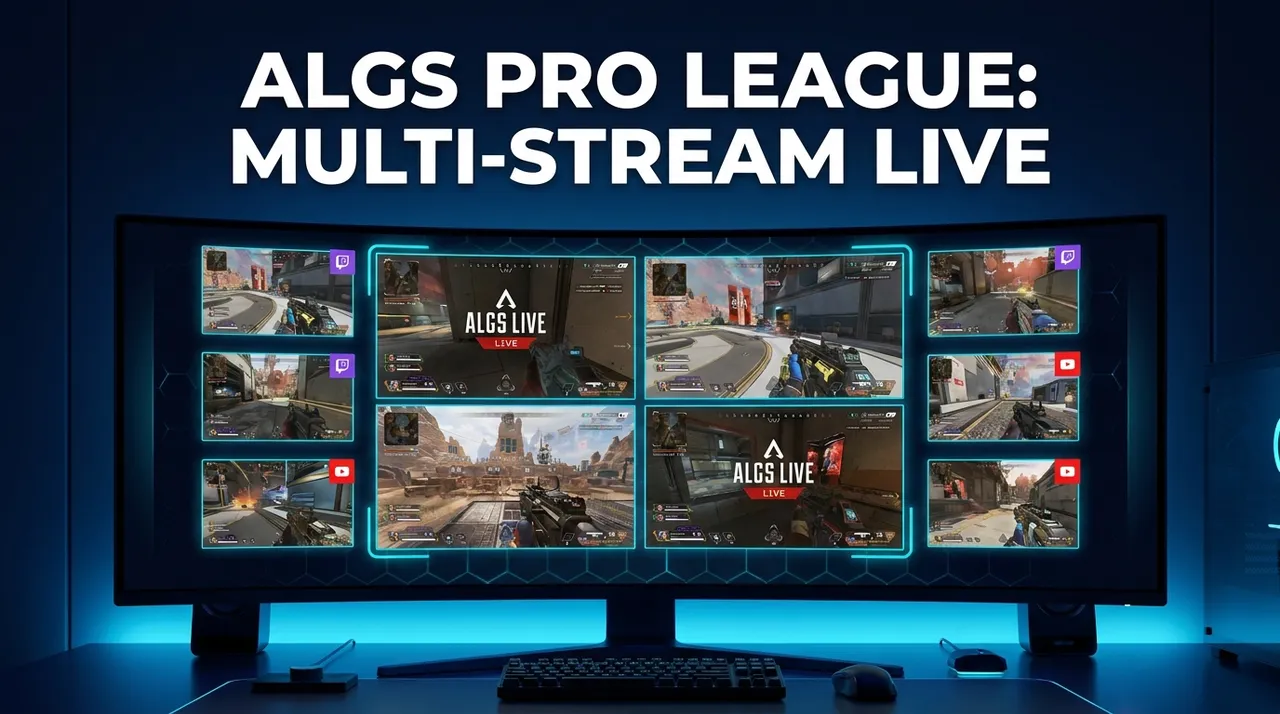
To watch an ALGS Pro League multi-stream, you combine the main broadcast with several player point-of-view (POV) streams onto a single screen. Using a free tool like ViewGrid, you can paste links from Twitch and YouTube to build a custom layout, letting you follow all the action without constantly switching tabs.
This setup is especially useful for a game as fast and complex as Apex Legends. Following just the main broadcast often means you miss the individual decision-making and team communication that lead to a win. With a multi-view, you can see the whole story.
Why a Multi-Stream Is a Better Way to Watch ALGS
In a typical ALGS match, 20 squads are making decisions simultaneously. A single broadcast can only show one fight or one team's rotation at a time. By adding player POVs, you get a much deeper understanding of the game.
See the IGL's Perspective: Watch how an in-game leader like ImperialHal directs their team. You can hear their comms, see their pings, and understand the strategy behind a push or a defensive hold. This is context the main broadcast rarely has time to cover.
Track Multiple Teams in the Endgame: The final circles are pure chaos. With a multi-stream, you can put the POVs of the top three teams side-by-side. You'll see who has the better position, who is running low on resources, and how each squad is planning to play the final ring.
Never Miss Off-Screen Action: While the main broadcast focuses on a fight at Fragment, another team might be making a brilliant rotation on the edge of the zone. A multi-stream lets you keep an eye on the wider map and catch crucial plays that would otherwise go unnoticed.
Learn from the Pros: Watching how professional players loot, position, and communicate is one of the best ways to improve your own game. You can focus on a player who uses your main Legend or a team whose playstyle you want to emulate.
How to Build Your ALGS Multi-Stream Layout
You can set up a personalized ALGS viewing grid in a few minutes. It works in any modern web browser on a desktop or mobile device, with no account needed to get started.
1. Find Your Stream Sources
First, decide which streams you want to include. A good starting point for an ALGS match is:
The official broadcast (like the PlayApex channel on Twitch or YouTube).
The POV of your favorite team's IGL.
A popular watch party stream (like NiceWigg's) for commentary.
The POV of a team known for aggressive plays.
Open each of these streams in a separate browser tab and copy the URL from your browser's address bar.
2. Add Streams to Your Grid
Go to the ViewGrid multi-stream viewer. You will see an input box.
Paste the first stream link you copied into the box and press Enter. The video will appear in the grid. Repeat this for each stream you want to add. You can also add streams by typing a channel name or searching for live YouTube streams directly from the input box.
ViewGrid supports streams from Twitch, YouTube, Kick, and Rumble, so you can combine sources from different platforms.
3. Arrange Your Layout
As you add streams, they will automatically arrange themselves on the screen. On a desktop, you can watch up to 20 streams at once, while phones can handle up to 6.
You can customize the layout to fit your needs. For example, you might want the main broadcast in a large window with three smaller player POVs next to it. You can also drag and drop streams to reorder them. If a huge fight breaks out on one stream, just tap it to bring it into focus (making it larger than the others) or double-tap to make it fullscreen.
4. Manage Audio and Chat
Every stream you add will start muted. This prevents you from hearing multiple audio tracks at once.
To hear a stream, click the speaker icon on that video player. You can only have one stream's audio active at a time, and you can switch between them with a single click. Most people keep the audio on the main broadcast or on the IGL whose calls they want to follow.
If you want to follow the conversation, you can open the live chat for any Twitch, YouTube, or Kick stream. The chat panel appears on the side of your grid, so you don't have to sacrifice a video spot for it.
5. Share Your Setup
Once you have your perfect ALGS layout, the URL in your browser's address bar automatically updates to include all the streams in your grid. You can copy this link and send it to friends, and when they open it, they'll see the exact same layout you created.
Common Questions About Watching ALGS
Here are answers to a few things people often ask about setting up a multi-stream.
How many streams can I watch at once?
On a desktop computer, you can create grids with up to 20 streams. On a mobile device, the limit is 6.
Keep in mind that watching many high-definition streams simultaneously requires a stable and reasonably fast internet connection. If you notice buffering, try reducing the number of streams or lowering the quality settings on a few of the video players.
Can I watch my ALGS grid on a TV?
Yes, but it requires a few extra steps. ViewGrid is a browser-based tool and doesn't have a built-in "cast" button. The most common ways people watch on a TV are:
Using the TV's Web Browser: If your smart TV has a web browser, you can navigate to viewgrid.tv and set up your grid there.
Connecting a Laptop: The simplest method is often to connect a laptop to your TV using an HDMI cable, effectively turning your TV into a large monitor.
* Screen Mirroring: You can use your computer or phone's built-in screen mirroring feature (like AirPlay or Miracast) to display your browser window on the TV.
Do I need an account?
No account is needed to create and watch a multi-stream. Everything is free to use.
If you want to save your favorite ALGS layouts to use again later, you can create a free account. This is useful if you follow the same set of streamers for every tournament.
Are there pre-made grids for big events?
Yes. For major tournaments like the ALGS Pro League or other large esports events, you can often find ready-made grids on the Events calendar. These are curated layouts that bring together the most important streams for an event, saving you the time of setting it up yourself.
Ready to try multi-stream viewing?
Watch YouTube, Twitch, Kick & more — all on one screen.
Open ViewGridOr browse all multi-stream categories.
Related Articles
PGL Masters Bucharest 2026: How to Watch Both Streams
PGL Masters Bucharest 2026 runs 24-31 October on PGL's Twitch, YouTube and Kick. Here is what is confirmed, how PGL handled parallel Swiss matches at its April and May events, and how to keep two matches on one screen if a second stream is added.
streaming guideWatch MPL PH, ID and MY Together: S18 Playoffs Guide
The MPL Philippines, Malaysia and Indonesia Season 18 playoffs run back to back from 21 October to 8 November 2026. Here are the dates, UTC match times and official YouTube channels, plus how to keep all three leagues and the English feed on one saved grid.
newsSingle-Stream Grids Close Within a Minute
This week, we looked at how long people keep a grid open based on the number of streams inside it. The difference is stark. For grids with just one stream, most were closed within the first minute.
guideViewGrid Multi-Stream App: Web, iPhone, Android, Fire TV
Where you can use ViewGrid today: the web, iPhone and iPad, Android, Amazon Fire TV with your phone as the remote, and extensions for Chrome, Edge and Firefox.