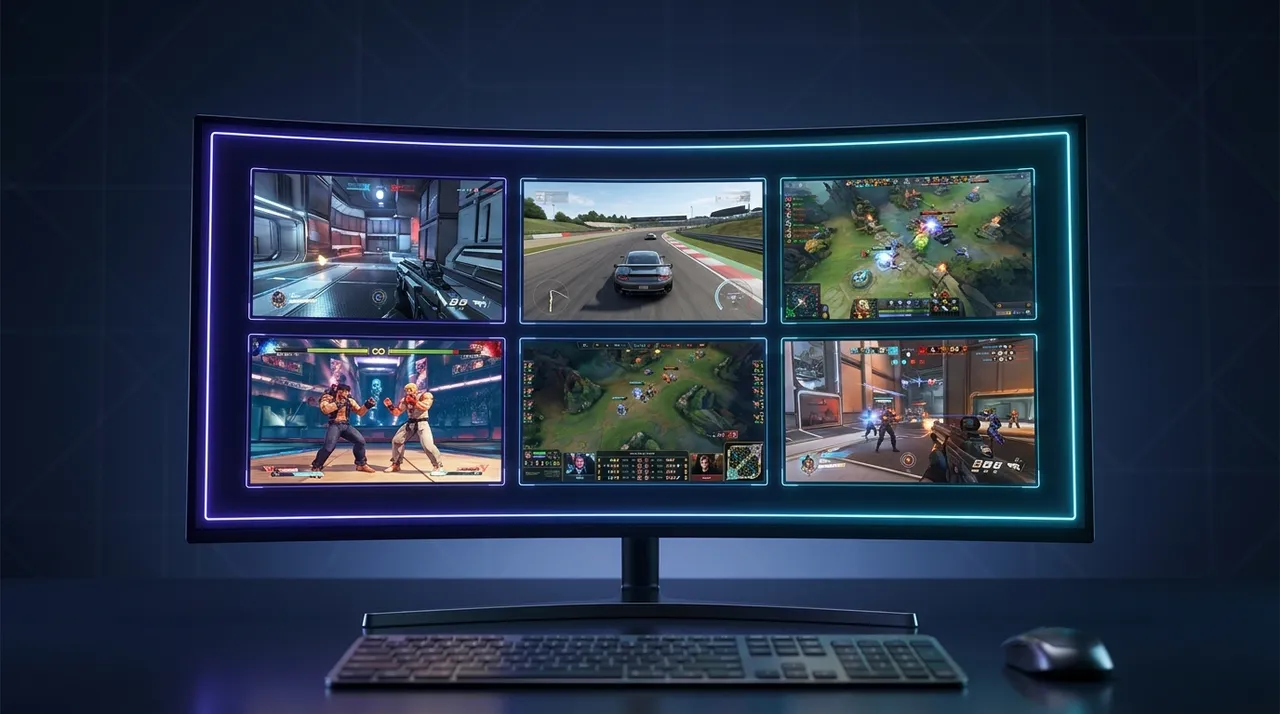
Compare Live Gameplays: Side-by-Side Stream Viewer
Tired of missing out? Discover how a side by side stream viewer, like ViewGrid.tv, revolutionizes how you watch live content across Twitch, YouTube, and Kick. Get practical tips and insights.
Okay, so picture this: you're glued to your screen, right? It's a Friday night, maybe you've got some snacks, a drink, ready for some top-tier streaming content. But then it happens. You're watching your favorite streamer drop into Apex Legends, crushing it, and suddenly you remember your other go-to streamer is also live, maybe playing something totally different, or even the same game but with a completely different vibe. Or worse, it's a major esports event, and you know there are parallel matches, or you want to see the main broadcast and your favorite pro's POV, or hear the community co-streamer's reactions. The FOMO is real, isn't it? You frantically tab between browser windows, missing crucial plays, losing track of chat, and just generally feeling like you're missing half the action.
Yeah, I've been there, countless times. It used to drive me absolutely nuts. That's why stumbling upon a proper side by side stream viewer was like finding the Holy Grail for me. Seriously, it completely changed how I consume live content. No more frantic alt-tabbing, no more missing clutch moments because I was trying to toggle audio. It's all just there, laid out neatly. If you haven't embraced this way of watching yet, you're genuinely missing out on a whole new dimension of streaming enjoyment. And trust me, once you go multi-stream, you never go back.
Why a Side by Side Stream Viewer Isn't Just a "Nice-to-Have"—It's Essential
Look, we live in an era where content is king, and there's just so much of it. It's a blessing and a curse. Especially with live streams, the ephemeral nature means if you're not watching now, you're often just getting VODs later, and that's a different experience entirely. The live chat, the real-time reactions, the shared moment – that's what makes streaming special. And a side by side stream viewer amplifies that experience tenfold.
Think about it. How many times have you been watching a major tournament, like The International for Dota 2 or Valorant Champions, and wished you could see the main observer stream and your favorite player's perspective at the same time? Or maybe you're following a specific team, and you want to see how each member is performing simultaneously. This isn't just about convenience; it's about gaining a deeper understanding of the game, appreciating individual skill, and soaking in all the narrative unfolding across different feeds. My personal setup usually involves the main tournament stream on one side, and then maybe Shroud's co-stream or ImperialHal's POV on the other when Apex Legends tournaments are on. It's truly eye-opening to see how their commentary or gameplay differs from the official broadcast.
It's not just for competitive gaming, either. I've found it incredibly useful for IRL streams, especially during big events or conventions. Imagine TwitchCon, for example. You could have the main stage stream going on one side, and then your favorite content creator just wandering the halls on another feed, reacting to things. Or maybe you're into speedrunning and want to compare two different runners tackling the same game, or even different categories, to see their strategies play out simultaneously. The sheer versatility is what makes it so powerful. You're not just watching; you're curating your own broadcast.
Esports Multi Stream: The Ultimate Competitive Edge
This is where the multi-stream really, truly shines. For any serious esports fan, or even just someone who loves getting deep into the mechanics of a game, an esports multi stream setup is non-negotiable. I mean, how can you truly grasp the full scope of a League of Legends team fight if you're only seeing one perspective? You miss the jungle pathing, the support's ward placements, the top laner's split push pressure. It's all happening at once.
Last year during the LEC finals, I had the official English broadcast up, but then I also had a player POV — I think it was from Razork — on the side. The difference in information you get is insane. You see the macro calls from the main stream, the overall game state, but then you get Razork's micro-decisions, his jungle clear timing, his gank angles, his chat with his teammates. It’s like getting a director’s cut and a behind-the-scenes documentary playing at the same time. You literally cannot get that level of insight from a single stream. And when you're trying to watch multiple Twitch streams of the same event, but maybe in different languages or with different analysis desks, it lets you pick up nuances you'd totally miss otherwise. It’s a game-changer for understanding team dynamics and individual pro play.
Beyond Gaming: News, Sports, and More
And hey, let's not pretend it's all about gaming. While I spend 90% of my viewing time watching games, the utility of a side by side stream viewer extends far beyond that. Imagine a breaking news event. You can have CNN, Fox News, and maybe a local independent journalist's live stream all playing side by side. It’s a fascinating, if sometimes frustrating, way to see how different outlets frame the same story in real-time. You can immediately spot biases, compare reporting styles, and get a much more comprehensive, albeit chaotic, picture of what's happening. I’ve used it during elections or major global events, and it really drives home how different perspectives can be.
For traditional sports, while platforms sometimes offer their own multi-views, having a custom solution means you can incorporate co-streams or pre/post-game analysis that isn't tied to the official broadcast. Think about watching a major football match, but also having a fan's passionate commentary or a sports analyst breaking down plays live. Or maybe you're tracking multiple games simultaneously, like during the first week of the NFL season or a busy NBA night. You don't have to keep flipping channels; just set up your side by side stream viewer and catch all the critical moments. You can even mix and match, having a main game on Twitch and maybe a discussion panel on Watch multiple YouTube streams. The possibilities are genuinely endless.
My Personal Multi-Stream Workflow: From Chaos to Clarity
Okay, let's get down to how I actually use this thing, because that's where the rubber meets the road. My viewing habits are a little… intense. I usually have a main monitor for whatever game I'm playing or working on, and then a dedicated secondary monitor just for streams. That second monitor is where the magic happens with my side by side stream viewer.
The Apex/Valorant POV Conundrum
My absolute favorite use case is when a major Apex Legends or Valorant tournament is on. Let's say it's an ALGS or VCT event. I'll load up the official A stream, usually the main broadcast with the casters and observer cam, in the largest panel. Then, in smaller panels below or to the side, I’ll pull up the individual player POVs. I’m talking ImperialHal, Sweetdreams, maybe a fun co-streamer like iiTzTimmy or Aceu if they’re doing it. For Valorant, it could be TenZ, s0m, or one of the European pros.
It’s just wild. You're watching the overall map control, the team rotations, but then you see Hal's comms, his legendary shot-calling, his insane aim, all in real-time. Or TenZ's aggressive peeks and unbelievable flick shots. You get to compare the observer's decisions with what the players are actually seeing and reacting to. Sometimes the observer misses a crucial individual play, but with the multi-stream, you catch it instantly. It's like having admin access to the matrix of the game. This is especially useful for Watch multiple esports streams where you really want to dissect the gameplay.
Mixing Twitch, YouTube, and Kick Streams
One thing that bugs me about some built-in multi-viewers is they're often platform-specific. Like, Twitch's Squad Stream is cool, but it's only for Twitch streamers who are playing together and opt into it. What if I want to watch Ludwig on YouTube, xQc on Kick, and Pokimane on Twitch all at the same time? That's where a truly versatile side by side stream viewer comes in.
Last week, for instance, I was trying to keep up with the drama around a new game launch. There were streamers from all three major platforms covering it. I had the main developer stream on YouTube (because that's where they hosted it), a popular variety streamer on Twitch reacting to it, and a new creator on Kick trying out the game for the first time. I could easily set up my layout, adjust audio priorities, and keep tabs on all the different angles and communities' reactions simultaneously. It was messy, glorious, and absolutely necessary to get the full picture. Trying to do that with individual browser tabs? Forget about it. You'd be pulling your hair out. The beauty of a tool like the ViewGrid multi-stream viewer is that it doesn't care where the stream is coming from; it just pulls the feed and lets you arrange it.
The "Friends & Fails" Compilation Machine
Another fun, less serious use case: watching my friends play. We'll often be in Discord together, all playing the same game, like a new survival title or a competitive shooter. I'll have their individual streams up on my multi-view. It's awesome for friendly banter, catching their hilarious failures, or seeing how different strategies unfold. It's like having a private, curated highlight reel happening in real-time. I can hear their comms in Discord, but then see their actual gameplay side-by-side. It adds so much to the communal gaming experience. And sometimes, I’ll even pull up a bigger streamer doing the same game, just to compare my friends’ antics to the pros. It usually ends in laughter, mostly at my friends’ expense, but it’s all in good fun!
Setting Up Your Own Side by Side Stream Viewer: A Practical Guide
Alright, convinced yet? Good. Now, let's talk about how to actually set this up. There are a few ways to approach it, but honestly, one way stands head and shoulders above the rest.
The Old-School, Headache-Inducing Method (Avoid if Possible)
Before dedicated multi-stream viewers became a thing, people tried to make do. This usually involved:
Opening multiple browser tabs.
Dragging them to different parts of your screen.
Manually resizing each window.
Then, the absolute worst part: trying to manage the audio. Muting tabs, unmuting, trying to balance levels. It was a nightmare.
This method is clunky, inefficient, and often leads to performance issues as your browser tries to handle multiple video players simultaneously. Plus, getting a perfectly aligned grid of streams? Near impossible without a lot of fiddling. If you just want to watch multiple Twitch streams and literally nothing else, and you're only watching two, you might be able to pull it off, but any more than that, and you're begging for trouble.
The Smart Way: Dedicated Multi-Stream Platforms
This is where specialized tools come in. These platforms are built from the ground up to handle multiple video feeds, often optimizing performance and, crucially, providing intuitive ways to manage layouts and audio. And yeah, I'm talking about places like ViewGrid.tv.
Here's a basic step-by-step for getting started with a platform like ViewGrid:
- Head to the Site: Go to ViewGrid multi-stream viewer. You'll usually land on a page that's ready for you to input stream URLs.
- Find Your Streams: Open new tabs for the streams you want to watch. This could be a streamer on Twitch (like Ninja's Watch multiple Twitch streams), a pro match on YouTube Gaming (check out Watch multiple YouTube streams for guides), or a new variety caster on Kick (we've got you covered for Watch multiple Kick streams). Copy the full URL from your browser's address bar.
- Add Them to Your Viewer: On ViewGrid, you'll see input fields. Paste each stream URL into a separate field. You can usually add quite a few—the number often depends on your screen size and internet speed, but four to six streams is a solid starting point for most setups.
- Arrange Your Layout: Once you've added the streams, the platform will typically load them into a default grid. Most good multi-stream viewers, like ViewGrid, offer options to customize this layout. You can drag and drop streams to different positions, resize them, or choose from pre-set grid configurations (2x2, 1 large + 2 small, etc.). I usually like one stream to be dominant, maybe a 16:9 aspect ratio, with others in smaller squares around it.
- Manage Audio: This is crucial. You'll usually see individual volume controls for each stream, or a quick mute button. My trick is to pick one "main" stream whose audio I want to hear clearly, and then mute all the others. If I need to hear a specific moment from a secondary stream, I'll quickly unmute it, listen, and then mute it again. Some platforms even let you cycle through audio focus with hotkeys, which is super handy.
- Start Watching! That's it. You're now a multi-stream master. You'll be able to see all the action unfold simultaneously, just like the pros do.
Pro-Tips for Maximizing Your Multi-Stream Experience
Audio Focus: As I said, this is king. Decide which stream is your priority. If you're watching an esports multi stream, you'll likely want the official commentary for the main game, then maybe quickly toggle to a player's comms for a specific moment. It takes a little practice to juggle, but it's worth it.
Performance Check: Running multiple streams simultaneously can be demanding on your internet connection and computer. Make sure you have decent bandwidth. If things feel choppy, try reducing the quality of secondary streams to 720p or even 480p, while keeping your main stream at 1080p or higher.
Layout Experimentation: Don't just stick to the default. Play around with different layouts. Maybe for a news event, you want three equally sized streams. For a gaming tournament, you might want one large player POV and smaller streams for teammates or alternative casters.
Chat Decision: Do you need chat for all streams? Probably not. It can be distracting. I usually only have chat visible for my main stream, or none at all if I'm really trying to focus on the gameplay. Some multi-viewers let you pop out specific chats, which can be useful.
Hotkeys are Your Friend: If your chosen platform offers hotkeys for muting, changing layout, or cycling audio, learn them! They speed up your workflow immensely.
External Link Tip: For a deeper dive into the technical side of streaming, specifically how video encoding and delivery work across platforms, check out this Wikipedia article on streaming media. It gives some good context to why multi-streaming can be resource-intensive!
The Future of Live Content is Multi-View
Honestly, I think the traditional single-stream viewing experience, while still popular, is slowly becoming a relic for many types of content. The demand for more angles, more perspectives, and more choice is only going to grow. Broadcasters and platforms are recognizing this, but often their built-in solutions are limited. Twitch's Squad Stream is a step, but it's not truly open-ended. YouTube's multi-view options are still in their infancy.
That's why independent side by side stream viewer platforms are so vital. They empower you, the viewer, to be the director of your own experience. You're not just passively consuming; you're actively curating, comparing, and analyzing. This isn't just about entertainment; it's about a richer, more engaging, and ultimately more informed way to watch live events, whether it's the biggest Watch multiple sports streams of the year or critical Watch multiple news channels during a breaking story. I genuinely believe that if you're serious about staying on top of live content, this is the way to do it. It’s what allows us enthusiasts to truly immerse ourselves in the content we love, without compromise.
Why ViewGrid.tv is the Perfect Co-Pilot for Your Viewing Journey
So, after all this talk, you're probably wondering what my go-to is. For me, it's ViewGrid.tv. And I'm not just saying that because I'm writing for them. I genuinely use it almost daily. The reason is simple: it just works. It's clean, it's intuitive, and it handles streams from different platforms without a hitch. I've tried others, believe me, some are buggy, some are overly complicated, some are super limited in the number of streams or the platforms they support.
But ViewGrid? It’s responsive, doesn't bog down my browser (which is huge for someone who always has a million tabs open), and lets me create custom layouts that actually make sense for what I'm watching. Whether I'm trying to compare two different speedruns, follow a complex esports multi stream event with multiple POVs, or just have a few friends' streams up in the background while I work, it handles it gracefully. The flexibility to watch multiple Twitch streams alongside Watch multiple YouTube streams or even a random Kick stream is something you don't always get.
It’s built for people like us—people who love streaming, who want to see everything, and who get frustrated when technology gets in the way. If you're tired of missing out, if you want to elevate your live viewing experience from chaotic to perfectly controlled, then you absolutely owe it to yourself to check out the ViewGrid multi-stream viewer. It’s not just a tool; it’s a portal to a better, more comprehensive streaming universe. Give it a shot. You won't regret it.
Ready to try multi-stream viewing?
Watch YouTube, Twitch, Kick & more — all on one screen.
Open ViewGridRelated Articles
Side by Side Stream Viewer: Compare News & Events Across Platforms
Tired of missing out? A side by side stream viewer lets you compare news, track events, and follow your favorite streamers across Twitch, YouTube, and Kick simultaneously. Discover how to watch multiple live streams at once and transform your viewing experience!
how toHow to Watch Multiple Streams This Summer: Your Ultimate Guide
Don't miss a beat this summer! Learn how to watch multiple streams simultaneously with our ultimate guide. Discover multi-view apps, tackle summer streaming events, and set up your perfect command center.
how toGain the Edge: Watch Multiple Streams for Strategic Viewing
Tired of missing out on crucial angles or different perspectives? Learn how to watch multiple streams at once for strategic viewing, deep esports POV comparison, and a richer content experience.
how toMaster Multi-View Esports for Summer Tournaments
Summer esports tournaments are chaos! Master multi view esports to catch every clutch play. Learn how to set up your ultimate viewing hub for Summer Game Fest and more with ViewGrid.tv.