ViewGrid.tv
how to19 min read·June 24, 2026

How to Watch Multiple Streams This Summer: Your Ultimate Guide

Don't miss a beat this summer! Learn how to watch multiple streams simultaneously with our ultimate guide. Discover multi-view apps, tackle summer streaming events, and set up your perfect command center.

multi-streamlive streamingsummer eventsesportsTwitchYouTubeKickhow-to guide
How to Watch Multiple Streams This Summer: Your Ultimate Guide

Summer's here, folks! The sun's out, the days are long, and honestly, sometimes it feels like the entire internet is having a party. You've got your favorite streamers doing epic outdoor adventures, massive esports tournaments heating up, and all sorts of crazy IRL events popping off. It's a goldmine of content, but man, trying to keep up can be a nightmare. Last week, I was trying to juggle a Valorant VCT match, Squeex playing Super Mario 64, and a friend's charity stream, all on separate tabs. My browser was screaming, my PC fan was doing its best impression of a jet engine, and I was bouncing back and forth like a madman, inevitably missing key moments in at least two of them. That's why learning how to watch multiple streams isn't just a power-user move anymore — it's a summer survival skill. You don't want to miss a beat, do you? I sure don't.

Why Even Bother to Watch Multiple Streams? My Personal Revelation.

Okay, so maybe "revelation" sounds a bit dramatic, but seriously, the first time I set up a proper multi-stream view, it was a game-changer for my viewing habits. Before that, I was a single-tab warrior, always committing to one stream. If I was watching xQc, I was only watching xQc. If I was deep into an LCS game, nothing else existed. And that's fine, sometimes you want that focused, immersive experience. But what about when your favorite variety streamer decides to play a game you're not super interested in for an hour, but you still want to hang out in chat? Or when two huge esports matches are happening simultaneously? Or maybe, just maybe, you're like me and you have an unhealthy obsession with true crime podcasts and speedrunning at the same time.

It's not about being distracted, though some might argue it is. For me, it's about maximizing the live content summer has to offer. Think about it: during the summer months, streamers often take their content outdoors, do travel vlogs, or participate in big collaborative events. Simultaneously, the esports calendar gets absolutely stacked with playoffs and international championships. Missing out on one because you're tied to another feels… wrong. It feels like leaving money on the table, except the money is pure entertainment.

FOMO is Real, Folks

Let's be honest, the Fear Of Missing Out (FOMO) is a potent force, especially in the fast-paced world of live streaming. Someone in chat drops a "You just missed X doing Y!" and your heart sinks. Did I really? Was it hilarious? Was it a record-breaking speedrun split? A clutch play that decided the series? This happens all the time when you're limited to a single window. I remember during the Twitch Rivals Rust event a while back, trying to keep track of all the different team dynamics. It was impossible! I was constantly refreshing Twitter just to get updates on what was happening elsewhere on the map. That's not good viewing, that's just stress with extra steps.

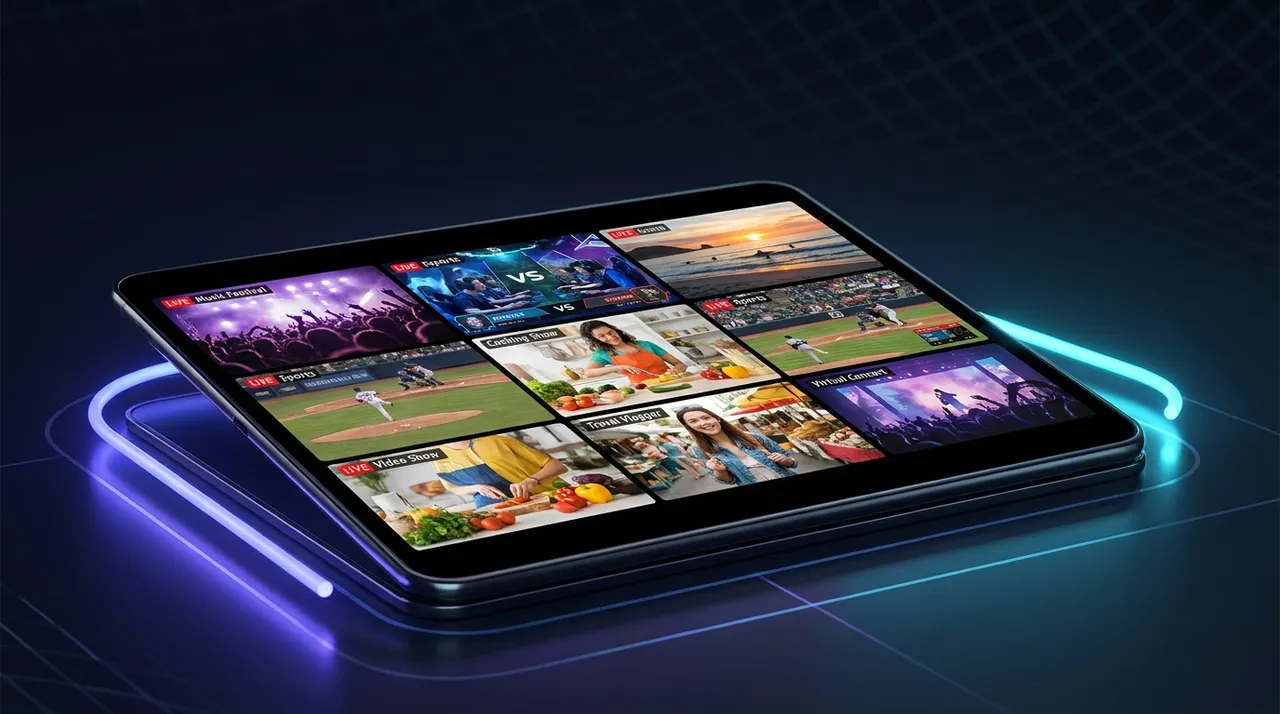
Having the ability to watch multiple streams simultaneously largely mitigates that. You can have your main focus stream taking up most of the screen, and then smaller windows for peripheral content. Maybe it's another perspective in a competitive game, or a streamer who's just chilling in the background, or even just a news channel quietly playing while you're deep into a gaming session. It enriches the experience, making you feel more connected to the broader streaming ecosystem. And who doesn't want that?

Optimizing Your Viewer Experience

Beyond just avoiding FOMO, multi-streaming lets you curate your own perfect broadcast. You become the director of your personal content network. Imagine you're watching a massive League of Legends or Dota 2 tournament. You want the main broadcast for the expert commentary and overarching view, right? But what if your favorite pro player, say Faker or Caps, is also streaming their PoV during the match, maybe in a co-stream? You could have the main broadcast front and center, with Faker's PoV in a smaller window, letting you switch audio focus or zoom in whenever he makes a particularly spicy play. That's next-level viewing.

Or, let's say it's a big charity event like Summer Games Done Quick or even a smaller community one. There are often multiple 'tracks' or stages running at once, showcasing different games or segments. You pick your main, but you can keep an eye on what's coming up next on another track, or even just have the 'chill games' stream running in the corner while you focus on the intense speedruns. It's about personalizing your entertainment, making sure you're getting exactly what you want, when you want it, from the vast ocean of content out there. And for me, that's priceless.

The Golden Age of Summer Streaming Events

Summer isn't just about vacations and barbecues; it's peak season for summer streaming events. Seriously, the platforms light up. From massive esports spectacles to streamers embarking on ambitious IRL journeys, there's always something happening. And often, these things are happening at the exact same time. It’s a beautiful problem to have, but a problem nonetheless if you're stuck on a single screen.

Esports Galore: Tournaments & Leagues

This is where multi-streaming truly shines for me. The esports calendar usually goes absolutely wild in the summer. We're talking about the mid-season playoffs, international qualifiers, and massive grand finals for games like League of Legends (think LCS, LEC, LCK playoffs), Valorant (the VCT circuit is always buzzing), CS:GO, Dota 2, and even fighting games like EVO (Evolution Championship Series) usually hits around late July/early August.

Last summer, I was trying to keep up with both the LCS finals and a Rocket League Championship Series (RLCS) major. It was pure chaos trying to flip between tabs. The audio cues from one would bleed into the other, and I'd inevitably miss a pivotal goal or a game-winning teamfight. With a proper multi-view setup, I can have the main League broadcast with sound, and the Rocket League stream muted or on very low, just visually tracking the score and big plays. If something amazing happens, I can quickly unmute or even switch focus. It's a game-changer for anyone invested in multiple esports titles. And let's not forget the co-streams! Many pro players and popular casters will co-stream official events, offering their own unique perspectives. You can have the official broadcast and your favorite analyst's take side-by-side. It’s like having an all-access pass. You can even find specific stream links to watch multiple esports streams directly on ViewGrid.

IRL and Vlogging Adventures

Summer also means a lot of streamers take their content outdoors. We see massive IRL streams, travel vlogs, "subathon" adventures that involve crazy challenges, and collaborative events where multiple streamers are interacting in the real world. Think back to things like the various Twitch creator camps or the epic subathons that have involved everything from hiking to building elaborate structures.

It’s fantastic content, but often, the most exciting part is seeing how different streamers in the same location are interacting. One streamer might be focused on their personal journey, while another is reacting to the environment, and a third is coordinating logistical challenges. Having multiple PoVs allows you to get a holistic view of the event. I remember watching a big streamer collaboration event in Japan last year. There were about five different creators streaming from the same festival, and each one offered a totally different vibe and focus. It was amazing to have them all up at once — one for the general atmosphere, another for the food, one focused on the people, and so on. Trying to follow just one felt like I was missing out on 80% of the fun. This kind of live content summer provides some of the most dynamic multi-stream opportunities.

Music Festivals and Special Broadcasts

Beyond gaming and daily life, summer often brings a slew of online music festivals, charity concerts, and special broadcast events. Many traditional music festivals now offer official live streams, and sometimes different stages or artists are streamed simultaneously. Or maybe a beloved musician does a special acoustic set on Twitch while another is doing a Q&A on YouTube.

Then there are the big platform events, like TwitchCon or YouTube's equivalent creator gatherings, which often have multiple stages and panels running concurrently. It's impossible to see everything live if you're relying on one window. Setting up a multi-view allows you to catch the main keynote speech while also keeping an eye on a specific panel you're interested in, or maybe even a live demo happening on another channel. It transforms the experience from a linear watch to a choose-your-own-adventure style viewing party.

The Tools of the Trade: Your Multi-View App Guide

Okay, so you're convinced. You want to embrace the multi-stream lifestyle. But how do you actually do it? What do you use? This is where your multi-view app guide comes in handy. There are a few different approaches, from dedicated platforms to browser hacks, and even full-blown hardware setups.

Dedicated Multi-Stream Platforms (Like ViewGrid, obviously)

This is, in my opinion, the absolute best way to go about it for most people. Dedicated platforms are built from the ground up to handle multiple video feeds efficiently. They often come with features designed specifically for this purpose, like synchronized playback (as much as possible), easy audio switching, and intuitive drag-and-drop layouts.

And yeah, I'm going to talk about ViewGrid here, because that's what I actually use. It’s designed specifically for this. You just paste in the stream URLs — whether they're from Twitch, YouTube, Kick, or even some smaller platforms — and it pops them into resizable windows. The control you get over the layout is fantastic, and the audio management is super simple, letting you quickly toggle between streams or mute them individually. You can easily build your own custom layout for watching multiple Twitch streams, or watching multiple YouTube streams, or even a mix from different platforms. It's a lifesaver when you have a specific combination of content you want to follow. They even have dedicated pages for things like watching multiple Kick streams or watching multiple news channels. It really simplifies the whole process.

The big advantage here is the optimization. These platforms are generally much lighter on your system resources than trying to open 5-6 separate browser tabs, each running a video player. My browser used to chug like an old diesel engine, but using a dedicated solution, it's a much smoother experience. Plus, they often save your layouts, so you don't have to rebuild your perfect setup every single time. That's a huge quality of life feature. I've got my "esports weekend" layout saved, my "chill background" layout, and my "friend group" layout. It’s glorious.

Browser-Based Solutions & Browser Extensions

Before dedicated platforms became as robust as they are now, I was an avid user of browser-based hacks. You can technically open multiple tabs in any browser and manually arrange them. If you have an ultra-wide monitor, you can snap them side-by-side. If you have multiple monitors, you can drag each tab to its own screen. It works, but it's clunky. The resource usage is often high, and managing audio is a nightmare. You're constantly alt-tabbing to mute a tab, then alt-tabbing back. It's not ideal.

Then there are browser extensions. Some extensions claim to offer multi-stream capabilities directly within your browser. These can be a step up from just opening multiple tabs, often providing some basic layout tools. However, they're often limited to a single platform (e.g., a Twitch-specific multi-viewer) and can sometimes be buggy or resource-intensive themselves. Always check reviews and permissions before installing any browser extension, especially those handling video. While they might seem convenient, they often lack the polish and cross-platform compatibility of a dedicated solution like a ViewGrid multi-stream viewer. They also often struggle with audio control, which is, in my opinion, the biggest hurdle for a good multi-stream experience.

Hardware Setups: From Dual Monitors to Ultra-Wides

For the truly committed, your hardware setup can significantly enhance your multi-streaming game.

Dual Monitors: This is probably the most common and accessible upgrade. You can have your main stream on one monitor, and then two or three smaller streams arranged on the second. This gives you plenty of screen real estate without feeling too cramped. It's what I used for years. I'd have the main game on my primary screen, and then Discord, chat, and a secondary stream on the other. It works great.
Ultra-Wide Monitors: An ultra-wide monitor can basically act as two regular monitors side-by-side. You can easily arrange multiple windows on a single large display, making it feel cohesive. The lack of a bezel splitting your view is a big plus here. I upgraded to an ultra-wide a few years ago, and it's fantastic for work, but also for having three or four streams open at once. You can have a main center stream and then two smaller ones flanking it, or even a grid of four equally sized windows.
Dedicated Stream PC / Capture Cards: Okay, this is getting into serious enthusiast territory, but some people who produce content or are just absolute viewing fanatics might have a dedicated "streaming PC" that handles all the encoding and broadcasting, but you could also repurpose one for just* viewing. Or, if you're watching console streams, a capture card can pipe multiple console inputs into a single PC, allowing you to view them side-by-side. This is probably overkill for most, but hey, if you've got the gear, why not?

The key takeaway here is that while hardware helps, the software (like ViewGrid) is what really makes the experience seamless and enjoyable. You can have the fanciest monitor setup in the world, but if your software is clunky, you're still going to have a bad time.

Setting Up Your Command Center: A Step-by-Step Guide to Watching Multiple Streams

Alright, let's get down to business. You're ready to dive into the world of multi-streaming. Here’s a basic step-by-step guide to get your command center up and running, focusing on a dedicated multi-viewer like ViewGrid because, frankly, it’s the easiest and most effective way to go.

  1. Open Your Multi-Stream Viewer: First things first, head over to ViewGrid.tv or your preferred multi-stream platform. You'll usually be greeted with a blank canvas or a simple interface ready for you to input stream links.
  1. Pick Your Streams: This is the fun part. What do you want to watch?
  2. Main Focus: Identify your primary stream. This will likely be the one you want to hear audio from and will probably take up the largest portion of your screen. Is it the big CS2* tournament? Your favorite chatterbox streamer?
  3. * Secondary Streams: What else is happening? A co-stream? Another tournament? An IRL stream from a friend? A news channel? Grab those links.
  4. * Pro Tip: Don't go overboard initially. Start with 2-3 streams. As you get comfortable, you can always add more. Trying to manage 6 streams with 6 chats right off the bat is a recipe for sensory overload.
  1. Input Stream URLs: Copy the URL of each live stream you want to watch. Most multi-stream platforms, including ViewGrid, will have an input box where you paste these URLs. After pasting, the stream should load up in a new window within the viewer. You can grab links from Twitch, YouTube Gaming, Kick, and many other platforms.
  1. Arrange Your Layout: Once your streams are loaded, it's time to organize.
  2. * Drag and drop the windows to your desired positions.
  3. * Resize them. Make your main focus stream larger, and your secondary streams smaller.
  4. * Experiment with different grid layouts. Do you prefer a large main stream with a sidebar of smaller ones? Or a symmetrical 2x2 grid? Most good multi-viewers give you a lot of flexibility here. I usually go for a big 16:9 main window, and then two or three smaller 4:3 windows arranged either below it or to the side, depending on the content.
  1. Audio Management: The Silent Killer (and how to fix it): This is critical. Nothing is worse than multiple audio sources battling for your ears.
  2. * Mute Most: Immediately mute all but your primary stream. Most multi-viewers will have a speaker icon on each individual stream window that you can click to toggle mute.
  3. * Volume Control: Adjust the volume of your primary stream.
  4. * Quick Swap: Get used to quickly unmuting a secondary stream if something interesting happens. The best multi-viewers let you click a window to make it the "active" audio source, silencing the others. This is a feature I absolutely love on ViewGrid — it's so intuitive. You can also right-click streams to bring up individual volume sliders if you want to mix audio rather than just mute/unmute, though I rarely do that unless it's very specific content.
  1. Optional: Chat Integration: Some multi-viewers will allow you to pop out or integrate the chat for your main stream. This keeps everything in one place. If not, open the chat in a separate, small browser window and place it strategically next to your main stream. I usually prioritize the video experience and leave chat for a dedicated second monitor if I really want to engage.
  1. Save Your Layout: If your multi-viewer supports it (and ViewGrid does!), save your custom layout. This means you won't have to go through all these steps every time you want to watch your specific combination of streams. It's a huge time-saver. I've got a layout specifically for my Friday night gaming sessions with friends, where I'm usually watching one friend's stream, another friend's, and then maybe a muted background stream of something chill.

That’s it! You're now a multi-stream maestro. It takes a little getting used to, especially the audio management, but once you find your rhythm, you'll wonder how you ever lived without it.

Navigating the Live Content Summer Landscape

Okay, you've got your multi-stream setup dialed in. Now what? The sheer volume of live content summer throws at us can still be overwhelming, even with the right tools. It's not just about how to watch, but what to watch and how to interact effectively without feeling like your brain is melting.

Community Engagement Across Multiple Chats

One of the biggest challenges with multi-streaming is managing chat. Each stream has its own community, its own inside jokes, its own pace. Trying to engage in two or three chats simultaneously is incredibly difficult, bordering on impossible for most people. You'll either miss what's happening in one chat or just end up spamming generic emotes in all of them.

My advice? Pick one primary chat to actively participate in. This usually corresponds to your main focus stream. Let the other streams be for passive viewing. You can glance at their chats for a general vibe or to catch funny emotes, but don't feel pressured to respond to every message. Sometimes, just having the stream on, even if muted, and seeing the chat scroll by, makes you feel more connected. It's like being in a crowded room with multiple conversations — you only actively participate in one, but you're aware of the others happening around you. Don't stress about being a super-chatter in every window. That's a surefire way to burn out.

Finding the Hidden Gems

With so much content, how do you discover new things? Multi-streaming actually helps with this. While you might have your go-to streamers, leaving a slot open for a "discovery" stream can be really rewarding.
Explore Categories: While watching your main stream, pull up a smaller window showing a game category you're interested in, sorted by newest streamers, or even just a random one. You might stumble upon an absolute gem.
Friend's Recommendations: If a friend tells you about a new streamer, instead of stopping what you're doing, just pop their stream into one of your smaller multi-view windows. Give them a chance without disrupting your current viewing session.
* Raid Trains: When your main streamer raids someone, follow the raid! But instead of leaving your main stream, just open the raided channel in a separate window. You can see what's happening there while still keeping an eye on your original streamer's post-raid chat or thoughts. This is a fantastic way to find new creators without committing to leaving your comfort zone entirely. I've found so many amazing small streamers this way — people I would have never seen otherwise.

It's about making your viewing experience proactive rather than reactive. Instead of just consuming what's put in front of you, you're actively curating your own media landscape. And that, in my humble opinion, is what modern streaming is all about.

Making ViewGrid Your Summer Streaming Hub

So, you're ready to embrace the multi-stream life this summer, and I can't recommend it enough. It really does change how you consume live content. You're no longer bound by the limits of a single tab or a single platform. You can curate your ultimate viewing experience, whether you're following every twist and turn of a major esports tournament, keeping up with multiple IRL adventures, or just chilling with a variety of background content.

If you're looking for the easiest, most robust way to get started, I genuinely suggest checking out ViewGrid.tv. I've been using it for ages, and it simplifies the entire process. No more browser tabs fighting each other, no more missing crucial moments because you were flipping back and forth. It's purpose-built to let you watch multiple streams seamlessly, and it's free, which is always a bonus, right? You can save your layouts, effortlessly switch audio, and bring together streams from Twitch, YouTube, Kick, and more, all in one intuitive interface.

Give it a shot. Set up your first multi-stream layout. You'll find yourself wondering how you ever managed without it. This summer, don't just watch streams — experience them, all at once. Your FOMO will thank you.

Ready to try multi-stream viewing?

Watch YouTube, Twitch, Kick & more — all on one screen.

Open ViewGrid

Related Articles