How to Watch Multiple Live Streams at Once with a Custom Grid
You can watch multiple live streams at once by using a tool that combines them into a grid in a single browser tab. With ViewGrid, you paste the links for each stream you want to watch from platforms like YouTube, Twitch
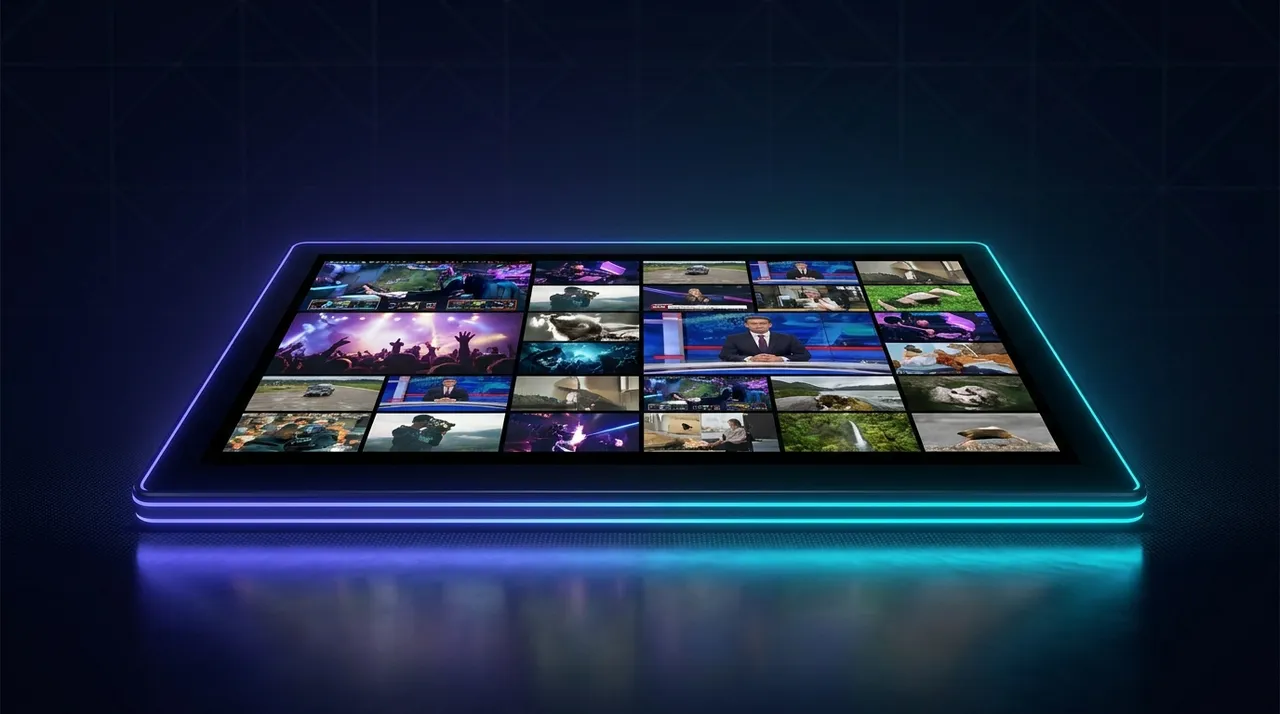
You can watch multiple live streams at once by using a tool that combines them into a grid in a single browser tab. With ViewGrid, you paste the links for each stream you want to watch from platforms like YouTube, Twitch, or Kick. The tool arranges them on one screen, and you can control which stream’s audio you hear.
This approach is useful when you want to follow a live event from several angles, keep an eye on different news reports, or watch a group of friends who are all streaming their own perspective of a game. Instead of juggling browser tabs, you build a single, organized view.
Why a Custom Layout Beats Juggling Tabs
Most streaming platforms are designed for you to watch one video at a time. While some, like Twitch, have features for group streams, you are usually limited to the streamers and layout they choose. The common alternative is opening many browser tabs or windows, which can be disorganized and tax your computer's resources.
Using a multi-stream viewer gives you control. You decide which streams to include, regardless of what platform they are on. You can mix a YouTube stream with a Twitch stream and a Kick stream in the same layout. It's a way to build a personal viewing dashboard tailored to exactly what you want to see.
The entire setup exists in one browser tab. This simplifies audio control, as you can mute and unmute streams from a central place instead of hunting for the noisy tab. It also means you can share the entire viewing experience with someone else just by sending them a single link.
How to Design Your Multi-Stream Layout
Creating a functional layout is more than just adding streams; it's about arranging them in a way that makes sense for your goal. Here is a step-by-step process for building a custom grid from scratch.
1. Plan Your View
Before you start adding links, think about what you want to accomplish. Your goal will determine the best layout.
Following one main event? If you're watching a tournament with a main broadcast and a few side streams (like player POVs or commentary), you'll want a layout with one large window and several smaller ones.
Comparing sources? For monitoring breaking news or watching several sports games, a grid of equally sized windows (like a 2x2 or 3x3) is often better so you can compare them easily.
* Watching a group? If you're following a team of friends playing together, a symmetrical layout where everyone has equal screen space might be the most fair and effective.
Having a clear purpose helps you make quick decisions about which streams are most important.
2. Add Your Streams
Once you know what you want to watch, you can add the streams to your grid. ViewGrid supports live streams and videos from YouTube, Twitch, Kick, and Rumble, as well as direct HLS (.m3u8) links.
- Go to the ViewGrid multi-stream tool.
- Find the stream you want to add on its native platform (e.g., YouTube or Twitch).
- Copy the URL from your browser's address bar.
- Paste the URL into the "Add stream or channel URL" box in ViewGrid.
- The stream will be added to your grid. Repeat this for all the streams you want to include.
You can also search for live YouTube streams directly from within the ViewGrid interface, which can be faster than opening new tabs.
3. Choose a Layout and Arrange Streams
With your streams loaded, you can now arrange them. ViewGrid offers several preset grid layouts, from a single view up to 20 streams on a desktop computer. On a mobile device, you can have up to 6.
You can select a layout that best fits your plan from Step 1. For example, if you have four streams, you can choose a 2x2 grid for four equal quadrants. If you have one main stream and two secondary ones, a layout with one large pane and two smaller ones might work better.
You are not locked into the initial positions. You can drag and drop any stream into any slot in the grid to reorder them. Place your primary stream in the most prominent position, such as the top-left, where your eyes naturally fall.
4. Manage Audio and Chat
By default, all streams in the grid start muted to prevent a wall of noise.
Audio: To hear a stream, click the speaker icon on that video player. This will unmute that stream while keeping the others silent. You can switch which stream you're listening to with a single click.
Chat: For streams from Twitch, YouTube, or Kick, you can open the live chat. Clicking the chat icon for a specific stream will open its chat in a side panel next to your video grid. You can switch between the chats for different streams from this panel.
Proper audio management is key. The best practice is to have only one audio source active at a time.
5. Save and Share Your Layout
If you've created a layout you plan to use again, you can save it by creating a free account. This is useful for recurring events or for keeping track of a specific group of streamers.
You can also share your exact layout with others. The URL in your browser's address bar automatically updates to include all the streams in your grid. Simply copy this URL and send it to a friend. When they open the link, they will see the exact same streams arranged in the same way. This is great for watch parties or for coordinating with a group.
Practical Examples of Custom Layouts
Different situations call for different grid designs. Here are a few common use cases and how you might set them up.
The Esports Command Center
Watching competitive gaming often involves more than just the main broadcast. A good layout can give you a more complete picture of the match.
Main Stream (Top Left): The official tournament broadcast.
Commentary Stream (Top Right): A co-streamer or analyst providing alternative commentary.
Player POV (Bottom Left): The direct feed from a specific player's perspective.
Live Stats (Bottom Right): If available, a stream showing real-time stats or a map overview.
This setup prioritizes the main action while providing context from three other sources. For more ideas, check out our guide, "Watch Multiple Sports Streams: A Complete Guide".
The Breaking News Monitor
When news is unfolding quickly, seeing reports from multiple sources helps you get a balanced view. A symmetrical grid is often best here.
Layout: A 2x2 grid with four different news channels.
Audio: Keep all streams muted except for the one you are actively listening to. You can quickly switch between audio sources to hear different reporters.
* Benefit: This allows you to compare headlines, see different live shots, and notice what information one source has that others do not.
ViewGrid also has an /events page that often features pre-built grids for major news and political events.
Watching on a TV
Many people ask how to get their multi-stream grid onto a television screen. ViewGrid doesn't have a built-in "cast" button. The methods that work are general solutions for displaying a computer screen on a TV.
Connect with an HDMI cable: The most reliable method is to connect a laptop to your TV with an HDMI cable, using the TV as a second monitor.
Use your TV's web browser: If you have a smart TV, you can open its built-in web browser and go directly to viewgrid.tv.
* Screen Mirroring: Use the screen mirroring or casting features built into your computer's operating system (like AirPlay for Apple devices or Miracast for Windows) to show your browser on the TV.
For a more detailed breakdown, see our article, "How to Watch Multiple Streams on Your TV".
A Note on Performance
Watching multiple video streams at once requires a stable internet connection and a reasonably modern computer. While ViewGrid is efficient, each stream still uses bandwidth and processing power.
If you notice performance issues like buffering or stuttering, try reducing the number of streams in your grid. A grid with 20 simultaneous streams will demand significantly more from your system than a grid with four. The experience is designed to be flexible, so you can find the right balance for your setup.
Ready to try multi-stream viewing?
Watch YouTube, Twitch, Kick & more — all on one screen.
Open ViewGridOr browse all multi-stream categories.
Related Articles
ViewGrid Mobile: A Guide to Multi-Stream Optimization
Multi-stream mobile optimization is about arranging several video streams on a small screen so they're actually watchable. With ViewGrid, you can watch up to six streams at once on your phone by choosing a layout that fi
how toHow to Watch Multi Stream Streamer Collabs
To watch multi stream streamer collabs, you use a tool that lets you combine video feeds from different platforms into one view. This way, you can paste links for every streamer's Twitch, YouTube, or Kick channel into a
how toHow to Sync Multiple Live Streams for Perfect Timing
To sync multiple live streams, you need to open them in a single tool that lets you manage them together. A multi-stream viewer like ViewGrid puts all your feeds into one browser window, making it much easier to manually
how toHow to Watch Multiple Streams at Once on One Screen
To watch multiple streams at once, you can use a multi-stream viewer tool. These tools let you paste links from different platforms like Twitch, YouTube, and Kick into a single browser window, creating a custom grid of v