What Is Multistreaming? A Viewer's Guide to Watching Several Streams
Tired of missing out? Discover the power of multistreaming to watch multiple streams at once. Our guide covers setup, use cases, and why ViewGrid.tv is your go-to multi stream viewer.
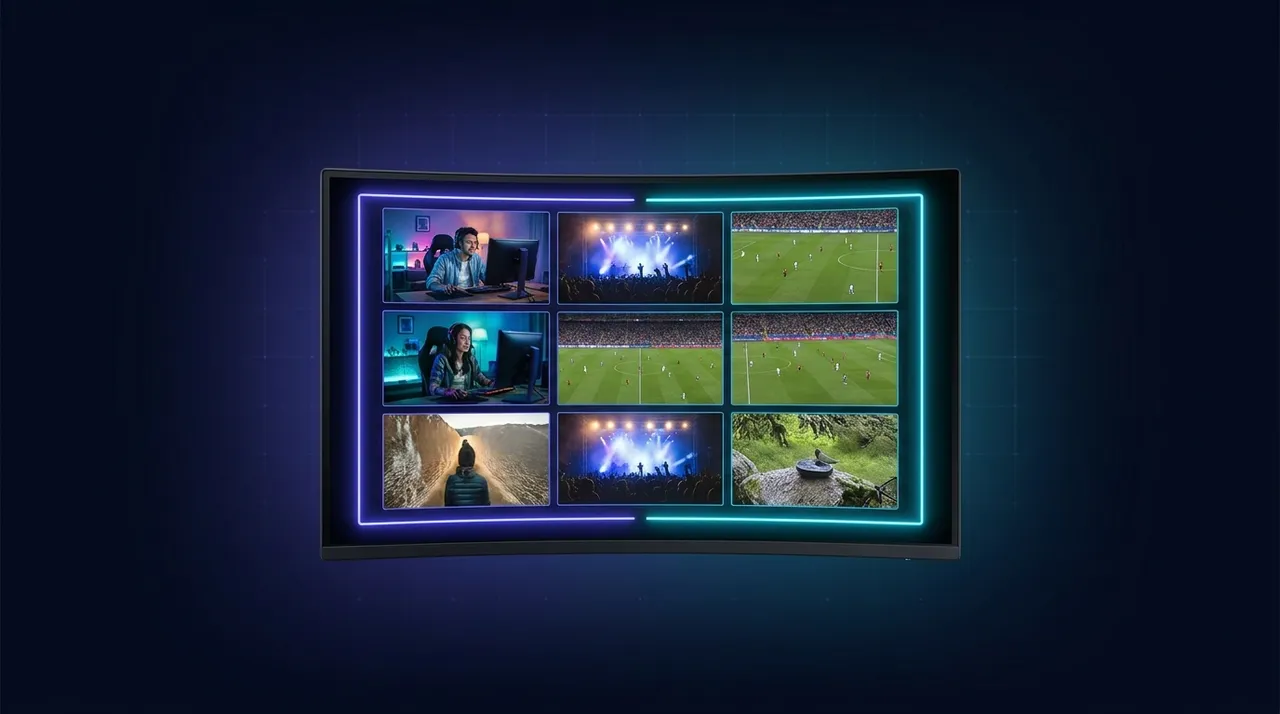
Okay, let's talk about it. The ultimate cheat code for anyone serious about watching live content — and I mean serious — is multistream. For years, I was that person, hopping between browser tabs, trying to catch every angle of a crucial League of Legends match, or juggling a Rust server drama across three different streamers. It was a chaotic dance, a frantic alt-tab ballet that more often than not resulted in me missing a crucial play, a key reaction, or the very moment that drama exploded. I’d be sitting there, muttering, "Wait, what just happened on Shroud's screen? Did xQc just get banned from that server again?" It was exhausting.
Then I discovered the magic, the sheer blissful utility, of a proper multistream setup. It's not just for the hyper-dedicated; it's genuinely transformative. If you're someone who loves live content, if you feel that gnawing FOMO when you know something cool is happening on another stream you can't see, then you need to embrace this. You need to learn how to watch multiple streams at once. Trust me, once you try it, you won't go back. It's like going from a single-lane road to a superhighway. Everything just flows better.
What Even *Is* Multistreaming, Anyway? (And Why You Need It)
Alright, so what are we even talking about here? Simply put, multistream viewing means having multiple live video feeds playing simultaneously on your screen. Instead of one big video, you've got two, three, four, maybe even more individual streams, all updating in real-time, right there in front of you. Think of it like a sports bar TV wall, but customized precisely to your interests, right on your desktop or even a tablet.
The whole concept feels like it’s blossomed from the frustration of modern content consumption. We have so much incredible stuff happening live every single day, across Twitch, YouTube, Kick, dedicated sports platforms, news channels. How are you supposed to keep up? How do you follow your favorite streamer, and their friends, and that massive esports tournament, and maybe a breaking news report, all at the same time? You can't, not effectively, with just one browser tab.
This is where a dedicated multi stream viewer really shines. It's not just about fitting more pixels onto your screen; it's about optimizing your attention. It’s about creating a centralized hub for all the live action you care about, giving you the power to glance, listen, and switch focus fluidly without missing a beat. For me, it completely changed how I engage with live content. It stopped being a frantic chase and became more of a relaxed, informed experience. Plus, it's just plain cool. There’s something undeniably powerful about having that much live action unfolding before your eyes.
The Glorious Use Cases: When Multistream Truly Shines
Honestly, I could probably write an entire book on the different ways I've used multistreaming, but let's hit the big ones. These are the scenarios where having a split screen streaming setup goes from "nice to have" to "absolutely essential."
Esports Extravaganza: Never Miss a Play
This is, hands down, the killer app for multistreaming. Esports. Think about it: during a major tournament like the VCT Masters Tokyo or the League of Legends World Championship, you've got the main broadcast showing the overall game, right? But then there are also individual player POV (point-of-view) streams, maybe an analyst desk stream, a listen-in stream, a co-stream from a popular personality reacting live. How do you choose? You don't have to!
Last week, during the LEC playoffs, I was trying to keep up with the G2 vs. Fnatic series. I had the main English broadcast up, naturally, but I also wanted to see how Caps was managing his mid-lane pressure from his POV, and I absolutely needed to hear Caedrel’s co-stream commentary because, let's be real, his reactions are half the fun. With a good multi stream viewer, I had all three running simultaneously. I could focus on the main game, but if a crucial team fight was brewing, I’d quickly glance at Caps's screen to see his positioning, then pop over to Caedrel’s audio for his instant analysis. It was incredibly immersive. I really felt like I was getting the full picture, not just a curated highlight reel. If you're an esports fan, you have to check out how ViewGrid multi-stream viewer handles this. It’s a game-changer for following every angle of your favorite competitive titles.
This isn't just for League or Valorant either. I've done it for CS2 to follow specific clutch plays from a player's perspective, for Dota 2 to track different lanes, even for fighting game tournaments to see both player cams and the main game at the same time. The ability to watch multiple esports streams simultaneously is probably the single biggest reason I became such a proponent of this tech. It adds so much depth to the viewing experience.
Sports Fanatics Rejoice: More Than Just the Main Game
And it's not just virtual sports, either. Real-world sports benefit immensely. Imagine a Sunday during football season. You've got your main game on the TV, of course. But what about the fantasy analysts reacting live to the other games? Or a watch-along from a creator you follow? Or the post-game analysis show kicking off the moment the whistle blows?
Take a game like the Super Bowl. The broadcast stays on the big screen with the official broadcaster, because paid broadcasts can't be added to a grid. On a second monitor, a multi stream viewer can line up a couple of watch-alongs and a live analysis stream. The broadcast only gives you one voice, and hearing how different people react to the same play adds another layer to the experience. It's the same for hockey or basketball: the grid is where the commentary, reaction and analysis streams live. You get to be the director of that part of your sports coverage. You can tailor your viewing to watch multiple sports streams exactly how you want them.
The Content Connoisseur: Streamer Hopping Made Easy
This one's for the everyday viewer, the one who follows a bunch of different personalities. You know the drill: your favorite streamer is playing a game with a group of friends, all streaming their own POVs. Maybe it's a Minecraft SMP server, a big GTA RP session, or a co-op horror game. You want to see how everyone reacts, how the different storylines diverge, who's messing with whom.
Trying to do this with browser tabs is a nightmare. You're constantly muting, unmuting, clicking, refreshing. It’s clunky and you inevitably miss half the interactions. With a proper multi stream viewer, you can throw up everyone's stream, arrange them to your liking, and get a much clearer picture of the collective chaos. I frequently do this when my favorite variety streamers, say, Ludwig, Valkyrae, and Sykkuno, are playing a group game. I’ll usually focus on one primary audio feed, but keep an eye on the others for visual cues or moments when I want to quickly jump to their perspective and audio. It’s fantastic for really getting into the dynamic of a group of streamers. It's the ultimate way to watch multiple Twitch streams, or even mix and match with multiple YouTube streams and multiple Kick streams all in one go. You truly feel part of the group, experiencing the content from all angles.
News and Events: Staying Fully Informed
And it's not always just about entertainment, either. When major news breaks, or during big political events like an election night, the ability to watch multiple news channels simultaneously is incredibly powerful. You can compare how different outlets are reporting the same event, get varying perspectives, and essentially fact-check in real-time.
During election cycles, I'll often have CNN, Fox News, and BBC News all running side-by-side. It's fascinating – and sometimes frustrating – to see the different narratives unfold, the varying levels of urgency, and the specific angles each channel chooses to emphasize. It really helps cut through the noise and gives you a much more comprehensive understanding of what’s actually happening, rather than just what one specific network wants you to see. For any live event, from rocket launches to major cultural happenings, a multi stream setup ensures you're getting the fullest, most unbiased (or at least, most varied) coverage possible.
The Tech Behind the Magic: How to Set Up Your Own Multistream Haven
Okay, so you're convinced, right? You want to dive into the world of multistream. How do you actually do it?
Historically, this was a bit of a hack. People would open multiple browser tabs and resize them manually. It worked, sort of, but it hammered your CPU, turned your audio into an unintelligible mess, and was a pain to manage. Then some clever developers started creating dedicated tools. Some people even use OBS Studio, which is primarily a broadcasting tool, to create a multi-source viewing setup for themselves, but that's a whole other level of complexity and frankly, overkill for most viewers.
The easiest, most efficient, and frankly, best way to achieve a seamless multi stream viewing experience today is through a dedicated web-based multi stream viewer platform. These platforms are designed specifically for this purpose, optimizing performance, managing audio, and providing intuitive layouts.
Step-by-Step: Getting Started with a Web-Based Multistream Platform
Let's break down how simple it is to get going with a good platform. I'll use a general approach here, but many of these steps directly reflect how ViewGrid.tv works – which is one of the reasons I love it.
- Choose Your Platform: Obviously, I'm biased towards ViewGrid.tv, but the principle applies broadly. You want something user-friendly, reliable, and with good performance. Avoid anything that looks sketchy or demands too many permissions.
- Find Your Stream URLs: This is crucial. Every live stream, whether on Twitch, YouTube, Kick, or a direct embed from a news site, has a unique URL. For Twitch or YouTube, you usually just copy the direct link from your browser's address bar when you're watching the stream. For example, if you're on a streamer's Twitch channel page, just copy
twitch.tv/streamername. The platform will usually handle the rest. - Paste into the Viewer: Once you have your URL, you simply paste it into the designated input field on your multi stream viewer platform. Most platforms will have a clear "Add Stream" button or an input box where you can drop the link.
- Arrange and Resize: This is where the magic happens. After you add a stream, it'll appear on your screen. You can then add more streams. A good platform will let you easily drag and drop the stream windows to rearrange them, resize them to fit your screen perfectly, and even snap them into pre-defined grid layouts (like 2x2, 1x3, etc.). This is your command center, so make it yours!
- Audio Management (The TRICKY Part): This is where many people get tripped up, and it's where a good multi stream viewer really earns its stripes. If you have four streams playing audio simultaneously, it's just going to be noise. You need to be able to control the audio for each individual stream. A quality platform will allow you to mute/unmute each stream with a single click, and often even adjust individual volume levels. My personal strategy: I usually pick one main stream for primary audio, mute all others, and then only unmute a secondary stream for a quick listen if something interesting is happening visually. This is a critical feature for any serious split screen streaming setup. Anyone who thinks you can just listen to four streams at once is just wrong. It’s a sensory overload nightmare.
- Saving Layouts: Once you've perfected your setup – maybe an esports layout, a group-streamer layout, or a news grid – you'll want to save it. Many advanced multi stream viewers offer the ability to save your current layout as a preset. This means the next time you want to watch the same combination of streams, you don't have to re-add all the URLs and rearrange everything. Just load your saved layout, and boom, you're good to go.
For a deeper dive into how live streaming itself works, and to understand the infrastructure that makes all this possible, you can check out the Wikipedia page on live streaming. It's fascinating stuff!
My Personal Multistream Philosophy & Setup Quirks
Look, I've spent way too much time optimizing my viewing experience. My current setup is a 34-inch ultrawide monitor, which is an absolute dream for multistreaming. It gives me so much horizontal real estate to work with. I can comfortably run a 2x2 grid of streams, or a primary large stream with two or three smaller ones stacked vertically on the side.
The biggest quirk for me, as I mentioned, is audio. I'm militant about it. I have a dedicated physical volume knob on my desk, and I use it constantly to fine-tune the master volume. But within the multi stream viewer itself, I always designate one "primary" audio stream. Usually, it's the main esports broadcast, or the streamer whose perspective I'm most interested in. All other streams are muted by default. If I see something intriguing happening on another stream – a big explosion, a sudden character death, an interesting chat reaction – I'll quickly click to unmute just that stream for a few seconds to catch the audio, then mute it again. It's a dance, but it's a far more controlled dance than what I used to do.
I also have specific layouts saved for different scenarios. My "Esports Grid" has my main competitive game, a couple of player POVs, and maybe an analyst desk. My "Group Hangout" layout is for when my favorite streamers are playing together, usually arranged in a way that puts the "main" conversation in the center. Having these presets saves me so much time and mental energy. It means I can jump straight into the action without fiddling with tabs and links every time. The goal is always to maximize the content and minimize the friction. That’s the real beauty of a well-executed multistream setup. It’s not just tech; it’s an extension of your viewing habits, making them better.
Beyond the Basic Split: Advanced Multistream Features I Love
Once you're comfortable with the basics, you start noticing the little things that make a multi stream viewer truly great. These are the features that elevate the experience from merely functional to genuinely delightful.
First off, chat integration is huge. A lot of platforms will let you pull up the chat for each individual stream. This is crucial for me because sometimes the chat is half the fun, especially during big events or when streamers are interacting directly with their communities. Being able to see multiple chats side-by-side means you don't have to choose which community to engage with – you can see them all. Some even offer a "multi-chat" feature that aggregates messages, though I usually prefer individual chat windows to keep things distinct.
Then there's the flexibility of layout saving and presets. We touched on this, but it's worth emphasizing. My saved "Valorant VCT" layout, for example, has the main broadcast, two specific player POVs I like to follow (usually the duelist and the controller), and the analyst desk. When a new tournament starts, I just load that preset, update the specific stream links if they’ve changed, and I’m good to go. It makes jumping into complex viewing sessions almost effortless.
Some platforms even offer more granular control, like picture-in-picture options within a stream itself, or advanced overlay features, though these are rarer for viewer platforms and more common for broadcasting software. What's more important for viewers is the ability to customize grid sizes and aspect ratios. If one stream is particularly important, I can make it bigger. If another is just for background ambiance, it can be smaller. That kind of fluid control makes a huge difference in tailoring the experience to your moment-to-moment focus. Last week I was messing around with a custom 2x3 grid for the LCS, putting the main broadcast top-left, then all the individual POVs around it. It felt like I was running mission control.
The responsiveness and performance are also key "advanced features" in my book. A platform that bogs down your browser or causes stuttering isn't worth it. The best ones are lightweight, efficient, and handle multiple high-definition streams without breaking a sweat. They truly enable the ultimate live viewing experience without compromise.
Why ViewGrid.tv is My Go-To Multistream Hub
So, after all this, why do I keep coming back to ViewGrid.tv? It's simple: it hits all the crucial points I’ve talked about, and it does so with a clean, intuitive interface that just works.
The first thing you notice is the ease of use. You literally copy a stream URL, paste it into the "Add Stream" box, and boom, it appears. No fuss, no complex menus. It supports all the major platforms I watch – Twitch, YouTube, Kick – which is non-negotiable for me. The drag-and-drop functionality for rearranging streams is smooth, and the preset grid layouts are incredibly helpful when I’m setting up for a big event.
But what truly sets ViewGrid.tv apart for me is its audio control. Each stream has its own clear mute/unmute button and volume slider. This sounds basic, but you'd be surprised how many solutions make this a pain. With ViewGrid, I can quickly manage my audio landscape, ensuring I only hear what I want to hear, when I want to hear it. It's an absolute lifesaver during those multi-stream esports battles or group streaming sessions.
The performance is rock solid too. Even with four or five streams running in 1080p, my browser doesn't chug, and the streams remain crisp and synchronized. That's a testament to good optimization, and it means I can focus on the content, not on troubleshooting my setup.
Look, if you’re tired of the alt-tab shuffle, if you want to truly immerse yourself in the live content you love, then you owe it to yourself to try out the ViewGrid multi-stream viewer. It takes the chaos out of watching multiple streams and replaces it with control and clarity. It genuinely makes the multistream dream a reality, simplifying the entire process so you can just enjoy the show. It's become an indispensable part of my daily streaming routine, and I honestly can't imagine going back to how I watched streams before. It’s that good.
Ready to try multi-stream viewing?
Watch YouTube, Twitch, Kick & more — all on one screen.
Open ViewGridOr start with watch multiple Twitch streams side by side — the page built for exactly this.
Related Articles
PGL Masters Bucharest 2026: How to Watch Both Streams
PGL Masters Bucharest 2026 runs 24-31 October with two English streams on Swiss days: Stream A on PGL's Twitch and Stream B on PGL_CS2. Here are the daily slots, the clock-change catch, and how to keep both matches on one screen.
streaming guideHow to Set Up an IEM Cologne 2026 Multi Stream View
To watch an IEM Cologne 2026 multi stream, you can combine several live feeds from Twitch and YouTube into a single grid. Using a tool like ViewGrid, you paste the links for the main broadcast, player point-of-view (POV)
streaming guideHow to Watch Worlds 2026 Co-Streams Side by Side
Worlds 2026 starts with the Play-In on 15 October (18:00 UTC) and the Swiss Stage from 23 October. Here is the schedule in UTC and ET, how Riot's invitation-based co-streaming works, and how to keep the official feed, a co-streamer and a language channel on one screen.
streaming guideFortnite FNCS Global Championship 2026: How to Watch Every Stream
Fortnite FNCS Global Championship 2026 is a multi-stream event — here's how to watch every official live stream at once in one grid.