How to Watch NoPixel RP with a Multi-POV Setup
To watch NoPixel RP from a multi-POV (point of view) setup, you can use a tool like ViewGrid to combine several Twitch, YouTube, or Kick streams onto a single screen. This lets you see the action from different character
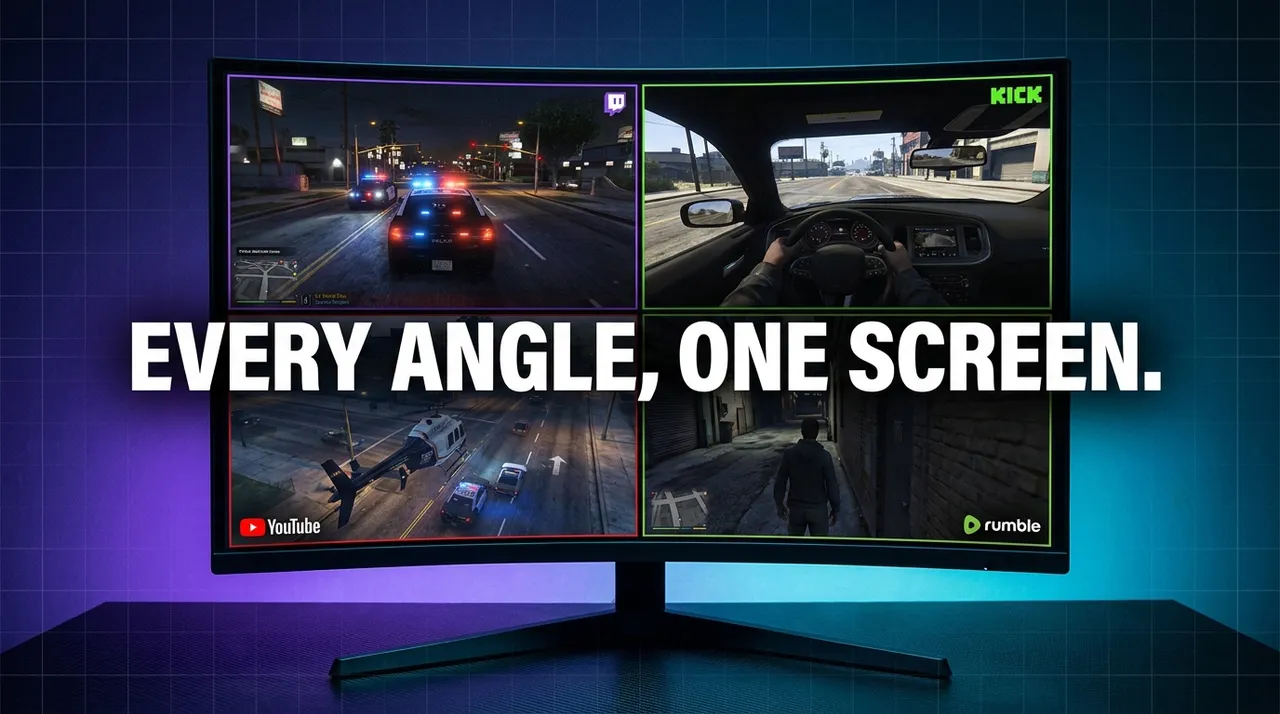
To watch NoPixel RP from a multi-POV (point of view) setup, you can use a tool like ViewGrid to combine several Twitch, YouTube, or Kick streams onto a single screen. This lets you see the action from different characters' perspectives simultaneously, giving you the full story during heists, chases, or conversations without needing to switch between browser tabs.
NoPixel's appeal comes from its complex, overlapping narratives. A single event, like a bank robbery, involves the robbers, the police, the negotiators, and the hostages. When you only watch one streamer, you're only getting a fraction of the story. You hear reactions to things you can't see and miss out on the planning and coordination happening on the other side. A multi-POV setup solves this by putting you in the director's chair.
The Problem with a Single Viewpoint in GTA RP
Watching a major NoPixel event through one streamer's eyes can be frustrating. You see your chosen character's perspective, but you lack the context that makes the roleplay so compelling.
Imagine a tense negotiation. Your streamer might be a police officer outside, trying to communicate with the criminals. You can hear their side, but you have no idea what the criminals are planning inside, how the hostages are reacting, or if there's a disagreement among them. You're missing the dramatic irony and the full scope of the scene.
Similarly, during a high-speed chase, following just the lead police car means you miss the view from the getaway vehicle, the helicopter, or the other officers setting up a roadblock. Each perspective adds a critical layer to the experience. By combining these views, you get a complete picture of the live, improvised storytelling that makes NoPixel so popular.
How to Set Up Your NoPixel RP Multi-POV Grid
You can create a custom viewing dashboard for any NoPixel scenario in a few steps. You don't need an account to get started.
- Choose Your Characters: First, decide which perspectives you want to follow. For a bank heist, you might want two robbers, a negotiator, and a cop on the ground. For a court case, you could choose the defendant, the prosecutor, and the judge.
- Gather the Streams: Find the live streams for the characters you chose. They are typically on Twitch, YouTube, or Kick. You just need their channel name or the direct link to their stream.
- Build Your Grid: Go to the ViewGrid multi-stream viewer. In the input box at the top, paste a stream link or type a channel name and press enter. The stream will be added to your grid. Repeat this for each character you want to add.
- Arrange the Layout: Once your streams are loaded, you can choose a layout that fits. ViewGrid supports up to 20 streams on a desktop computer and up to 6 on a mobile device. You can drag and drop the video players to place them exactly where you want them.
- Control the Audio: Every stream starts muted so you aren't overwhelmed by noise. Simply click the speaker icon on the stream you want to hear. Clicking another stream's speaker icon will automatically switch the audio source. This lets you instantly focus on the most important conversation at any moment.
- Open the Chat: If you want to follow the live chat for a specific streamer, click the chat bubble icon on their video player. This will open the stream's native chat in a panel next to your grid.
That's it. Your grid is ready. Keep in mind that watching many streams at once requires a stable and reasonably fast internet connection to avoid buffering.
Tips for a Better Viewing Experience
Once you have the basics down, you can refine your setup to act like a personal broadcast director.
Curate Your Views by Scenario:
Heists: Create a "cops vs. robbers" grid. Put two or three criminals on one side and two or three police officers on the other. This gives you a balanced view of tactics and communications from both teams.
Investigations: Follow a detective and their primary suspect. Add a third stream for a key witness or another officer involved in the case to see how the different threads of the story connect.
* Social RP: If you're following a conversation or business meeting, just having the two or three people involved is enough. This lets you see everyone's facial expressions and reactions, which are often just as important as the dialogue.
Share Your Layout:
The URL in your browser's address bar automatically updates to include all the streams in your grid. If you've created the perfect layout for watching an event, you can simply copy that link and send it to a friend. When they open it, they'll see the exact same setup you have.
Save Your Favorite Setups:
If you find yourself frequently watching the same group of streamers, you can save your layout. This requires a free ViewGrid account. Once saved, you can load your entire multi-POV grid with a single click instead of adding each channel again.
Watching Your Grid on a TV
While ViewGrid doesn't have a built-in "cast" button, you can still watch your multi-POV grid on a television. The most common methods involve using your existing hardware's features. You can open viewgrid.tv in your smart TV's built-in web browser, connect a laptop to your TV with an HDMI cable, or use your computer or phone's native screen mirroring function (like AirPlay or Miracast) to display your browser on the TV.
Beyond NoPixel: Other Events to Watch with Multiple Views
The same multi-POV approach is useful for many other types of live content. When you want to follow more than one thing at a time, a grid viewer can be very practical.
For example, on the Events calendar, you can find pre-made grids for major happenings. During a big esports tournament like PGL Wallachia, you could watch the main broadcast, an analyst desk stream, and the individual POV of your favorite player. For live news events, you can watch coverage from several different networks to get a broader perspective on the story as it unfolds. This method also works for sports that stream free on their official channels, and as a second screen for commentary streams next to a TV broadcast.
Ready to try multi-stream viewing?
Watch YouTube, Twitch, Kick & more — all on one screen.
Open ViewGridOr start with Twitch multi-stream viewer — the page built for exactly this.
Related Articles
A Guide to Multi-Stream VTuber Creators
To multi-stream VTuber creators, you use a multi-stream viewer to combine their live streams into a single grid on your screen. This is the best way to watch collaborations, as it lets you see every participant's perspec
streaming guideUS Midterms 2026 Election Night: Watch Networks Side by Side
Polls close from 18:00 ET (23:00 UTC) on 3 November 2026. Here is which networks streamed election night free on YouTube in 2024, a poll-closing timetable in ET and UTC, and how to compare their coverage side by side.
streaming guidePGL Masters Bucharest 2026: How to Watch Both Streams
PGL Masters Bucharest 2026 runs 24-31 October with two English streams on Swiss days: Stream A on PGL's Twitch and Stream B on PGL_CS2. Here are the daily slots, the clock-change catch, and how to keep both matches on one screen.
streaming guideHow to Watch Worlds 2026 Co-Streams Side by Side
Worlds 2026 starts with the Play-In on 15 October (18:00 UTC) and the Swiss Stage from 23 October. Here is the schedule in UTC and ET, how Riot's invitation-based co-streaming works, and how to keep the official feed, a co-streamer and a language channel on one screen.