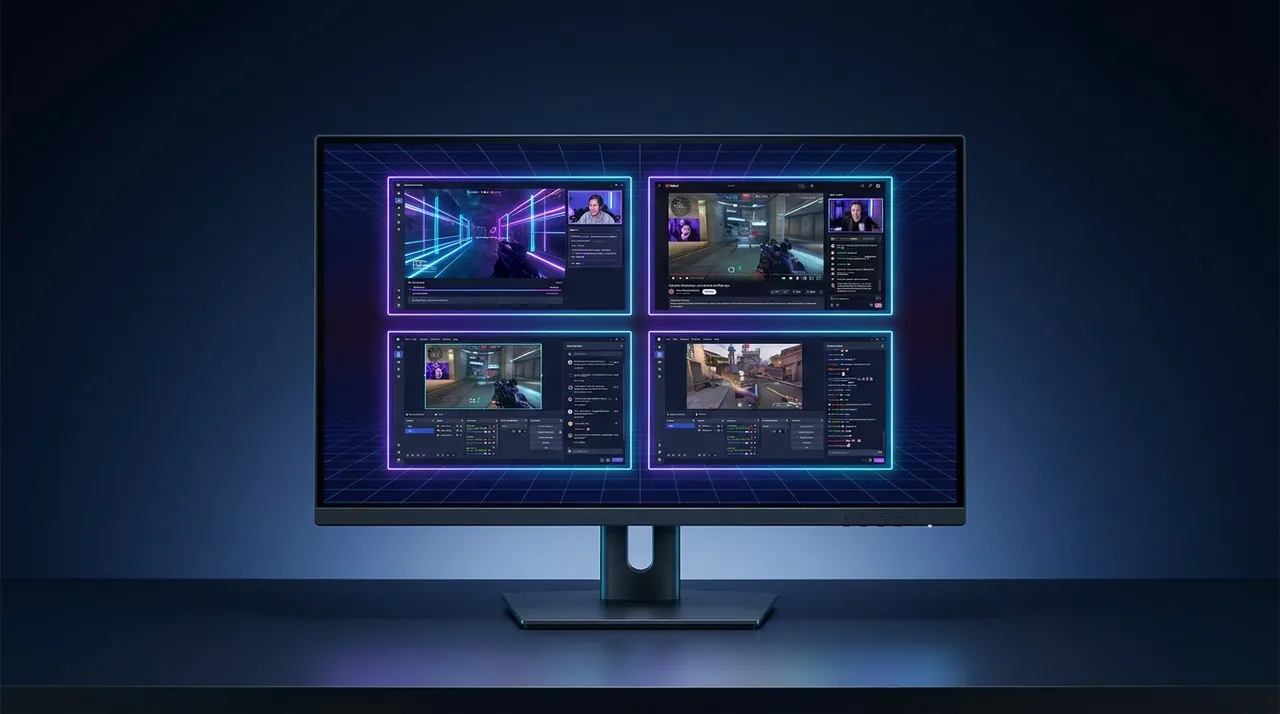
Optimize Your Kick Multi-Stream: ViewGrid's Pro Setup
Tired of missing out on Kick streams? Learn how to optimize your kick multi stream with ViewGrid.tv. Get pro tips on layouts, audio, and content selection for the ultimate viewing experience.
You know that feeling, right? It’s a Saturday night, maybe a chill Tuesday afternoon, and there are just too many good streams happening on Kick. You’ve got your favorite variety streamer trying a new horror game, a group of friends doing a hilarious challenge run on an old RPG, and then, oh man, someone just dropped a massive Giga-chad poker tournament. How do you possibly keep up? Tab-switching is a nightmare. Missing crucial moments because you were on the wrong window? Absolute agony.
That’s where the magic of a kick multi stream setup comes in. For a long time, if you wanted to watch multiple things at once, you were kind of out of luck unless you had a ridiculously complex monitor setup or some obscure browser extension. But the game’s changed. ViewGrid.tv, my friends, is how I wrangle the chaos into something actually enjoyable. It’s not just about slapping a few streams next to each other; it’s about creating a personal command center for all your kick live streams. I've been doing this for a while, and let me tell you, it completely shifts how you consume content.
I remember back when Kick first started gaining traction — everyone was flocking there, and it felt like a gold rush of new content. Suddenly, my usual two or three go-to streamers had expanded to five, six, seven regular watches. My browser tabs were overflowing, my PC was wheezing trying to keep multiple Kick windows open, each battling for audio dominance. It was a mess. That’s when I started experimenting with multi-stream viewers, and honestly, finding ViewGrid was a game-changer for my viewing habits. It let me craft a perfect kick stream layout that actually made sense for what I wanted to watch.
Why Even Bother with a Kick Multi-Stream? More Than Just FOMO
Okay, so I just touched on it, but let’s dig a little deeper. Why should you even consider setting up a multi-stream? Isn't one stream enough? For some people, sure. If you’re laser-focused on one particular story or a single player’s journey, then maybe a single tab works. But for the rest of us, the world of live content is just too rich to ignore.
Think about it:
Esports events: This is a huge one for me. Last month, I was trying to keep up with a smaller Valorant tournament, and you know how it goes – the main broadcast shows the big plays, but I also wanted to see the individual player POVs. With a kick multi stream, I could have the main broadcast up top, and then two or three specific player cameras below it. Seeing how different players positioned themselves, or even just their reactions to a clutch moment, adds so much depth to the viewing experience. It's truly awesome. You can get a much better feel for the whole match that way.
Friend Groups & Collabs: This is probably my most common use case. So many streamers on Kick, especially in the "Just Chatting" or variety game categories, stream with their friends. Imagine you’re watching Creator A, and they’re playing Among Us with Creator B and Creator C. You could just watch Creator A’s stream, but you’d miss all the hilarious individual reactions, the private conversations, or the completely different perspectives on the same situation that B and C are broadcasting. Multi-streaming lets you soak up all that group dynamic without having to constantly mute and unmute tabs or miss half the banter.
Background Noise & Discovery: Sometimes, I’m not actively watching* every stream. I might have my primary focus on one creator, but then I'll have a couple of other quieter kick live streams running in smaller windows. Maybe it's a chill music stream, or someone doing art, or even just another "Just Chatting" stream where I can pick up snippets of conversation. This is amazing for discovering new content. A funny moment or an interesting topic will catch my ear, and suddenly, that background stream becomes a front-and-center watch. It's like flipping through channels on a TV, but way more personalized.
The alternative? You're missing out. You're constantly alt-tabbing, fiddling with audio, and generally just feeling like you're only getting a fraction of the full picture. Trust me, once you try a proper multi-stream setup, going back to single tabs feels incredibly limiting. It's like trying to watch a three-ring circus through a keyhole.
Picking Your Power Lineup: What to Watch on Kick
Alright, so you’re convinced. Multi-streaming is the way to go. But you can’t just throw any streams together and expect magic. The art of a good kick multi stream begins with smart selection. This isn’t just about who’s popular; it’s about what works together.
Kick has such a wide range of content, right? From the high-energy gambling streams that draw massive audiences to quiet, niche communities, there's a lot to choose from. When I'm curating my ViewGrid setup, I'm thinking about flow, about complementary content, and honestly, about my own sanity. You don't want five streams all yelling at once.
Thematic Grouping for Max Enjoyment
This is my go-to strategy. Instead of just picking my top three favorite streamers regardless of what they're doing, I try to group them thematically.
For example, if I'm watching a major competitive event, like a Counter-Strike 2 match or a League of Legends game, I might combine the main broadcast with a couple of individual player perspectives. If I’m really into a specific team, I’ll try to find their players’ streams. This gives me that layered view I talked about earlier. I've often seen Watch multiple esports streams setups like this, and it's brilliant.
Another common theme for me is "Hangout Mode." This is where I'll put together a group of streamers who regularly collaborate or are part of the same friend circle. So if I know that Creator X, Y, and Z are all playing Minecraft together, or just chilling in a discord call, I'll pull up all their streams. It’s like being in the room with them, hearing everyone's jokes and reactions directly. It’s a completely different vibe than just watching one person's POV. Sometimes, it’s even interesting to compare how different streamers handle their chat while interacting with the same group – some are super responsive, others are more focused on the internal conversation.
And then there's the "Discovery Channel" approach. This is less about specific themes and more about letting serendipity happen. I might have one main stream I'm actively engaged with, but then fill the other slots with random Just Chatting streams, maybe some music creation, or even a poker table. I actually stumbled upon a fantastic chill-hop producer on Kick this way last month. They were just looping beats, and it was perfect background noise until I found myself genuinely engrossed. You can really branch out from the usual Watch multiple Twitch streams or Watch multiple YouTube streams routines this way and find fresh voices.
Quality Over Quantity – A Crucial Filter
This is a hot take, but I stand by it: not every stream is multi-stream worthy. I know, I know, sacrilege! But hear me out. If you’re trying to juggle multiple streams, the last thing you want is one of them constantly buffering, dropping frames, or having absolutely terrible audio. It drags down the entire experience.
When I’m selecting streams for my kick multi stream setup, I’m looking for consistency. I want streams with:
Stable connections: Nobody wants to see a frozen screen while the other streams are flowing perfectly. It's distracting and frustrating.
Clear audio: This is paramount. If one streamer has their mic peaking, or their game audio is drowning out their voice, or worse, they have a massive echo, it's a no-go for multi-streaming. You'll spend more time fiddling with volume than actually watching.
Engaging content (even if it's passive): Even for background streams, there needs to be something* there. If it's just someone staring blankly at a screen for an hour, it doesn't contribute to the overall vibe.
So, while it’s tempting to throw every cool stream you find into your ViewGrid, take a moment to consider the quality. A smaller number of high-quality streams will always beat a larger number of inconsistent ones. Trust me, your ears and your sanity will thank you. This attention to detail really helps optimize your kick stream layout and overall enjoyment.
Your Personal Control Center: Setting Up Your Kick Multi-Stream with ViewGrid
Okay, enough theory. Let’s get practical. How do you actually do this? It’s surprisingly simple with ViewGrid, which is why I recommend it so enthusiastically. Forget complex software installations or browser-specific hacks. This is browser-based, lightweight, and incredibly intuitive. This is where your viewgrid kick setup truly comes to life.
Here's the step-by-step lowdown, exactly how I do it when I’m getting ready for a big night of multi-stream viewing:
- Open ViewGrid.tv: First things first, just open up your browser and navigate to the site. You'll see a clean interface, ready for you to start pasting links. You can even bookmark it, which I definitely have.
- Find Your Kick Streams: This is the fun part. Go to Kick.com and find the streams you want to watch. Maybe you’re tracking a few friends, or a specific category. Click into each stream’s page.
- Copy the Stream URLs: Once you’re on a stream page, just copy the URL from your browser's address bar. It'll look something like
https://kick.com/yourfavoritestreamer. Do this for all the streams you want to include in your multi-view. I usually open them all in separate tabs first, then go through and copy each one. - Paste into ViewGrid: Head back to ViewGrid.tv. You’ll see input fields. Simply paste one URL into each field. If you need more slots, ViewGrid dynamically adds them as you paste. It’s super smart about it. You can paste up to four streams by default, and if you need more, you can manually add more windows or choose from different grid layouts. This is definitely my preferred method over trying to use multiple browser tabs or even other dedicated ViewGrid multi-stream viewer apps that are heavier.
- Hit "Go" (or Enter): Once you’ve got all your links in, just hit the "Go" button, or sometimes hitting Enter after the last URL works too. ViewGrid will then load all those kick live streams into a neat grid for you. And just like that, you're watching multiple Kick streams simultaneously!
It really is that straightforward. The first time I tried it, I was actually shocked at how little friction there was. I’d been bracing for some kind of complicated setup process, but nope, just copy, paste, and watch. It completely changes the game for watching Watch multiple Kick streams.
Fine-Tuning Your Experience: Optimizing Your Kick Stream Layout
Getting the streams loaded is just the first step. The real magic, and where your personal preferences truly shine, comes in optimizing your kick stream layout and overall experience. This isn't just about putting squares on a screen; it's about creating a harmonious viewing environment.
The Art of the Layout: Finding Your Sweet Spot
ViewGrid gives you a lot of flexibility with how your streams are arranged. You’re not stuck with a rigid 2x2 grid if that doesn't suit your content.
Prioritize a Main Stream: I almost always have one stream that’s my "main focus." Maybe it’s the primary broadcast of an esports event, or the streamer whose commentary I really want to catch. For this, I’ll often use a layout that gives that stream a larger window, perhaps at the top or filling a significant portion of the screen, with smaller auxiliary streams arranged around it. ViewGrid lets you drag and drop to resize and rearrange windows, which is incredibly useful.
Even Grids: Sometimes, though, if I’m watching a group of friends who are all equally entertaining, a classic 2x2 or 3x3 grid works perfectly. Everyone gets equal real estate, and it’s easier to keep an eye on all the different perspectives without one dominating. It's especially good for those "hangout mode" streams where the interaction is the key.
Vertical vs. Horizontal: Depending on your monitor setup, you might prefer a more vertical stack (e.g., three streams in a column) or a horizontal row. My ultrawide monitor loves a horizontal layout – I can put two main streams side-by-side with smaller ones below. Experiment! What looks good to me might not be ideal for your screen size or your eyes. The best kick stream layout is the one that makes sense to you*.
One thing that bugs me with some other multi-viewers is their rigidity. ViewGrid feels more like a blank canvas, which I really appreciate. I can tell it was designed by people who actually watch streams, not just build software. This customization is a huge part of what makes it my go-to ViewGrid multi-stream viewer.
Audio Management: Avoiding the Cacophony
This is, without a doubt, the trickiest part of multi-streaming. If you just load up four streams and let them all blast audio, you’re going to have a bad time. It’s an immediate headache, a jarring mess of overlapping voices and game sounds. You'll quickly understand why I emphasize clear audio earlier.
ViewGrid helps immensely here because each individual stream window has its own mute and volume controls. This is critical.
My usual approach:
- Designate a Primary Audio Source: I pick one stream – my main focus – and keep its audio on. This is the stream I want to hear clearly.
- Mute the Rest (Initially): For all other streams, I hit the mute button on their respective ViewGrid windows. This gives me a clean slate.
- Gradually Introduce Background Audio (if desired): Sometimes, I want just a hint of audio from a secondary stream. Maybe it’s a music stream, or a low-key Just Chatting stream. I’ll then slowly bring up its volume, keeping it much lower than my primary stream. The goal is ambience, not competition.
- Browser Extensions: For even finer control, especially if you want to equalize sound across different streams or boost certain frequencies, browser extensions can be your friend. I've used things like "Audio Equalizer" on Chrome before to tweak overall browser sound, but honestly, ViewGrid's built-in controls usually get me 90% of the way there without needing extra plugins for my kick multi stream.
It takes a little practice to find the right audio balance, but once you do, it transforms the experience from overwhelming noise into a rich, layered soundscape.
Performance and Browser Tips
Running multiple live video feeds, especially at high resolutions, can be demanding on your computer and internet connection. Kick streams can be quite high quality, so here are a few tips to keep things running smoothly:
Close Unnecessary Tabs: This is a no-brainer but often overlooked. Every open tab, especially those with animated ads or heavy JavaScript, saps resources. Close anything you don't actively need.
Hardware Acceleration: Make sure your browser (Chrome, Firefox, Edge, Brave, whatever you use) has hardware acceleration enabled. This offloads video decoding to your graphics card, which is far more efficient than relying solely on your CPU. You can usually find this in your browser's settings under "System."
Internet Speed: This is foundational. If your internet connection isn't robust enough to handle multiple high-bitrate kick live streams simultaneously, you're going to experience buffering no matter how powerful your PC is. A wired Ethernet connection is always preferable to Wi-Fi for stability, especially when pushing your bandwidth.
Resolution Check: If you're struggling, try reducing the resolution of one or two of your less critical streams. Most platforms (and ViewGrid respects this) allow you to manually select 720p or even 480p, which uses significantly less bandwidth and processing power than 1080p or higher. A slight drop in visual fidelity for a background stream is often a worthwhile trade-off for overall system stability. Your well-thought-out kick stream layout won't matter if everything is freezing up.
Remember, every bit helps. A smooth, uninterrupted multi-stream experience is far more enjoyable than a choppy, laggy one.
Beyond Just Watching: Interacting with Multiple Kick Live Streams
So you've got your perfect kick multi stream setup, your layout is dialed in, and the audio is balanced. Now what? For many, watching is enough. But for others, the community aspect of live streaming is huge. How do you interact when you’re watching three or four chats at once?
This is where things get a little more complex, but not impossible. ViewGrid focuses on the viewing experience, and it does that incredibly well. Chat isn't directly integrated into the individual stream windows, which for me, is actually a good thing – it keeps the main viewing area clean.
My strategy for chat interaction usually involves:
Designate a Primary Chat: Just like with audio, I usually pick one stream where I'm most likely to participate in chat. I’ll open that stream's Kick page in a separate, dedicated browser tab or even a pop-out window, and position it near my ViewGrid setup. This is where I'll type my messages, drop my emotes, and generally feel part of the immediate community.
Passive Chat Monitoring: For the other streams in my kick multi stream, I might not be actively typing, but I'll often keep an eye on their chat if it’s visible in the smaller windows. It’s fascinating to see different community reactions to the same event, especially during group streams. One chat might be super hype, another more chill, and a third might be spamming inside jokes. It adds another layer of context to the content. It's a bit like watching a live event and seeing the crowd's reaction from different angles.
* Using Discord for Group Chats: If I'm watching a group of streamers who are all friends, chances are they (or their communities) have a shared Discord server. Sometimes I'll just hop into that Discord, especially if I'm watching a major event or a collab. It's a way to feel connected to the larger community without having to juggle multiple separate platform chats. This is a common tactic for Watch multiple Twitch streams viewers too, and it translates well to Kick.
It’s all about managing your attention. You can’t be in five places at once, not truly. But you can certainly get a much broader sense of what’s happening across multiple kick live streams than you ever could with just one. This also extends to other types of content. Maybe you're watching Watch multiple sports streams and want to follow the live commentary threads for each game on Reddit or Twitter – similar principle, just different platforms. Or even Watch multiple news channels if something major is breaking and you want to compare how different outlets are covering it.
ViewGrid.tv: Your Go-To for an Uninterrupted Kick Multi-Stream
So, we've talked about the why, the what, and the how of setting up an epic kick multi stream. We've delved into the specifics of picking your content, optimizing your kick stream layout, and wrangling the audio beast. Throughout all of this, ViewGrid.tv has been the backbone of the entire operation.
I can't stress enough how much easier ViewGrid makes this whole process. It's free, it’s browser-based, and it's incredibly efficient. I’ve personally found it indispensable for my daily dose of streaming content, whether I’m deep-diving into a new game release with multiple streamers or just having some chill background noise. It takes away all the technical headaches and lets you focus on what actually matters: enjoying the content.
It’s not just for Kick, either. The beauty of ViewGrid is its versatility. You can use it for Watch multiple YouTube streams, your Twitch favorites, or any other platform that offers public live streams. It’s truly a universal ViewGrid multi-stream viewer. The team behind it clearly understands what streamers and viewers need. They built a tool that empowers us to consume content on our terms, without being limited by platform interfaces or browser tab counts.
So, if you're tired of missing out, if you're sick of the tab shuffle, and if you want to elevate your viewing experience, give ViewGrid.tv a shot. Play around with different stream combinations, experiment with layouts, and find your perfect viewgrid kick setup. You might just discover a whole new way to watch your favorite kick live streams. It's a small change in habit that leads to a huge improvement in enjoyment, I promise you.
Ready to try multi-stream viewing?
Watch YouTube, Twitch, Kick & more — all on one screen.
Open ViewGridRelated Articles
Kick Multi Stream: Master Your Live Content View
Tired of tab chaos? Dive into the world of Kick multi stream with ViewGrid. Learn how to watch multiple Kick streams, mix platforms, and optimize your live viewing setup for ultimate control.
platform tipsTwitch Squad Stream Viewer: Master Your Multi-View
Tired of Twitch's fixed Squad Stream layouts? Learn how to create your ultimate custom twitch layout, watch multiple Twitch streams, and mix in YouTube & Kick streams for the ultimate multi-view experience.
platform tipsMulti Twitch Viewer: Pro Tips for Custom Layouts
Tired of missing out? Discover how a multi Twitch viewer can transform your streaming experience. Get pro tips for custom layouts, audio management, and why split screen streaming is a game-changer.
how toHow to Watch Multiple Kick Streams Together
Tired of juggling browser tabs to watch your favorite Kick streams? Our guide shows you how to easily set up a multi-view Kick streams experience with ViewGrid.tv, saving your sanity and CPU.