How to Set Up a WoW Forever Beta Multi-Stream
To watch a WoW Forever Beta multi-stream, you can use a tool like ViewGrid to combine several Twitch, YouTube, or Kick streams into a single browser window. This lets you follow different player perspectives, compare how
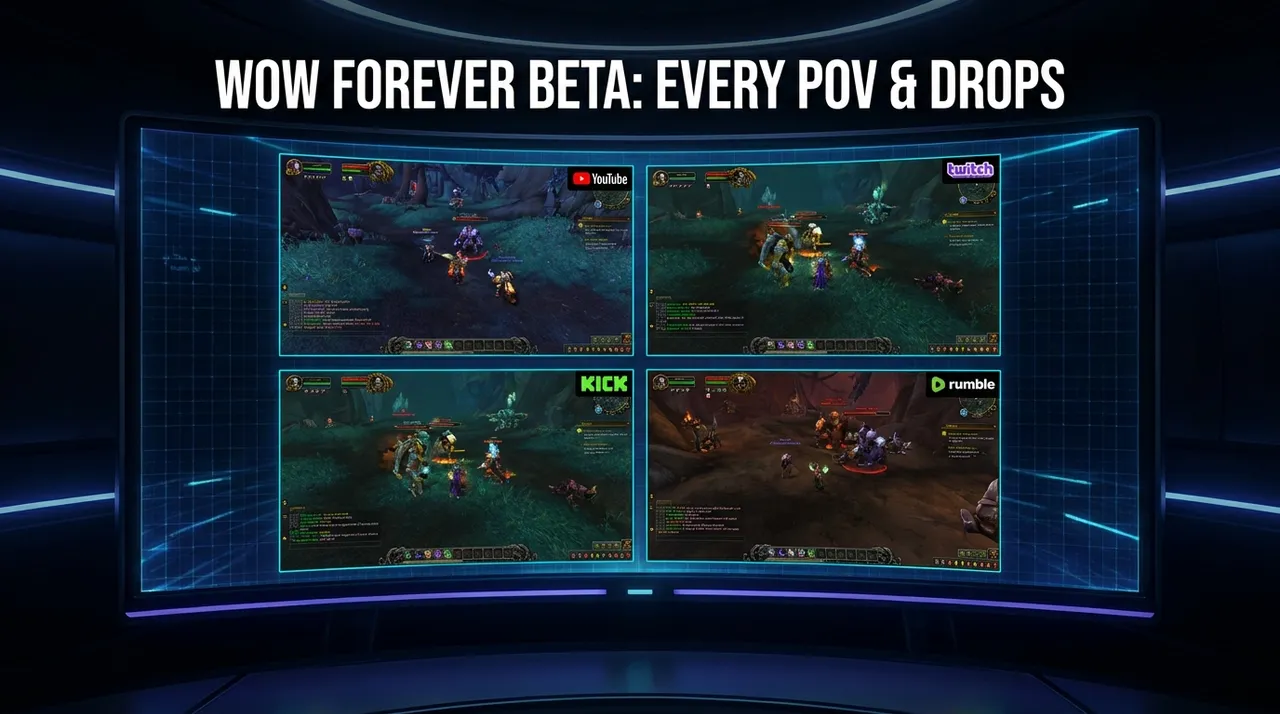
To watch a WoW Forever Beta multi-stream, you can use a tool like ViewGrid to combine several Twitch, YouTube, or Kick streams into a single browser window. This lets you follow different player perspectives, compare how classes are handling new patches, and keep an eye on multiple channels with drops enabled, all without juggling a dozen tabs.
The "Forever Beta" is a constantly changing environment. One streamer might be testing a raid boss, another could be exploring a newly added zone, and a third might be deep into PvP balance changes. Watching just one person gives you only a small piece of the puzzle. A multi-stream setup helps you see the bigger picture as it happens.
Why Watch More Than One Stream at a Time?
With patches and hotfixes dropping frequently, the game's state can shift in a matter of hours. Following several streamers gives you a much broader understanding of what’s going on.
Compare Perspectives: See how a tank, a healer, and a DPS streamer react to the same dungeon or world boss. One might be celebrating a change that makes their life easier, while another is figuring out a frustrating new mechanic.
Track Different Content: You can have one stream focused on high-level raiding, another on someone leveling a new character through revamped zones, and a third just fishing for new items. You can switch your audio to whichever is most interesting at the moment.
Follow the Community Buzz: When a major bug or piece of drama unfolds, you can watch the reactions from several key community figures in real-time.
Twitch Drops: Many streamers have drops enabled. While you can only earn progress on one channel at a time per the platform's rules, a multi-stream view makes it easy to see who is live with drops and switch between them.
How to Create Your WoW Beta Multi-Stream Grid
Setting up a grid is straightforward. You don’t need an account to get started, just a web browser.
- Open ViewGrid: Go to the ViewGrid multi-stream page. You’ll see an empty grid and a bar to add streams.
- Add Your Streamers: You can add streams in a few ways. The most direct is to copy the stream link from Twitch, YouTube, or Kick and paste it into the input bar. You can also just type a channel name, like "sodapoppin" or "zackrawrr," and ViewGrid will find their live stream.
- Choose a Layout: As you add streams, they will automatically arrange themselves on the screen. You can change the layout to fit your needs. On a desktop computer, you can choose grids for up to 20 streams. On a phone, the options are smaller, typically up to 6 streams, because of the limited screen space.
- Control the Audio: Every stream you add starts muted. This is important, as hearing multiple streamers talk at once would be chaotic. Click the speaker icon on the stream you want to listen to. Clicking another stream’s speaker icon will automatically switch the audio source.
- Bring Up the Chat: If you want to follow the conversation, you can open the live chat for any Twitch, YouTube, or Kick stream. The chat appears in a side panel next to your grid of videos, so it doesn’t cover up the action.
Once your grid is set up, the URL in your browser's address bar contains all the information for that specific layout. You can bookmark it for later or copy the link to share the exact grid with a friend.
A Few Practical Tips for a Good Experience
A multi-stream setup can be demanding on your computer and internet connection. Here are a few things to keep in mind.
Check Your Internet Connection
Each video stream uses bandwidth. If you have 12 streams open, even at lower quality, that’s 12 separate video feeds your internet has to handle. If you notice buffering or stuttering, try reducing the number of streams or lowering the video quality on a few of them through each player's settings.
Manage Your Screen Space
Sometimes you want to focus on one stream without losing the others. You can click on any video in the grid to bring it into "focus view," making it the large, primary window while the others become small thumbnails. Click it again to return to the grid. There's also an immersive view that hides the top toolbar, giving you more screen real estate for the videos.
Saving Your Favorite Layouts
If you find yourself constantly setting up the same grid of WoW streamers, you can create a free ViewGrid account to save your layouts. This way, you can load your "WoW Beta" or "Raid Night" grid with a single click instead of adding each channel again.
Watching Your Grid on a TV
People often ask about watching their multi-stream grid on a television. ViewGrid doesn't have a built-in "cast" button like you might find on YouTube. However, there are a few common ways to get it on a bigger screen.
The simplest methods involve your existing hardware. You can connect a laptop to your TV with an HDMI cable and use the TV as a second monitor. Alternatively, many smart TVs have a built-in web browser where you can open viewgrid.tv directly. You can also use the screen mirroring or casting functions built into your computer's operating system (like AirPlay or Windows screen casting) to show your browser tab on the TV.
What Else Is Happening Live?
While the WoW Forever Beta is a huge event, it’s just one part of the live streaming world. On any given day, you can find major events happening across different games and platforms. You might see large audiences for GTA V roleplay servers, official esports tournaments for games like Rocket League, or major sports broadcasts.
Keeping an eye on an event calendar can help you discover other moments where a multi-stream setup is useful, whether it's for a new game launch, a speedrunning marathon, or a developer Q&A session happening across multiple channels.
Ready to try multi-stream viewing?
Watch YouTube, Twitch, Kick & more — all on one screen.
Open ViewGridOr start with Twitch multi-stream viewer — the page built for exactly this.
Related Articles
US Midterms 2026 Election Night: Watch Networks Side by Side
Polls close from 18:00 ET (23:00 UTC) on 3 November 2026. Here is which networks streamed election night free on YouTube in 2024, a poll-closing timetable in ET and UTC, and how to compare their coverage side by side.
streaming guideWomen's Football Free on YouTube: WSL2, WSL, Liga MX Femenil
Every Barclays WSL2 match and selected Liga MX Femenil matches stream free on the leagues' own YouTube channels; top-flight WSL depends on your country. Here is where each one is open, and how to watch a whole round side by side.
streaming guidePGL Masters Bucharest 2026: How to Watch Both Streams
PGL Masters Bucharest 2026 runs 24-31 October with two English streams on Swiss days: Stream A on PGL's Twitch and Stream B on PGL_CS2. Here are the daily slots, the clock-change catch, and how to keep both matches on one screen.
streaming guideWatch MPL PH, ID and MY Together: S18 Playoffs Guide
The MPL Philippines, Malaysia and Indonesia Season 18 playoffs run back to back from 21 October to 8 November 2026. Here are the dates, UTC match times and official YouTube channels, plus how to keep all three leagues and the English feed on one saved grid.