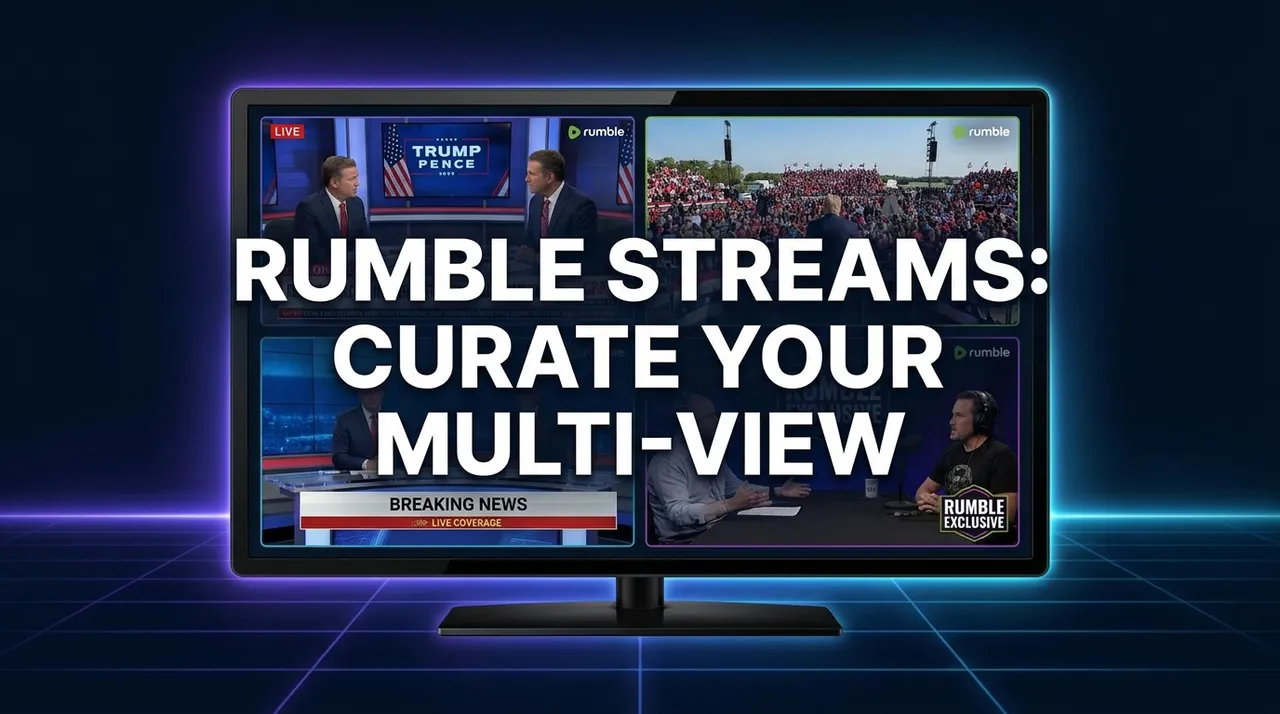
Rumble Streams: Curate Your Live Multi-View
Dive into Rumble multi-stream: learn how to curate your perfect live multi-view on ViewGrid.tv. Mix Rumble with Twitch, YouTube, and more for ultimate control.
Listen, if you’re anything like me, your browser looks like a warzone of open tabs. One for the big esports match, another for your favorite Just Chatting streamer, maybe a news channel chugging along in the background. It's a mess, right? And forget trying to keep up with everything happening on a platform like Rumble. That’s where the real challenge kicks in, because Rumble has its own vibe, its own creators, and its own unique flow of content that you just can't miss. But how do you keep tabs on multiple Rumble live streams at once without feeling like your brain is trying to juggle chainsaws?
That’s what we’re talking about today: getting your Rumble multi-stream setup dialed in. It's not just about watching more — it's about watching smarter, curating your own little corner of the internet.
Why Rumble Deserves Your Multi-View Attention
Rumble, as a platform, has really carved out its niche. It's not Twitch, it's not YouTube. It’s got a different energy, often attracting creators and communities that are looking for something a bit... freer. I’ve spent countless hours, probably too many if I’m honest, exploring the platform. You find everything there, from political commentary that you might not see elsewhere, to gaming streams, to lifestyle channels. It’s a wild west, but in a good way, you know?
The thing is, because of that diverse content, you often find yourself in a situation where you want to follow multiple threads simultaneously. Maybe there’s a breaking news event unfolding live from three different perspectives, each with their own unique take. Or perhaps a few of your favorite indie game streamers are all online at the same time, but they don't have massive viewer counts so they don't always pop up on your radar immediately. You want to give them all some love. That's a classic multi-stream scenario.
I remember last year, during a pretty intense election cycle, I was trying to keep up with about four different political commentators on Rumble, each dissecting the same press conference in real-time. Flipping between tabs was maddening. The audio kept cutting out, I was missing key moments, and honestly, my blood pressure was probably a little too high for just watching streams. It was then I realized, this isn't sustainable. My single-tab approach was failing me, hard. Rumble’s often unfiltered, immediate content is perfect for this kind of simultaneous viewing – you just need the right tool. And let me tell you, once you start curating your Rumble stream curation setup, you'll wonder how you ever managed before.
The Frustration of Single-Platform Viewing (and ViewGrid's Solution)
Here’s the rub with most streaming platforms: they're designed for you to watch one stream. One big, glorious video, taking up your whole screen, grabbing all your attention. And that's fine for some things — if I'm settling in for a movie or a single-player story game, sure, give me that full immersive experience. But when I'm trying to follow a competitive esports event, or maybe just keeping an eye on a few friends who are all playing different games, a single-stream view just doesn't cut it.
Trying to open multiple tabs for Rumble streams is an exercise in futility. Your browser starts chugging, the audio becomes a cacophony, and you end up spending more time managing windows than actually watching. It’s clunky, it’s inefficient, and it steals from the joy of live content. We've all been there, squinting at tiny browser tabs, trying to figure out which one is making that weird buzzing noise.
This is exactly why something like the ViewGrid multi-stream viewer exists. It’s not just a convenience; it’s a necessity for anyone serious about consuming live content effectively, especially if you're pulling from a platform like Rumble. You want to watch multiple Rumble streams side-by-side? No problem. You want to mix those Rumble streams with your favorite Twitch channels? Absolutely. It’s about taking control, not letting your browser or the platforms dictate how you watch. And honestly, it’s just a cleaner, more organized way to soak up all the content you love.
Why ViewGrid is Different for Rumble Viewers
What really sets ViewGrid apart for platforms like Rumble, where the content can be a bit more niche or varied, is the flexibility. You’re not locked into a specific channel list. You’re not stuck with a pre-determined layout. You’re the director of your own viewing experience.
I used to think I needed two monitors for a proper multi-stream setup. Now, with ViewGrid, I can do a surprising amount on just one screen, or use my second monitor for a truly epic multi-view. The layout options are genuinely helpful — from simple two-by-two grids to more complex arrangements that let you prioritize one main stream while having several smaller ones in the background. It's like having a control room for your content, but without needing a degree in broadcasting to set it up.
Curate Your Own Rumble Multi-View: A Practical Guide
Okay, so how do you actually get this multi-stream magic working for your favorite Rumble channels? It's surprisingly straightforward. No crazy software downloads, no weird browser extensions that slow everything down. Just a few clicks and you're good to go.
Here's my usual flow when I'm setting up a new multi-view, especially when I'm diving deep into Rumble content:
- Find Your Streams: This is the fun part. Go to Rumble, browse around, find the creators you want to watch. Maybe you're looking for political commentary, or maybe it's just a couple of guys playing Call of Duty. Grab the URL for each live stream. Just copy it right from your browser's address bar.
- Head to ViewGrid.tv: Open up the ViewGrid multi-stream viewer. You'll see an empty canvas, ready for your content.
- Add Your First Rumble Stream: Paste the Rumble stream URL into the input box on ViewGrid and hit "Add Stream". Boom, it appears. You can then resize it, move it around, make it the main focus or a smaller window.
- Repeat for More Streams: Do this for every Rumble stream you want to include. Want two? Add two. Want four? Add four. You can even mix and match with other platforms – adding a Twitch stream alongside your Rumble ones is seamless. We'll get to that in a bit.
- Arrange Your Layout: This is where you become the maestro. Drag and drop the stream windows until you find a layout that works for you. Maybe you want one big stream on the left, and two smaller ones stacked on the right. Or a perfect four-panel grid. ViewGrid automatically snaps them into place, which is a blessing because I am terrible at manually aligning windows.
- Manage Your Audio: This is critical. You can mute individual streams, or adjust their volume independently. Usually, I'll have one main stream with full audio, and the others muted or set to a very low background hum. That way, I'm not overwhelmed by chatter, but I can still see if something visually interesting is happening on a secondary stream. Just click the speaker icon on each video player.
- Save Your Layout as a Preset: This is my absolute favorite feature for Rumble stream curation. Once you've got your perfect setup – maybe it's your "Rumble News Roundup" or your "Gaming Grotto" – you can save it as a live preset. Seriously, this saves so much time. The next time you want to watch that specific combination of streams, you just click your preset, and boom, it all loads up exactly how you left it. I have presets for different days of the week, for different events, even one just for background music streams. It’s a lifesaver.
Pro Tip for Rumble Stream Curation: Don't be afraid to experiment with layouts! Sometimes a stream you thought would be secondary ends up being more engaging, and you can quickly swap it into the main spot with a drag-and-drop. It's all about making your viewing experience optimal.
Beyond Rumble: The Power of Cross-Platform Multi-Streaming
Okay, so we've established that ViewGrid is a game-changer for Rumble. But here's the kicker: it doesn't stop there. The real power, the true multi-stream nirvana, comes when you start mixing platforms. Think about it. You've got your favorite political commentator on Rumble, but your go-to gaming streamer is on Twitch, and maybe a news channel is running on YouTube. Trying to manage all of that across separate websites is a nightmare.
With ViewGrid, it's just another URL. You paste it in, and it sits right alongside your Rumble streams. This is where I spend most of my streaming hours, crafting these Frankenstein's monsters of content.
Last night, for instance, I was trying to keep up with a few different things. On one screen, I had HasanAbi on Twitch, just chatting, probably reacting to some wild news, pulling in 28,858 viewers. He’s always got something interesting to say, even if I don’t always agree. Then, because I’m also a huge Escape from Tarkov fan, I had TheBurntPeanut’s stream going with his "THE COMEBACK" title, racking up 40,814 viewers. That game is just chef's kiss for multi-view — you can see the action, hear the comms, and really feel like you’re in the thick of it. And because I needed something a bit more chill, I tossed in a Rumble stream of someone playing a relaxing indie game. All on one screen, managed perfectly.
It’s not just about gaming, though. I often find myself building multi-views for specific types of content.
Esports & Competitive Gaming
For esports, especially titles like World of Warcraft's Race to World First, multi-streaming is non-negotiable. Seriously. How else do you follow two top guilds simultaneously? Right now, Maximum on Twitch is deep into "RWF day 15," pushing for a kill on reset, with 15,057 viewers. And TeamLiquid isn't far behind, also on day 15, sitting at 13,370 viewers. If you're a fan of WoW esports, you'd be crazy not to watch both of these teams competing for that 7/8M status. Imagine missing a crucial pull or a wipe on one side while you're glued to the other. Not me, no thanks. I want both, side-by-side, so I can see every nail-biting moment. You can even bring in Watch multiple esports streams all from different platforms.
And it’s not just the big names. I love seeing what smaller streamers are up to. Like k3soju playing Teamfight Tactics with 11,845 viewers — that's a game where you really need to see the boards to understand the strategy. Or even niche games like MOONMOON with Darkest Dungeon [bloodmoon] week 37, pulling in 12,147 viewers. Darkest Dungeon is a phenomenal, brutal game, and watching a skilled player navigate its horrors is a masterclass in pain and strategy. (If you've never tried it, you absolutely should — it's a turn-based RPG that will test your sanity. Check out the official wiki if you want to fall down that rabbit hole: Darkest Dungeon Wiki). I like to have it as a side stream sometimes, just to admire the suffering.
News & Events
This is where the Watch multiple news channels link really shines. When a major event is happening, whether it's an Apple product launch or a political debate, having multiple news sources — maybe one from Rumble for a more independent take, one from a traditional cable news outlet on YouTube, and another breaking news feed on Twitch — gives you a comprehensive picture. No single outlet tells the whole story, right?
I remember the first time I tried this for a big political speech. I had one channel focused on the speaker, another on the crowd's reaction (often more telling than the speech itself), and a third with expert commentary. It was an almost cinematic experience, getting all these different angles simultaneously. It really changes how you absorb information.
Just Chatting & Variety
Let's not forget the "Just Chatting" category – which, let's be honest, is probably half of what most of us watch anyway. The diversity there is wild. On Twitch right now, you’ve got Lacy doing a 24/7 marathon with Marlon, pulling in 28,595 viewers. Then there’s xQc doing his usual "DRAMA NEWS VIDEOS GAMES REACTS" thing with 23,928 viewers. And maybe you’ve got a Rumble streamer just hanging out, talking to their community. Being able to keep all these different personalities on screen, dipping in and out of their conversations, is what multi-streaming is all about. It's like being at a party and being able to listen in on several conversations at once.
And for variety streamers, like Emiru playing Grand Theft Auto V (11,452 viewers) and reacting to September finally being here, or JLTomy also playing GTA V for 12,925 viewers, it's great to see what different people are doing with the same game. You can pick up tips, or just enjoy the different vibes.
My Personal Multi-Stream Setup & Why It Matters
My current multi-stream setup changes almost daily, honestly, depending on what I’m into. But there are some constants. I always have one main monitor dedicated to the primary streams, usually a 2x2 grid if I'm gaming, or a 1x3 if I'm watching news/commentary and want a larger main window. My second monitor often has a single, full-screen stream that I'm more passively listening to – maybe a chill music stream, or something I’ve seen before and don’t need to pay full attention to.
One thing that bugs me with single-platform viewing is when a stream you're really enjoying suddenly ends, and you're left scrambling for something else. With multi-view, if one stream drops or goes offline, you've got three others right there, ready to take the spotlight. It's like a constant buffet of content, always ready for your consumption.
I’ve got so many live presets saved, it’s not even funny. There’s my "Monday Morning Grind" preset, which usually has a productivity stream, a news channel, and maybe a quiet coding stream. Then there’s my "Friday Night Chaos" preset, which is all about competitive gaming and reacting to whatever internet drama is popping off. My "Rumble Recon" preset is specifically for exploring new creators on Rumble, often focusing on niche topics I’m curious about.
The ability to save these configurations isn't just a convenience; it's an enhancement to my entire viewing ritual. It means less faffing about with URLs and window sizing, and more actually watching. And that's the whole point, isn't it? We stream because we love the content, not because we love being IT support for our own entertainment.
What's Live and Upcoming: Get Your Multi-Streams Ready!
Alright, let's talk about what's coming up because September 2026 is looking packed with must-see events, and you're gonna need your Rumble multi-stream skills honed for these. Or, you know, just your multi-stream skills in general.
Sports Fanatics, Get Ready!
First up, this weekend is HUGE for racing and basketball.
The F1 Italian Grand Prix kicks off on September 4th. If you're an F1 fan, you know this is essential viewing. Imagine watching the main race feed, an on-board camera from your favorite driver, and maybe a pit lane feed, all at once! We've even got a full guide for you: /blog/f1-italian-grand-prix-multi-stream-guide. Seriously, open that up in a new tab right now.
Also starting on September 4th is the FIBA Women's Basketball World Cup 2026. I'm a massive basketball fan, and these international tournaments are always incredible. You can easily set up a view with the main game, maybe a commentary stream, and perhaps even a social media feed if you're really hardcore. Don't forget to check out our dedicated guide for this too: /blog/fiba-womens-basketball-world-cup-2026-multi-stream-guide. This is where Watch multiple sports streams becomes your best friend.
And if you're still craving more F1, the Formula 1 Tag Heuer Gran Premio de España 2026 is coming up on September 11th. More multi-stream opportunities, more high-octane racing.
Tech & Space Enthusiasts
For the tech junkies, the Apple Event "Surprise and shine" is scheduled for September 9th. You know there will be multiple tech channels on YouTube, Twitch, and maybe even some independent commentators on Rumble, all reacting live to the announcements. Multi-streaming this is the only way to get all the hot takes as they happen.
And for those who look to the stars, the Falcon 9 Block 5 | Crew-13 Launch is set for September 12th. Space launches are tailor-made for multi-stream viewing: official NASA feed, fan commentary channels, maybe even a live cam from another angle.
Gaming & Music Festivals
Later in the month, esports fans need to mark September 15th for the Rocket League World Championship 2026. This is a fast-paced game, and multi-streaming allows you to watch the main broadcast while perhaps having a player cam or a specific team's comms feed going on the side. It's intense!
And finally, for the music lovers, the iHeartRadio Music Festival starts on September 18th. Imagine having different stage feeds, or a main broadcast mixed with fan-recorded streams (if available!). The possibilities for a truly personalized festival experience are endless. You can find many great options via Watch multiple YouTube streams or Watch multiple Twitch streams for these kinds of events.
Your Streams, Your Rules, with ViewGrid.tv
Look, streaming is personal. What you watch, how you watch it — it’s all part of your unique digital footprint. And in a world absolutely overflowing with content, having the tools to cut through the noise and curate your ideal viewing experience is priceless. Especially when you're navigating platforms like Rumble, which offer such a diverse and often spontaneous array of live content.
ViewGrid isn't just a website; it’s a way to take back control of your live stream consumption. It lets you build your own dashboard, your own command center, for everything happening across Twitch, YouTube, Kick, and yes, all those fascinating Rumble live streams. No more tab-hell, no more missed moments. Just pure, unadulterated, perfectly arranged content. So go on, give it a try. Build your perfect multi-view. You won't regret it.
Ready to try multi-stream viewing?
Watch YouTube, Twitch, Kick & more — all on one screen.
Open ViewGridRelated Articles
Rumble Multi-Stream: Master Live News & Commentary
Dive deep into Rumble's vibrant news and commentary scene by multi-streaming. Learn how ViewGrid.tv helps you compare perspectives, manage audio, and set up your ultimate multi-view hub for informed analysis.
platform tipsTwitch Squad Stream Viewer: Master Your Multi-View
Tired of Twitch's fixed Squad Stream layouts? Learn how to create your ultimate custom twitch layout, watch multiple Twitch streams, and mix in YouTube & Kick streams for the ultimate multi-view experience.
platform tipsOptimize Your Kick Multi-Stream: ViewGrid's Pro Setup
Tired of missing out on Kick streams? Learn how to optimize your kick multi stream with ViewGrid.tv. Get pro tips on layouts, audio, and content selection for the ultimate viewing experience.
platform tipsYouTube Live Events: Master Multi-Stream Viewing
Tired of browser tabs and audio chaos during YouTube Live Events? Learn how ViewGrid.tv transforms your multi-stream experience for keynotes, gaming & more.