Rumble Multi-Stream: Master Live News & Commentary
Dive deep into Rumble's vibrant news and commentary scene by multi-streaming. Learn how ViewGrid.tv helps you compare perspectives, manage audio, and set up your ultimate multi-view hub for informed analysis.
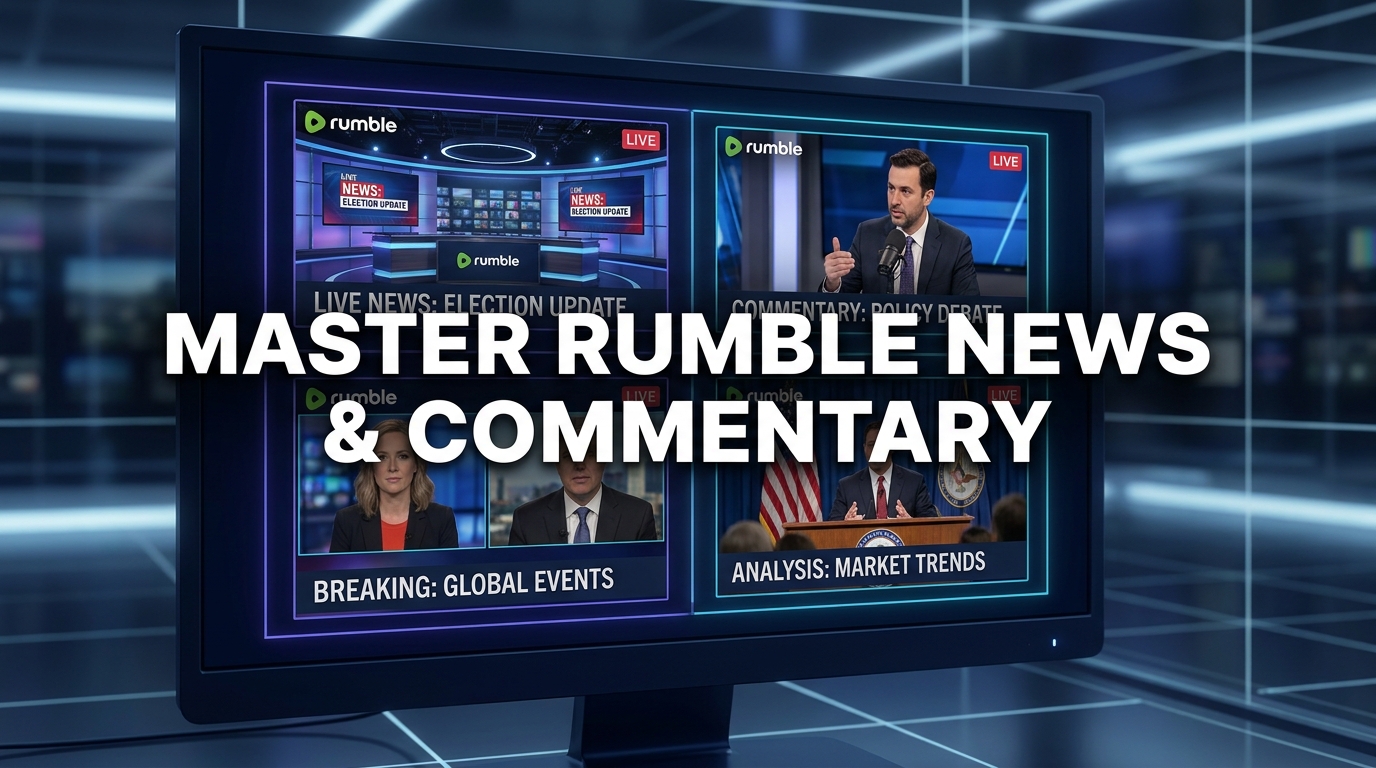
Alright, let's talk about news. Specifically, live news, and even more specifically, the kind of commentary you find on platforms like Rumble. I've been a huge fan of live streaming for ages, and lately, my attention has really gravitated toward the discussions, debates, and — let's be honest — sometimes outright shouting matches that happen in real time. It's raw, it's immediate, and it often feels like you're getting a perspective you just won't find on traditional media. But here's the kicker: to truly get a handle on what's going on, especially with breaking stories or complex political discussions, you can't just watch one feed. That's where Rumble multi-stream news commentary comes in.
Seriously, if you're not already doing this, you're missing out. Trying to piece together a story from a single source is like trying to understand an entire orchestra by only listening to the flute. You need the whole symphony. And on Rumble, where a lot of independent voices and commentators have found a home, the range of perspectives can be wild — in a good way!
Why Rumble Has Become My Go-To for Live News and Deep Dives
You know, for years, when I wanted news or current events, I'd flip on a cable news channel, maybe tune into a talk radio show. Then Twitch came along, and suddenly, political commentary was just another category alongside gaming. It was a wild west — still is, in some ways — but it also felt a bit... limited. The content often skewed heavily towards a certain demographic, a certain vibe. And YouTube, while massive, sometimes feels a bit too curated, too algorithm-driven, pushing you down rabbit holes you didn't even know existed.
Rumble, though, it's different. It's carved out a very distinct niche, especially for independent journalists, political commentators, and folks who feel they're not getting a fair shake on other platforms. You'll find a lot of hosts who are openly critical of mainstream narratives, pushing back against established media, and fostering communities that thrive on open, often intense, discussion. Last week, I was watching coverage of that big congressional hearing, and while every major news outlet had their take, it was on Rumble where I found a few smaller channels doing deep dives into specific testimonies, pulling up obscure documents, and just offering a level of analysis that felt genuinely fresh.
It's not always polished — far from it. Sometimes the production quality is... rustic. But that's part of its charm, honestly. It feels more authentic, less produced. You're watching someone in their home studio, genuinely passionate about what they're discussing, rather than a talking head in a million-dollar set reading a teleprompter. And for me, that directness, that raw passion, is incredibly engaging. It’s why I often find myself wanting to watch multiple Rumble streams simultaneously when something big is happening. There's a real sense of community, too, in those chats. People aren't just lurking; they're actively participating, debating, sharing their own links and insights. It's a proper dialogue, even if it's sometimes a very loud one.
Beyond the Mainstream Echo Chamber
Let's be real: we're all susceptible to our own echo chambers. It’s comfortable. You hear what you mostly agree with, and it reinforces your existing beliefs. But that's not how you stay informed, is it? Not really. To truly understand a complex issue, you have to expose yourself to different viewpoints, even — especially — the ones that make you cringe a little. Rumble, with its diverse range of voices, is actually a fantastic place to do that. You might have one commentator breaking down a geopolitical event from a conservative viewpoint, while another is offering a more libertarian angle, and a third is just doing a straight-up fact-check, digging into the data.
That's the real power here. It’s not just about finding your preferred news source; it's about actively seeking out a spectrum. For example, during the last major election cycle, I remember trying to follow a specific candidate's rally. On traditional news, it was heavily edited, soundbites galore. But on Rumble, I could often find multiple channels streaming the entire rally, unedited. Then, I'd have a separate window with a commentator reacting to it live, and another window with someone else offering counter-arguments or historical context. That kind of layered viewing just isn't possible with single-source consumption. It really allows for a more nuanced understanding, I think.
The Absolute Necessity of Multi-Streaming for Informed Commentary
Okay, so we've established why Rumble is great for a certain flavor of news and commentary. Now, let's talk about the how – and why multi-streaming isn't just a convenience, it's a necessity for anyone serious about understanding the modern news landscape. My personal belief is that single-source news consumption is dead. Or at least, it should be. You simply cannot get the full picture from one perspective anymore.
Think about it: a breaking news story hits. Maybe it's a major political announcement, a new economic report, or a developing international incident. If you're only watching one streamer, you're getting their immediate reaction, their particular bias, their interpretation. And while that can be valuable, it's just one piece. What are the other five or six equally passionate, equally informed, but fundamentally different voices saying? How are they framing the same facts? That's where the magic happens. You need to watch multiple Rumble streams to see the full spectrum of opinions unfold in real time.
This isn't just about confirmation bias, though that's a huge part of it. It's also about speed and depth. One streamer might be really good at breaking down financial implications, while another excels at historical context, and a third is a whiz at reading body language or political maneuvering. By having them all up at once, you're essentially building your own super-commentary panel. You get a rapid-fire cross-section of analysis that no single broadcast, no matter how good, could ever provide.
The "Echo Chamber" Problem and How Multi-View Solves It
I mentioned echo chambers earlier, and it's a problem that's only gotten worse with personalized algorithms. You click on one video, and suddenly your feed is flooded with similar content, reinforcing the same worldview. It’s insidious, really. But with a robust Rumble live multi-view setup, you actively fight against that. You're not relying on an algorithm to show you what it thinks you want to see; you're choosing to expose yourself to contrasting opinions.
The first time I really tried this in earnest was during a big legal case that was dominating headlines a few months back. I had one stream with a lawyer offering a purely legal breakdown, another with a political pundit discussing the broader societal implications, and a third with someone offering a more populist, emotional take. The differences in how they presented the same facts, the emphasis they placed on certain details, even their choice of language – it was eye-opening. It made me realize how easily a single narrative can dominate if you're not actively seeking out alternatives. This isn't about finding the "truth" in some objective sense, because frankly, that's often elusive. It's about understanding the different truths people are operating with, and why. It helps you see the broader landscape of public discourse, not just your little corner of it.
Comparing Narratives in Real-Time
This is my favorite part of the whole multi-streaming experience. When a politician gives a speech, or a major report drops, the immediate reactions are fascinating. You can literally watch as different commentators on different Rumble channels begin to craft their narratives. One might focus on a specific quote, another on the body language, a third on what wasn't said. Seeing these different angles develop side-by-side, in real-time, is incredibly powerful. It's like having a master class in media literacy happening right on your screen.
And it goes beyond just news. Think about documentaries, too. Sometimes I'll load up a documentary on one screen, and then have two or three Rumble creators offering live reactions or fact-checks on other screens. It's a whole new way to engage with content. You're not just passively consuming; you're actively analyzing, comparing, and forming your own conclusions based on a much richer tapestry of information. It really is a game-changer for how I consume information, period.
Setting Up Your Rumble Multi-Stream News Commentary Hub
So, you're convinced, right? You want to dive into the world of Rumble multi-stream news commentary. Good. It’s easier than you think, especially with tools designed for exactly this purpose. Forget opening a dozen browser tabs and trying to manage audio — that's a nightmare I tried once and quickly abandoned. We need something streamlined, something efficient.
Here's a quick run-through of how I usually set up my multi-stream view for Rumble, using ViewGrid.tv as my central command. It's super intuitive, even if you're not a tech whiz.
- Open ViewGrid.tv: First things first, head over to ViewGrid.tv. This is your canvas.
- Identify Your Streams: Before you start adding, have a few Rumble streams in mind. Who are your go-to commentators for a specific topic? Are there opposing viewpoints you want to compare? Maybe you want one "main" stream and a few reaction/analysis streams. For example, if there's a live press conference, I'll find the official Rumble feed for that, and then look for two or three prominent Rumble creators who I know will be offering live analysis.
- Copy Rumble Stream URLs: Go to each Rumble stream's page, grab that URL from your browser's address bar. It's usually something like
https://rumble.com/vXXXXXX-stream-title.html. - Add Streams to ViewGrid: Back on ViewGrid, you'll see input fields or a clear "Add Stream" button. Paste each Rumble URL into its own field. You can usually add quite a few — I've had up to six running smoothly, though I usually stick to 3-4 for news commentary so I can actually focus. If you're ever looking for quick ways to get started, you can even explore specific curated multi-streams on ViewGrid, like if you wanted to watch multiple Twitch streams or even watch multiple YouTube streams alongside your Rumble picks.
- Arrange and Resize: Once the streams load, you can drag them around, resize them to fit your screen, and even swap their positions. I usually put my primary "main event" stream — like the official press conference — in a larger window, and the commentary streams in smaller ones around it. This is where your Rumble live multi-view really starts to take shape.
- Manage Audio: This is CRITICAL. You cannot have five streams blasting audio at you at once. ViewGrid lets you mute individual streams, or adjust their volume independently. I usually pick one primary audio source — the "main" event stream, or my favorite commentator — and mute the others, or keep their volume very low for background noise. Sometimes, I'll quickly unmute a secondary stream if I see something interesting happening on screen that I want to hear the commentary for. It’s an art, not a science.
- Save Your Layout (Optional but Recommended): If you're going to be revisiting the same combination of streamers, many multi-stream platforms, including ViewGrid, let you save your custom layouts. This is a lifesaver, especially if you have a specific configuration for political news, or maybe for watch multiple esports streams on a different day. It saves you from having to re-add URLs every time.
And that's it! You're now equipped with your own personal news desk, capable of handling complex information streams with ease. It's a fantastic way to consume information that really helps you grasp the bigger picture.
My Personal Rumble Multi-Stream Setup & Workflow
You know, my setup for multi-streaming has evolved quite a bit since I first started. Initially, I just crammed as many streams onto my main ultrawide monitor as possible. It worked, but it was a lot. Now, I've got a slightly more refined approach that works wonders for Rumble multi-stream news commentary.
I run a dual-monitor setup. My main 34-inch ultrawide is where I load up ViewGrid.tv. I usually split this into three main sections. On the far left, a primary stream — often the main event, like a live C-SPAN feed if they're covering a congressional hearing, or a direct feed from a protest or press conference. In the center, I'll have my main Rumble commentator, someone whose analysis I particularly trust, maybe a Russell Brand or a Dan Bongino when they're live, or one of the smaller, independent political analysts I follow. And on the right, I'll have two smaller Rumble streams stacked vertically, offering contrasting perspectives.
My second monitor is usually reserved for background research, Twitter feeds, or notes. If a commentator mentions a specific article or report, I can quickly pull it up there without disrupting my multi-stream view. It's all about minimizing friction and maximizing information intake.
One thing that bugs me sometimes, though, is when a streamer goes on a tangent that has nothing to do with the breaking news. It happens, especially on live commentary channels. But having multiple streams means I can quickly switch my focus to another window that's staying on topic, without missing the overall event. It's a luxury, for sure. This kind of flexibility is crucial when you're trying to do a real-time Rumble stream comparison. You're not just watching; you're actively curating your own news experience.
Pro Tip for Audio: Invest in good headphones. Seriously. This allows you to really focus on the primary audio source, and if you have headphones with a good soundstage, you can sometimes pick up subtle cues from other streams even if they're low volume. I use a pair of open-back headphones, which keeps me from getting fatigued during long multi-stream sessions.
Sometimes, when I'm really digging into an issue, I'll even mix platforms. I might have two Rumble streams, one YouTube channel providing a different news angle, and maybe even a Watch multiple Kick streams if there's a particular creator there covering the same thing. ViewGrid.tv lets you blend different platforms seamlessly, which is another huge plus. It’s not just for Rumble, after all. You can even combine live sports streams from different places if you're following multiple games at once – check out the flexibility for watch multiple sports streams and watch multiple news channels on ViewGrid.
Challenges and Tips for Effective Multi-Viewing
As awesome as multi-streaming is, it's not without its challenges. The biggest one, in my experience, is information overload. Your brain can only process so much at once, and having four or five streams going simultaneously, especially with intense news commentary, can quickly become overwhelming. It’s like trying to listen to five people talk to you at once — you just hear noise.
Here are a few tips I've picked up over the years to manage this:
Start Small: Don't try to go from zero to six streams instantly. Start with two or three. Get comfortable with the setup, learn how to manage the audio, and then gradually add more if you feel you can handle it.
Designate a Primary: Always have one stream that is your main focus, both visually and audibly. The others are supplementary. This helps your brain prioritize information. I usually make my primary stream the biggest window on my screen.
Mute Aggressively: Seriously, mute any stream you're not actively listening to. Toggle between audio sources as needed, rather than trying to process multiple conversations simultaneously. This is often the hardest part, but also the most important.
Context is King: Before you even start a multi-stream session, have a clear idea of what you're trying to achieve. Are you comparing political takes? Following a specific event from different angles? Trying to get a global perspective? This focus will guide your stream selection and help you filter out irrelevant noise.
* Take Breaks: Staring at multiple screens with intense information for hours on end is exhausting. Stand up, stretch, grab a drink. Give your eyes and brain a rest. Even five minutes away can help you reset and come back with fresh focus.
The Art of Audio Management
I can't stress this enough: audio management is the make-or-break aspect of multi-streaming, especially for news. If you have even two commentators talking over each other, it's immediately unintelligible. This is where ViewGrid's individual volume controls shine.
What I often do is have my main commentary stream at full volume. Any other streams are either completely muted or set to a very, very low background hum. I might keep a muted stream visible if I'm tracking a specific visual — maybe a chart, a live map, or a speaker at a podium — and if something catches my eye, I'll quickly unmute it for a few seconds to hear what that commentator is saying. Think of yourself as a TV director, cutting between different cameras and audio feeds. It's an active process, not passive viewing. And sometimes, when the discussion gets really heated, I'll even use the global mute button on ViewGrid for a moment, just to reset my ears and my head!
It's also why having good quality audio equipment helps. My headphones let me hear subtle nuances in each stream, and if I decide to switch my primary audio, the transition isn't jarring. For me, the ability to control audio down to individual streams is perhaps the single most important feature of any multi-stream tool.
ViewGrid.tv: Your Ultimate Hub for Informed Perspectives
So, there you have it. If you're serious about consuming news and commentary in a way that truly informs rather than just confirms, then Rumble multi-stream news commentary is the way to go. And frankly, ViewGrid.tv is the best tool I've found to make that happen seamlessly. It just works. You're not fighting with browser tabs, you're not dealing with choppy playback, and the interface is clean and intuitive.
Whether you're trying to get a comprehensive view of breaking political news, comparing different analysts during a major economic announcement, or just want to catch up on a few favorite Rumble creators at once, ViewGrid.tv makes it incredibly easy. It's not just for Rumble, either — you can mix and match streams from Twitch, YouTube, Kick, and more. That flexibility is massive. If you're a sports fan, you can easily set up a view to watch multiple sports streams. Or if you're following the latest in competitive gaming, you can just as easily set up a specific watch multiple esports streams layout. For general news junkies, you can even build a custom hub to watch multiple news channels.
My advice? Give it a try. Head over to ViewGrid multi-stream viewer, grab a few Rumble URLs, and start building your own ultimate news desk. You'll be amazed at how much more informed and engaged you become. It changed the way I watch everything, and I bet it'll do the same for you.
Ready to try multi-stream viewing?
Watch YouTube, Twitch, Kick & more — all on one screen.
Open ViewGridOr start with Rumble multi-stream viewer — a ready-made grid for exactly this.
Related Articles
Rumble Streams: Curate Your Live Multi-View
Dive into Rumble multi-stream: learn how to curate your perfect live multi-view on ViewGrid.tv. Mix Rumble with Twitch, YouTube, and more for ultimate control.
platform tipsYouTube Live Events: Master Multi-Stream Viewing
Tired of browser tabs and audio chaos during YouTube Live Events? Learn how ViewGrid.tv transforms your multi-stream experience for keynotes, gaming & more.
streaming guideNoPixel RP: Every POV, One Screen
Dive into NoPixel RP like never before! Learn how to watch multiple streamer POVs and follow intricate GTA RP streams from every angle on one screen with ViewGrid.tv.
newsBlizzCon, ALGS Finals: Today's Esports Grid
Dive into today's epic esports grid with BlizzCon's Overwatch World Cup and WoW AWC Finals, plus the Apex Legends Global Series. Learn how to multi-stream like a pro!