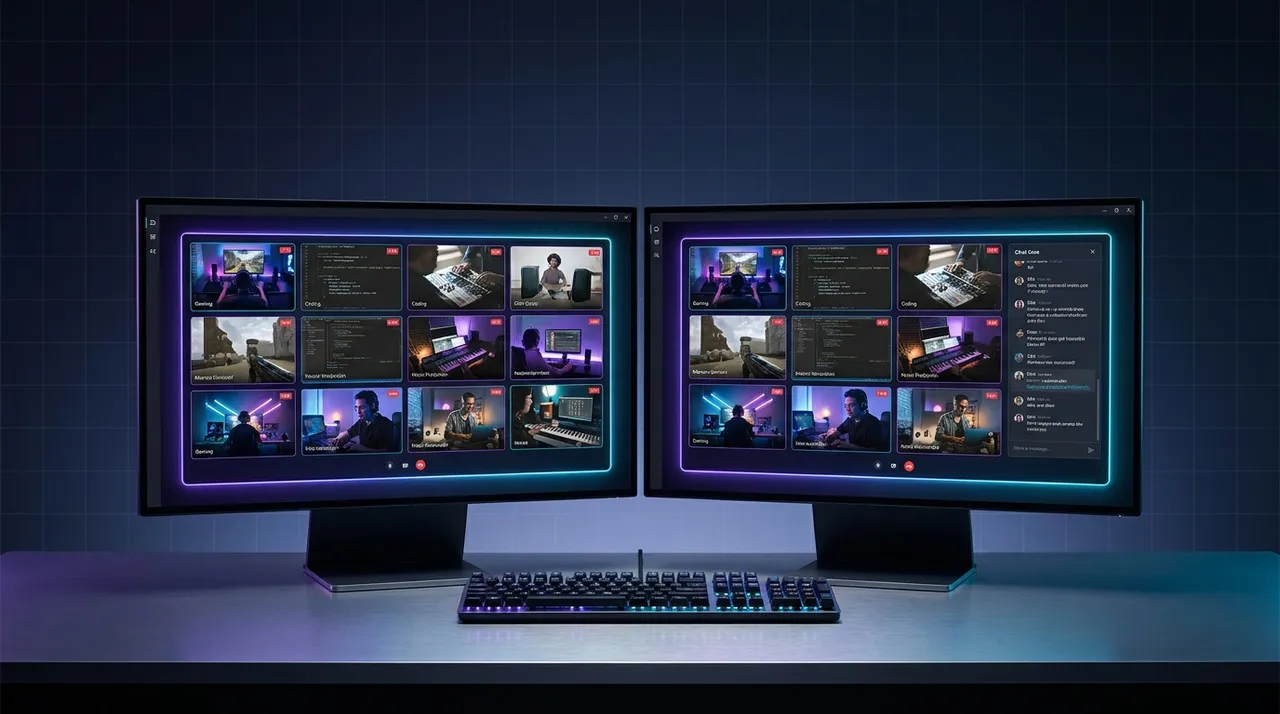
ViewGrid: Master Your Dual Screen Streaming Setup
Upgrade your viewing game with a dual screen streaming setup. Learn hardware, software, and ViewGrid tips to master multi-monitor viewing for an unbeatable stream experience.
Ever found yourself frantically alt-tabbing? One window for the main stream, another for chat, maybe a third for Twitter or a game wiki? It’s a chaotic dance, isn't it? Missing a crucial chat message, or worse, a big play because you were checking a build order. You're trying to absorb everything, but your single monitor is screaming, "I can't take it anymore!" Trust me, I’ve been there. For years, my streaming life was a jumbled mess of overlapping browser tabs, each fighting for screen real estate. Then, I finally joined the enlightened masses and embraced dual screen streaming. And let me tell you, it's not just a luxury; for any serious streamer viewer, it's an absolute game-changer.
This isn't just about productivity, though. It’s about immersion. It’s about not feeling like you’re missing out on anything happening across the streaming universe. Imagine watching the main event of a huge esports tournament on one screen, while simultaneously keeping an eye on your favorite co-streamer’s reaction on the other. Or maybe you're tracking two different games during Twitch Rivals, hopping between chats, all without ever minimizing a window. That's the power we're talking about, and it's something every dedicated viewer deserves to experience.
The Unbeatable Edge of Dual Screen Streaming for Viewers
So, why bother? Why go through the "hassle" of setting up another monitor? The answer is simple: unparalleled control and information. As a viewer, you're constantly trying to optimize your experience. You want to see the action, engage with the community, maybe even follow other content creators who are reacting or playing the same game. A single screen just bottlenecks all that potential. You're always making compromises. Do I want a bigger picture of the game, or do I want to see chat clearly? Can I risk checking Twitter during this intense moment?
With a proper dual screen streaming setup, those compromises evaporate. My primary monitor? That's strictly for the main event, the stream I'm primarily focused on. No distractions, full screen, crisp resolution. And the secondary monitor? Oh, that’s where the magic happens. That's my command center. Chat, other streams, social media, even a guide for a game I'm watching – it all lives there, easily accessible with a glance. I can watch Shroud's insane FPS skills on my main screen, and have xQc's reaction stream running alongside it on my second, all while keeping up with both chats. It's truly a beautiful symphony of content.
This setup really shines during major events. Think about the LCS playoffs. You could have the main broadcast on your primary screen, and then use ViewGrid's multi-stream viewer to pull up the individual player cams or a specific team's comms on your secondary display. It offers a level of insight and engagement that a single monitor simply can't touch. Last year, during the Valorant Champions Tour finals, I had the official broadcast up, and then I used my second monitor to keep an eye on a few different community casters simultaneously. It really helped me get a feel for the different perspectives and hype levels. It just makes the whole experience so much richer.
More Than Just Streams: Maximizing Your Digital Real Estate
It's not just about watching multiple streams, though that's a huge part of it. A multi monitor streaming setup lets you:
Dedicated Chat Window: No more tiny pop-out chats or overlaying chat on the stream itself. Give chat its own dedicated space, whether it's Twitch, YouTube, or Kick. I personally love having a tall, narrow window for Twitch chat – it just flows better.
Social Media Hub: Keep Twitter, Discord, or Reddit open without obscuring your main content. React in real-time to stream moments, see what others are saying.
Reference Material: Watching a speedrun? Keep the route notes open. Enjoying a cooking stream? Have the recipe ready. Exploring a new game? The wiki is your best friend.
Background Tasks: Maybe you're editing a document, keeping an eye on your email, or even playing a casual game that doesn't demand full attention. A second screen means your main entertainment isn't interrupted.
Having a secondary display just reduces friction in your digital life. You don't have to break your focus on the main stream to check a notification or respond to a message. It's all just there.
The Gear You Need: Setting Up Your Multi Monitor Streaming Setup
Alright, convinced yet? Good. Now, let's talk about the practical stuff. You don't need to break the bank to get a decent multi monitor streaming setup. While high-end gaming monitors are fantastic, your secondary screen can be pretty modest.
Picking Your Panels: Main vs. Secondary
Your main monitor is where the primary action happens. This is where you want your crisp resolution, maybe a higher refresh rate if you're watching high-action esports or competitive gaming. I usually recommend a 1440p (QHD) display as a sweet spot – it offers a noticeable step up from 1080p without the hefty price tag or GPU demands of 4K. Size-wise, 27 inches is often ideal for that resolution.
For your secondary monitor, things get flexible. It doesn't need to be a beast.
Resolution: 1080p (FHD) is perfectly fine. It's often cheaper, and for displaying chat or a smaller secondary stream, it's more than enough.
Size: Anywhere from 21 to 24 inches works great. Some people even opt for an older 19-inch monitor they might have lying around.
Panel Type: IPS panels offer better color accuracy and wider viewing angles, which is nice if you're sitting off-center, but a VA or even TN panel can be perfectly acceptable for a secondary display, especially if you're on a budget.
Orientation: This is a big one. Many folks, myself included, love a vertical monitor setup for chat or Discord. It means less horizontal head turning and more scrolling text fits on screen. If your monitor supports VESA mounts, you can often get a stand that lets you rotate it. My current setup uses two horizontal monitors, but I've experimented with a vertical second screen, and it's fantastic for specific applications like code or long chat feeds.
Graphics Card & Connectivity
This is crucial. Your graphics card needs to have enough ports to support all your displays. Most modern GPUs will have at least two, often three or four outputs.
DisplayPort (DP): This is generally preferred for your main gaming monitor, especially if it's high refresh rate or high resolution.
HDMI: Widely compatible, excellent for secondary monitors or if your main monitor doesn't have DP.
* DVI/VGA: Older standards, less common on modern cards, but if you're using an older secondary monitor, check its ports.
Make sure your cables match! Don't get a DP monitor and only have HDMI cables. A quick check of the back of your PC and your monitors will tell you what you need. My PC has two DisplayPort and two HDMI, which gives me plenty of flexibility for my two main screens and potentially a third if I ever go down that rabbit hole (which I'm trying very hard not to).
Ergonomics: Your Neck Will Thank You
Don't neglect how you position your monitors.
Monitor Arms: These are a lifesaver. They free up desk space and allow for incredible flexibility in positioning. You can adjust height, tilt, swivel, and even rotate your monitor to portrait mode if it supports it. My dual monitor arm from a few years ago was one of the best investments I've made for my desk setup. It just makes everything feel so much cleaner and more adjustable.
Height: Position your main monitor so the top edge is roughly at eye level. This helps prevent neck strain.
* Distance: Keep them at arm's length or slightly further.
The Software Side: How to Set Up Dual Monitors for Streaming (Viewing!)
Alright, you've got the hardware, it's all plugged in. Now, let's get it working! This part is usually simpler than people expect.
- Physical Connection: Plug your secondary monitor into your PC's graphics card. Make sure the power cables are in too, obviously.
- Power On & Detect: Turn on your PC and both monitors. Your operating system (Windows or macOS) should automatically detect the second display. If it doesn't, a quick restart often helps.
- Configure in OS Settings:
- * Windows: Right-click on your desktop and select "Display settings." You'll see two boxes representing your monitors.
- * Identify: Click "Identify" to see which number corresponds to which physical screen.
- * Arrangement: Drag the boxes to match the physical arrangement of your monitors on your desk. This is crucial for seamless mouse movement between screens.
- * Multiple Displays: Under "Multiple displays," select "Extend these displays." This is the key – it makes your desktop span across both monitors, rather than duplicating the image.
- * Resolution/Refresh Rate: Set the preferred resolution for each monitor. You can also adjust the refresh rate for your main display here if it's a high refresh rate panel.
- * macOS: Go to System Settings (or System Preferences) > Displays. You'll see a similar visual representation of your monitors. Drag them to arrange them correctly. Ensure "Extend desktop to this display" is selected. You can also designate a "main" display by dragging the menu bar to it.
- Browser Management: Once your screens are extended, it's just a matter of dragging your browser windows (or any application) between them. Drag a tab out to create a new window, then drag that window to your secondary screen. Resize it how you like. This is where you can start experimenting with a ViewGrid dual monitor setup.
ViewGrid: Your Multi-Stream Co-Pilot
This is where ViewGrid truly shines, especially with a multi monitor streaming setup. Instead of opening multiple browser tabs and trying to arrange them manually, ViewGrid streamlines the entire process. The first time I tried opening a couple of streams in ViewGrid and just dragging one of the stream windows over to my second monitor, it felt like magic. No more fiddling with browser resizing.
Here's a simple way to leverage ViewGrid for your dual screen setup:
- Open ViewGrid: Go to ViewGrid multi-stream viewer.
- Add Your Main Stream: Add the primary stream you want to watch (e.g., from multiple Twitch streams or multiple YouTube streams) to your ViewGrid layout. Maximize ViewGrid on your primary monitor.
- Add Secondary Streams/Chats: Now, add any additional streams you want to monitor, or even just pop out the chat for your main stream.
- Drag and Drop: The beauty of ViewGrid is how easily you can customize layouts. You can literally drag one of the smaller stream windows out of the main ViewGrid layout and pull it over to your second monitor. Resize it there.
- Build Your Command Center: You can have one ViewGrid window on your main monitor with your primary content, and another ViewGrid window (or just a single stream pulled out) on your secondary monitor, customized with chats, a different POV, or even a different game entirely.
It's so intuitive. You're not restricted to the ViewGrid window itself for everything. You can mix and match. I often have my main ViewGrid layout on my primary screen, and then a separate browser window with a pop-out Twitch chat on my second monitor, plus maybe another small ViewGrid window with a secondary stream I'm casually following. The flexibility is incredible.
Optimizing Your Dual Screen Viewing Experience
You've got the hardware, you've got it configured. Now, how do you make this experience truly sublime?
Audio Management: Don't Let it Become a Mess
This is a common pitfall. Watching two streams at once means two (or more) audio sources.
Headphones are Your Friend: Crucial for managing multiple audio sources.
Volume Mixer (Windows): Right-click the speaker icon in your taskbar and open the "Volume Mixer" (or "Sound settings" -> "App volume and device preferences" in newer Windows). Here, you can individually adjust the volume for each application or even each browser tab if you're using Chrome or Edge. I usually have my main stream's browser tab at 100%, and any secondary streams at 20-30% volume, just enough to catch key moments.
Browser Extensions: Some browser extensions allow for per-tab volume control, which is incredibly useful for fine-tuning.
ViewGrid Audio Sync: For streams within ViewGrid, you can often sync or mute audio directly within the platform, making it even easier to manage.
Seriously, take the time to set up your audio. There's nothing worse than trying to watch two streams and having them both blaring over each other. It's an instant headache.
Ergonomics Revisited: The Long Haul Comfort
Sitting for hours watching streams can take a toll. Your multi monitor streaming setup should prioritize your comfort.
Chair: Invest in a good ergonomic chair. Your back will thank you.
Monitor Height: As mentioned, eye level for the top of your main monitor. If you have two monitors side-by-side, try to keep their top edges aligned.
Lighting: Reduce glare. Position your monitors away from direct light sources. Use bias lighting behind your monitors to reduce eye strain in dark rooms.
Breaks: Even with the most perfect setup, get up and stretch every hour or so. Your body needs it.
I've learned this the hard way. Early on, I had my second monitor just sitting on a stack of books because I didn't have a proper stand, and my neck was constantly sore. Trust me, it's not worth saving a few bucks on ergonomics if you're going to spend hours in front of your screen.
Personalizing Your Layouts
This is where your viewing style really comes into play.
Main Monitor: Dedicated to the primary stream, often full-screen or nearly full-screen. No distractions.
Secondary Monitor: This is your customizable canvas.
Chat Focus: A tall browser window with the pop-out chat from your main stream.
ViewGrid Secondary: A smaller ViewGrid window showing multiple esports streams or multiple sports streams during a busy Sunday, or even multiple news channels during a breaking event.
Information Hub: Discord, Twitter, a game guide.
Mix and Match: Don't be afraid to experiment. Drag windows around, resize them. What works for one person might not work for you. I find myself changing my secondary screen layout depending on what I'm watching. A competitive game usually means chat + Twitter, while a chill "just chatting" stream might have a second content creator on the side.
One thing I've found really effective is using browser profiles. I have a "Streaming" profile in Chrome that automatically opens specific tabs (ViewGrid, Twitch chat, Discord) on my secondary monitor when I launch it. It saves a lot of setup time!
ViewGrid: The Ultimate Companion for Your Dual Screen Streaming Setup
We've talked a lot about the benefits of dual screen streaming, and how to get your hardware and software sorted. But let's circle back to what truly elevates this experience: ViewGrid. Our platform was literally built for this kind of multi-tasking, multi-source viewing.
Think about it. You could open individual tabs for every stream you want to watch. You could try to manually arrange them, resize them, deal with individual audio controls, and the inevitable browser slowdown that comes with a gazillion tabs. Or, you could use ViewGrid.
ViewGrid lets you build custom layouts with ease. You just paste in the URLs from Twitch, YouTube, or Kick, and it pops them into a clean, organized grid. But it’s more than just a grid. It’s intelligent. When you have a ViewGrid dual monitor setup, you can:
Drag-and-Drop Flexibility: As I mentioned, you can take any individual stream panel from your ViewGrid layout and drag it outside the main window. This is perfect for placing a secondary POV or a dedicated chat window right where you want it on your second monitor.
Integrated Chat: ViewGrid often integrates chat directly into the stream panel, but you can also pop it out if you prefer a larger, dedicated chat window on your second screen.
Seamless Source Switching: Whether you're watching multiple Twitch streams during a charity event, or keeping up with multiple YouTube streams from different content creators, ViewGrid makes adding, removing, and swapping sources incredibly simple.
Resource Efficiency: While it's still multiple video feeds, ViewGrid is optimized to run these streams efficiently, helping to reduce the load on your system compared to multiple separate browser tabs.
I've been using ViewGrid for months now, especially when I'm tracking events like the Olympics or major gaming conventions. Being able to effortlessly switch between different events on multiple sports streams or different developer panels at Gamescom – all within a single, elegant interface that I can then spread across my two monitors – it's just so smooth. It's the kind of tool that, once you use it, you wonder how you ever managed without it. It truly completes the vision of a powerful, efficient dual screen streaming setup for viewers.
Ready to try multi-stream viewing?
Watch YouTube, Twitch, Kick & more — all on one screen.
Open ViewGridRelated Articles
Game Launch Hub: Watch YouTube & Twitch Together
Tired of missing out during game launches? Learn how to watch YouTube and Twitch together, transforming your viewing with a multi stream viewer. Get all perspectives, from esports to news, in one seamless hub.
streaming guideMaster Dual Screen Streaming for World Cup 2026
Get ready for World Cup 2026! Learn the essential gear & step-by-step setup for dual screen streaming. Watch multiple games, manage audio, and never miss a goal with ViewGrid.tv.
streaming guideMulti Stream Viewer: Discover Hidden Gems & New Creators
Tired of juggling tabs? A multi stream viewer lets you watch multiple streams at once, discover new creators, and follow esports like never before. Learn how to optimize your viewing.
streaming guideMulti Stream Viewer: Elevate Your Summer Binge-Watching
Tired of missing out? A multi stream viewer lets you watch multiple streams at once, from esports to news. Learn how to master multistreaming for peak summer viewing.