ViewGrid.tv
streaming guide18 min read·July 5, 2026

Multi Stream Viewer: Elevate Your Summer Binge-Watching

Tired of missing out? A multi stream viewer lets you watch multiple streams at once, from esports to news. Learn how to master multistreaming for peak summer viewing.

multi stream viewermultistreamsummer streamingwatch multiple streamsstreaming guide
Multi Stream Viewer: Elevate Your Summer Binge-Watching

Summer is officially here, and you know what that means for us digital dwellers, right? Longer days, sure, but also prime time for some serious binge-watching. The sun might be shining outside, but sometimes, nothing beats getting lost in a good stream – or, let's be real, multiple good streams. Because for me, and I bet for a lot of you out there, the idea of just picking one thing to watch feels… restrictive. That's where a multi stream viewer absolutely changes the game. It’s not just about consuming more content; it’s about curating your own ultimate viewing experience, especially when the internet is buzzing with so much cool stuff.

I mean, honestly, how many times have you been torn? Do I watch my favorite streamer grinding a new game on Twitch, or catch the latest deep-dive documentary premiere on YouTube? What about the critical esports match happening right now? Or maybe you just want some chill lofi beats in the background while you keep an eye on a developing news story. Before I really leaned into using a multi stream viewer, I was constantly alt-tabbing, wrestling with browser tabs, and just generally missing out. It was a chaotic mess, and frankly, it took away from the whole fun of summer streaming.

The Glorious Chaos of Concurrent Content

Let's talk about the why. Why would anyone want to be watching multiple streams at once? Isn't that just sensory overload? Some people think so, and yeah, if you go in without a plan, it can be. But for me, it's about context, comparison, and simply not having to make impossible choices. Think about it:
Esports tournaments: You want to follow your favorite team's POV and the main broadcast with the pro commentators. How else do you catch that clutch play from two different angles?
Collaborative streams: So many streamers team up these days. Watching xQc and Kai Cenat bounce off each other is one thing, but seeing both their perspectives simultaneously? That's peak entertainment. Last week, I was watching Sykkuno and Valkyrae play Lethal Company, and having both their feeds up side-by-side just amplified the hilarity. You get their individual reactions, their separate chats, and a much fuller picture of the chaos.
News and current events: This is a big one for me. Sometimes I want to keep up with breaking news – maybe a press conference – but also see how different major outlets are covering it live. Or, I like to have a local news stream up while a national one plays, just to get a broader perspective. No single channel gives you the whole story, right? This setup lets me synthesize information in real-time.
Discovery and background noise: Ever just want something on in the background, but can't quite pick what? I'll often throw up a couple of interesting-looking channels – maybe a woodworking stream, a cooking channel, and a chill music broadcast – and let them run. If something catches my eye, I can focus on it. It’s like having several TVs on in different rooms, but all right there on one screen.

Honestly, the first time I really embraced the idea of a multistream setup was during the VALORANT Champions Tour last year. I was trying to keep track of a few different matches that were running concurrently, and my browser was just a mess. I had so many tabs open that my PC was starting to chug, and I kept losing track of which tab was which team's POV. That's when I finally caved and looked for a dedicated solution. It was a revelation. Suddenly, I could see everything, manage audio with ease, and feel like I was truly immersing myself in the event, not just dipping my toe in.

Beyond Just "More Screens": The Art of Multistreaming

It's easy to dismiss a multi stream viewer as just "more screens, more noise." But that's like saying a symphony is just "more instruments, more noise." The art isn't in the quantity; it's in the harmony, the intentional arrangement, the way different elements come together to create a richer, more complete experience. For me, it's less about multitasking and more about multisensory engagement. You're not just watching; you're experiencing multiple facets of an event or multiple narratives unfolding simultaneously.

The Symphony of Simultaneous Storytelling

Think about how many narratives run during a major event. Take the Olympics, for example. You've got the main broadcast, sure, but then there's the individual athlete focus, the behind-the-scenes interviews, maybe even a specific event stream you care most about. A multi stream viewer lets you build your own Olympic experience. You can put the track and field on the big window, a gymnastics routine in a smaller one, and a cycling race on the side. You're the director of your own sports network. And this isn't just for sports; it works for anything with multiple angles. I often do this for game launches – I'll have the main game stream up, then maybe a popular streamer's perspective, and even a "lore breakdown" stream running concurrently. It's like living in a content hub.

And honestly, one thing that bugs me about single-stream viewing now is feeling like I'm missing out on peripheral vision. When you're watching a chess tournament, for instance, you want to see the main board, but sometimes you also want to see the players' faces, their reactions, the subtle tells. Being able to set up a small window for the player cam next to the main board stream just makes the whole experience so much more intense. It brings you closer to the action, helps you read the room, so to speak. If you're not using a multi stream viewer for major events, especially those with multiple perspectives or co-streams, you're absolutely missing half the story – maybe more. That's my hot take, and I'm sticking to it.

The Information Overload Myth (and How to Beat It)

Okay, I hear you. "But isn't it just too much?" It can be. But that's where the "art" comes in. It's not about throwing ten streams onto one screen and hoping for the best. It's about curation and management.
Audio is key: This is usually the first hurdle. My personal setup involves picking one "main" audio source that I focus on, and then muting or significantly lowering the volume on the others. Sometimes I'll use separate headphones for a secondary audio feed, but mostly, it's about prioritizing. For example, if I'm watching an esports event, the main broadcast audio is primary. If I have a player POV up, that's often muted or very low. Some multi stream viewers let you easily click to switch dominant audio, which is a lifesaver.
Layout matters: You don't need all streams to be equal size. Some might be crucial, demanding a large, central spot. Others might be background information, perfect for a smaller tile on the side. Experiment with grid layouts, picture-in-picture, and custom arrangements. My usual go-to is one large main window, and two smaller ones stacked vertically on the right. This lets me focus but still glance at the periphery.
Know your limits: You don't have* to watch four streams. Maybe two is your sweet spot. Or three. The flexibility is the point. The goal isn't to max out your screen real estate; it's to optimize your viewing pleasure.

It’s all about finding your rhythm. My setup is constantly evolving depending on what I'm watching. For a chill Sunday afternoon, it might be a Stardew Valley stream, a cooking show, and a jazz station. For a big game launch, it’s all about a game stream, a co-stream, and maybe a Twitch chat overlay. The beauty is you can customize it every single time. This adaptability is precisely why a good multistream setup becomes an indispensable tool for any serious viewer.

Practical Magic: Setting Up Your Multi Stream Viewer Experience

Alright, enough philosophizing about why it's great. Let's talk about how to actually get this going. The process, especially with modern tools, is surprisingly straightforward. You don't need a super-fancy setup or multiple monitors (though they certainly help!). All you really need is a decent internet connection, a web browser, and a dedicated multi stream viewer like ViewGrid.tv.

Here’s a basic step-by-step to get you started on your journey to watching multiple streams simultaneously:

  1. Identify Your Streams: First, figure out what you want to watch. Do you want to watch multiple Twitch streams? Maybe you want to watch multiple YouTube streams? Or perhaps a mix – that's where the magic of "watch YouTube and Twitch together" really shines. Grab the URLs for each stream you're interested in. You can even mix in Kick streams, news channels, or esports events. ViewGrid supports a huge range.
  2. Head to Your Multi Stream Viewer: Open up your browser and navigate to a service like ViewGrid multi-stream viewer. This is your command center.
  3. Add Your First Stream: Most multi stream viewer interfaces are pretty intuitive. You'll usually find an input field or a button to "Add Stream." Paste the URL of your first stream into the designated box. It should pop up on your screen.
  4. Add More Streams: Repeat the process for your second, third, or even fourth stream. As you add them, the viewer will typically arrange them in a grid pattern by default. Don't worry if it looks a bit messy at first; we'll fix that.
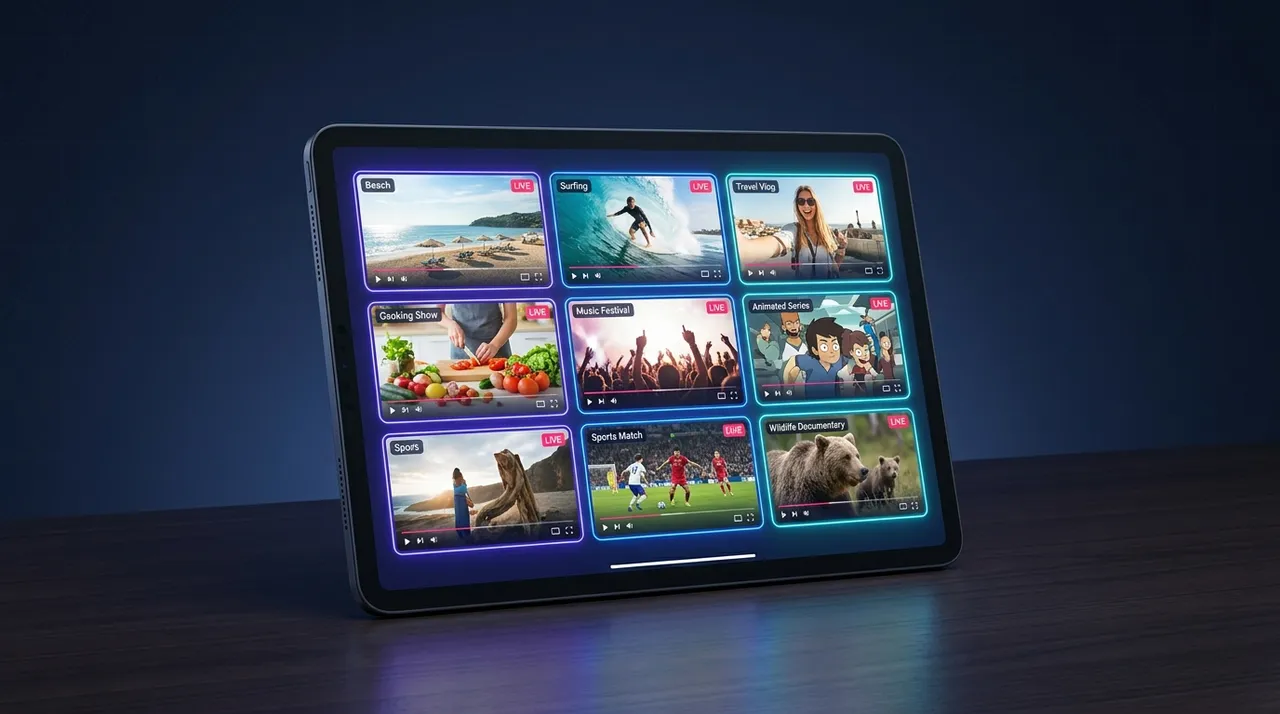
  5. Arrange Your Layout: This is where you become the director. Most multi stream viewers, including ViewGrid, offer flexible layout options. You can usually drag and drop streams to different positions, resize them, or choose from pre-set grid layouts (e.g., 2x2, 1 large + 2 small, etc.). I usually start with a 1 large, 2 small setup if I have three streams, or a balanced 2x2 grid for four. Find what works for you – what makes sense for the content you're viewing. Remember that example of the main esports broadcast being big, and the player POV being smaller? This is where you make that happen.
  6. Manage Your Audio: This is critical. As I mentioned, trying to listen to multiple audio feeds at full volume is a recipe for a headache. Look for volume controls on each individual stream window. Mute the streams you don't want to hear, or adjust their volumes to a comfortable background level. Often, a quick click on a stream window will make its audio primary, which is super convenient. For me, if I'm watching a few different news channels, I'll often keep one at full volume and the others almost muted, just to see if a different breaking graphic appears.
  7. Engage (or Not) with Chat: Some multi stream viewers will allow you to bring up the chat for each individual stream. Decide if you want to participate in one chat, monitor a few, or ignore them altogether. Sometimes, I just want the raw content without the stream of consciousness from chat. Other times, the chat is part of the entertainment, especially for community-driven streams. This choice is yours to make.
  8. Save Your Layout (If Available): If you've created a perfect setup for a specific recurring event or just your favorite combo, many services let you save your current layout. This is a massive time-saver for future viewing sessions. You just load your saved layout, and boom, you're ready to go.

That's it! It really is that simple. The beauty of a dedicated service is that it handles all the embedding and cross-platform compatibility, letting you focus on the content. No more fiddling with multiple browser windows, trying to sync them up manually, or dealing with inconsistent performance.

Who Benefits Most from a Multi Stream Viewer?

While I think everyone can get something out of a multi stream viewer, there are definitely a few groups who will find it absolutely indispensable. It's about tailoring your digital landscape to fit your specific content needs.

Esports Fanatics

This is probably the most obvious group, right? If you're into esports, you need this. During events like The International for Dota 2, or the Call of Duty League playoffs, there are often multiple matches happening, or a single match with multiple casters and player perspectives.
You can put the main Twitch broadcast for a tournament like the LEC on your main screen.
Then, in smaller windows, have the individual player POVs or maybe a co-stream from your favorite content creator like Disguised Toast reacting to the game.
You can even pull up specific team channels. It transforms passive viewing into an active, strategic engagement. You're not just watching the game; you're studying* it from every angle. This is exactly why I recommend checking out ViewGrid's esports streams page – it's designed for this kind of intense, multi-angle viewing.

News Junkies

As someone who tries to stay informed, the multi stream viewer is my daily news desk. I mentioned this before, but it's worth reiterating.
During a major political speech, I'll often have CNN, Fox News, and a public broadcaster like PBS or BBC News all running. The differences in framing, the live fact-checking, the chyrons – it's fascinating to compare in real-time.
For breaking international news, I might have Al Jazeera, Sky News, and a local news feed from the affected region. It helps cut through the noise and gives a more holistic view of events as they unfold. If you're someone who likes to gather information from multiple sources, you definitely need to check out the news channels on ViewGrid.

Sports Enthusiasts

Beyond esports, traditional sports benefit hugely. Imagine watching a Sunday NFL RedZone equivalent, but you're building it.
During a busy Saturday of college football, you could have three different games running, jumping between the one with the most action.
Or, for a single big game, maybe you have the main broadcast, a specific team's broadcast (if available), and perhaps a statistical overlay stream or a dedicated "coach's cam."
* Hockey fans during the Stanley Cup playoffs could track multiple series simultaneously. It’s like having a sports bar in your living room, but you control all the screens. Our sports streams section is perfect for this.

Collaborative Stream Watchers

If you're a fan of the creator economy, you know how often streamers collaborate. The energy when two or more streamers are together is often electric.
When a group like OfflineTV or AMP House does a group stream, you can often find individual POVs from each member. Watching their unique reactions to the same event side-by-side? Priceless.
Charity events, where multiple streamers are playing games or doing challenges for a cause, are another prime example. You can follow the main event stream and also see how your favorite individual streamer is contributing and interacting with their own chat. It makes the whole experience feel more integrated and communal.

The Casual Binger and the Curious Explorer

Even if you're not an intense fan of any specific genre, a multi stream viewer is fantastic for just chilling out or discovering new content.
Want some background noise while you work? Throw up a lofi music channel, a digital art stream, and maybe a cooking channel.
Feeling adventurous? Pick a few random categories on Twitch or YouTube and load up a couple of streams you've never watched before. You might find your next favorite creator! It's a low-stakes way to explore the vast ocean of content out there without committing to just one thing. It's how I found a fantastic blacksmithing channel a few months ago – totally unexpected!

Common Multistream Challenges & My Workarounds

Even with all its amazing benefits, I'd be lying if I said multiscreening was always a perfectly smooth sail. There are a few hurdles that I (and probably you) might encounter.

First off, audio management remains my number one challenge. Even with tools to switch primary audio, sometimes you want to hear just a specific sound effect from a secondary stream, but not the full commentary. It's a dance. My workaround, as mentioned, is often simply to mute everything but the primary, or keep secondary streams at a barely audible whisper. I sometimes wish for a more granular, real-time audio mixer within the viewer itself, but that's probably a future tech dream. For now, manual adjustment is the way.

Then there's the performance hit on your PC. Running multiple live video feeds, especially if they're high-resolution, can be taxing on your CPU and GPU, not to mention your internet bandwidth. If you're on an older machine or a slower connection, you might experience stuttering or buffering. My advice here is to manage expectations. Don't try to run four 4K streams on a ten-year-old laptop. Scale down the quality if needed (most stream players let you do this), and make sure you're not running a hundred other browser tabs or demanding applications in the background. It's a balancing act. For instance, I usually drop secondary streams to 720p or even 480p if my internet is feeling sluggish, keeping the main one at 1080p.

Chat interaction can also get tricky. If you have three chats open, it's hard to follow any one conversation properly, let alone participate. For me, I generally pick one chat to focus on – usually the main stream I'm actively listening to – and minimize or close the others. If a multi stream viewer had a consolidated chat view that pulled messages from all active streams, that would be wild, but I haven't seen that yet!

Finally, platform compatibility used to be a huge pain. Trying to get a Twitch stream, a YouTube Live stream, and a Kick stream all playing nicely in separate browser tabs was a nightmare of differing player controls, autoplay rules, and sometimes even geo-restrictions. This is actually where a dedicated multi stream viewer shines, because it’s built to handle these differences. Services like ViewGrid abstract all that away, letting you focus on the content, not the platform's quirks. It really makes it seamless to [watch YouTube and Twitch together], or mix in Kick streams without a fuss. It's a massive quality of life improvement.

For more general tips on optimizing your streaming setup, whether it's for single or multi-stream viewing, I often check out articles from the platforms themselves. For example, Twitch has some great resources on optimizing your viewing experience, though they don't explicitly talk about multi-streaming. Still, general tips on network stability and browser optimization apply, and it's good to know the basics. A quick search for "Twitch viewer troubleshooting" can lead you to some useful official guides.

The Future of Watching Multiple Streams

Where is all this headed, anyway? I genuinely believe the multi stream viewer experience is only going to get more sophisticated. I can imagine a future where AI plays a role – perhaps summarizing chats from multiple streams into one digestible feed, or even automatically identifying key moments across different POVs and highlighting them. Imagine an AI that could tell you, "Hey, Streamer A just got a crazy kill while Streamer B missed it – jump to Streamer A's perspective!" That would be amazing for esports.

I also foresee more seamless integration across platforms. While ViewGrid already does an excellent job of letting you watch multiple Twitch streams, multiple YouTube streams, and multiple Kick streams simultaneously, I think we'll see even deeper integrations. Maybe personalized layout suggestions based on your viewing history, or even more interactive elements where you can vote on which perspective gets the largest screen real estate during a live event. The possibilities are genuinely exciting. As content continues to fragment across different services and creators, the need for a unified, customizable viewing hub will only grow.

Why ViewGrid.tv is My Go-To Multistream Hub

Look, I've tried a bunch of different multi stream viewer setups over the years. From clunky multi-window arrangements to services that promised a lot but delivered lag and frustration. That's why I'm such a big fan of ViewGrid.tv. It just works. Seriously.

The team behind it clearly understands what viewers like us actually need. It's clean, it's fast, and it handles the headache of pulling streams from different platforms with incredible grace. I can be watching a Twitch raid on one screen, a new music video premiere on YouTube on another, and keeping an eye on a specific topic on a Kick stream, all without missing a beat. The flexibility of the layout options means I can customize my experience perfectly, whether I'm deep-diving into an esports tournament or just looking for some background sports action.

It's not just a tool; it's an enhancement to my entire streaming lifestyle. It means less frustration and more pure enjoyment. If you're looking to elevate your summer binge-watching, or just want to finally get a handle on all the amazing content out there, you absolutely owe it to yourself to check out the ViewGrid multi-stream viewer. It’s made my digital life so much richer, and I'm confident it'll do the same for you. Give it a try – your FOMO will thank you.

Ready to try multi-stream viewing?

Watch YouTube, Twitch, Kick & more — all on one screen.

Open ViewGrid

Related Articles