Multi Stream Viewer: Your Live Content Command Center
Tired of tab chaos? Discover how a multi stream viewer can revolutionize your live content experience, letting you watch multiple streams from Twitch, YouTube, Kick, and more, all at once.
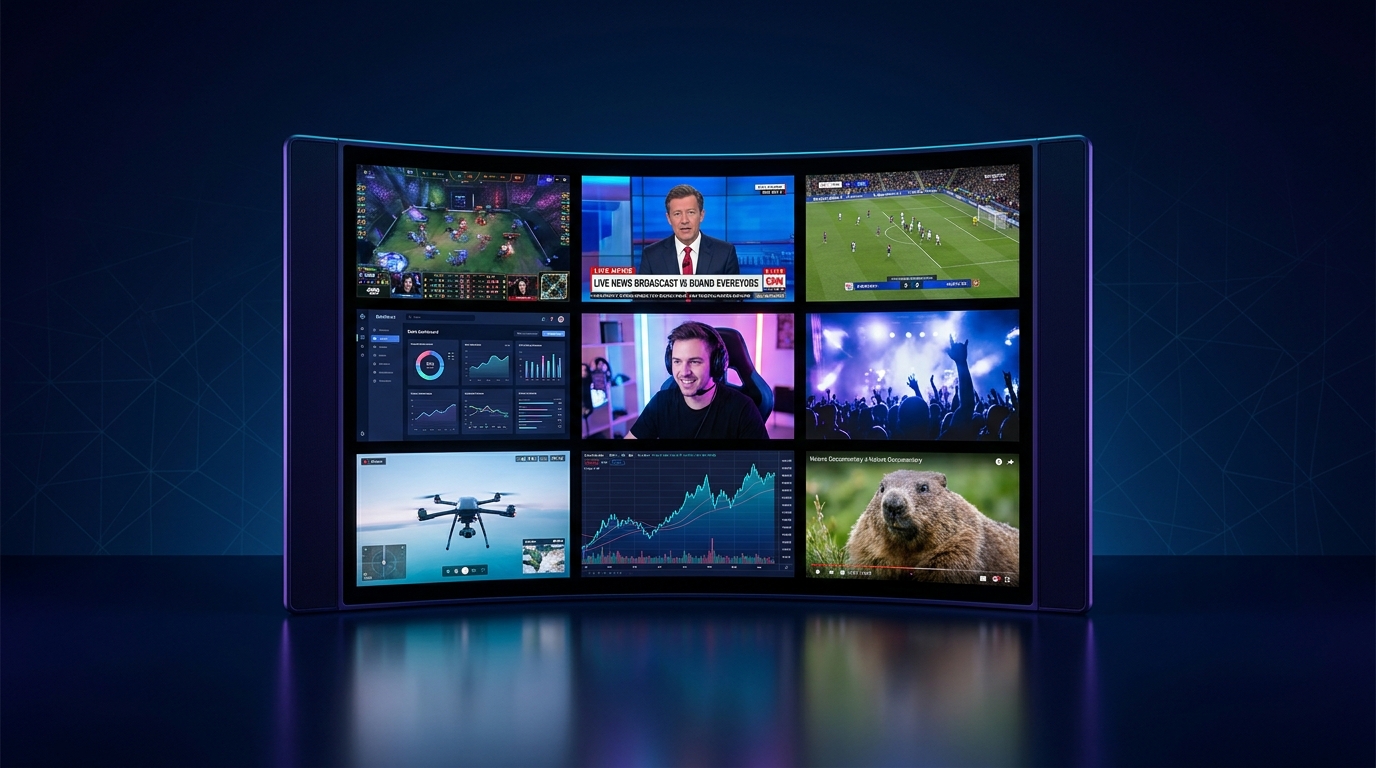
You know that feeling, right? It’s a Saturday afternoon, maybe a big esports tournament is on, but your favorite streamer is also doing a chill "Just Chatting" session, and wait – didn’t that new music video drop on YouTube at the same time? Suddenly, your browser looks like a tab graveyard, your CPU fan is screaming, and you're frantically muting and unmuting tabs trying to catch everything. Been there, friend. Too many times. That chaotic scramble is exactly why a multi stream viewer isn't just a luxury anymore; it's practically a necessity for anyone serious about live content.
For years, I was that person, living in a perpetual state of tab hell. My browser would have like, eight Twitch tabs open, three YouTube windows minimized, maybe a Kick stream tucked away, all vying for my RAM and my attention. It was a mess. Notifications popping up, audio bleeding from one tab to another, missing key moments because I was busy wrestling with my browser's interface. It felt like I was trying to conduct an orchestra with a single drumstick and a blindfold. And honestly, it drove me nuts.
That’s where the idea of a central command center for all my live viewing really took hold. I needed something that could pull streams from different platforms – Twitch, YouTube, Kick, even Rumble or custom RTMP feeds – and display them all neatly, side-by-side, without making my PC sound like a jet engine ready for takeoff. I wanted to watch multiple streams without the headache. And once you experience that kind of streamlined viewing, there's no going back. Trust me on this.
From Single Tab to Streaming Pantheon: My Journey to Multistream Nirvana
I've been watching streams since the early Justin.tv days, back when it was all about weird reality TV experiments before it evolved into Twitch. For a long time, it was simple: open one stream, watch it. Maybe two if I was really feeling spicy and had two monitors. But as the streaming landscape exploded, so did my need for more screens, more content, more everything.
My first foray into trying to watch more than one thing at once was... primitive. I’d have Twitch on my main monitor, maybe a YouTube VOD playing in the background on my second. Then came the era of the dual-monitor setup, which felt like a massive upgrade at the time. I could have a game stream on one, and a podcast or another streamer on the other. Glorious, right? But even that quickly hit its limits. What if there were three things I wanted to see? Or four? What if I wanted to follow an esports match with multiple perspectives, like the main broadcast and a popular co-streamer's reactions? My physical desk space simply couldn't keep up with my digital appetite.
I remember during Valorant Champions 2023, I was trying to keep tabs on the main English broadcast, Tarik's co-stream (because his energy is just infectious), and sometimes even a specific player's POV if it was available. Switching between tabs, losing the chat context, missing a crucial clutch because I was fiddling with volume sliders – it was an exercise in frustration. It felt like I was constantly playing catch-up, always a step behind the live action. And don't even get me started on the mental gymnastics of remembering which tab was which. My brain isn't built for that kind of multi-tab madness.
And then there's the whole issue of different platforms. Twitch is still king for a lot of gaming, sure, but YouTube's got a massive presence now, especially for long-form content, VODs, and exclusive deals. Kick has emerged with its own set of creators, some of whom I genuinely enjoy, and Rumble is building a niche too. Trying to juggle native players from all these sites in separate browser windows just creates a tangled mess. Each one has its own UI quirks, its own chat client, its own ads – it's a disjointed experience. I distinctly remember trying to watch Ludwig's Mogul Chessboxing event and Pokimane's stream at the same time, along with some other creator reactions. My browser nearly gave up the ghost. That's when I realized, this isn't sustainable. We need a better way to do this. We need a dedicated solution for a true multistream experience.
Why a Multi Stream Viewer Is an Absolute Must-Have
Let's be real: in today's content-saturated world, just watching one thing at a time feels... inefficient. Almost archaic. A proper multi stream viewer elevates your entire streaming experience from a passive activity to an active, informed consumption of live content. It’s like having an omniscient bird's-eye view of everything happening in your corner of the internet.
Never Miss a Beat
This is the big one for me. How many times have you been watching a major event, let's say a League of Legends Worlds final, and then suddenly realize your favorite content creator is doing a super rare charity stream right now? Or maybe a breaking news story develops while you're focused on a gaming tournament? With separate tabs, you're constantly making choices, constantly missing out. But with a multi stream viewer, you can literally have the main broadcast in one window, a co-streamer’s reactions in another, and a news channel or a different game stream in a third. You’re always in the loop, always connected.
Last week, during the LCS playoffs, I had the official broadcast up, a dedicated player cam stream for my favorite pro, and then a fun "watch party" with a few streamers who weren't involved in the main event. I was able to flick my eyes between them, catching all the big plays and the hilarious reactions without ever leaving my command center. It felt powerful. It felt like I was actually experiencing the event, not just observing it.
Compare Perspectives, Get the Full Story
Think about competitive gaming. If you’re into Valorant, CS2, or even fighting games like Tekken, understanding the meta and strategy often means seeing things from different angles. A caster might explain the macro-play, but a specific player's POV (if available) shows you the micro-decisions – the flick, the grenade toss, the perfect bait.
This isn't just for esports either. Imagine a political debate. You could have the main broadcast from one news channel, a commentator from another, and maybe even a live fact-checking stream running simultaneously. You're not just getting one narrative; you’re getting a mosaic of information, allowing you to form a much more nuanced opinion. It's like having multiple friends telling you about the same party – you get a much fuller picture. Or, if you're a streamer yourself, you can watch what your rivals are up to and keep an eye on your own stream from a viewer's perspective on a separate panel. That's a pro move, right there.
Efficiency and System Performance
I mentioned the tab graveyard earlier. It’s a real problem. Browsers, especially with multiple video players, can be massive resource hogs. Each tab, each player, often running its own processes, can bring even beefy systems to their knees. But a well-optimized multi stream viewer is designed to handle this load much more efficiently. It often uses a single application instance, rather than multiple browser tabs, consolidating resource usage.
This means smoother playback, less stuttering, and a happier CPU. Plus, the dedicated interface usually offers much better control over individual stream quality, audio levels, and even chat integration, all from one place. No more hunting for the mute button on the correct tab – it’s right there, intuitively placed. For anyone who has ever accidentally blasted their ears with two competing audio tracks, this is a literal godsend.
Picking Your Poison: Platforms and Content Types
The beauty of a robust multi stream viewer is its versatility. It's not just for Twitch, and it's definitely not just for gaming. The modern streaming world is a vast ocean, and your multi-viewer should be the ship that navigates it all.
The Big Players: Twitch, YouTube, and Kick
These are probably the platforms you're thinking of first.
- Twitch: Still the undisputed champion for many gamers and interactive live content. From major esports events to casual "Just Chatting," Twitch has a massive library. I often have two or three Twitch streams going at once – maybe Shroud playing a new game, xQc reacting to something wild, and a small VTuber I'm trying to support. A good multi stream viewer for Twitch is essential for anyone in this ecosystem.
- YouTube Live: YouTube has been making massive strides, especially with exclusive content deals, music events, and a strong presence in educational and news content. Many popular streamers, like Valkyrae or Ludwig, have made the jump or do simulcasts. And of course, there's always an endless supply of live concerts, documentaries, or even just chill lofi study streams. Being able to combine a gaming stream from Twitch with a breaking news report on YouTube is incredibly powerful.
- Kick: The new kid on the block, gaining traction rapidly, especially with some big names signing on. It's got a different vibe, and some unique content. If you're following creators who've made the move or are experimenting there, you absolutely want to be able to integrate their streams seamlessly. Juggling it in a separate browser tab is just, well, a pain. A dedicated Kick multi stream viewer helps you stay on top of the emerging trends without missing out on your established favorites.
And yeah, there's Rumble too, building its own community. The point is, your ideal setup should be platform-agnostic, letting you pull in whatever you want, whenever you want.
Beyond Gaming: Esports, Sports, and News
My streaming diet isn't just gaming, and I bet yours isn't either.
- Esports: This is where a multi stream viewer truly shines. Imagine The International for Dota 2, or the League of Legends World Championship. You've got the main broadcast, maybe an analyst desk, a specific player POV, and a popular co-streamer like Scarra or Lirik. Trying to watch all that without a dedicated multi-viewer is pure madness. Being able to curate your own custom esports multi-stream setup is a total game-changer for engagement.
- Traditional Sports: While many traditional sports still live behind paywalls, more and more organizations are experimenting with live streaming, especially for pre-shows, post-game analysis, or niche events. And then there are the sports commentators or fan watch parties that pop up. Being able to watch a soccer match and a fan reaction stream and maybe even a different sports highlight reel is fantastic. You can craft your own personal sports multi-stream experience.
- News and Current Events: This is a surprisingly powerful use case. During major events – elections, natural disasters, or significant global developments – I often have two or three different news channels running, perhaps CNN, BBC, and Al Jazeera, alongside a local feed if something is happening nearby. It gives you a much broader, more balanced perspective than just relying on one source. For staying informed, a multi stream viewer for news is incredibly effective. It's a way to cut through the noise and get multiple perspectives directly, which I think is more important than ever.
Setting Up Your Ultimate Multi Stream Viewer Experience
Alright, you're convinced. You want to ditch the tab chaos and embrace the serene calm of a perfectly organized stream layout. So, how do you actually do it? It’s surprisingly simple with the right tool. Let me walk you through my typical setup process.
Step-by-Step: Getting Started
The first time I tried a multi stream viewer, I thought it would be super complicated. Like, "do I need a degree in network engineering?" complicated. Nope. Most good ones are designed for ease of use.
- Pick Your Platform (and your URLs): This is where you decide what you want to watch. Go to Twitch, YouTube, Kick, whatever, and grab the URL of the live stream you want to include. Don't worry about logging in on the multi-viewer itself; you just need the public link.
- Open Your Multi Stream Viewer: For me, that's usually the ViewGrid multi-stream viewer. It’s browser-based, which I love because it means I can use it on any of my machines without installing anything heavy. Just open a new tab and head to the site.
- Add Your First Stream: You'll usually see an input field somewhere prominent – often labeled "Add Stream" or "Paste URL." Paste your first stream URL there and hit enter or click "Add." Boom! Your first stream should pop up in a panel.
- Add More Streams: Repeat step 3 for every additional stream you want to watch. As you add them, the viewer will automatically adjust the layout to fit them all into your screen. It’s pretty intuitive. I usually start with my main focus stream, then add secondary ones.
- Arrange Your Layout: This is where the magic really happens. Most multi stream viewers, including ViewGrid, let you drag and drop the stream panels to rearrange them. Want your main game stream big in the middle and smaller chat-focused streams around it? No problem. Prefer a 2x2 grid for equal attention? Easy. Play around with it until it feels right for your eyes.
- Manage Audio: This is CRITICAL. You cannot have 4 streams blasting audio at you at once. Find the individual volume controls for each stream within the multi stream viewer. I usually keep my main focus stream at a comfortable listening level and mute the others entirely, or keep them very low in the background, only unmuting if something specific happens. Some viewers even let you "solo" audio from one stream with a single click, which is incredibly handy.
- Chat Integration (if available): Some advanced multi stream viewers can integrate chat from specific platforms. If this is an option, it's a huge plus. It means you don't need a separate browser window just for chat; it can live right next to the stream.
That's it! In about five minutes, you can go from zero to fully functional, multi-stream master. It’s a lot less intimidating than it sounds, and the payoff in terms of reduced stress and increased content consumption is huge.
Advanced Tips and Tricks for the Power User
Once you've got the basics down, you'll start thinking, "How can I make this even better?" Trust me, the rabbit hole goes deep. Here are a few things I've learned that really optimize the experience.
Optimizing Your Layout for Maximum Information Density
Don't just stick with the default grid. Think about what you're watching.
- Main Focus, Side Panels: If you're watching a game, put that stream front and center, maybe slightly larger than the others. Then, on the sides or bottom, put smaller panels for co-streams, chat, or a second event.
- Equal Importance: For events like a multi-POV esports tournament or contrasting news channels, a perfectly even grid (2x2, 3x3) works best. This ensures no single stream dominates, and your eyes can easily scan across.
- Portrait vs. Landscape: Remember that some streams, especially phone streams, might be in portrait. A good multi stream viewer should handle this gracefully, but consider how it impacts your overall layout. I usually try to group similar aspect ratios together.
I often use a 2x2 layout when watching multiple streamers play the same game, like during an Among Us lobby back in the day, or a Minecraft SMP event. It's fascinating to see how different people approach the same situation.
Mastering Audio Controls
This is probably the most overlooked but most important aspect. You will get overwhelmed if you don't manage audio.
- The Solo Button: If your multi-viewer has a "solo audio" feature, use it! It mutes all other streams and focuses the sound on your selected panel. Invaluable for quickly jumping to another stream's audio without fiddling with sliders.
- Audio Passthrough (Careful!): Some viewers might let you pass audio directly through to your system. Be cautious with this, as it can sometimes bypass your operating system's mixer. I prefer to manage volumes within the multi-viewer itself.
- Headphones are Your Friend: Especially if you're mixing game audio with voice chat or music, headphones help isolate the sounds from your multi-stream setup, preventing echo or bleed.
My personal preference is to have one main stream's audio audible, and the others muted. I only unmute a secondary stream if someone shouts out something funny or important, then I quickly mute it again. It's a delicate dance!
Leveraging Chat
A stream isn't just about the video; it's about the community. If your chosen multi stream viewer supports integrated chat, you're golden.
- Prioritize Main Chat: I usually keep the chat for my primary stream visible. It's where the most interaction is happening related to what I'm focusing on.
- Separate Chat Window: If your multi-viewer doesn't integrate chat, or if you prefer a fuller chat experience, consider dedicating a small browser window or even a phone/tablet just for the chat of your secondary streams. It's not ideal, but it works in a pinch.
- Don't Get Distracted: Chat can be a black hole. It's easy to get sucked into scrolling. Learn to glance, absorb, and get back to the video. It's a skill!
Browser Extensions vs. Dedicated Web Apps
There are various ways to achieve multi-streaming. Some browser extensions promise this, but I've found them to be less reliable, often causing performance issues or breaking with platform updates. A dedicated web application, like the ViewGrid multi-stream viewer, tends to be much more stable and optimized. They're built from the ground up for this specific purpose, not as an add-on trying to hack existing browser functionality. This robustness is a big deal for me; I don't want my viewing experience to constantly break because a browser update messed with an extension. Plus, web apps are usually platform-agnostic – works on Chrome, Firefox, Edge, whatever you prefer.
The Future of Live Content and Your Command Center
The world of live streaming isn't slowing down. If anything, it's accelerating, diversifying, and becoming more ubiquitous. We're seeing more simultaneous events, more cross-platform content, and a greater demand for personalized viewing experiences. The days of "just watching TV" are long gone. Now, it's about curating your experience.
Think about it: AI analysis of game footage, real-time translations for international esports, interactive elements that let you influence the stream. All of these advanced features will only become more compelling when you can experience them across multiple streams simultaneously. Imagine watching a pro play, getting AI insights into their decisions, and seeing their team's comms, all in separate panels. That's the future we're heading towards.
And this is precisely why tools like the ViewGrid multi stream viewer are so important. They aren't just about watching more; they're about watching smarter. They empower you to be the director of your own live content consumption, to build your perfect viewing environment, and to truly feel immersed in the vibrant, chaotic, wonderful world of live streaming. I use it daily, whether it's for keeping tabs on multiple esports matches, or just having a chill gaming stream alongside a true crime documentary. It's flexible, it's powerful, and honestly, once you try it, you'll wonder how you ever managed without it. Dive in and experience the difference for yourself.
Ready to try multi-stream viewing?
Watch YouTube, Twitch, Kick & more — all on one screen.
Open ViewGridRelated Articles
Multistream: Unleash Your Ultimate Live Viewing Experience
Tired of missing out? Discover the power of multistreaming to watch multiple streams at once. Our guide covers setup, use cases, and why ViewGrid.tv is your go-to multi stream viewer.
streaming guideHow to Watch All Live Streams at Once: ViewGrid's Method
Tired of juggling tabs? Discover how to effortlessly watch multiple live streams at once across Twitch, YouTube, and Kick with ViewGrid's powerful multi stream viewer. Get your perfect multistream setup today!
streaming guideMulti Stream Viewer: Elevate Your Summer Binge-Watching
Tired of missing out? A multi stream viewer lets you watch multiple streams at once, from esports to news. Learn how to master multistreaming for peak summer viewing.
streaming guideEVO 2026: Multi-Stream Every Match, Every Angle
Don't miss a single combo at EVO 2026! Learn how to plan, set up, and optimize your multi-stream experience to watch all the action across Twitch, YouTube, and Kick with ViewGrid.tv.