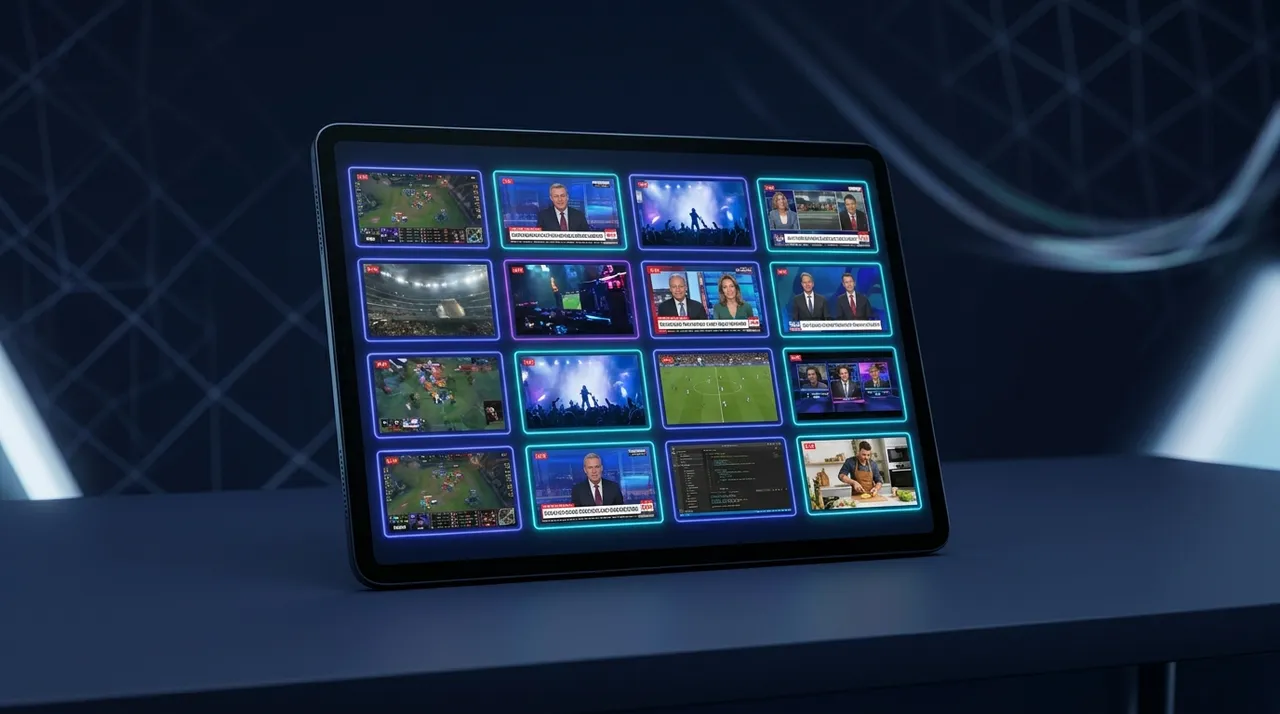
How to Watch All Live Streams at Once: ViewGrid's Method
Tired of juggling tabs? Discover how to effortlessly watch multiple live streams at once across Twitch, YouTube, and Kick with ViewGrid's powerful multi stream viewer. Get your perfect multistream setup today!
You know that feeling, right? It's Tuesday night, maybe a big esports tournament is on, but also your favorite variety streamer just started a new survival game, and there's some breaking news unfolding. Or maybe it's Friday, and you’re trying to catch every single match from VCT Masters while also keeping an eye on that absurd 'IRL' stream where someone's attempting to cook a 10-course meal in a tiny apartment kitchen. You're constantly alt-tabbing, hitting refresh, desperately trying not to miss a moment. Your browser sounds like a jet engine, and your brain feels like it's trying to run five different operating systems at once.
Yeah, I've been there. My streaming history is basically a highlight reel of missed clutch plays, forgotten charity updates, and delayed reactions because I was trying to keep up with too many things at once. It’s the ultimate streaming FOMO, and it’s a real problem. For years, I just accepted it as the cost of being a dedicated viewer across multiple platforms. But then I discovered the real power of a proper multistream setup, and let me tell you, it changed everything. If you've ever wondered how to watch multiple live streams at once without your computer bursting into flames or your mind turning into mush, you've come to the right place.
We're going to dive deep into making that beautiful, chaotic vision a reality. And trust me, it’s not as complicated as you might think.
Why Even Bother Watching Multiple Streams? My Glorious Chaos
Okay, so why would anyone want to subject themselves to the sensory overload of watching multiple streams simultaneously? For me, it boils down to pure, unadulterated passion for content and a deep-seated fear of missing out on something epic.
My usual evening setup is a testament to this. I'll have a main monitor dedicated to whatever the primary focus is — often an esports match, like a crucial CS2 grand final between FaZe and G2, or a Valorant VCT playoff. But then, on my second monitor, maybe even my phone or an iPad, I'll have a couple more streams running. Maybe it's Tarik's co-stream of the VCT match, because his reactions are gold and he offers fantastic insight. Or perhaps I’m following Ludwig’s chess boxing event, but I also want to see what xQc is up to, because his streams are just that unpredictable. It's a symphony of alerts, chat scrolling by, and different audio cues that, somehow, my brain has learned to parse.
This isn't just about entertainment, though. Sometimes it's about getting the full picture. During a major news event, I've found myself watching CNN alongside a local news channel, and maybe even a C-SPAN feed, just to try and piece together what's really happening from different perspectives. Or when a new game drops, I like seeing how different streamers approach it – comparing Shroud's laser-focused gameplay with Valkyrae's more casual, community-driven experience. It’s like being in multiple places at once, experiencing the richness of the live internet in a way that single-stream viewing just can't offer. You get so much more context, so much more entertainment, and honestly, a lot more laughs when you're seeing simultaneous reactions to the same thing, or just enjoying different vibes all at once. It really expands your ability to watch multiple streams and feel truly connected to the live content universe.
The Old Ways: Juggling Tabs (and My Sanity)
Before I found a proper dedicated solution, my approach to multi-stream viewing was, to put it mildly, a disaster. I'd open multiple browser tabs – one for Twitch, one for YouTube, maybe one for Kick if I was feeling adventurous. Then I'd manually arrange them on my screen, resizing windows like some kind of digital contortionist. It was less of a multistream setup and more of a haphazard collection of digital windows fighting for screen space.
And the audio! Oh, the audio was the worst part. Trying to balance the volume between five different browser tabs, all yelling at me, was an exercise in pure frustration. One streamer would be too loud, another too quiet. I’d mute one, then forget which one it was, only to un-mute it accidentally and get an earful of jump scare from a horror game I wasn't even actively watching. My CPU would be screaming, my RAM would be maxed out, and my browser would inevitably crash just as something important was about to happen. You know, like that time I was trying to watch the finals of The International and my browser just decided it had had enough. I almost threw my monitor out the window. Almost.
Sure, platforms have tried to implement their own solutions. Twitch has Squad Stream, which is cool, but it's limited to four streamers who are all on Twitch and who all opt-in to squad up. It's great for what it is – seeing friends play together – but it doesn’t help when you want to watch a professional esports match, a cooking stream, and a news broadcast all at the same time. YouTube has its own "Multiview" for certain live sports events, like NFL Sunday Ticket, but again, it’s very specific, limited to their content, and not something you can freely customize with any live stream you want. They’re niche features, not a universal solution for how to watch multiple live streams at once. And that’s the rub, isn't it? The dream of true, unrestricted multi-platform viewing remained just that – a dream – until dedicated tools stepped up.
The Modern Solution: A Dedicated Multi Stream Viewer
So, we’ve established that the old way is a recipe for digital headaches. The new way? It's all about a dedicated multi stream viewer. Think of it like this: instead of your browser trying to be a jack-of-all-trades and failing miserably at stream management, you've got a specialized tool designed just for watching multiple streams. It's built for efficiency, for control, and for making your multi-view experience smooth and enjoyable, not a test of your patience.
This isn't just about cramming more streams onto your screen. It's about centralizing control. Imagine having one place where you can add streams from Twitch, YouTube, Kick, even obscure niche platforms, and then manipulate them all with ease. Adjust layouts, tweak individual volumes, pause a stream without affecting the others – it’s all consolidated. This kind of specialized application is what enables a truly effective and enjoyable multistream setup. It takes the burden off your general-purpose browser and puts it onto a tool specifically engineered for the task. The difference is night and day; it transforms the chaos into something manageable, even delightful. It’s how you actually get to experience the freedom of watching more without the usual compromises.
What Makes a Good Multi Stream Viewer?
Not all multi-stream viewers are created equal, though. If you're serious about taking your viewing experience to the next level, here's what you should be looking for in a top-tier tool:
Unrestricted Customization: This is huge. You need the ability to drag and drop, resize, and arrange your streams exactly how you want them. Maybe you want one main stream large and prominent, with smaller side streams. Maybe you prefer an even grid. A good viewer lets you decide. I personally love a 2x2 grid when I'm watching four different things, but for esports, I often go for a larger main broadcast with one or two smaller POV streams tucked away.
Granular Audio Control: This is non-negotiable. You absolutely need individual volume sliders for each stream. Muting a single stream should be effortless, not a hunt through browser tabs. Some viewers even let you "focus" audio on one stream, automatically lowering the volume of the others, which is brilliant for when you need to hear something specific. This helps so much with avoiding the audio chaos I mentioned earlier.
Optimized Performance: Running multiple video players simultaneously is demanding. A good multi stream viewer will be optimized to minimize CPU and RAM usage, ensuring a smooth playback experience even with several high-quality streams running. You don't want stutters or buffering because the viewer itself is too heavy.
Cross-Platform Support: This is where dedicated viewers really shine. They don't care if a stream is on Twitch, YouTube, Kick, or any other platform. You just paste the link, and it works. This is the biggest advantage over native platform solutions that lock you into their ecosystem. I need to be able to watch a specific streamer on Twitch, a retrospective documentary on YouTube, and a friend's new venture on Kick all at the same time.
Integrated Chat (or the option to ignore it): Some multi-stream viewers offer integrated chat for each stream, which can be nice. But honestly, when I'm watching more than two streams, I often don't even bother with chat. It's too much visual noise, and my focus is on the content itself. The option* to have it is good, but it's not a dealbreaker for me if it's not there. Sometimes, the beauty of a multi-view setup is the ability to just soak in the content without the distractions of constantly scrolling chat.
How to Watch Multiple Live Streams at Once with ViewGrid (A Practical Guide)
Alright, enough talk about the "what" and "why." Let's get to the "how." This is where ViewGrid.tv comes in – a fantastic tool that simplifies the entire process of how to watch multiple live streams at once. It's what I use daily, and it's robust, easy, and genuinely makes the whole experience a joy.
Here’s a quick step-by-step guide to get your ultimate multistream setup running:
- Head over to ViewGrid.tv: Seriously, just open a new tab and navigate to the site. You don't need to download anything, create an account, or jump through any hoops. It's all browser-based, which is super convenient. You'll land on a clean, intuitive interface.
- Start Adding Your Streams: Look for the input field where it says something like "Enter Stream URL." This is your magic box.
- * Find Your Stream URL: Go to the live stream you want to watch on its native platform (Twitch, YouTube, Kick, etc.). Copy the full URL from your browser's address bar.
- * Paste and Add: Paste that URL into the input field on ViewGrid.tv and hit "Add Stream" or press Enter. You'll see the stream pop up on your ViewGrid layout.
- Repeat for More Streams: Want to add another? Just copy its URL, paste it, and add. You can keep adding streams until your screen is full or your brain says "no more." ViewGrid automatically adjusts the layout as you add more streams, trying to make the most of your screen real estate.
- * For example, if I wanted to watch a few different gaming channels, I'd grab links from Watch multiple Twitch streams, maybe a specific gameplay video from Watch multiple YouTube streams, and see what's popping on Watch multiple Kick streams. It's all fair game.
- Customize Your Layout: This is where the fun really begins.
- * Drag and Drop: You can click and drag any stream window to rearrange its position on the grid.
- * Resize: Often, you can click and drag the corners or edges of a stream window to make it larger or smaller. If you want a primary stream to dominate, just make it bigger.
- * Pre-set Layouts: ViewGrid.tv often offers quick layout options (like 2x2, 1 large + 2 small, etc.) to get you started quickly. Look for buttons or icons that let you switch between these.
- Master Your Audio: This is the most crucial part for me.
- * Individual Volume Sliders: Each stream on ViewGrid will have its own volume control. Adjust them to your liking. I usually keep my main stream at 100% and then dial back the others to about 30-50% so I can still hear what's happening but focus on the primary.
- * Mute Button: Need to silence one stream completely for a moment? Just hit its mute button. Easy peasy.
- Full-Screen and Other Options: Many multi-stream viewers, including ViewGrid multi-stream viewer, will let you full-screen the entire setup, maximizing your immersion. You might also find options for quality settings (if available from the source stream) or even pop-out chats if you really need them.
That’s it! It’s genuinely that straightforward. The first time I tried it, I was astonished at how quickly I could go from a chaotic mess of tabs to a perfectly organized stream hub. It felt like I'd unlocked a secret level of internet wizardry.
My Favorite Multistreaming Scenarios (and Why You Should Try Them)
Okay, now that you know how to set it up, let me tell you about some of my absolute favorite ways to use a multi-stream viewer. These are the scenarios that really make me appreciate having this power at my fingertips.
Esports Fanatic's Dream
This is probably where I get the most mileage out of my multistream setup. Esports events are a prime example of where multiple perspectives are not just helpful, but sometimes essential.
Imagine VCT Masters. You've got the main broadcast – slick production, casters, replays. But what if your favorite player, say, TenZ or s1mple, is also streaming their POV live? That's two streams right there. Then, you might have a co-streamer like Tarik, who offers a more relaxed, insightful, and often hilarious commentary. That's three. And if there are concurrent matches, oh boy, that's when things get spicy. I can easily have the main VCT stage on one large window, Tarik's co-stream next to it, and then a smaller window showing a different match from the Watch multiple esports streams category. It's like being the director of your own personal esports broadcast.
I've done this for IEM Katowice, for The International, for major fighting game tournaments. Being able to jump between the official broadcast and a specific player's perspective, or even just keep an eye on a different game happening at the same time – it's invaluable. You catch the clutch plays, you see the individual brilliance, and you hear the raw reactions all in one go. It’s glorious.
News Junkie's Paradise
This might sound less exciting than esports, but trust me, during a major breaking news event, a multi-stream setup is incredibly powerful. When something significant is happening, like an election night or a natural disaster, different news outlets will cover it with different angles, priorities, and sometimes, even different facts.
I've often had CNN, BBC World News, and a local news channel all running side-by-side. It lets you compare narratives, see what each is focusing on, and get a broader, more nuanced understanding of the situation. Sometimes I'll even throw in a C-SPAN feed if there's a live government hearing. It's not about being cynical, it's about being informed. And you can do all this from Watch multiple news channels within the same ViewGrid window, cross-referencing information in real time. It really helps you spot what’s being emphasized or deemphasized by different media groups, and gives you a much richer tapestry of information.
Event Coverage & Sports Betting
When there are multiple simultaneous sporting events, especially if you've got some skin in the game (responsibly, of course!), a multi-stream viewer is a game-changer. Imagine trying to follow three different football matches, or multiple races at the Olympics, or even different F1 practice sessions.
With a ViewGrid multi-stream viewer, I can have the main Premier League match on my primary screen, while also keeping tabs on a Serie A game and a La Liga fixture in smaller windows. For something like the Olympics, where events overlap constantly, it's the only way to catch all the action without constantly flipping channels or refreshing websites. You can easily manage multiple feeds from Watch multiple sports streams and never miss a crucial goal, a winning sprint, or a surprising upset. The adrenaline of seeing multiple outcomes unfold simultaneously is something else!
Just Chillin' with the Homies (or a Hot Take on Chat)
Sometimes, it's not about intense competition or breaking news. Sometimes, I just want to vibe with my favorite streamers. Maybe I have a group of friends who all stream, but they're playing different games. I can set up a grid with all their streams and just passively hang out, dipping in and out of their specific content. It’s like being in a virtual lounge with all your favorite people.
Or, maybe there's a new game release, and I want to see how two completely different streamers react to it – one who's a hardcore enthusiast, and another who's more of a casual player. Seeing their contrasting experiences side-by-side is genuinely entertaining. It's a fantastic way to consume a broader range of content without constantly making tough choices about who to watch.
And here’s my hot take: When you’re truly multi-streaming, chat is often overrated. I know, I know, sacrilege! But think about it. If you're watching three or four streams, trying to keep up with four different chats is impossible. You're there for the content, for the personalities, for the live action. Focusing on the actual streams means you're not getting distracted by Twitch emotes or YouTube super chats. It's about personal immersion in the content, not communal chatter. If I really need to interact, I'll pick one primary stream and engage there. Otherwise, the multi-view is my personal content bubble, and it’s glorious.
The Future of Streaming is Multiview (And ViewGrid's Got Your Back)
The way we consume live content is evolving rapidly. Gone are the days when you'd pick one channel and stick with it. We want more, we want it all, and we want it now. The demand for simultaneous viewing, for curating our own personalized broadcast, is only going to grow. While major platforms are slowly, slowly catching up with their own limited multi-view features, dedicated tools like ViewGrid are already light years ahead. They offer the flexibility, the control, and the performance that true streaming enthusiasts crave.
This isn't just a niche feature for hardcore fans. It's becoming the standard for anyone who wants to fully immerse themselves in the rich, diverse world of live streaming. Whether you're an esports aficionado, a news hound, a sports fanatic, or just someone who loves the sheer variety of online content, understanding how to watch multiple live streams at once is a skill that will profoundly enhance your digital life. It gives you control, reduces FOMO, and opens up entirely new ways to experience live events.
So, if you’re tired of the tab-juggling nightmare and ready to upgrade your viewing experience, give ViewGrid a spin. It’s free, it’s powerful, and it’s designed by people who genuinely understand what it means to love live streams. You'll wonder how you ever managed without it. Seriously, go check out the ViewGrid multi-stream viewer and liberate your viewing habits. Your browser (and your sanity) will thank you.
Ready to try multi-stream viewing?
Watch YouTube, Twitch, Kick & more — all on one screen.
Open ViewGridRelated Articles
Esports Multi Stream: Follow Your Team & Casters Live
Tired of missing out on crucial esports action? Learn how to use esports multi stream to follow your favorite teams, casters, and player POVs across multiple platforms like Twitch, YouTube, and Kick. Get ready for a truly immersive viewing experience!
streaming guideGame Launch Hub: Watch YouTube & Twitch Together
Tired of missing out during game launches? Learn how to watch YouTube and Twitch together, transforming your viewing with a multi stream viewer. Get all perspectives, from esports to news, in one seamless hub.
streaming guideWatch Multiple YouTube Streams: Compare POVs, News & More
Tired of juggling tabs to watch multiple YouTube streams? Learn how ViewGrid.tv makes it easy to compare POVs, follow news, and enjoy multi-view content without browser headaches. Dive into the world of YouTube split screen!
streaming guideMulti Stream Viewer: Discover Hidden Gems & New Creators
Tired of juggling tabs? A multi stream viewer lets you watch multiple streams at once, discover new creators, and follow esports like never before. Learn how to optimize your viewing.