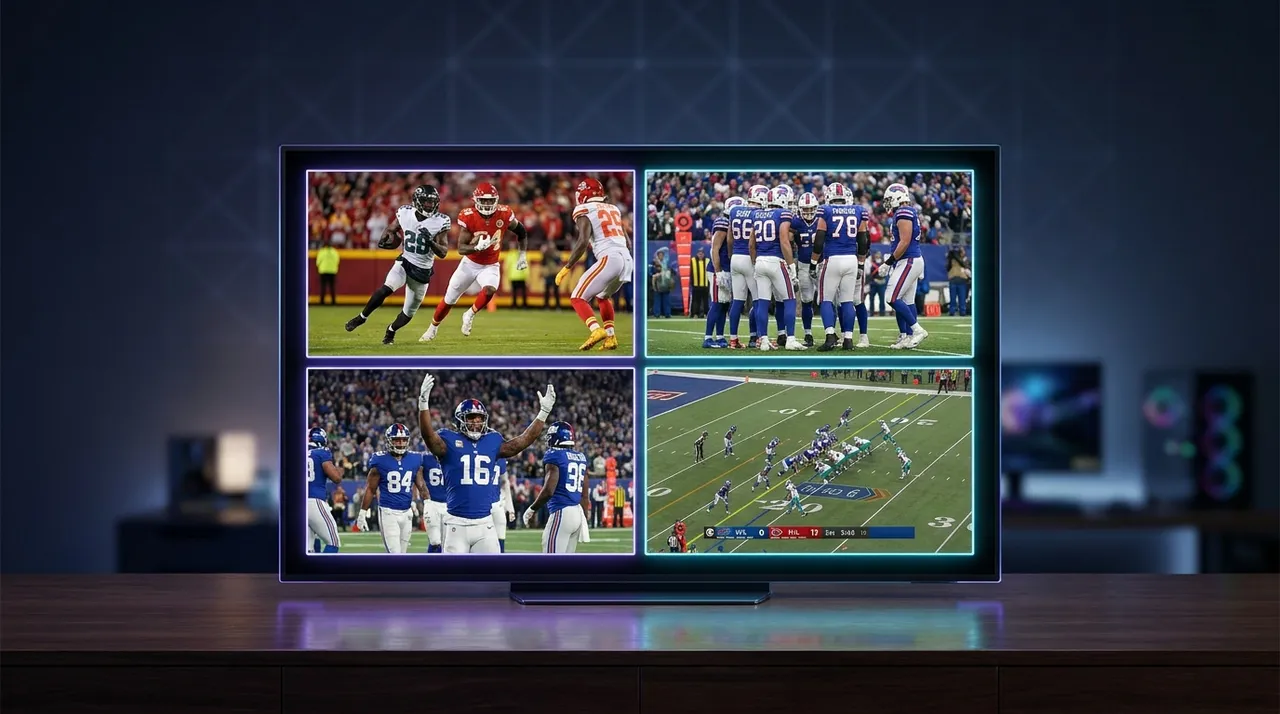
Watch Multiple NFL Games: ViewGrid's Game Day Pro Setup
Tired of missing NFL action? Learn how to watch multiple NFL games simultaneously with ViewGrid's comprehensive multi stream setup guide. Get the ultimate split screen streaming experience for game day!
Okay, so picture this: it's Sunday, 1 PM EST. The smell of questionable nachos is in the air, maybe a half-empty bag of chips, and you're glued to the screen. Kickoffs are happening everywhere. The Bills are driving, the Chiefs just fumbled, and wait—did the Lions just score again? You're frantically flipping channels, maybe refreshing a score tracker on your phone, trying to keep up with fantasy points, and you just know you're missing something crucial. That moment when a truly wild play happens in a game you aren't watching, and Twitter explodes, and you're left in the dark until the highlight reel. Frustrating, right? Absolutely maddening.
For years, that was my life. I love the NFL. I mean, love it. The strategy, the drama, the sheer athleticism – it's unmatched. But trying to absorb an entire afternoon of football with just one screen, or even two, felt like trying to drink from a firehose. You get drenched, but you don't really savor anything. You're always playing catch-up, always wondering if you should have switched to the other game, always missing that one play that changes everything. It’s why I started looking for ways to truly watch NFL multiple games simultaneously, not just highlights or quick cuts. I wanted control. I wanted to see it all.
The Gridiron Dilemma: Why One Screen Just Doesn't Cut It Anymore
Seriously, think about it. Sunday afternoon in the NFL is a beautiful, chaotic symphony of simultaneous action. You've got 10, maybe even 12 games, all kicking off within an hour of each other. How are you supposed to manage that? For a long time, the only real solution was the RedZone channel. And yeah, I get it, RedZone is great for what it is: a rapid-fire highlight reel of scoring opportunities. Scott Hanson is a legend, no doubt. He keeps that energy up for seven straight hours, it's incredible.
But here's my hot take, and I know it's a bit controversial: RedZone is actually terrible if you want to understand the full context of a game. It's a fantastic supplement, don't get me wrong. If you just want to see touchdowns and big plays, it's perfect. But you miss all the build-up. You miss the defensive battle, the crucial third-down stops, the slow, methodical drives that chew up clock and set up field position. You never get a feel for the flow of a game. And if you're a fantasy football fanatic like me – which, let's be real, most of us are – you need to see more than just the end result of a drive. You need to see targets, carries, how a receiver is being covered, if a running back is getting consistent touches. You just don't get that from RedZone, or from constantly flipping between channels on your cable box, which just gives you a headache anyway.
You end up in this weird purgatory. You're watching one game, then you hear a roar from the other room, or your phone buzzes with a notification about a big play in a different matchup. You quickly switch, miss the first replay, then switch back just in time for a commercial. It's a death spiral of FOMO (Fear Of Missing Out), and it completely ruins the viewing experience. I've had entire Sundays where I felt more stressed than entertained, just trying to keep tabs on my fantasy players across half a dozen different contests. It's not sustainable. It's not enjoyable. We deserve better. We deserve to actually watch NFL multiple games like a pro.
Unlocking the Full NFL Sunday: The Power of Multi-Streaming
This is where the magic happens. This is where you ascend to a higher plane of NFL viewing. Multi-streaming, or what some folks call split screen streaming, isn't just a gimmick – it's the only way to conquer the Sunday afternoon onslaught. Imagine having four, six, maybe even eight different NFL games all playing simultaneously on your screen (or screens, if you're really going for it). You're not flipping. You're not guessing. You're seeing. All of it. All at once.
It sounds like a lot, I know. But once you get used to it, it's incredibly empowering. You can keep an eye on your home team, track your fantasy players, watch a crucial divisional matchup, and still catch that surprising upset brewing in a totally different conference. You become your own personal broadcast director. You decide what deserves your primary attention, what's a secondary watch, and what's just background noise you want to monitor visually.
For me, the revelation came a few years back during a particularly stacked Week 12. I had three fantasy players in three different games who were all in must-score situations, plus my Eagles were playing a nail-biter, and there was a really important AFC West clash that had huge playoff implications. I was literally jumping between my TV, my laptop, and my phone, trying to make it all work. It was a disaster. I missed a crucial interception in the Eagles game because I was trying to watch a red zone drive elsewhere. That was the moment I said, "Enough is enough." I needed a dedicated solution for split screen streaming. I needed a way to consolidate all these different sources – my YouTube TV, my Paramount+ stream, maybe even a watch party from a buddy on Twitch – into one coherent view. That's exactly what a good multi-stream viewer gives you, and honestly, ViewGrid nails it. It turns chaos into order. It transforms your living room into mission control.
Building Your Ultimate Game Day Command Center: A ViewGrid Multi-Stream Setup Guide
Alright, let's get down to business. You want to ditch the channel flipping and embrace the multi-view glory, right? Good. Because once you experience an NFL Sunday with a proper multi stream setup guide, you'll never go back. Seriously, it's like upgrading from a flip phone to a smartphone. It just fundamentally changes how you interact with the content.
What You'll Need: The Essential Gear
Before we dive into the ViewGrid specifics, let's talk about the hardware. You don't need to break the bank, but a few things will make your experience infinitely better:
A Solid Display: This is paramount. A large monitor is fantastic. An ultrawide monitor? Even better for maximizing real estate. If you're using a TV, hook up your laptop or PC to it. My personal setup involves a 34-inch ultrawide monitor, and it's perfect for a 2x2 grid, sometimes even a 3x2 if I squish things. More screen means more football.
Reliable Internet: This is non-negotiable. Streaming multiple high-definition video feeds simultaneously chews up bandwidth. We're talking minimum 50-100 Mbps, but honestly, the more, the merrier. If your internet struggles with one 4K stream, it's definitely going to choke on four 1080p streams. Check your speeds before game day!
A ViewGrid Account: Obviously. This is the engine of your multi-streaming machine. It's designed specifically for this kind of multi-source viewing.
Your Streaming Subscriptions: You still need access to the games. This might be YouTube TV, Sling TV, Hulu + Live TV, NFL+, Paramount+ for CBS games, Peacock for some SNF games, or even Twitch/YouTube channels hosting watch parties. ViewGrid aggregates the players, but you still need the subscriptions for the content itself. Don't go looking for illegal streams here; we're talking about legitimate access.
Step-by-Step: Setting Up Your Multi-Stream Hub
This is your practical multi stream setup guide. It's surprisingly simple, which is what makes ViewGrid so powerful.
- Open ViewGrid.tv: Head over to the website. You can do this on any modern web browser – Chrome, Edge, Firefox, they all work great. I usually use Chrome because I find its video performance to be consistently solid.
- Identify Your Desired Games/Streams: Before kickoff, know which games you want to watch. Maybe you've got your main team, a crucial AFC matchup, your fantasy players' games, and one underdog story you're following. Grab the URLs for each stream. For example, if you're watching on YouTube TV, you'd navigate to each channel in separate tabs and copy the URL. If it's a specific game on NFL+, grab that URL.
- Add Your First Stream: In ViewGrid, you'll see a prominent input field. Paste the URL of your first game's stream into it and hit "Add Stream." Boom! Your first game pops up.
- Add More Streams: Repeat step 3 for every other game you want to watch. As you add them, ViewGrid will automatically arrange them in a grid layout. This is where the magic really starts to feel real. You can add up to 8 streams easily using the ViewGrid multi-stream viewer.
- Arrange Your Layout: ViewGrid gives you flexibility here. You can click and drag streams to rearrange their positions in the grid. Want your main game top-left? Drag it there. Want a less important game in a smaller square? You can adjust the sizes dynamically by dragging the borders between streams. There are also preset grid layouts you can select, which is handy if you're feeling lazy or just want a quick 2x2 or 3x3 setup. I usually run a 2x2 grid on my main ultrawide, with a fifth, less critical game, tucked into a PiP (Picture-in-Picture) in the corner from another browser window – but ViewGrid also offers its own PiP functionality, which is even cleaner.
- Mastering Audio Management: This is the trickiest part of watching multiple live events, especially sports. You can't listen to four games at once, not unless you're a robot. ViewGrid has built-in audio controls for each stream.
- * Prioritize: Decide which game is your "main" game. That's the one you'll listen to. Mute all the other streams within ViewGrid.
- * Visual Cues: For the muted games, rely on visual cues. See a big run? A fumble? A flag? You'll immediately know something important happened, and you can quickly unmute that stream for a replay, or switch your primary audio focus.
- * Headphones for Secondary: Sometimes, I'll run my main game through my speakers and put a secondary, important game on headphones, very low, just for environmental audio cues. It's a bit much, but hey, it's game day!
And that's it! Your ultimate NFL Sunday command center is live. You're no longer at the mercy of network schedules or the RedZone channel's rapid-fire decisions. You're in control. You're seeing the whole picture. You're actually able to watch NFL multiple games like you always dreamed.
Advanced Plays and Pro Tips for Your NFL **Multi Stream Setup Guide**
So you've got your basic multi-stream setup humming. Great! But we're not just about basic here at ViewGrid. We're about optimization. We're about making your game day experience truly legendary.
Audio Mastery: The Unsung Hero of Split Screen Streaming
I mentioned audio before, but it deserves its own deep dive. It's the biggest hurdle for new multi-streamers. If you just have all the audio on, it's a cacophony of commentators, crowd noise, and whistles – completely unusable.
ViewGrid's Mute Buttons are Your Best Friend: Seriously, they are. Click the speaker icon on any stream within your ViewGrid layout to toggle its audio. My routine is usually: main game audio ON, all others OFF.
Browser Extensions (with caution): For more granular control, especially if you're not solely relying on ViewGrid's internal players (though you usually are for direct links), some browser extensions like 'AudioPick' or 'Sound Blocker' can help you route audio from specific tabs to different outputs. I've used these in the past to send one game to my headphones and another to my speakers. It's a bit advanced, and sometimes flaky, but it can be powerful.
Physical Mixer (for the truly dedicated): If you're a true audiophile or streamer, a small physical USB mixer (like a GoXLR Mini or a basic Behringer Xenyx) can be a game-changer. You can route audio from different browser tabs or applications into separate channels and control them with physical faders. This is overkill for most, but for those who also stream or podcast, it's a natural extension of their setup.
Commentary Options: Remember, some platforms offer alternative audio feeds – home team, away team, or even stadium sound only. If available, this can be a great way to personalize your primary stream's audio.
Optimizing Performance: Keep Your Stream Flowing
Running multiple video streams simultaneously demands resources from your computer and internet. Here's how to keep things smooth:
Close Unnecessary Tabs and Apps: This sounds obvious, but you'd be surprised how many background processes can hog CPU or RAM. Close down those 50 tabs you have open, shut down Photoshop, pause that massive download. Give your browser and ViewGrid room to breathe.
Hardware Acceleration: Make sure hardware acceleration is enabled in your browser settings. This offloads video decoding tasks to your graphics card, which is far more efficient than your CPU handling it. It's usually on by default, but it's worth checking if you're experiencing stuttering.
Reduce Stream Quality (If Necessary): While we all love crisp 1080p, if your internet or computer is struggling, don't be afraid to drop a secondary stream down to 720p or even 480p. Visually, it might not be as sharp, but for a game you're just monitoring, a slightly lower resolution is often perfectly acceptable, and it significantly reduces bandwidth and processing demands. Most streaming players within ViewGrid will let you adjust the quality settings on individual streams.
Wired Connection: If you're currently on Wi-Fi, consider plugging your computer directly into your router with an Ethernet cable. A wired connection is almost always more stable and faster than Wi-Fi, especially when you're pushing a lot of data.
The "Fantasy Footballer's Edge"
This is where multi-streaming truly shines for me. For anyone deep into fantasy football, being able to watch NFL multiple games live is an absolute superpower.
Real-time Injury Updates: A player limps off the field in one game? You see it immediately. No waiting for a notification or a RedZone update. You can instantly pivot your attention, see who's replacing them, and make quick waiver decisions or trade offers if needed.
Red Zone Usage: Is your star running back actually getting carries inside the 10-yard line? Or is the backup vulturing touchdowns? You can see the actual play calls unfold across multiple games, giving you invaluable insight into player usage that box scores simply can't provide.
Target Share and Snap Counts: While harder to track precisely in real-time, keeping an eye on your receivers across different games allows you to notice if they're being targeted heavily, or if they're barely on the field. This immediate visual feedback is incredibly powerful for understanding actual game scripts versus projected outcomes.
Game Flow: Is a game turning into a shootout? Is one team dominating so much they're likely to pull their starters? You can see it all happening, allowing you to react much faster than if you were relying solely on stats updates.
This level of immersion gives you a distinct edge in your leagues. It’s not just about watching; it's about strategizing, analyzing, and reacting with lightning speed. It's the difference between being a casual observer and a true gridiron tactician.
Beyond the Goal Line: ViewGrid for Every Streaming Passion
Okay, so we've spent a lot of time talking about how to watch NFL multiple games, and for good reason – it's a perfect use case for multi-streaming. But here's the kicker: ViewGrid isn't just for football. Not by a long shot. This tool, this concept of having multiple streams running simultaneously, fundamentally changes how you consume any live content.
Think about esports. Last week I was watching the LEC finals, but I also wanted to keep an eye on a Valorant tournament happening at the same time, plus a friend was streaming a casual Minecraft session on Twitch. No problem! I popped them all into ViewGrid. My main screen had the LEC, the Valorant was in a smaller window, and the Minecraft stream was muted, just chilling in the corner. You can literally create your own personalized esports festival. If you're into competitive gaming, checking out Watch multiple esports streams is a total game-changer. You'll never miss a crucial clutch or a game-winning ultimate again, even if they happen across different titles or tournaments.
And it's not just competitive gaming. What about other traditional sports? The NBA playoffs, where games are staggered but you might want to monitor score updates or see key moments from an earlier game while watching a later one? Or a busy Saturday of college football, even more chaotic than the NFL sometimes! Maybe a full slate of NHL games, or multiple Formula 1 practice sessions. You can set up your ultimate command center for any of these. Check out how you can tailor your setup to Watch multiple sports streams.
Or perhaps you're less about sports and more about information. Imagine election night, or a major breaking news event. You want to see how CNN is covering it, but you also want to compare it to Fox News, MSNBC, and maybe even a local news channel's live feed. You can have them all up, side-by-side, seeing the different angles, the different pundits, the different breaking graphics. It’s incredibly powerful for getting a balanced perspective. For news junkies, this is a revelation – seriously, check out Watch multiple news channels with ViewGrid.
Even for content creators or people who just love variety, ViewGrid is amazing. I often have a main streamer on Watch multiple Twitch streams, maybe another on Watch multiple YouTube streams, and if I'm feeling adventurous, someone popping off on Watch multiple Kick streams. It's a fantastic way to discover new content, keep tabs on your favorite creators, or just have a dynamic background of entertainment going. The flexibility is truly limitless.
The first time I tried this setup, not just for NFL, but for a whole mixed bag of streams, it felt like I'd unlocked a secret level of the internet. It's not just about seeing more; it's about experiencing more. It’s about being truly engaged with the digital world, instead of passively flicking through it.
Don't Miss Another Moment: Your ViewGrid Game Day Awaits
So, we've gone deep into the world of multi-streaming. We've talked about the pain points of single-screen viewing, the sheer joy of seeing all the NFL action unfold at once, and how to set up your ultimate game day command center with a practical multi stream setup guide. We've even touched on advanced audio tricks and how this technology gives fantasy football players a huge edge. And remember, this power isn't confined to the gridiron; it extends to every corner of the live streaming universe.
Seriously, if you're still stuck in the dark ages of channel flipping, or if you're relying solely on RedZone to keep you updated, you're missing out on a fundamentally better way to experience live content. Especially for those intense NFL Sundays. The ability to watch NFL multiple games simultaneously isn't just a luxury; it's a necessity for any true fan who wants to stay connected to every crucial play, every turning point, and every moment of drama.
Imagine the peace of mind. No more frantic searching, no more "did I miss it?" anxiety. Just pure, unadulterated football, exactly how you want it, right in front of you. Once you get accustomed to a multi-stream setup, you'll genuinely wonder how you ever managed without it. It's that transformative.
So, what are you waiting for? Fire up your browser, head over to ViewGrid.tv, and transform your NFL Sunday – and every other streaming experience – forever. The future of live viewing is here, and it's calling your name.
Ready to try multi-stream viewing?
Watch YouTube, Twitch, Kick & more — all on one screen.
Open ViewGridRelated Articles
Fantasy Football Prep: Watch Multiple NFL Streams
Ready to dominate your fantasy football league? Learn how to watch NFL multiple games live, track players, spot waiver wire gems, and optimize your draft prep with multi-streaming setups.
how toWC 2026: Watch Multiple Twitch Watch Parties Live
Get ready for World Cup 2026! Discover how to watch multiple Twitch watch parties simultaneously, manage audio, and never miss a reaction with ViewGrid.tv's multi-stream viewer.
how toWatch Multiple YouTube Streams: Your ViewGrid Guide
Tired of juggling YouTube tabs? Discover how to watch multiple YouTube streams simultaneously on ViewGrid.tv. Get a seamless multi-view experience for esports, news, and live events.
how toElevate Your View: Dual Screen Streaming with ViewGrid
Tired of missing out? Discover the power of dual screen streaming with ViewGrid. Get practical tips, hardware advice, and a step-by-step guide to watch multiple streams like a pro.