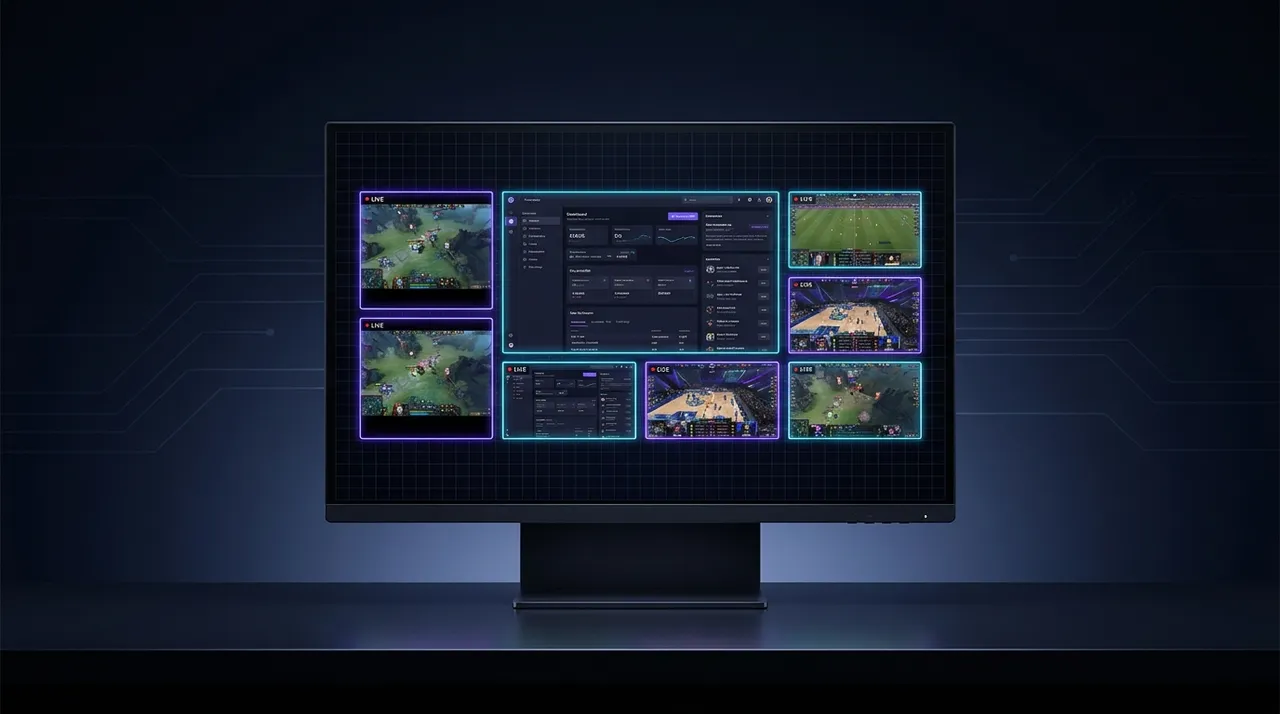
What Makes the Best Multi Stream Viewer? ViewGrid's Edge
Tired of juggling tabs? Find out what truly defines the best multi stream viewer, from essential audio control to flexible layouts. I'll break down how to choose and why ViewGrid.tv makes multi-streaming a breeze.
Okay, so listen, I've been deep in the streaming trenches for years. Like, I'm talking about the kind of person who wakes up and the first thing they do is check if Shroud is live, then maybe see what Ludwig is up to, and then probably have a Valorant pro match on in the background while I'm "working." My screen usually looks like a mosaic of different personalities and pixelated mayhem.
For a long time, this meant wrestling with a dozen Chrome tabs, each one aggressively trying to steal CPU cycles and make my cooling fan sound like a jet engine. The audio was a nightmare – a cacophony of game sounds, chat alerts, and streamer voices all blending into an unintelligible mess. And don't even get me started on the constant tabbing back and forth, trying to catch a crucial play or a funny chat moment. It was a mess, honestly. A beautiful, chaotic mess, but a mess nonetheless.
That's why when people ask me about my setup, or how I keep up with everything, my answer almost always starts with: "You need a multi stream viewer." And not just any multi stream viewer, but the best multi stream viewer you can find. Because if you're like me, if you live and breathe streaming content, then your viewer isn't just a tool – it's your command center. It's how you stay connected, how you immerse yourself, how you get the full, unadulterated experience of a truly live, simultaneous event.
This isn't just about watching more streams. It's about watching them better. It's about reclaiming your browser tabs, saving your PC from meltdown, and actually enjoying the content you love without the constant fight against your own system. It's about being able to follow your favorite team in the LEC while also keeping an eye on your comfort streamer, maybe Pokimane or Valkyrae, for those chill vibes. Or, if you're me, it's about having three different perspectives of the same esports match on at once, because you just have to see what the analysts are saying while the main broadcast is happening, and you definitely need to see the player cam reactions. You get it. This is serious business.
What Even *Is* a Multi Stream Viewer, Anyway? And Why It's Not Just More Tabs
Alright, let's get down to brass tacks. You might be thinking, "Can't I just open five browser tabs?" And technically, yes. You can. You can also try to hammer a nail with a shoe. It'll probably work, eventually, but it's not going to be pretty, and you're going to feel it later.
A proper multi stream viewer, like the one we're always striving to perfect here at ViewGrid.tv, is so much more than a collection of browser windows. Think of it as a specialized application, a custom dashboard built specifically for the demanding task of displaying multiple live video feeds in a cohesive, manageable way. It's designed from the ground up to handle the unique challenges that come with this kind of content consumption.
First off, performance. This is huge. When you open a new tab for every stream, each one comes with its own baggage: its own player, its own chat client, its own ads (oh, the ads!), and all the various scripts and trackers that run in the background. Multiply that by three, four, five, or even six streams, and your browser is suddenly a resource hog of epic proportions. Your CPU spikes, your RAM gets eaten alive, and your GPU starts sweating. I've been there. My old rig used to sound like a small drone taking off whenever I tried to watch more than two streams simultaneously on Twitch directly. It was a nightmare.
A dedicated multi stream viewer, however, consolidates all of that. It's optimized to pull just the raw video feeds, often stripping out unnecessary elements that bloat browser performance. It manages the video decoding and rendering much more efficiently, meaning less strain on your hardware. This translates to smoother playback, less lag, and a generally much more pleasant viewing experience. You're not fighting your computer; you're just enjoying the streams. That's a huge difference, especially if you're running other applications or, you know, trying to play a game yourself while keeping an eye on something else.
It's also about control. Imagine being able to mute just one stream without affecting the others. Or resizing a particular stream window to give it more prominence because something exciting is happening there, then shrinking it back down. Or even better, being able to rearrange your entire layout on the fly, dragging and dropping streams into new positions like you're conducting an orchestra. You simply can't do that with individual browser tabs. They're too rigid, too isolated. The beauty of a good multi stream viewer is that it treats all your chosen streams as part of a single, integrated viewing experience. It's cohesive. It's intelligent. It understands what you're trying to achieve.
The "Must-Haves" for the **Best Multi Stream Viewer**
So, if you're looking to upgrade your multi-stream game, what should you absolutely, positively look for? These aren't just nice-to-haves; these are the foundational pillars that elevate a simple video player to a true command center for content junkies like us.
Independent Audio Control — A Non-Negotiable Necessity
This is, hands down, my biggest pet peeve with lesser multi-stream options. I cannot stress this enough: you need to be able to control the audio for each individual stream. Separately. Independently. Without affecting anything else.
Think about it. You're watching a super intense Valorant match, maybe the Grand Finals of the Valorant Champions Tour. You've got the main broadcast on, Tarik's co-stream of the same match, and then maybe a specific player's POV – like Demon1's stream if he happens to be live during a big match. The main broadcast might have some epic commentary, but Tarik's reactions are priceless, and you want to hear both. But then the player POV stream, maybe it's just their in-game comms, or they're playing music that you don't really want right now.
If you can't adjust each volume separately, you're stuck. You're either blasting all three, trying to decipher a cacophony, or you're muting everything and missing out. The best multi stream viewer offers a clear, intuitive volume slider for every single video player in your layout. This way, you can perfectly balance the audio, prioritizing the commentator, dimming the background music, and just generally creating an audio landscape that works for you. I usually have my main game stream at 100%, my co-streamer at like 60%, and maybe a news channel just barely audible in the corner, like 20%, for background ambiance. It's freedom, I tell you. Absolute freedom.
Flexible Layout Customization — Make It Your Own
Next up is how those streams are arranged on your screen. You're not always going to want a perfect 2x2 grid. Sometimes, one stream is more important than the others. Maybe you're waiting for a specific event to start on one channel, but you've got another one on as your main focus. Or you're trying to watch a few different streams from the same event, but you want the main broadcast to be bigger than the individual player POVs.
A great multi stream viewer lets you literally drag and drop streams into different positions, resize them with ease, and even swap them around. Picture-in-picture options are fantastic too – having a small floating window of a less critical stream over your primary one can be super useful. I often use this when I'm watching a live event and want to keep an eye on a specific chat or Twitter feed without having to dedicate a full slot to it. Some viewers even offer predefined layouts (like 2x2, 1 large + 2 small, etc.) that you can quickly switch between. That kind of fluidity is essential. Your viewing needs change throughout the day, throughout an event, and your layout should be able to adapt right along with you. It's all about making the screen work for you, not the other way around.
Integrated Chat Experience — Stay Connected
Let's be real: for many of us, streaming isn't just about watching a video; it's about the community. It's about being in chat, reacting with emotes, seeing what everyone else is saying. Twitch chat, YouTube chat, Kick chat – they're all integral parts of the experience.
So, a multi stream viewer that doesn't integrate chat effectively is missing a huge piece of the puzzle. The ideal scenario is to have the chat for your primary stream (or even multiple chats for multiple streams) clearly visible alongside the video. Some viewers stack them, some let you choose which chat to focus on, some even offer pop-out chat windows. The key is that you shouldn't have to open a separate browser tab just for chat. That defeats the entire purpose of consolidation.
Last week, I was watching a group of streamers do a collaborative charity event. I had Mizkif, Ludwig, and Asmongold all on different panels, and having their respective chats available, even if just in a toggled sidebar, made me feel like I was right there with the communities. Without that chat integration, it just feels... empty. Disconnected. A good multi stream viewer understands that the social aspect is just as important as the video itself.
Beyond the Basics: Quality-of-Life Features That Make a Difference
Once you've got the essentials covered, what are the features that truly elevate a multi stream viewer from "good" to "this is genius"? These are the details that show the developers get it – they understand the daily grind of a dedicated streamer watcher.
Performance Optimization and Resource Management
We touched on this earlier, but it deserves its own spotlight. A well-built multi stream viewer isn't just about showing you multiple videos; it's about doing it efficiently. This means intelligent video decoding, minimal background processes, and smart handling of resources.
Some viewers will even pause streams that aren't currently in focus, or reduce their quality, to save bandwidth and CPU cycles. This is particularly useful if you're streaming yourself while also monitoring other channels, or if you have a less robust internet connection. The difference between opening individual browser tabs and using an optimized viewer can be night and day for your PC's health. I mean, my fan used to sound like it was trying to launch a rocket. Now, with a good viewer like ViewGrid, it purrs. Mostly. Except when I'm rendering a 4K video and watching six streams. You know how it is.
It’s genuinely about how much overhead the application itself adds. Is it lightweight? Is it bloat-free? Does it feel snappy and responsive even with several high-definition feeds running simultaneously? That responsiveness is key. Nobody wants to click a button and wait for a second for it to react, especially when you're trying to catch a fast-paced moment.
Saving and Loading Layouts — Your Personalized Hub
Okay, this one is a game-changer for me. If you're someone who watches different sets of streams depending on the day or the event, the ability to save your custom layouts is a godsend. Imagine:
Your "esports layout" for when the LEC or LCS is on, with specific analyst desks, player POVs, and the main broadcast. You want to watch multiple esports streams all at once.
Your "chill morning" layout with a couple of variety streamers and maybe a news channel to watch multiple news channels.
* Your "event day" layout for when a special concert or gaming convention is happening.
Instead of having to manually add each stream, arrange them, and adjust audio every single time, you just load up your saved "LEC Finals" layout, and boom — it's all there, exactly how you left it. This feature alone saves me so much time and frustration. The first time I tried a viewer that let me save layouts, it felt like I'd unlocked a secret level of streaming efficiency. It's one of those things you don't realize you desperately need until you have it.
Broad Platform Support — The More The Merrier
In today's fragmented streaming world, streamers aren't just on Twitch anymore. You've got YouTube Gaming, Kick, Facebook Gaming (less so now, but it was a thing!), even individual websites hosting events. The best multi stream viewer isn't platform-exclusive. It should ideally support all the major players.
I mean, I love Twitch for its community, but I also watch a ton of content on YouTube, especially for VODs and specific creators. And Kick is definitely growing, with more and more streamers making the jump or doing dual streams there. Being able to pull a Twitch stream, a YouTube stream, and a Kick stream all into the same interface is incredibly powerful. It means you don't have to juggle different applications or websites just because your favorite streamers are on different platforms. ViewGrid, for example, is designed to be truly agnostic, letting you watch multiple Twitch streams, watch multiple YouTube streams, and even watch multiple Kick streams all side-by-side. That kind of universal compatibility is essential for a truly comprehensive viewing experience. You shouldn't be limited by where a streamer chooses to host their content.
Stream Information and Discovery
While the primary function is viewing, a good multi stream viewer can also offer helpful information. Knowing the stream title, the game being played, or even viewer counts can help you decide which stream deserves your primary attention. Some viewers even have simple discovery features, allowing you to quickly browse trending streams or find specific channels. This is less critical than, say, audio control, but it's a nice extra touch.
Choosing Your Fighter: **Multi Stream Viewer Comparison** Points
Alright, you're convinced. You need one. But how do you pick the right one? There are several options out there, some free, some paid, some web-based, some downloadable applications. Here are some key points for your multi stream viewer comparison process, so you know exactly how to choose multi stream viewer that fits your needs.
- Web-Based vs. Desktop App:
- * Web-Based: Accessible from any browser, no installation needed. Great for temporary use or if you switch computers often. Can sometimes be less performant or have fewer advanced features due to browser limitations. This is where ViewGrid shines – it's all in your browser, but built for performance.
- * Desktop App: Often more robust, better performance, deeper system integration (like global hotkeys). Requires installation, tied to one machine. Might be overkill for casual users.
- Ease of Use & User Interface:
- * Is it intuitive? Can you quickly add streams, rearrange them, adjust audio? Is the interface clean or cluttered?
- * A good UI shouldn't make you hunt for basic functions. It should feel natural, like an extension of your viewing habits. I hate overly complex interfaces that feel like they were designed for rocket scientists. I just want to watch my streams!
- Ad Experience:
- * This is a big one. Some free multi stream viewers might inject their own ads or not effectively block platform-specific ads.
- * Premium options often provide an ad-free experience, or at least a significantly reduced one. If you're watching multiple streams, getting hit with multiple ad breaks simultaneously can be... well, let's just say it's not ideal.
- Pricing Model:
- * Free: Fantastic for testing the waters. May have feature limitations, ads, or less frequent updates.
- * Subscription/One-time Purchase: Typically offers more features, better support, an ad-free experience, and consistent updates. Decide what features are worth paying for. For me, a stable, ad-free experience with layout saving is absolutely worth a few bucks a month.
- Reliability & Support:
- * Does the viewer frequently break? Are streams constantly buffering or disconnecting?
- * Is there an active development team? Is customer support available if you run into issues? You don't want your viewing experience to be constantly interrupted by bugs or lack of updates.
- Customization Depth:
- * Beyond just layouts, can you customize hotkeys, theme colors, default settings? These aren't deal-breakers for everyone, but for power users, they can significantly enhance the experience.
- Community Features (for the viewer itself):
- * Some multi stream platforms have their own communities, allowing you to share layouts or discover new content. This is a niche feature, but cool if you're into it.
It's about weighing these factors against your own personal streaming habits and budget. Do you need something super simple for occasional use, or a powerhouse for daily, intensive multi-streaming? That's the fundamental question you need to ask yourself.
A Quick Look at ViewGrid: Our Approach to the Multi Stream Experience
This is where I get to talk about what we're building here at ViewGrid.tv, and why I genuinely believe it stands out as a contender for the best multi stream viewer out there. Our whole philosophy is built around empowering the user, giving you complete control, and making the multi-stream experience as seamless and enjoyable as possible, without the headaches.
We've poured a lot of thought into the interface. It's clean, intuitive, and designed for speed. The idea is that you shouldn't have to think about how to use it; you should just be able to use it. We wanted to make it feel like an extension of your natural viewing habits, not a clunky piece of software you have to fight with.
So, how does it work? Let me walk you through a quick scenario.
**How to Set Up Your Ultimate Multi-Stream Layout on ViewGrid:**
- Open ViewGrid.tv: Head over to the website. No downloads, no installations – just pure, unadulterated web-based power.
- Add Your Streams: You'll see a clear input field. Just paste the URL of your desired stream – whether it's from Twitch, YouTube, or Kick.
- * Let's say you're following the Olympics (you can watch multiple sports streams there, it's wild). You paste in the official Olympics YouTube channel.
- * Then, maybe you also want to keep an eye on a specific country's broadcaster on Twitch. Paste that URL.
- * And finally, your favorite commentator on Kick. Paste that too.
- * As you add them, they'll appear in a default grid layout. Super straightforward.
- Customize Your Layout: This is where the magic happens.
- * Drag & Drop: Click and hold any stream window and drag it to a new position. The other streams will automatically adjust. Want the main Olympics broadcast front and center? Drag it to the biggest slot.
- * Resize: See something really exciting happening on one stream? You can easily resize any individual stream window to make it larger or smaller, prioritizing what matters most to you in that moment.
- * Swap: You can swap streams between different positions with a simple click-and-drag.
- Master Your Audio: Below each stream, you'll find an independent volume slider. This is crucial.
- * Blast the main Olympic commentary, keep your favorite Twitch commentator at a comfortable level, and mute the Kick stream if they're just playing music you're not in the mood for. Total control, no fuss.
- Engage with Chat: For your primary streams, you can bring up the integrated chat, keeping you connected to the community without opening extra tabs.
- Save Your Layout: This is the best part! Once you've got your perfect setup – maybe your "Olympic Gold Hunt" layout – you can save it. Just give it a name, and it's there for next time. When the next major event rolls around, or even just your regular Tuesday evening stream routine, you simply load your saved layout, and bam, you're good to go. This applies whether you're building a layout to watch multiple esports streams or tracking different angles of a breaking news story by linking to watch multiple news channels.
We're constantly working to improve performance, making sure that even with several high-quality streams running, your browser stays responsive and your PC doesn't sound like it's about to take flight. Our goal is to minimize resource usage while maximizing your viewing pleasure. We know how frustrating it is when your streams stutter or lag, especially during those critical moments. You'll find ViewGrid is incredibly optimized for a smooth experience.
We also pride ourselves on broad platform support. Whether your favorite content creators are on Twitch, YouTube, Kick, or even some smaller platforms, we aim to support them all. Our core promise is to be the place where you can watch everything simultaneously. You shouldn't have to compromise. You shouldn't have to miss out on anything. That's the whole point of a multi stream viewer, right? To bring everything you care about into one unified, powerful interface. Check out the ViewGrid multi-stream viewer for yourself. It’s pretty slick.
Final Thoughts on the Ultimate Viewing Experience
At the end of the day, the best multi stream viewer isn't just about raw features; it's about the experience it provides. It's about being able to effortlessly follow every angle of a major esports tournament, keep up with multiple content creators, or even just have a few different things on for background noise without your computer screaming in protest. It’s about not missing those incredible moments, those clutch plays, those hilarious chat interactions, just because you couldn’t juggle all the tabs.
For me, someone who practically lives on ViewGrid.tv because I’m always keeping up with something – whether it’s a global event, a local streamer, or just a few friends playing together – the ability to customize, control, and seamlessly switch between different viewing setups is paramount. It lets me dive deeper into the content, feel more connected to the communities, and ultimately, just enjoy my passion for streaming without any of the old frustrations.
So, if you're still wrestling with multiple browser tabs, or you're using a multi-stream solution that feels clunky and restrictive, I highly encourage you to explore what a truly optimized, user-centric multi stream viewer can do for you. It's a game-changer. It really is. And believe me, once you try it, you won't go back to the old way. Your CPU, your RAM, and your sanity will thank you.
Ready to try multi-stream viewing?
Watch YouTube, Twitch, Kick & more — all on one screen.
Open ViewGridRelated Articles
Multitwitch Alternative: Seamlessly Multi-Stream All Platforms
Tired of browser tab chaos? ViewGrid.tv is the ultimate multitwitch alternative, letting you effortlessly watch multiple Twitch, YouTube, and Kick streams. Explore flexible layouts & cross-platform viewing!
comparisonKick Multi-Stream: ViewGrid's Ultimate Viewer
Tired of juggling tabs to watch Kick? Discover how ViewGrid.tv provides the best kick multi stream experience, letting you watch multiple Kick streams and more, all in one place.
comparisonBest Multi Stream Viewer for YouTube, Twitch, Kick & Rumble
Tired of juggling tabs? Find out what makes the best multi stream viewer shine. I break down essential features, share personal experiences, and guide you to an ultimate multi-platform setup.
comparisonBest Multi Stream Viewer: Unify All Live Platforms
Tired of juggling tabs? Find the best multi stream viewer that lets you watch multiple streams from Twitch, YouTube, and Kick all in one place. Say goodbye to FOMO!