BlizzCon 2026: Multi-Stream Viewing Guide
BlizzCon 2026 is a multi-stream event — here's how to watch every official live stream at once in one grid.
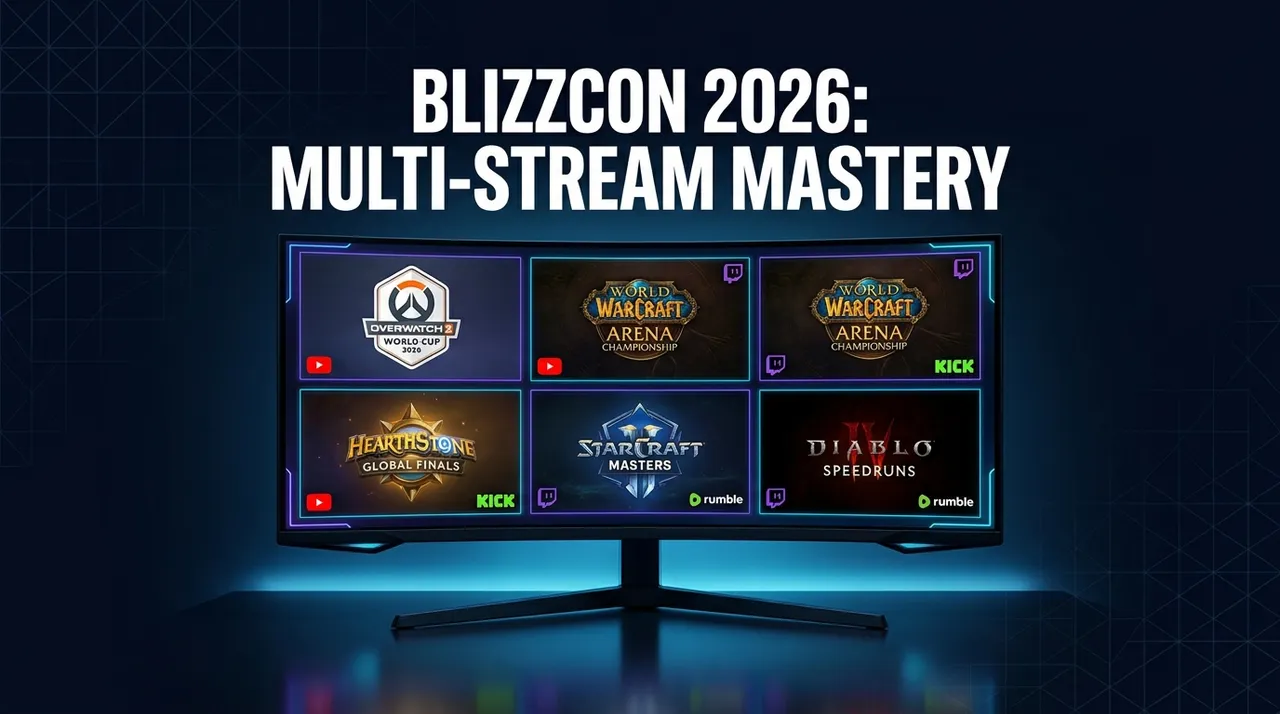
Update, October 2026: BlizzCon 2026 finished on September 13, 2026. The guide below is kept for reference. For gaming and esports events that are live now or coming up, see the event calendar.
BlizzCon is more than just an event; it's a monumental convergence of passionate communities, groundbreaking announcements, and, perhaps most thrillingly, high-stakes esports action. BlizzCon 2026 promises to be no different, bringing together the best players from across the globe to compete in a series of distinct, adrenaline-fueled tournaments. But for the dedicated fan, keeping up with the sheer volume of simultaneous live streams can feel like an impossible task. Imagine the frustration: one moment you're witnessing a clutch play in the Overwatch World Cup, the next you're torn, knowing you're missing a legendary moment unfolding in the WoW Mythic Dungeon International. With multiple official streams running concurrently on YouTube, Twitch, and Kick, juggling browser tabs is a recipe for missed highlights and a fragmented viewing experience. That's where a dedicated multi-stream viewer becomes your ultimate ally, transforming chaos into a perfectly organized esports command center.
What's Happening and When
Get ready for an action-packed weekend! BlizzCon 2026 kicks off on September 12, 2026, and continues through September 13, 2026. Across these two days, fans will be treated to a packed schedule of esports competitions. The event will feature a range of distinct tournaments running simultaneously, including the Overwatch World Cup, the WoW Mythic Dungeon International, the WoW Arena World Championship, the Hearthstone Masters Tour, and the Blizzard Classic Cup. Each of these competitions will have its own free official stream, available on franchise channels and the BlizzCon website, ensuring you have ample choice for what to watch – or, even better, what to watch together.
Build Your BlizzCon 2026 Grid in 60 Seconds
Why settle for one perspective when you can have them all? With ViewGrid, setting up your personalized BlizzCon 2026 viewing experience is incredibly fast and intuitive. Here’s how to build your multi-stream grid in just a minute:
- Open the Multi-Stream Viewer: Navigate directly to the ViewGrid multi-stream viewer. You don't need to sign up for anything; it's ready to go the moment you arrive. The clean interface is designed for instant action, allowing you to focus on the games, not on complicated setup procedures.
- Pick Your Layout: Consider what you want to watch. For BlizzCon 2026, with its diverse range of simultaneous esports events, a 4-slot layout is often the sweet spot, allowing you to track multiple competitions without feeling overwhelmed. However, ViewGrid offers flexibility with layouts supporting anywhere from 2 to 20 streams on desktop (and up to 6 on mobile), so you can customize it to your heart's content. Drag and drop streams, resize windows, and arrange your grid to prioritize the action that matters most to you.
- Add Your Streams: This is where the magic happens. BlizzCon 2026's official streams will be readily available on YouTube, Twitch, and Kick. To add a stream:
- * Click the "Add Stream" button.
- * Search: Use the built-in search functionality to find official BlizzCon channels, specific game franchises (like "Overwatch World Cup" or "WoW Arena World Championship"), or even popular community co-streams that will be covering the event live on YouTube or Twitch.
- * Paste URL: If you already have the direct URL for an official stream from YouTube, Twitch, Kick, or Rumble, simply paste it into the input field. This is perfect for when you know exactly which channel you want to follow.
- As you add streams, they will automatically populate your chosen grid layout. You can mix and match platforms freely – have a YouTube stream next to a Twitch stream, and a Kick stream all within the same grid.
- Unmute Your Focus Stream: By default, streams are muted to prevent an audio cacophony. Pick the stream you want to actively listen to – perhaps the main broadcast of the Overwatch World Cup, or the dedicated commentary for the WoW Mythic Dungeon International. Click its speaker icon to unmute it. You can switch your primary audio source at any time with a single click, ensuring you never miss a crucial callout or caster insight from your chosen perspective.
- Share Your Perfect Grid: Found the ultimate BlizzCon 2026 viewing setup? Share it with your friends! ViewGrid generates a unique URL for every grid you create. Simply copy this URL and send it to your fellow fans. They can open it directly in their browser and instantly join your multi-stream experience, ensuring everyone is on the same page and enjoying the action together, without any individual setup required. It's the perfect way to build a shared viewing party, even if you're watching from different locations.
A 4-Slot BlizzCon 2026 Plan
With multiple distinct esports competitions happening concurrently at BlizzCon 2026, a 4-slot grid allows for incredible versatility and ensures you're always in the thick of the action. Here's a suggested setup that maximizes your viewing potential:
| Slot | Stream Type | Why It's Essential for BlizzCon 2026 |
|---|---|---|
| Slot 1 | Main Tournament Broadcast (e.g., Overwatch World Cup) | This is your primary focus. Keep the official stream of your absolute must-watch competition, like the Overwatch World Cup, in this prominent slot. You’ll get the main commentary, high-quality production, and the most comprehensive view of the core action from the biggest stage. This slot will likely be the source for your main audio. |
| Slot 2 | Alternate Competition / POV (e.g., WoW Mythic Dungeon International) | With so many simultaneous events, this slot is crucial for tracking another major competition. Perhaps the WoW Mythic Dungeon International or the WoW Arena World Championship is hitting its stride. Alternatively, if your primary tournament offers it, this could be a dedicated player-POV stream or an alternative language broadcast, offering a different lens on the same game. |
| Slot 3 | Community Co-stream / Watch-Along (e.g., Hearthstone Masters Tour) | Enhance your experience with a co-stream from a popular community caster or streamer covering another event, such as the Hearthstone Masters Tour. They often provide unique insights, fan reactions, and a more casual, interactive atmosphere. This adds a layer of engagement and often highlights moments you might otherwise miss. |
| Slot 4 | Blizzard Classic Cup / News & Updates Channel | Utilize this slot to keep an eye on a less-intensive but still engaging competition like the Blizzard Classic Cup, or a dedicated news/recap channel. This could be a static stream offering updates, interviews, analysis, or even a VOD loop of major plays from earlier in the day. It’s perfect for context and ensuring you’re always aware of the broader BlizzCon landscape without constantly switching tabs. |
This setup ensures you're deeply immersed in your favorite competition while staying connected to the broader BlizzCon 2026 esports universe. You can swap streams in and out of these slots as different tournaments reach their most critical moments, or as you discover new exciting perspectives.
BlizzCon 2026 Multi-Stream FAQ
Navigating a massive event like BlizzCon 2026 with multiple simultaneous streams might raise a few questions. Here are the answers to some common inquiries about using ViewGrid:
Is using ViewGrid for BlizzCon 2026 free?
Yes, absolutely! ViewGrid is a completely free browser-based tool. You don't need to sign up for an account, and there are no hidden fees. The official BlizzCon 2026 esports streams themselves are also free to watch on their respective platforms (YouTube, Twitch, Kick, and Rumble), ensuring your entire viewing experience is without cost.
How many BlizzCon 2026 streams can I watch at once?
ViewGrid is designed for flexibility. On desktop browsers, you can watch up to 20 live streams simultaneously, allowing you to monitor every single distinct esports competition from BlizzCon 2026. If you're on a mobile device, the layouts automatically adapt, and you can comfortably view up to 6 streams at once, providing an excellent multi-stream experience on the go.
Does ViewGrid work on phones and tablets for BlizzCon 2026?
Yes, it does! ViewGrid is fully responsive and optimized for mobile devices. Whether you're watching on a smartphone or a tablet, the layout automatically adjusts to portrait or landscape orientation, ensuring a seamless and intuitive viewing experience. You can still add, arrange, and manage your BlizzCon 2026 streams directly from your mobile browser.
Which live streaming platforms does ViewGrid support for BlizzCon 2026?
ViewGrid supports all the major live streaming platforms where BlizzCon 2026 official streams will be available. You can add streams from YouTube, Twitch, Kick, and Rumble side by side in your grid. This means you have the complete freedom to mix and match sources, ensuring you catch every angle and every competition, regardless of which platform it's broadcast on.
Don't Miss a Single BlizzCon 2026 Highlight!
BlizzCon 2026 is poised to deliver an unforgettable esports spectacle, with the Overwatch World Cup, WoW Mythic Dungeon International, WoW Arena World Championship, Hearthstone Masters Tour, and Blizzard Classic Cup all vying for your attention. Don't let the sheer volume of action force you to choose; experience every clutch play, every strategic masterstroke, and every roar of the crowd.
Prepare your ultimate viewing command center for September 12-13, 2026. Dive into the world of competitive gaming like never before and immerse yourself completely in the BlizzCon 2026 experience. Head over to the multi-stream viewer now, or explore more events and guides on our dedicated esports hub to ensure you're always ahead of the game. Your definitive BlizzCon 2026 viewing experience starts here!
Ready to try multi-stream viewing?
Watch YouTube, Twitch, Kick & more — all on one screen.
Open ViewGridOr start with Esports multi-stream page — the page built for exactly this.
Related Articles
Fortnite FNCS Global Championship 2026: How to Watch Every Stream
Fortnite FNCS Global Championship 2026 is a multi-stream event — here's how to watch every official live stream at once in one grid.
streaming guideEMEA Masters Summer 2026: How to Watch Every Match and Co-Stream
EMEA Masters Summer 2026 is a multi-stream event — here's how to watch every official live stream at once in one grid.
streaming guideDon't Miss a Second: How to Watch PGL Wallachia Season 9 (Dota 2) with Every Stream at Once
PGL Wallachia Season 9 (Dota 2) is a multi-stream event — here's how to watch every official live stream at once in one grid.
streaming guideRocket League World Championship 2026: Catch Every Angle with a Multi-Stream Viewer
Rocket League World Championship 2026 is a multi-stream event — here's how to watch every official live stream at once in one grid.