Master FedEx Cup Playoffs 2026: Multi-Stream Every Drive
Get ready for the FedEx Cup Playoffs 2026! Learn how to create the ultimate multi-stream golf tournament setup. Don't miss a single drive, chip, or putt – be your own director with ViewGrid.tv.
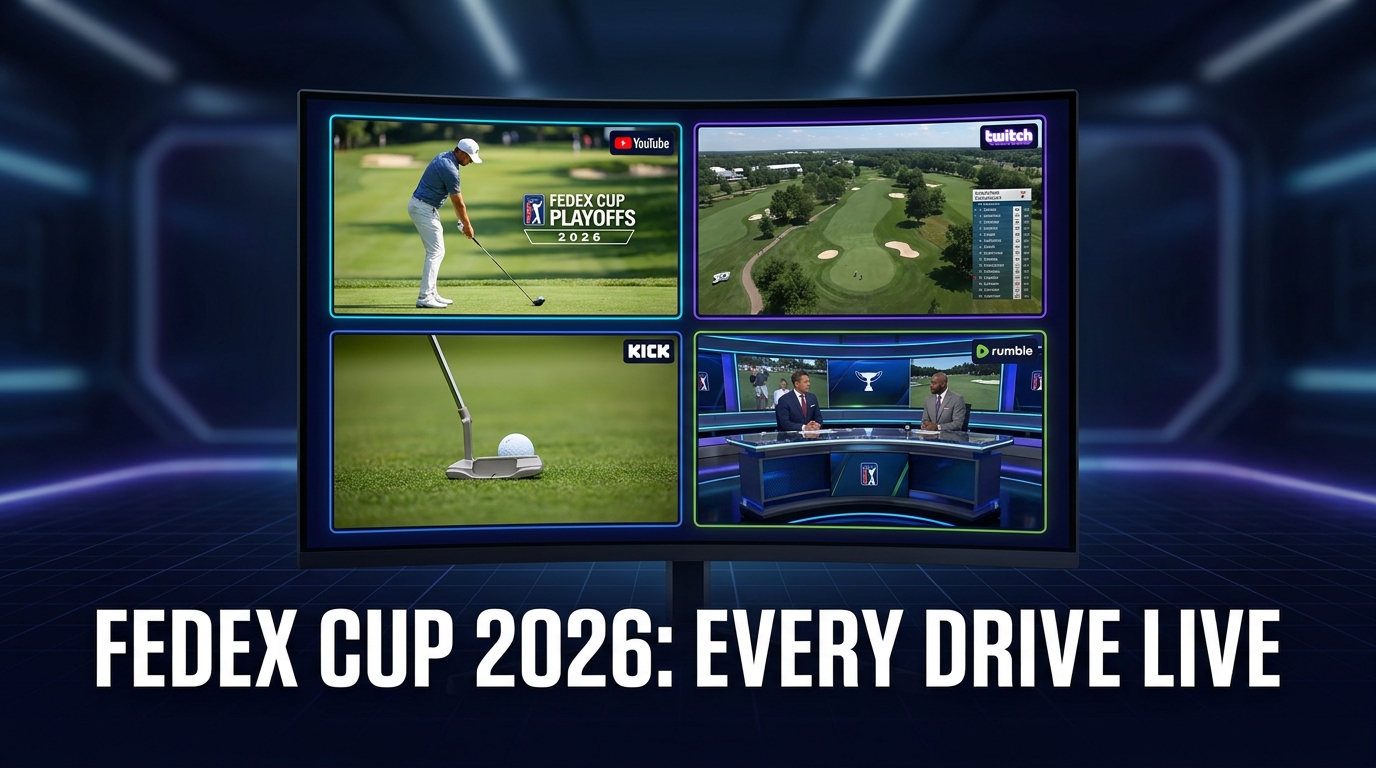
Okay, so the FedEx Cup Playoffs 2026 are already looming in my mind. Seriously, I'm already thinking about it. Call me crazy, but when the biggest names in golf start duking it out for that ultimate prize, you just have to be ready. And by "ready," I don't mean just clearing your schedule and stocking up on snacks. No, I'm talking about getting your streaming setup dialed in, because if you're not planning a FedEx Cup Playoffs 2026 multi-stream, you're literally missing out on half the action. It's like trying to watch a three-ring circus but only looking at one ring at a time. Impossible, right?
I mean, golf. Think about it. It’s a huge course, multiple groups playing simultaneously, different holes heating up at the same moment. You’ve got the leaders making a charge on the back nine, a dark horse sinking an improbable eagle putt three holes behind them, and then your personal favorite golfer — maybe a Spieth or a Scheffler — battling to make the cut. How are you supposed to keep up with all of that on a single screen? You can't. The standard broadcast flips between players, sure, but you're always just reacting to what they show you. You're not choosing what you want to see. And for a high-stakes event like the FedEx Cup Playoffs, that's just not good enough for me. My blood pressure can't take the suspense of waiting for the broadcast to finally show me what happened on the 17th green when I know someone just hit a birdie.
The Golf Dilemma: Why One Screen Just Doesn't Cut It
You know that feeling when you're watching a regular PGA Tour event? You're locked in, someone's about to hit a crucial shot, and then—BAM—they cut away to a commercial or, worse, to a player on the other side of the course who's just lining up a routine putt. It drives me absolutely bonkers. I've thrown my remote more times than I care to admit. The production teams do their best, I get it, but they're trying to tell a single, cohesive story across 18 holes and dozens of players. That's a Herculean task, and it inevitably means sacrificing real-time action from other critical points on the course.
Especially during the playoffs, when every single stroke has massive implications for the standings and millions of dollars, you just can't afford to be in the dark. Imagine the final round of the Tour Championship. Rory McIlroy is tied for the lead on 16, but then you hear the commentators suddenly get excited about Viktor Hovland on 18, who just holed out for a bogey. A bogey! Why are we seeing that when Rory is about to hit his approach shot into a par-5? It's frustrating, man. It's a constant battle between what the producers think you want to see and what you, the dedicated fan, actually need to see. And if you're trying to track specific players for your fantasy golf league? Forget about it. You're constantly refreshing leaderboards on your phone while staring blankly at a screen showing someone chipping out of a bunker, waiting for the update. It’s a fragmented experience.
I've been on this journey for years, trying to perfect how I watch PGA Tour live streams. The first time I tried to string together multiple sources was during the 2023 Ryder Cup. I had the main broadcast on my TV, then I was trying to pull up individual featured group streams on my laptop and my iPad. It was a mess. The audio was all over the place, the sync was off, and I kept having to switch between tabs and apps. It was a revelation in what was possible but a nightmare in execution. I knew there had to be a better way, a more elegant solution to get that true golf multi-view experience.
More Than Just Missing Shots: The Narrative Gap
It's not just about seeing every shot. It's about understanding the flow of the tournament. The drama. The momentum shifts. When you only see carefully curated snippets, you miss the subtle shifts, the way a player's body language changes after a missed putt, or the incredible recovery shot that doesn't make the main broadcast because it wasn't a "leaderboard moment" yet. You're missing the connective tissue.
Last year, during a crucial Sunday at the BMW Championship, I remember hearing about a player making a huge move early in the day, but I didn't see any of it until hours later, in a highlight reel. By then, the tension was gone. I wanted to witness that surge in real-time. I wanted to see the pressure build, the difficult putts drop, the fist pumps. That's the stuff that makes golf exciting. That's what a good multi-stream golf tournament setup provides. It fills in those narrative gaps, letting you construct your own preferred story of the day.
Why You *Need* a Multi-Stream Setup for the FedEx Cup Playoffs 2026
So, let's cut to the chase. You absolutely, unequivocally need a multi-stream setup for the FedEx Cup Playoffs 2026. This isn't just a suggestion; it's a mandate for any serious golf fan. These are the stakes-are-higher-than-ever tournaments: the FedEx St. Jude Championship, the BMW Championship, and then the ultimate Tour Championship at East Lake. Every single one of them is packed with parallel storylines begging for your attention.
Imagine this:
The Leaders' Group: Always essential. You need to see every drive, every chip, every putt from the top contenders. That's your main screen, your anchor.
The Bubble Boys: The players fighting to stay in the top 70 for the St. Jude, or top 50 for the BMW, or top 30 for East Lake. Their individual battles are often more intense than the leaders' serene procession.
The Dark Horse: Someone making an unexpected run, suddenly climbing the leaderboard from way back. You want to jump to them instantly when the momentum shifts.
The Featured Holes: Often, broadcasters will have a dedicated stream for a particular par-3 or a tricky finishing hole. These are gold for seeing how everyone tackles a specific challenge.
Without a multi-stream setup, you're constantly playing catch-up. You're letting someone else dictate your viewing experience. And frankly, with all the incredible technology we have today, that's just unnecessary. You're giving up control, and for me, control is paramount when it comes to consuming live sports. I want to be the director of my own broadcast.
This is where a dedicated platform for multi-streaming really shines. It's not just about opening 17 tabs in your browser (though you could do that, I guess, if you enjoy chaos). It's about having a centralized hub where you can manage all your feeds, control audio, and switch focus seamlessly. That's the game-changer. That's how you actually master the FedEx Cup Playoffs 2026 multi-stream.
Sources for PGA Tour Live Streams
Okay, so where do you even get all these streams? This is the crucial first step. For the PGA Tour, especially during the Playoffs, you're usually looking at a few key players:
PGA Tour Live (via ESPN+): This is your bread and butter. ESPN+ usually offers multiple feeds: Featured Groups, Featured Holes (like the par-3s or finishing holes), and sometimes even a "Marquee Group" stream. This is non-negotiable for serious fans. You absolutely need access to this.
Main Broadcast Channels: Depending on the tournament, this could be NBC, CBS, or Golf Channel. Often, their live streams are available through their respective apps or websites (e.g., Peacock for NBC coverage, Paramount+ for CBS, or the Golf Channel app with a cable login). These are the traditional broadcast feeds, which you'll probably want as your primary view.
International Broadcasters: Sometimes, if you're feeling adventurous or looking for a different commentary style, you might find international streams on YouTube or other platforms. Just be mindful of geo-restrictions there.
Unofficial Streams (with caution): Look, I'm not going to tell you not to search for alternative streams, but proceed with extreme caution. They can be unreliable, low quality, and sometimes carry risks. I always recommend sticking to legitimate sources when possible.
The beauty of a multi-stream setup is that you can pull from all these different sources. One screen could be ESPN+ Featured Group A, another ESPN+ Featured Group B, a third could be the main NBC broadcast, and a fourth might be the PGA Tour's own leaderboard stream if they offer one. The possibilities are endless, and you can tailor it precisely to your needs.
Setting Up Your Ultimate FedEx Cup Playoffs 2026 Multi-Stream Experience
Alright, let's get down to brass tacks. You're convinced. You want to see everything. How do you actually do it? This is where ViewGrid.tv comes in, and frankly, it's been my go-to for years for this exact purpose. It takes the chaos out of managing multiple browser tabs and gives you a clean, synchronized, and customizable layout.
Here’s a step-by-step guide to getting your FedEx Cup Playoffs 2026 multi-stream setup ready to roll:
- Subscribe to Your Core Services:
- * ESPN+: As mentioned, this is essential for PGA Tour Live. Make sure your subscription is active well before the playoffs start in August 2026.
- * Cable/Streaming TV Provider: Ensure you have access to NBC, CBS, and Golf Channel, either through a traditional cable package or a live TV streaming service like YouTube TV, Hulu + Live TV, or Sling TV. These will give you access to the main broadcast feeds.
- * Individual Platform Apps (Optional but Recommended): Sometimes, getting the direct stream from the source (e.g., Peacock app, Paramount+ app) can offer slightly better quality or unique features.
- Identify Your Target Streams:
- * Before the tournament starts, or as soon as the day's coverage begins, go to each platform (ESPN+, Peacock, etc.) and find the specific streams you want to watch. This might be "Featured Group 1," "Featured Group 2," "Main Broadcast," and "Holes 16-18 Cam."
- * Copy the URL for each of these live streams. This is crucial.
- Head Over to ViewGrid.tv:
- * Open your browser and navigate to ViewGrid multi-stream viewer. This is where the magic happens.
- Add Your Streams:
- * On the ViewGrid interface, you'll see options to add streams. Paste each URL you copied in Step 2 into a new player slot.
- * As you add them, the videos will start populating your screen. You can usually add up to four or even more streams depending on your device and internet speed. I usually aim for a 3x3 grid if I'm really going all out, but a 2x2 is perfect for most people.
- Arrange Your Layout:
- * ViewGrid lets you drag and drop your video players to create your ideal layout. Want the main broadcast front and center? Drag it there. Want the featured groups surrounding it? Arrange them as you see fit.
- This is where the true golf multi-view comes to life. You can prioritize what's important to you*.
- Manage Your Audio:
- * This is probably the most critical part of multi-streaming live sports. You can't have five streams blasting audio at once.
- * ViewGrid typically allows you to select which stream's audio you want to listen to. I usually pick the main broadcast for overall commentary, but if something exciting is happening on a featured group, I'll quickly click that stream to bring its audio forward.
- * Some streams, especially PGA Tour Live on ESPN+, also offer "course sound" only options, which can be amazing to blend with another commentary feed.
- Monitor Performance:
- * Keep an eye on your computer's performance. Running multiple high-quality streams takes bandwidth and processing power. If things start to get choppy, you might need to reduce the number of streams or lower the video quality slightly on some of them.
- * A strong, stable internet connection is an absolute must for this setup. I learned that the hard way during the 2024 Masters when my Wi-Fi decided to act up. It was brutal.
Choosing Your Layout for Optimal Golf Viewing
The layout you pick on ViewGrid is super personal, but for golf, I have some go-to configurations.
2x2 Grid: This is my standard for most tournaments. I'll put the main broadcast (e.g., NBC's stream) in the top-left, a crucial Featured Group (usually the leaders) in the top-right. Then, in the bottom-left, I'll have a second Featured Group or maybe the "Marquee Group" from ESPN+. The bottom-right slot often gets the "Featured Holes" stream. This way, I always have the big picture, the main contenders, a secondary storyline, and a specific area of the course covered.
1+3 Layout: If one group is just absolutely lighting it up, or if it's the final pairing of the Tour Championship, I might dedicate the largest slot to that specific group or the main broadcast, and then have three smaller feeds surrounding it – maybe a leaderboard, a specific hole, and another key group.
* The "Fantasy Focus" Layout: For those of you (like me) deep into fantasy golf, you might want to dedicate streams to your key players. If you have Scottie Scheffler, Jon Rahm, and Collin Morikawa all playing in different groups, you'd aim to get those three groups up, plus maybe the main broadcast. This really helps you watch PGA Tour live streams with a purpose beyond just general entertainment.
Remember, the beauty is in the flexibility. You can change your layout on the fly as the tournament progresses and different storylines emerge. That's the power you get with a tool like the ViewGrid multi-stream viewer.
Advanced Tips & Tricks for Multi-Stream Golf Tournament Watching
You've got the basics down, now let's elevate your multi-stream golf tournament game. These are the little things that make a huge difference in the overall experience.
Audio Management: The Unsung Hero
I touched on this, but it deserves its own moment. Bad audio management ruins everything.
Primary Commentary: As mentioned, usually your main broadcast. Keep this one on.
Secondary Audio Muting: Mute all other video players initially. Seriously, don't even try to listen to more than one at a time unless you're a sorcerer.
Quick Swap: Most good multi-stream platforms, including ViewGrid, let you click a video to bring its audio to the forefront. Use this constantly. If a commentator on your main feed says, "Oh, it looks like Spieth is in some trouble on 14," quickly click on your Spieth stream, listen for a few seconds, then swap back. It’s like being your own producer.
Course Sounds: Some PGA Tour Live feeds offer "natural sound" or "course sound." If you're using a two-monitor setup, or even just speakers, try playing one main commentary track and have a secondary stream with just course sounds playing softly. It adds incredible ambiance and makes you feel like you're right there.
Syncing Streams (The Holy Grail)
This is the trickiest part of multi-streaming any live event, especially if your sources aren't all coming from the exact same server.
Expect Slight Delays: Different streaming platforms (ESPN+, network apps, etc.) will naturally have slight delays. A direct cable TV feed will almost always be ahead of a streaming app.
Prioritize Sync for Critical Feeds: If you're watching two competing players head-to-head on different streams, try to get those as close as possible. Sometimes, pausing and unpausing one stream for a few seconds can help align them.
Embrace Imperfection: Don't obsess over perfect sync across all* streams. It's often an impossible chase. Focus on getting your most critical two or three streams as close as you can, and accept that others might be a few seconds off. The benefit of seeing more action outweighs the minor sync issues.
Using Multiple Monitors (If You Can)
This is my personal setup for major events.
Monitor 1: The Multi-View: This is where ViewGrid.tv lives, showing my 2x2 or 1+3 grid of different golf feeds.
Monitor 2: Data & Leaderboard: This screen is dedicated to the PGA Tour's live leaderboard, maybe a social media feed (Twitter is great for real-time reactions and updates), or a fantasy golf app. This way, you're not constantly pausing or minimizing your stream layout.
* Monitor 3 (Optional): Main Broadcast on TV: If you have a separate TV in the same room, sometimes I'll run the main network broadcast there with the audio, and then use my multi-view setup on my monitors for the featured groups. This provides a truly immersive experience.
I've been refining this setup for years, ever since I started getting serious about following esports, then sports like F1, and eventually golf. The principles are the same: maximum information, minimum friction. It's about being proactive with your viewing, not just reactive.
My Personal Playoff Streaming Routine: A Glimpse Behind the Screens
Okay, so you want to know how I tackle something like the FedEx Cup Playoffs? It’s a whole ritual, honestly. Come August 2026, when the St. Jude Championship kicks off, my house transforms. My wife usually just rolls her eyes and knows not to expect much from me for the next three weeks.
First things first, coffee. Lots of it. I’m up early, usually an hour before the first tee times, just to check pairings and the day's weather. Then I fire up my main PC. I open ViewGrid.tv immediately. My go-to is usually a 2x2 grid for the early rounds. I'll usually have the main Golf Channel or early NBC/CBS coverage on one square, then two ESPN+ featured groups, and then a dedicated "PGA Tour Live" stream that focuses on a particular hole—like a par-3 for dramatic aces or a tough finishing hole.
I always start with the main broadcast audio, but I'm constantly, constantly switching. If I hear the commentators mention a player I'm tracking, or if I see movement on the leaderboard that doesn't correspond to what's on my main screen, I'm clicking that specific stream's window in ViewGrid to pull up its audio. It's like a mental workout, keeping track of who's where. My finger hovers over the mouse, ready to switch audio channels at a moment's notice.
I remember during the 2024 Tour Championship, Xander Schauffele was making an improbable charge. The main broadcast was still focused on the leaders, who were playing pretty conservatively. But I had Schauffele's group up on one of my secondary screens via ESPN+, and I saw him sink two back-to-back monster putts. I switched the audio, heard the roar, and felt that pure, unadulterated excitement live. That's the power of the FedEx Cup Playoffs 2026 multi-stream experience right there. You're not waiting for a highlight reel; you're living the highlight reel.
And for those moments when the main broadcast does show something I'm already watching on a smaller screen? That's when I get a little smug. "Called it," I might mutter to my empty living room. It’s a small victory, but it adds to the fun.
I've even used my multi-stream setup to follow specific narratives. For example, last year, I was really invested in watching how the rookies performed. So I dedicated a couple of streams to specific young players, keeping tabs on their progress throughout the day. It allowed me to develop a deeper connection to their journey, rather than just seeing a name pop up on a leaderboard. It's a much more personal way to enjoy the sport.
Sometimes, for the more mundane parts of a round, I'll even pull up something completely different on one of my screens. Maybe a news channel from Watch multiple news channels if something major is happening in the world, or even just some lofi music on YouTube. But once the back nine starts, especially on a Sunday, it's 100% golf, 100% focused. No distractions.
My hot take? Anyone who says golf isn't exciting just hasn't watched it properly. They're missing the nuances, the incredible skill, the mental fortitude. And if you're only watching a single, curated feed, you're missing a lot of that. The real excitement, the real drama, is often happening just out of frame.
Beyond Golf: The Power of Multi-Streaming for Everything Else
While we're talking about golf, don't think for a second that this multi-streaming magic is exclusive to the PGA Tour. Oh no. This is a universal truth for any fan of live content. Think about it.
Esports: I've spent countless hours watching Watch multiple esports streams. You've got the main game stream, then individual player POVs, maybe a casters-only stream, or even a community watch party on Twitch or YouTube. Trying to follow a major League of Legends tournament or a CS:GO Major on a single screen is a fool's errand. You need to see the main action, the mini-map, and the player reactions all at once. ViewGrid lets me do that perfectly, pulling streams from Watch multiple Twitch streams and Watch multiple YouTube streams simultaneously.
Other Sports: Imagine March Madness, with four games going down to the wire at the same time. Or a Sunday in the NFL, with RedZone on one screen and your favorite team's game on another. Formula 1 with the main broadcast, driver onboard cams, and the data telemetry feed? Yes, please! For any major sports fan, hitting up Watch multiple sports streams and combining them in ViewGrid is a total game-changer.
* News & Events: Sometimes, during a major breaking news event, you want to see how different networks are covering it. Pull up CNN, Fox News, BBC, and Al Jazeera side-by-side to get a truly global perspective. Or even during a big tech keynote or product launch, having multiple angles or commentary channels open.
The ability to customize your viewing experience is truly liberating. It’s about taking control, being your own director, and consuming content exactly how you want to. No more passive viewing. You're actively engaging with the content, piecing together the narrative, and getting the full, unadulterated experience. Whether it's the intense drama of the FedEx Cup Playoffs 2026 or a major esports final, the principle remains the same: more screens, more insight, more enjoyment.
ViewGrid.tv isn't just a tool; it's an enablement platform for the modern fan. It understands that you want to see it all, and it provides the simplest, most effective way to do just that. So, when the FedEx Cup Playoffs roll around in 2026, don't just watch golf. Master it. See every drive, every chip, every putt. Don't miss a single stroke of the drama. Get ready to multi-stream.
Ready to try multi-stream viewing?
Watch YouTube, Twitch, Kick & more — all on one screen.
Open ViewGridRelated Articles
Watch Multiple NFL Games: ViewGrid's Game Day Pro Setup
Tired of missing NFL action? Learn how to watch multiple NFL games simultaneously with ViewGrid's comprehensive multi stream setup guide. Get the ultimate split screen streaming experience for game day!
how toFantasy Football Prep: Watch Multiple NFL Streams
Ready to dominate your fantasy football league? Learn how to watch NFL multiple games live, track players, spot waiver wire gems, and optimize your draft prep with multi-streaming setups.
how toShare Your Perfect View: Save & Export Multi-Stream Layouts
Tired of setting up your multi-stream view every time? Learn how to save multi stream layout configurations on ViewGrid.tv, export viewgrid layout, and share your custom stream layouts with friends!
how toMaster Streamer Collabs: Multi-Stream Every POV
Tired of missing out on streamer collab POVs? Learn how to multi-stream your favorite creators from Twitch, YouTube, and Kick to get the full story. Your ultimate streamer event multi view guide is here!