Share Your Perfect View: Save & Export Multi-Stream Layouts
Tired of setting up your multi-stream view every time? Learn how to save multi stream layout configurations on ViewGrid.tv, export viewgrid layout, and share your custom stream layouts with friends!
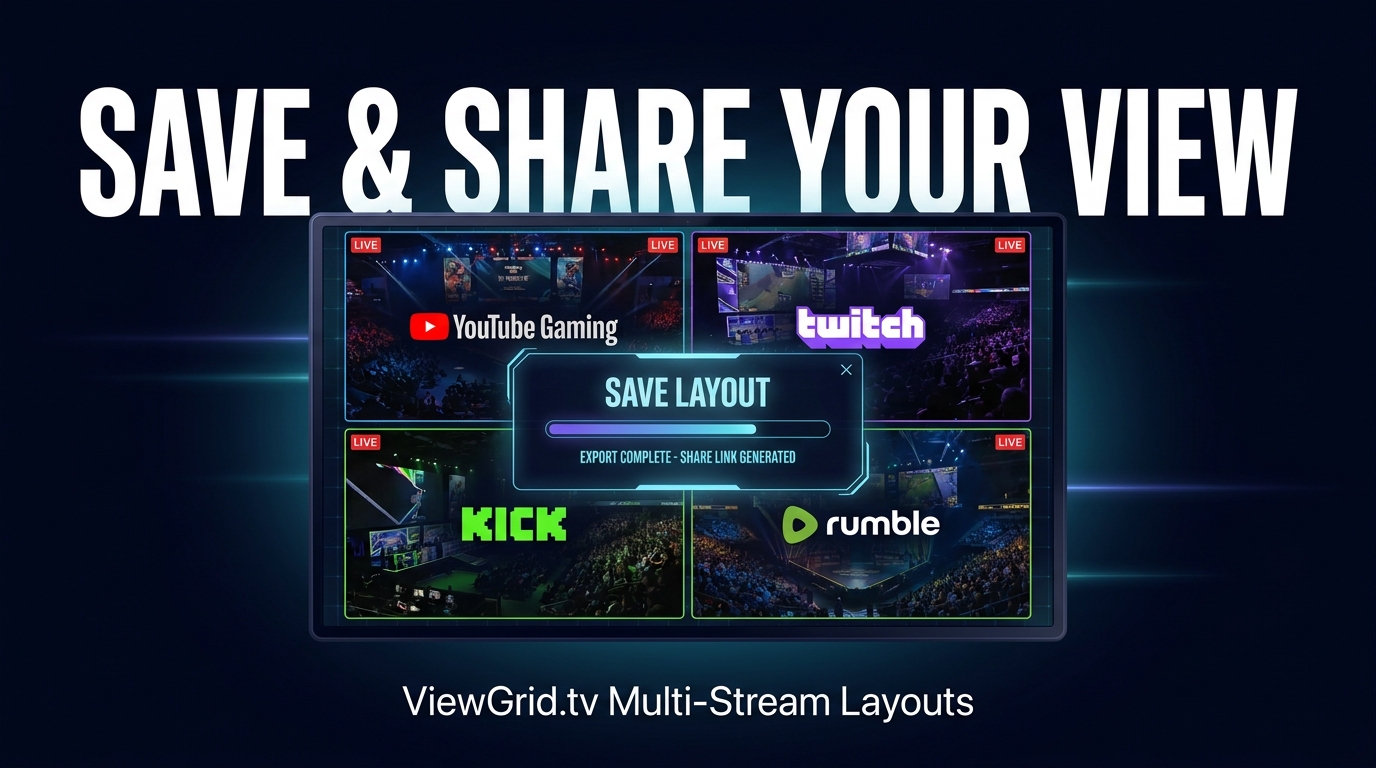
You know that feeling, right? You're trying to keep up with, like, three different Twitch streams, maybe a YouTube VOD someone told you to check out, and then a Kick stream pops off with some drama. Your brain just can't keep up. You've got tabs open everywhere, trying to resize windows, dragging them around, and inevitably, you miss something crucial. A clutch play in Valorant Champions, a streamer's reaction to a wild clip, or that one piece of breaking news you actually needed to hear. It's a nightmare.
For years, I just dealt with it. I'd frantically open and close tabs, constantly tweaking my browser windows like some kind of digital contortionist. But then, tools like ViewGrid came along, and suddenly, the chaos started to make sense. We got the ability to watch multiple streams side-by-side, totally customized to our preferences. And the real game-changer? The absolute must-have feature that I honestly can't live without anymore is the ability to save multi stream layout configurations. It's not just about watching; it's about perfecting your viewing experience, locking it in, and coming back to it whenever you want.
The Struggle Is Real: Why We Need Custom Stream Layouts
Think about it. Every time you want to watch something specific – maybe you're following a specific Counter-Strike 2 tournament, or you're trying to track political news from multiple sources, or perhaps you're just deep-diving into a new game and want to see how different streamers approach it – you have to go through the whole setup process again. It’s tedious. You open up your browser, search for the streamers, copy their URLs, paste them into your multi-stream viewer, then spend five minutes dragging and resizing everything to get it just right. And then, poof, the next day, you do it all again. My patience for that kind of repetitive work ran out a long time ago.
This is especially true for events that are, let's say, a little more involved. I usually go all-in for the big esports tournaments. Last year's VCT Masters Tokyo was a prime example. I wanted the main broadcast, obviously, but then I also needed Tarik's co-stream, maybe a couple of pro player POVs if I could snag them, and then a dedicated stream just for the analyst desk to catch all the post-game breakdowns. That's easily four or five streams. Trying to manage that on the fly is a recipe for disaster. The same goes for things like Summer Game Fest or TwitchCon keynotes – you're trying to juggle the main stage, a creator interview channel, and maybe a few individual streamer reactions. It's a lot. And for me, getting my custom stream layouts exactly right is key to actually enjoying the event, not just stressing about managing windows.
Sure, Twitch has its Squad Stream feature, which is a step in the right direction. It's nice, it's integrated, and it's easy for streamers to set up. But it's also incredibly restrictive. You're limited to four streamers, they all have to be on Twitch, and the layout is predetermined. What if I want a YouTube stream in there? Or a Kick channel? What if I want one stream huge and the others tiny in the corner? Squad Stream doesn't give me that flexibility. That's why I, and I'd bet many of you, turn to dedicated multi-stream viewers. We need that granular control, that ability to mix and match from different platforms, and to create something that truly fits our viewing style. You need a tool like the ViewGrid multi-stream viewer that just gets out of your way and lets you watch.
Beyond Just Watching: The Power to Save Multi Stream Layout
This is where the magic really happens for me. Once you've spent the time crafting your perfect view – maybe you've got Shroud's main stream front and center, with a small xQc reacting in the bottom left, and a third stream of calming lofi beats in the top right for background noise (don't judge, it's my vibe) – you don't want to lose that. You shouldn't have to rebuild it every time you open your browser. The power to save multi stream layout isn't just a convenience; it's a fundamental shift in how I approach my daily streaming consumption.
My workflow changed completely once I started saving layouts. For instance, every weekday morning, I have a specific layout for my news consumption. It's usually three news channels – one national, one local, and one international – all playing simultaneously. I can glance at all three, see if anything major is happening, and decide where to focus. Before saving, I'd dread setting this up. Now, it's one click. Boom. Instant news desk. Then, in the evenings, if I'm gaming with friends, I have another layout saved for our regular game night. It usually includes a couple of our POV streams, maybe a shared map or guide on the side, and then a music stream for our lobby. It just streamlines everything, making the whole experience so much smoother and less about setup, more about actually watching and engaging.
The first time I really understood the power of this was during last year's The International Dota 2 tournament. I had my main stream, a couple of caster POVs, and a dedicated stream just for the live stat tracking. It was glorious. I spent about 15 minutes perfecting that layout on day one, and then for the rest of the two-week tournament, I just loaded it up. No fuss, no wasted time. That's the aha! moment. That's when you realize you've transcended basic multi-streaming and unlocked a new level of viewing mastery. Being able to just hit a button and have my entire, carefully curated viewing environment pop up? That's what I call progress.
Your Daily Driver Layouts: From Esport Spectator to News Junkie
Let's get specific, because that's what we do here. What kinds of layouts am I talking about?
For esports, it's a no-brainer. If you're into Valorant, for example, and you're watching a major VCT event, you're not just watching the main broadcast. You're probably also trying to catch Tarik's co-stream for his unique insights and hype reactions. Maybe you're a hardcore fan of a specific pro player like s1mple and want their POV if it's available. My typical VCT layout would have the main English broadcast large and central, Tarik's stream smaller in the top-right, and perhaps the official stats page or a specific player's POV in the bottom-left. It's all about maximizing information and entertainment. And trust me, when the clutch rounds hit, you want all those angles ready. That's where watching multiple esports streams truly shines.
Or let's talk about news. Election night, for instance. A pivotal moment, right? You absolutely need to compare narratives. My go-to election layout involves CNN, Fox News, and BBC News, all running simultaneously. I'll often have a fourth, smaller window open for a local news channel or maybe even a live Twitter feed if I'm feeling spicy. This way, I'm not just getting one perspective; I'm getting a broad overview, which is essential for understanding complex events. You really start to notice how different outlets frame the same story. This kind of nuanced viewing is invaluable, and it's incredibly easy to achieve when you can just load your pre-saved "Election Night Command Center" layout. For breaking stories or ongoing events, having this kind of setup at your fingertips for watching multiple news channels is incredibly powerful.
And for sports? Oh man, for sports, it's a whole different beast. Imagine NFL Sundays. I'm usually stuck between my favorite team's game, a fantasy football tracker, and then maybe a "RedZone" type stream that just jumps to the exciting plays from other games. A good sports layout for me would have my team's game in the biggest window, the fantasy tracker tucked away but visible, and then another important matchup (or a highlights reel) in a third slot. It's like having your own personal control room for game day. It's really the only way to go for watching multiple sports streams without losing your mind.
Sharing is Caring: Why You'd Want to Share Multi Stream Setup
Okay, so you've perfected your layout. It's a work of art. It's functional, beautiful, and makes your multi-streaming experience divine. Now what? You keep it to yourself? Absolutely not! The whole point of being part of a community, especially in streaming, is to share your discoveries, your tips, your tricks. Being able to share multi stream setup configurations is, in my humble opinion, almost as important as being able to save them.
Think about it: Your friend is trying to watch the same massive esports event, and they're fumbling with tabs, just like you used to. You can just send them a link! "Hey, here's my optimal setup for IEM Katowice. Main stream, B stream, and s1mple's POV. Just click and go." It's a huge time-saver for them and a testament to your superior organizational skills. Or maybe you're part of a fan community for a specific streamer, say Valkyrae. When she's doing a collaborative stream with Ludwig, you can create a layout that has both their streams, plus maybe a chat client, and then share it with everyone in her Discord server. It elevates the entire community viewing experience.
Honestly, if you're not sharing your ideal setup, you're missing out on a huge part of the community interaction. It's almost selfish! You've put in the effort, you've optimized, you've found the perfect balance – why wouldn't you want to extend that benefit to your fellow viewers? It fosters discussion, it helps newcomers, and it just makes everyone's life easier. We're all in this together, trying to soak up as much streaming goodness as possible, and sharing our perfected views is just another way to connect.
The "Look What I Made!" Factor
There's a genuine sense of pride that comes with crafting the perfect streaming setup. It's like building your ideal desk setup, but virtually. You've thought about stream priorities, optimal viewing angles (even in a digital sense!), and how to best utilize your screen real estate. When you finally get that grid of streams just right, with the main action prominent and supporting streams neatly arranged, there's a satisfaction to it.
Then, when you share it, it sparks conversation. "Oh, you put Shroud there? Interesting choice, I usually have him on the left." Or, "Why do you have chat in such a small window? Don't you want to engage?" These discussions aren't just idle chatter; they're opportunities to refine your own setup, to learn from others' preferences, and to discover new ways of organizing your streams. Maybe someone has a brilliant idea for integrating a specific platform, like watching multiple Twitch streams alongside a dedicated Discord voice chat window, that you hadn't considered. It's a collaborative process of optimization, all enabled by the simple act of sharing.
The How-To: Export ViewGrid Layout Like a Pro
Alright, enough gushing about why this feature is amazing. Let's get into the practical side of how you actually do it. On ViewGrid.tv, the process to export viewgrid layout and save it for yourself is remarkably straightforward. This isn't some super technical deep dive, it's designed to be user-friendly.
Here’s a quick rundown of how I usually handle saving and sharing my layouts:
- Build Your Masterpiece: First things first, get your streams loaded. Go to ViewGrid.tv (or load a pre-existing layout if you're tweaking it). Add all the streams you want – Twitch, YouTube, Kick, whatever. Resize them, drag them into position, get your aspect ratios right. Spend a few minutes making it perfect. This is your custom stream layout.
- Locate the "Save" or "Share" Options: Once everything is in place, look for the relevant buttons. On ViewGrid, there's usually a clear option to "Save Layout" or "Share Layout." It might be an icon, or a menu item.
- Name Your Layout: If you're saving it for yourself, give it a descriptive name. Something like "VCT Tokyo Main," "Election Night 2024," or "Daily News Digest." Trust me, you'll thank yourself later when you have dozens of saved layouts. I sometimes add dates if it's a time-sensitive setup.
- Click Save/Generate Link: Hit that button! What happens next is ViewGrid takes all the URLs you've entered, their positions, and their sizes, and bundles them into a unique URL.
- If you're saving* it for personal use, this URL is usually stored in your browser's local storage or, if you have an account, linked to your profile for easy access later.
- If you're sharing*, a unique, shareable link will be generated. This link basically contains all the instructions for ViewGrid to recreate your exact setup on anyone else's browser. It's a URL, a Uniform Resource Locator, and it's a powerful thing to share. (Learn more about what a URL is here).
- Bookmark It or Share It:
- * For Saving: If it's for personal use, I highly recommend bookmarking the generated URL in your browser. Create a "ViewGrid Layouts" folder in your bookmarks bar. That way, even if you clear your browser data or switch devices, you can still access your layouts by simply clicking the bookmark. Or, if you're logged into ViewGrid, it'll likely be accessible from your profile dashboard.
- * For Sharing: Copy that generated link! Paste it into Discord, send it in a DM to a friend, post it on Reddit, tweet it out – however you want to distribute your masterpiece. Anyone who clicks that link will instantly load your carefully constructed multi-stream view. It's really that simple.
That's it! No complex coding, no configuration files to edit. Just build, name, save, and share. It’s designed to be user-friendly because the goal is to make your multi-streaming life easier, not harder.
Fine-Tuning Your Custom Stream Layouts
Saving and sharing your layouts is incredible, but it's not always a one-and-done deal. The beauty of having custom stream layouts is that they can evolve. Sometimes I'll load up a saved layout and realize, "You know what? I actually need that chat window a little bigger," or "This stream is less important than I thought, I'll shrink it." It's an iterative process. You save a base, you tweak it, you save a new version, or you just overwrite the old one. That's part of the fun – always striving for that perfect view.
One thing that often bugs me, and I'm sure many of you can relate, is dealing with browser performance when running a bunch of streams. Even with a powerful multi-stream tool, you're still pushing a lot of video data through your browser. If you find things lagging, it might not be the layout itself, but your system struggling. My old PC, bless its heart, used to choke on more than three simultaneous 1080p streams. I'd sometimes have to make tough choices: do I really need that fifth stream, or can I live with four at better quality? Sometimes, just closing other unnecessary browser tabs helps a lot, or ensuring your browser is up-to-date. Or, you know, just getting a new CPU (which I eventually did, thank goodness).
Also, consider different screen sizes. A layout that looks gorgeous on your ultrawide monitor might be a cramped mess on your laptop screen. I often have two versions of my most important layouts: one for my main desktop setup and a more streamlined, compact one for when I'm on the go with my laptop. It's a small detail, but it makes a huge difference in usability. A layout isn't one-size-fits-all, and the ability to save multiple versions of your layouts means you don't have to compromise. You can have a layout specifically for watching multiple YouTube streams on your tablet, and another for watching multiple Kick streams on your big desktop monitor.
ViewGrid.tv: Your Home for Perfect Views
At the end of the day, all this talk about saving, sharing, and perfecting layouts comes back to one thing: making your multi-streaming experience as seamless and enjoyable as possible. And that's exactly what ViewGrid.tv is built for. We're not just a platform to open a bunch of streams; we're about giving you the control, the flexibility, and the tools to create your ideal viewing environment.
The ViewGrid multi-stream viewer is constantly evolving, always aiming to make the process of watching multiple streams from various platforms (Twitch, YouTube, Kick, and more) as intuitive as possible. The ability to save and share your configurations is a core part of that mission. We believe that once you create that perfect layout – your ultimate esports command center, your comprehensive news desk, or your chill gaming setup – you should be able to revisit it instantly, and share it with anyone who'd benefit.
So, go on. Dive in. Start experimenting with your own custom stream layouts. Create something amazing. Then, save it, bookmark it, and share it with your friends. Elevate your multi-streaming game, because life's too short for juggling browser tabs. Let ViewGrid.tv handle the heavy lifting, so you can focus on what truly matters: the content.
Ready to try multi-stream viewing?
Watch YouTube, Twitch, Kick & more — all on one screen.
Open ViewGridRelated Articles
How to Watch Multiple Streams: All Platforms, One Screen
Tired of missing out? This guide shows you how to watch multiple streams simultaneously, manage audio, and set up your ultimate multi-stream viewer dashboard for Twitch, YouTube, Kick, and beyond.
how toMaster Streamer Collabs: Multi-Stream Every POV
Tired of missing out on streamer collab POVs? Learn how to multi-stream your favorite creators from Twitch, YouTube, and Kick to get the full story. Your ultimate streamer event multi view guide is here!
how toWatch Multiple Live Streams: Design Your Custom Layout
Tired of tab-switching chaos? Discover how to watch multiple live streams at once by creating a custom multi-stream layout. Master personalized viewing with our step-by-step guide!
how toYour New Twitch Squad Stream Viewer: ViewGrid Unlocked
Tired of missing out on squad stream action? Learn how ViewGrid's multi-stream viewer transforms your Twitch experience, letting you control multiple feeds and chats like a pro. Get the ultimate view!