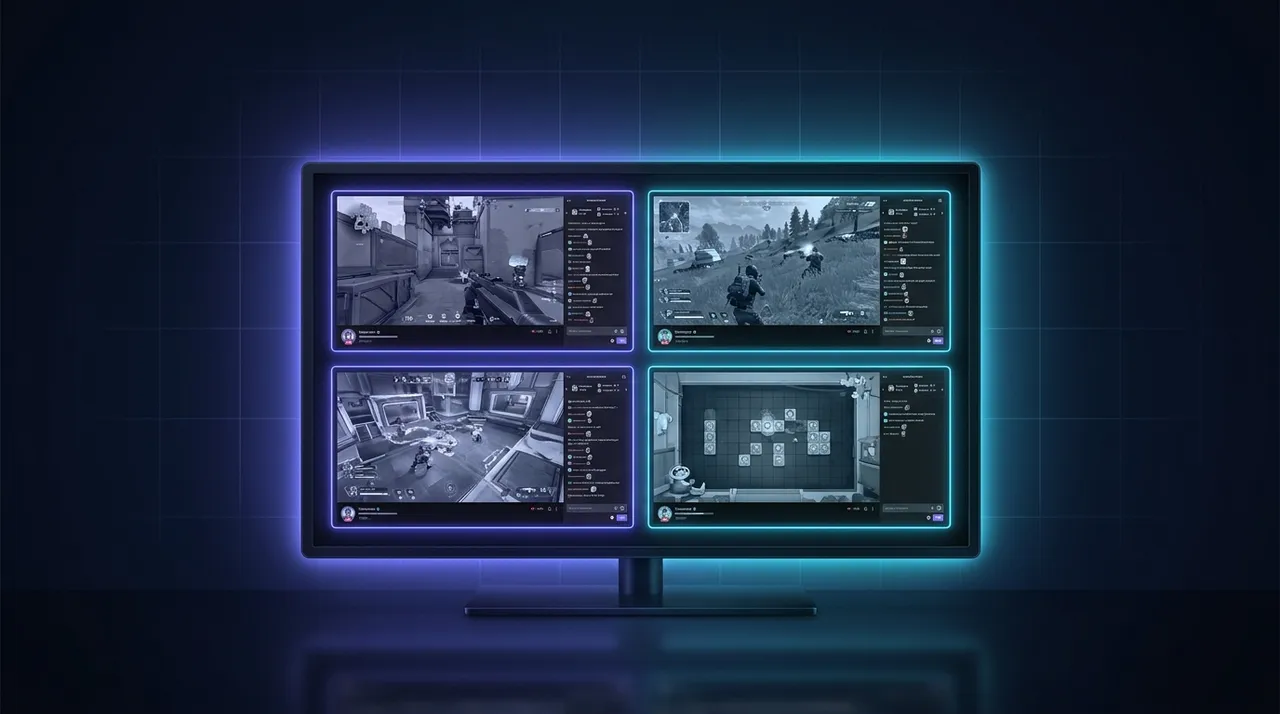
Twitch Squad Stream Viewer: Master Your Multi-View
Tired of Twitch's fixed Squad Stream layouts? Learn how to create your ultimate custom twitch layout, watch multiple Twitch streams, and mix in YouTube & Kick streams for the ultimate multi-view experience.
You know that feeling? You’re watching your favorite streamer, deep in the action, and then you hear them mention something another streamer in their party just did – a crazy clutch, a hilarious fail, a wild take on the current meta. And you think, dang it, I wish I was watching that too! Or maybe it’s an esports tournament, and you’re torn between the main broadcast and your favorite pro player’s POV. It’s a constant battle for us, the dedicated viewers, to keep up with everything happening across the streaming universe. We've all been there, juggling browser tabs, trying to catch every moment, often missing half the good stuff.
This is exactly why something like a twitch squad stream viewer is so appealing. The idea is simple: watch multiple streams at once, never miss a beat. Twitch even has its own official Squad Stream feature, which, on paper, sounds like a dream come true. But let's be real, while it's a step in the right direction, it often feels like it's holding you back more than helping you truly immerse yourself in the action. I’ve used it, I appreciate the effort, but it's just not enough for someone who genuinely wants to curate their viewing experience. We need more control, more flexibility, more streams.
The Promise (and Reality) of Twitch Squad Streams
So, what exactly is a Twitch Squad Stream? Essentially, it's an official Twitch feature that allows up to four streamers to broadcast together in a synchronized view. When a streamer initiates a Squad Stream, their viewers get a layout showing all participating channels, with one main channel taking up the bulk of the screen and the others appearing smaller alongside it. Viewers can switch the main channel focus with a click, bringing another perspective to the forefront while the others minimize. It's meant to foster collaboration, cross-promote channels, and give viewers a unified experience when a group of friends or teammates are playing together.
Sounds pretty good, right? And sometimes, it is. I remember watching some of the early Valorant pro matches where teams would use it for practice scrims, and it was cool to get a glimpse of multiple players' perspectives. For casual groups, like when Valkyrae, Sykkuno, Ludwig, and Fuslie would play Among Us or Phasmophobia together – those were prime Squad Stream moments. You could jump between their reactions, catch different angles of chaos, and generally feel more connected to the whole group dynamic. It’s great for discovery, too. If you're watching one streamer and they squad up, you instantly see who they're playing with, and you might find a new favorite creator.
But here’s the thing – and this is where my hot take comes in – the official Twitch Squad Stream viewer, for all its good intentions, feels incredibly restrictive. It’s a fixed layout, always four streams, always that specific arrangement. You can’t add a fifth stream. You can’t make one stream huge and just have a tiny audio-only box for another. The chat, while useful for the focused stream, gets weird if you want to follow everyone's chat at once. And the audio mixing? Forget about it. You're constantly clicking to switch focus just to hear someone better, or trying to manage multiple tabs open anyway because the integrated audio is just not cutting it. It's a nice feature for streamers to easily collaborate, but for the viewer who wants a truly custom, adaptable experience, it often falls short. It's a bit like being handed a pre-made sandwich when you really wanted to build your own at the deli.
What Twitch Squad Streams Get Right (and What They Don't)
Let's break it down quickly.
What they get right:
Discoverability: It's super easy to find new streamers when they're squaded up with someone you already watch. This is probably its biggest strength.
Integrated Chat: For the main stream you're focused on, the chat is right there, which is convenient.
* Simplicity for Streamers: It’s straightforward for streamers to initiate and manage.
What they don't:
Fixed Layouts: This is the big one. You're stuck with Twitch's chosen arrangement. No customization, no resizing, no unique placements.
Limited to Four Streams: What if you want to watch five, six, or even more streams at once? Especially during big events like esports finals.
Clunky Audio Management: Switching audio focus requires clicking the video, which can be disruptive. Trying to listen to multiple streams simultaneously is a nightmare.
Chat Limitation: You only see the chat for the "main" stream, making it hard to follow conversations across the entire squad.
* Performance Issues: Sometimes, even with only four streams, it can still feel a bit sluggish depending on your system and connection.
Why You Need More Than Just the Official Twitch Squad Stream Viewer
So, if the official twitch squad stream viewer isn't always cutting it, what's the alternative? Why do we, the dedicated stream junkies, need something more? The answer boils down to one word: control. We want to decide what we watch, how we watch it, and how we interact with it. We need a truly custom twitch layout, not one handed to us by the platform.
Think about it: have you ever tried to follow a major esports event, like the League of Legends World Championship or a big CS:GO Major, where there are multiple official streams running simultaneously? Maybe the main broadcast, an A-stream, a B-stream, and then individual player POVs? The official Squad Stream just doesn't cut it. You want to see the main action, but also keep an eye on your favorite pro's perspective, or maybe listen to the analyst desk while seeing two different games being played. Trying to manage all that with separate browser tabs is a pain. Your browser ends up looking like a warzone, your CPU fan is screaming, and you’re constantly muting and unmuting tabs, hoping you don't miss a crucial moment. I’ve definitely had my PC chugging along at 100% trying to watch five different Valorant Challengers streams at once – it's not a fun experience.
This isn't just for esports, either. What if two of your favorite variety streamers are playing different games but talking in Discord, and you want to catch both their streams and listen to their banter? Or maybe there's a huge community event, like a charity stream involving dozens of creators, and you want to keep tabs on a specific group within that event. The possibilities are endless, and the need for a truly flexible multi-stream solution becomes glaringly obvious. You need to be able to watch multiple Twitch streams on your terms.
Building Your Dream Multi-Stream Setup: The DIY Approach (and Why It's a Hassle)
Before dedicated multi-stream platforms came along, if you wanted to watch more than one stream, you basically had two options: suffer through multiple browser tabs, or embrace the pop-out player chaos. And let me tell you, I've done both, extensively. It's like trying to juggle chainsaws – impressive if you pull it off, but mostly just stressful and prone to disaster.
My earliest attempts at multi-streaming involved just opening Twitch in four different tabs. Simple, right? No. First off, your browser starts to eat RAM like it's going out of style. My old gaming rig, bless its heart, would start groaning under the weight of four simultaneous 1080p streams. Then came the audio. Oh, the audio! You'd have to constantly mute and unmute tabs, trying to figure out which stream was making noise, or frantically searching for the little speaker icon to silence one while focusing on another. It was a constant battle of whack-a-mole with sound, often leading to me missing key dialogue or a funny joke because I was too busy fumbling with browser controls. And heaven forbid you had a stream auto-playing an ad – instant cacophony.
Then I discovered the pop-out player. A small victory, I thought! You could pop out a stream into its own little window, which in theory allowed for more flexible arranging on your screen. So, I’d have the main Twitch page open with one stream, and then three other pop-out windows floating around. This was marginally better for screen real estate, but didn’t solve the audio nightmare. Plus, managing those separate windows, resizing them, snapping them into place – it was like a mini-game before I even started watching anything. My desktop would be a mess of overlapping stream windows, my mouse flying around trying to catch all the moving parts. It was a lot of setup, a lot of CPU usage, and still not the seamless experience I craved. You'd spend more time managing your streams than actually watching them. And God help you if one of those pop-out players decided to buffer or crash. The whole carefully constructed house of cards would come tumbling down. It was a hassle, pure and simple.
The Game-Changer: Dedicated Multi-Stream Platforms (Like ViewGrid.tv!)
This is where specialized multi-stream viewers truly shine – and this is where ViewGrid.tv comes in. After years of fumbling with browser tabs and pop-out players, finding a platform specifically designed to handle multiple streams felt like discovering fire. These dedicated tools aren't just opening multiple browser instances; they're optimized to deliver a smooth, integrated experience that the DIY approach just can't match. They’re built from the ground up to solve the exact problems I’ve just complained about, and many more. They go way beyond what a basic twitch squad stream viewer can offer, giving you true power.
What makes a dedicated multi-stream platform so much better? It’s all about features designed for you, the viewer:
Customizable Layouts: This is non-negotiable for me. I need to be able to drag, drop, resize, and arrange my streams exactly how I want them. Want one stream huge and the others tiny? Done. Want a symmetrical four-grid? Easy. Want five streams in an L-shape? You got it. This freedom to create a custom twitch layout is paramount.
Individual Audio Control: No more muting tabs! A good multi-stream viewer gives you volume sliders for each individual stream. You can crank up the main voice, lower the background noise from another stream, or even completely mute a less important one without affecting the others. This is a massive quality of life improvement.
Optimized Performance: These platforms are built with efficiency in mind. They often handle video decoding and rendering more efficiently than multiple browser tabs, leading to lower CPU and RAM usage. This means a smoother viewing experience, fewer stutters, and a happier computer.
Multi-Platform Support: Why limit yourself to just Twitch? The best multi-stream viewers let you mix and match streams from different platforms. You can have a Twitch stream, a YouTube Live stream, and a Kick stream all in the same custom layout. This is crucial for events where content might be spread across different sites. You can just throw in any URL and usually it just works.
ViewGrid.tv, for example, embodies these principles. It's designed to give you the power to create your ultimate viewing experience. It takes the pain out of multi-streaming and replaces it with pure, unadulterated stream-watching bliss. It's not just a fancy twitch squad stream viewer; it's a command center for all your live content. It lets you transcend the limitations of single platforms and truly build your own media hub. Head over to ViewGrid multi-stream viewer and see for yourself what I mean.
Crafting Your Perfect Custom Twitch Layout
Okay, so you're convinced. You want that sweet, sweet multi-stream freedom. How do you actually do it? It's surprisingly simple, especially with a platform like ViewGrid.tv. Here’s a quick run-through of how I usually set up my layouts, giving me that ideal custom twitch layout I always talk about:
- Start at ViewGrid.tv: No downloads, no complicated software installations. Just open your browser and navigate to the site.
- Add Your Streams: This is the fun part. You’ll find an input field, usually right at the top or clearly marked, where you can paste the URLs of the streams you want to watch. If it's a Twitch stream, just copy the channel URL (e.g.,
twitch.tv/shroud). If it's YouTube, copy the YouTube Live URL. Kick? Same deal. Just drop them in, one by one. I often pull up a list of streams I want to watch from a tournament schedule or a list of friends playing together. This allows me to quickly watch multiple Twitch streams, or even mix it up and watch multiple YouTube streams and watch multiple Kick streams all at once. - Drag, Drop, and Resize: As you add streams, they'll usually appear in a default layout. This is where the magic of customization begins. Click and drag individual stream windows to rearrange them on your canvas. See that little corner? Grab it and resize the window to make it bigger or smaller. My typical setup for an esports event, for instance, is to have the main broadcast large in the center-left, with two smaller player POVs stacked vertically on the right. If I'm watching a group of variety streamers, I might go for a symmetrical 2x2 grid. The flexibility is truly amazing.
- Master Your Audio: Look for the volume slider or mute button on each individual stream window. This is your best friend. I usually have one stream as my primary audio focus (the main commentary, or the voice of the streamer I'm most interested in), and then I'll dial down the others to a low hum, or mute them entirely if I only want to keep an eye on their screen. This way, no more audio clashes, no more sudden bursts of noise.
- Save Your Layouts (Optional, but Recommended!): Some multi-stream platforms, including ViewGrid.tv, let you save your custom layouts. This is a massive time-saver. If you often watch the same group of streamers or follow a specific esports league, you can save a layout, name it (e.g., "Valorant EMEA Playoff POVs" or "My Squad Stream Crew"), and then load it up with a single click next time. No need to re-add all the URLs and resize everything again. It makes jumping into your preferred multi-view incredibly efficient.
Beyond Twitch: Expanding Your Multi-Stream Horizons
While a robust twitch squad stream viewer is amazing, the true power of a dedicated multi-stream platform extends far beyond a single platform. The world of live content is vast and varied, and your viewing experience shouldn't be confined to one corner of it.
Think about esports. It's not just Twitch anymore. You've got official YouTube channels for major leagues, Kick streamers making waves, and even dedicated tournament websites. Being able to pull in streams from all these sources simultaneously is a game-changer. I've often found myself watching a main League of Legends stream on YouTube, while simultaneously keeping an eye on a popular co-streamer on Twitch, and maybe a specific player's POV on another platform if available. This is how you truly watch multiple esports streams without compromise. You can compare caster reactions, analyze different player strategies, and generally get a much richer understanding of the game unfolding. A great resource for keeping track of all the different streams for major events is usually the official esports wiki for the game, like the Liquipedia StarCraft II wiki which lists all the concurrent broadcasts.
But it’s not just gaming. Imagine a breaking news event. You want to see how CNN is covering it, but also what Fox News is saying, and perhaps a local news channel's perspective. A multi-stream setup lets you put them all side-by-side, giving you a comprehensive, real-time comparison of coverage. You can instantly see different headlines, different anchors, and compare the emphasis each network places on various aspects of the story. It's an incredibly powerful way to stay informed and get a balanced view of current events. Definitely check out watch multiple news channels if this sounds like you.
And sports! Oh man, sports. With so many games happening at once, especially on a busy Saturday or Sunday, multi-streaming is a lifesaver. You can have the main NFL game up, but also keep an eye on your fantasy football players in another game, or check the score of a soccer match across town. For European football fans, you can watch multiple matches from different leagues simultaneously. It's an absolute dream for dedicated sports fans who don't want to miss a single moment of action. Watch multiple sports streams and never pick just one game again. The flexibility is just incredible across all content types, not just Twitch gaming.
My Favorite Multi-Stream Scenarios (Personal Anecdotes & Hot Takes)
I've been using multi-stream setups for years now, and I genuinely believe it's transformed how I consume live content. It's not just about efficiency; it's about a richer, more engaging experience.
One of my absolute favorite uses is during major Valorant tournaments. I always start with the official main broadcast – you need that expert commentary and observer work. But then, I’ll usually add TenZ's POV, or sometimes s0m's, depending on who's playing and whose comms I want to listen to. If it’s a Grand Finals, I might even add a popular co-streamer like tarik or shroud on a third screen, dialed down, just to catch their raw reactions. This way, I get the polished production, the pro player insights, and the community hype, all at once. It’s like having three brains working together to process the game.
Another scenario I love? When two streamers I watch are playing the same new release – say, Elden Ring when it first came out, or Palworld more recently. I’d set up a multi-stream with both their perspectives. It's fascinating to see how two different personalities approach the same challenges, solve the same puzzles, or react to the same boss fight. One might be super analytical, the other totally chaotic. The contrast is often hilarious and adds so much depth to the viewing experience. This is where a truly custom twitch squad stream viewer experience shines, letting me pick my squad, not just the one Twitch offers.
And my hot take, which I've hinted at already: While the official Twitch Squad Stream is a neat feature for streamers to collaborate and for viewers to discover new channels, it's pretty terrible for actual focused viewing if you want any control. It's a "one-size-fits-all" solution in a world that demands bespoke experiences. Give me a custom multi-stream platform any day over the rigid, official option. I'd rather spend 30 seconds setting up my perfect layout than spend two hours fumbling with a sub-optimal one. The joy of catching an unexpected moment on a secondary screen, something the main broadcast missed, or a hilarious reaction from a muted streamer, is just unmatched. It’s those little details that make multi-streaming so incredibly rewarding.
The Future of Streaming: More Views, More Control
The way we watch live content is constantly evolving. From linear TV to on-demand, and now to interactive live streams, viewers are always seeking more engagement, more choice, and more control. Multi-streaming, particularly through platforms that offer deep customization, is a huge part of that evolution. I think we'll see even more sophisticated tools emerge, perhaps with AI-driven highlights that pop up from secondary streams, or even more interactive elements where communities can suggest and vote on multi-stream layouts for big events. Imagine a crowd-sourced custom twitch layout for the League of Legends World Championship, updated in real-time. That's the dream.
Ultimately, the future of streaming is about empowering the viewer. It's about giving us the tools to curate our own perfect media experience, whether that's for gaming, news, sports, or just hanging out with our favorite streamers. We're moving beyond passively consuming content and into actively shaping our viewing landscape. Tools like ViewGrid.tv are leading the charge, offering that crucial control and flexibility that streamers and viewers alike are craving. You shouldn't be limited to just one window into the world of live streaming; your setup should be as dynamic and diverse as the content itself. Explore the possibilities with the ViewGrid multi-stream viewer and redefine your streaming experience.
Ready to try multi-stream viewing?
Watch YouTube, Twitch, Kick & more — all on one screen.
Open ViewGridRelated Articles
Twitch Squad Stream Viewer: Best Multi-View Setup
Tired of missing out? Learn how to create your ultimate multi-view setup for Twitch and beyond. We break down Twitch's squad stream vs. custom layouts, offering step-by-step guides and personal tips for the best multi twitch viewer experience.
platform tipsMulti Twitch Viewer: Pro Tips for Custom Layouts
Tired of missing out? Discover how a multi Twitch viewer can transform your streaming experience. Get pro tips for custom layouts, audio management, and why split screen streaming is a game-changer.
platform tipsKick Multi Stream: Master Your Live Content View
Tired of tab chaos? Dive into the world of Kick multi stream with ViewGrid. Learn how to watch multiple Kick streams, mix platforms, and optimize your live viewing setup for ultimate control.
how toYour New Twitch Squad Stream Viewer: ViewGrid Unlocked
Tired of missing out on squad stream action? Learn how ViewGrid's multi-stream viewer transforms your Twitch experience, letting you control multiple feeds and chats like a pro. Get the ultimate view!